


Manage reservations
Managing bookings in the schedule
The administration schedule shows, for the chosen day, all the bookings of every sport open on that date. From this page, you create a booking for a member, edit it, collect its payment or delete it.
1. Open the day's schedule
In the left-hand menu, open Reservations → Manage reservations. Choose the day with the date picker at the top of the screen: the arrows go to the previous or next day, and the button Today returns to today's date.
Each sport linked to a season has its own block (for example "Tennis - 2025-2026"). Click its title to expand it. The badges in the title summarise the day: number of bookings, occupancy rate and, if any, the number of bookings still to be collected.
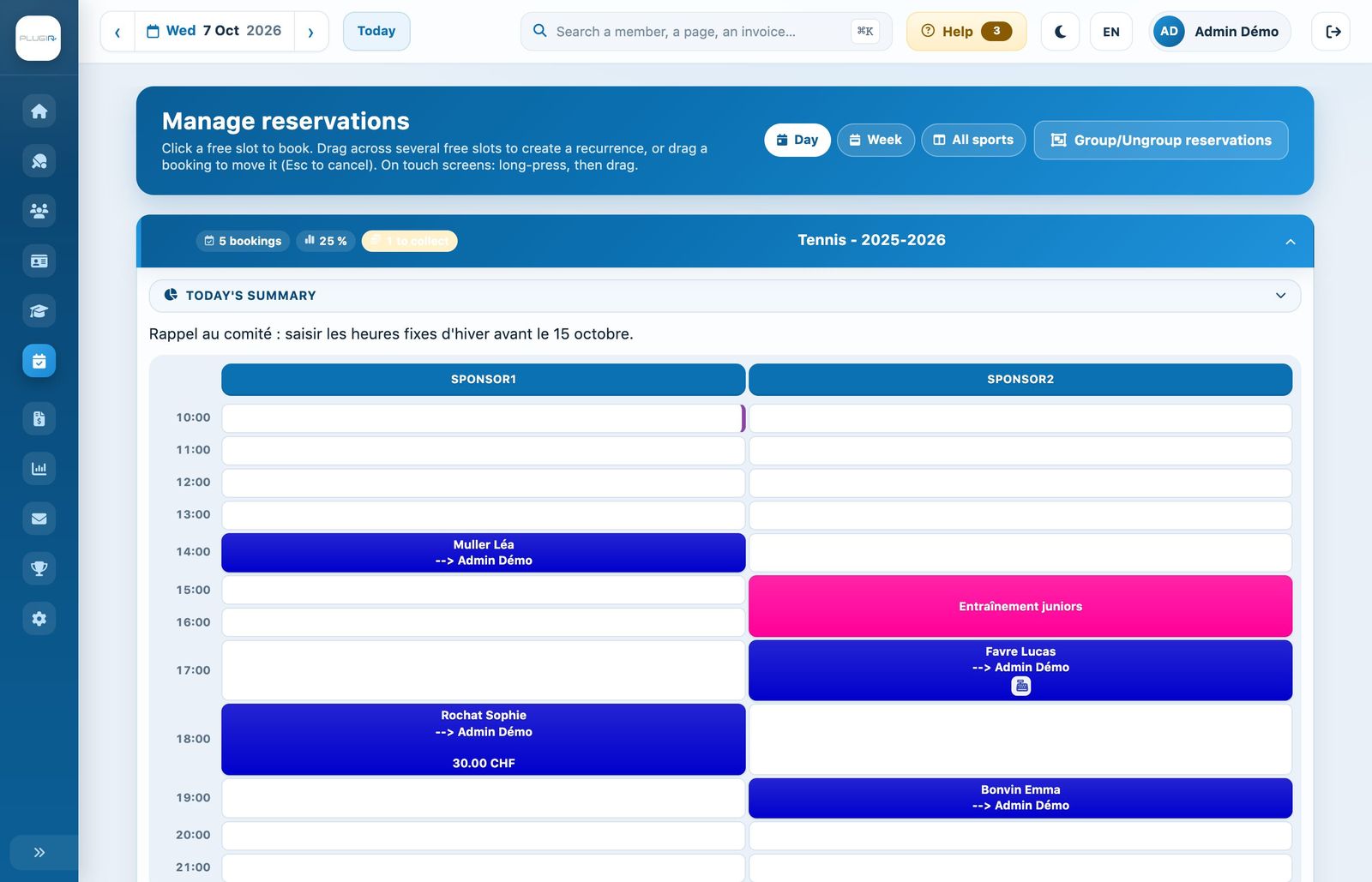
The day schedule: one column per court, one row per period.
At the top of the page, the buttons Day, Week and All sports switch between the schedule views (see the article The weekly view and the all-sports view).
If the date does not belong to any season linked to a sport, the page displays "No sport open on this date" with links to Manage seasons and Link a sport to a season.
2. Today's summary
Expand Today's summary above the grid to see the number of bookings (one-off and recurring), court occupancy, the slots still free and the amounts to collect, with the list of the bookings concerned.

The messages of the day (created in Messages → Manage messages) appear just below, above the grid.
3. Create a booking for a member
- Click a free cell, on the right court and at the right time.
- In the New booking panel, type at least two letters of the name in Last and first name, then choose the person from the list.
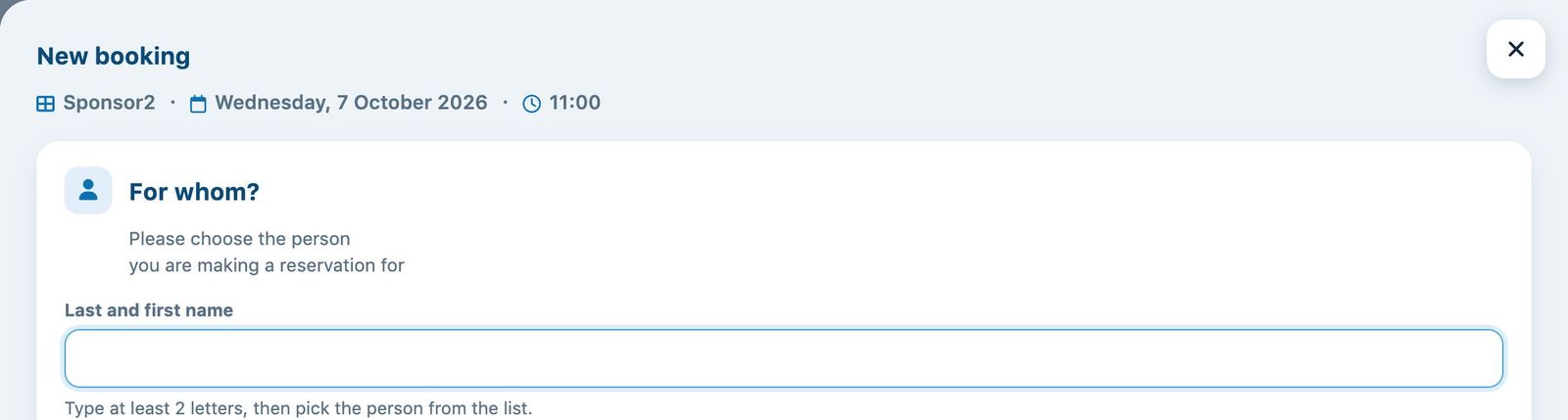
The full form then opens, in several parts:
- When and where: the date, the court, the start time and the length of the game;
- Who is playing?: the number of people and the players, with their membership type and the price calculated for each;
- Payment: the price, any promotional code and the payment method;
- Repeat the booking: an end date to repeat the booking every week;
- Reservation note: internal notes, visible only to the administration.
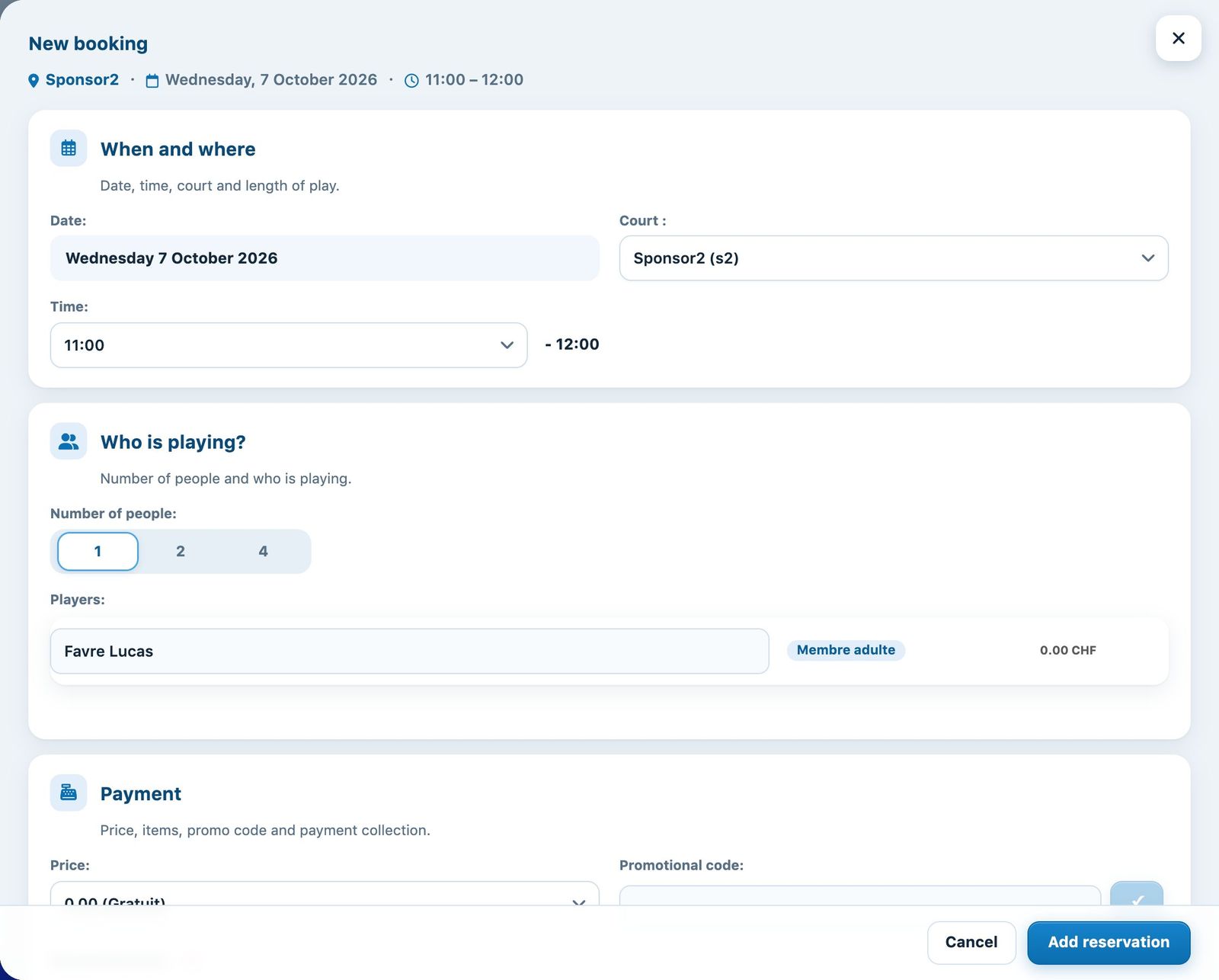
Click Add reservation. The cell takes the colour of the membership type and shows the player's name.
While you fill in the form, the slot is locked: another administrator or a member booking online at the same time sees the cell as "in progress" and cannot take it.
4. Edit, collect or delete a booking
Click the booking in the grid: the panel Edit booking opens. You can change the time, the court, the length or the players, then click Validate modifications.
To collect payment, in the Payment part, choose the player's payment method (Cash register, Credit, Other, Wallet, Invoice…), check the amount, turn on Paid, then confirm. The + button adds a second payment method to settle the amount in several parts.
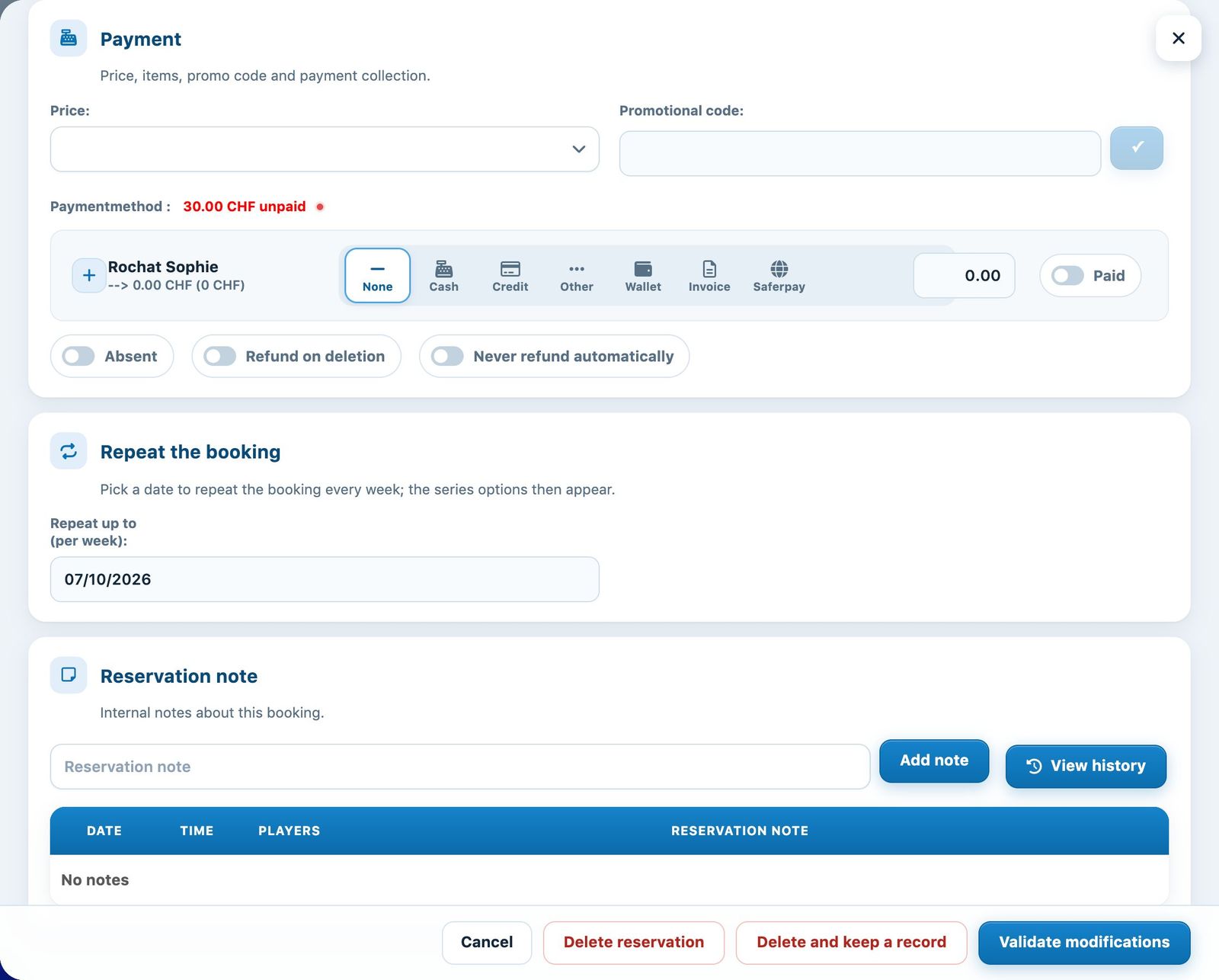
- Absent: the player did not show up;
- Refund on deletion: if the booking is deleted, the amount paid is refunded to the player;
- Never refund automatically: no automatic refund, even if the booking is deleted.
To delete, click Delete reservation. If the club uses the cash breakdown, the button Delete and keep a record deletes the booking but leaves a mark on the cell (see the article Deleted bookings and deletion records).
The button View history, next to Add note, shows everything that happened to the booking: creation, changes, payments and notes (see The cash journal and the history of a booking).
An online payment entered by hand has no associated transaction: Plugin cannot refund it. Refund it from the provider's back office (TWINT, Saferpay or Stripe).
5. Move a booking or create a recurrence
Drag a booking to another free cell to move it (Esc key to cancel). Drag across several free cells to create a recurrence. On a tablet: long press, then drag. Everything is explained in the article Moving a booking and creating a recurrence in the schedule.
The button Group/Ungroup reservations shows each period of a booking separately, for example to delete only part of a recurrence, then returns to the grouped display.
6. Closed courts and start times
When courts are closed that day (maintenance, tournament…), the box Courts closed today (for members) appears above the sport's grid: reason, times and courts of each closure, with a button to edit or delete it, and the link Manage closures. In the grid, closed slots are hatched and the reason appears on the first slot.
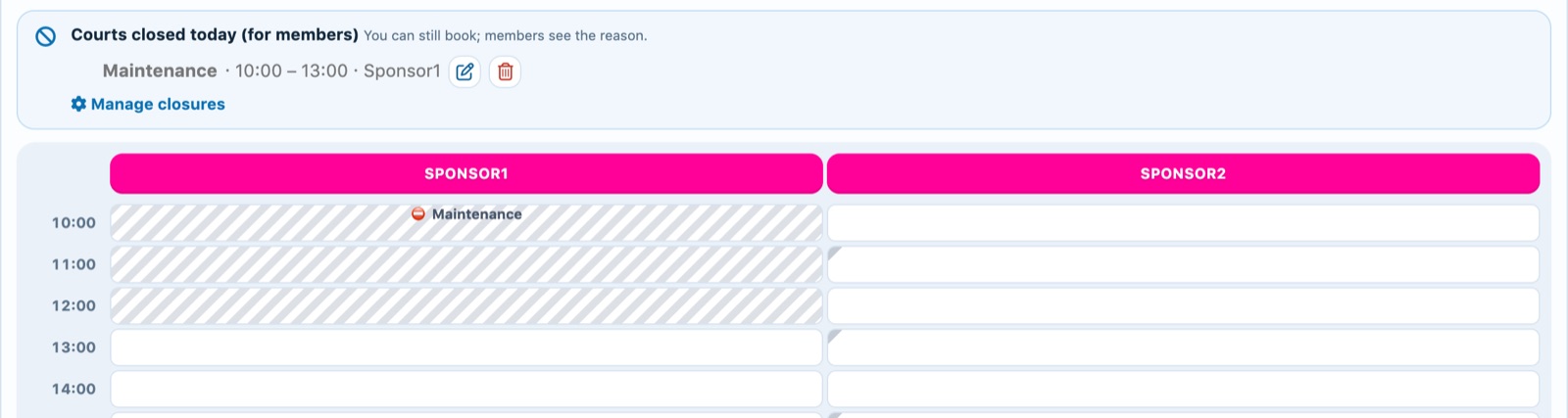
Sponsor1 closed for maintenance from 10:00 to 13:00; on Sponsor2, a small grey corner marks the start times not allowed for members.
These closures only apply to members: you can click a hatched slot and book as usual. The form then reminds you that the court is closed to members. See the article Close courts.
If start times have been set for members on a court ( Booking start times (members) setting on the court's form), slots where a member cannot start a booking have a small grey corner; on hover: “Start time not allowed for members (court setting)”. You can book there without restriction. See the article List, edit, or delete a court.
7. The rules that apply
For a member, the length, the booking window and the allowed slots depend on their membership type and the club's restrictions (see Manage membership type and Manage restrictions). The price comes from the rates in Memberships → Manage prices (see Create booking prices: per session or per season).
Your members book by themselves from their own area: see the article Booking by a member.
Plugin.ch Tutorial — Manage bookings