


Manage invoices
Carry an overpayment over to the next invoice
Put a surplus aside as a provision and follow its automatic use
A member has paid more than the amount of their invoice? Rather than refunding them, you can put the surplus aside as a "provision": it will be deducted automatically from their next invoice. The Provisions (overpayments) page shows at any time where each amount comes from and on which invoice it was used.
The Carry over to the next invoice button is only offered if your club uses the general ledger (see Setting up the accounts). The provision is posted to account 2302.
Put an overpayment aside as a provision
Open the overpaid invoice (pencil on the line in Invoices → Manage invoices). When the amount already paid exceeds the invoice amount, the Payment section offers three solutions:
- Transfer payment: moves the overpayment to another open invoice of the family;
- Return payment: records the refund of the overpayment to the person;
- Carry over to the next invoice: puts the surplus aside as a provision.
For the provision, enter the date and the amount (at most the overpayment), then click Carry over to the next invoice.
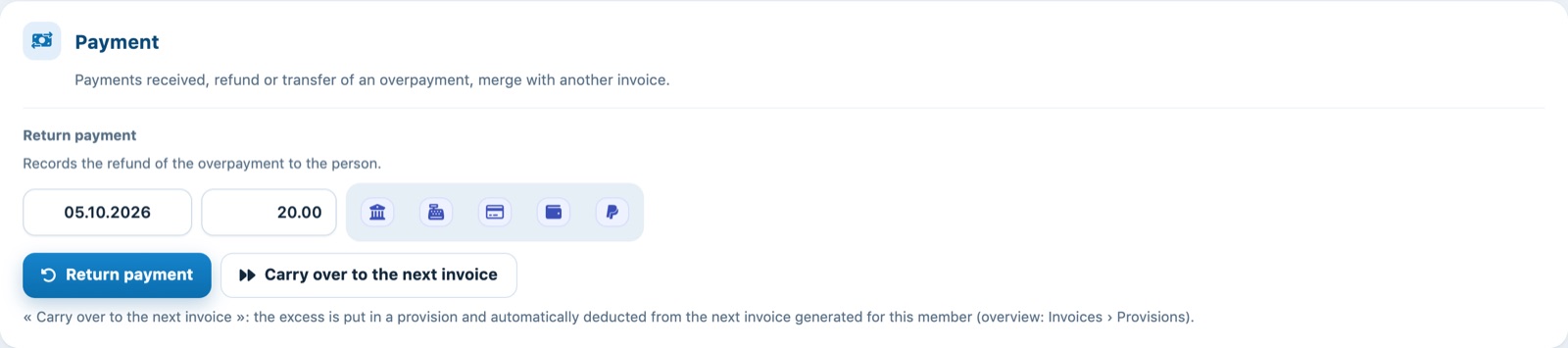
An overpayment of 20.00 carried over to the next invoice
A line "Balance of invoice N° … on … pending for a future invoice" is added to the invoice, which is now balanced. Below the invoice lines, the Overpayment provision box shows the amount set aside and what remains to be used.
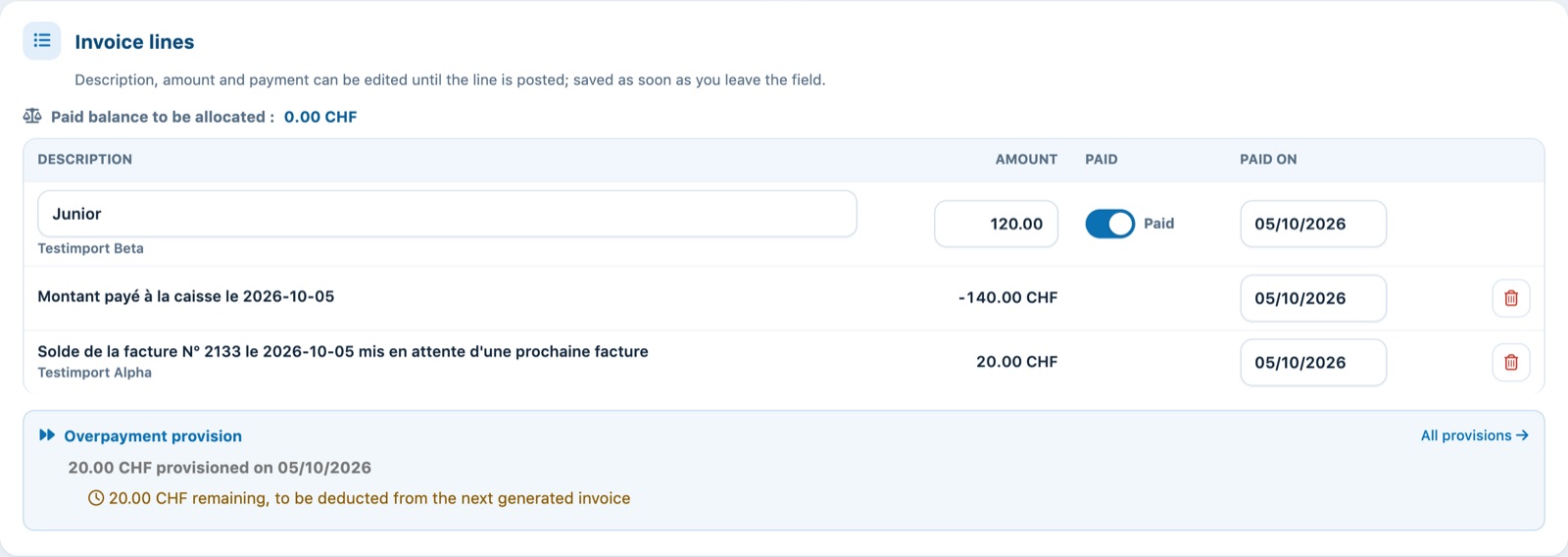
The provision line and its follow-up in the invoice
Use on the next invoice
You have nothing else to do. The next time invoices are generated for this member, Plugin.ch automatically deducts the provision from their new invoice:
- the new invoice gets a paid line "Montant provenant d'une provision (facture N° …)": the member sees where the deduction comes from;
- the deduction never exceeds the amount of the new invoice. If part of the provision remains, it will be used on the following invoice;
- if the member has several provisions, the oldest is used first.
A provision does not expire at the end of the financial year. If the invoice that received the deduction is cancelled, the provision becomes available again. If the original invoice is cancelled, the provision no longer counts.
Follow all the club's provisions
In the left side menu, open Invoices then Provisions (overpayments). Three tiles sum up the situation:
- Waiting to be used: the total that will be deducted from the next generated invoices;
- Already used: the total already deducted from invoices;
- Deducted without provision: deductions made by the old calculation with no matching provision.
Click a tile or a filter (Waiting, Fully used, To check) to narrow the list. For each member, the list shows the amount Provisioned, Used and the Remaining, and the Where the money comes from and where it went column details each movement. Click an invoice number to open its file. The How does it work? block sums up these rules.
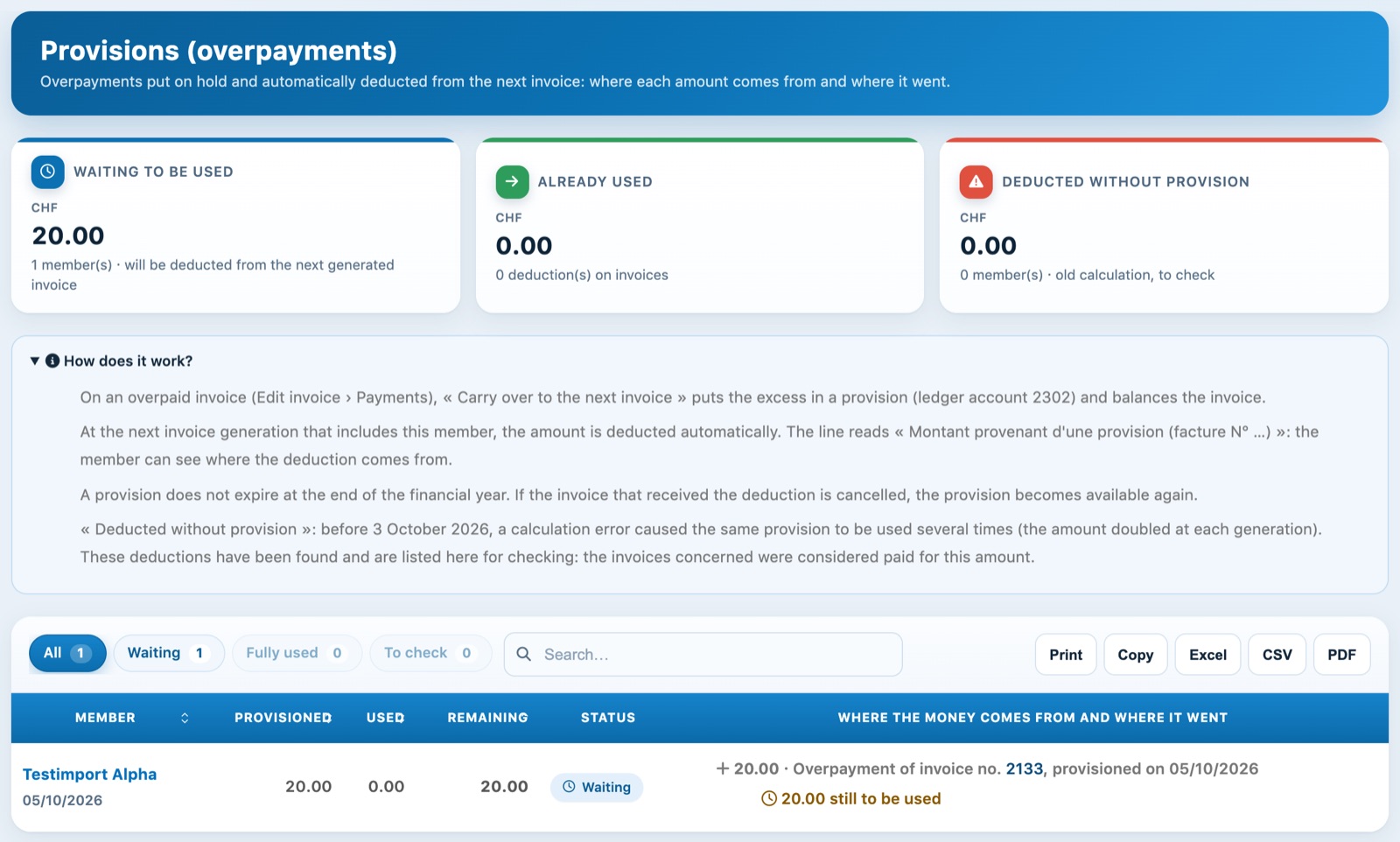
The provisions page: a provision of 20.00 waiting to be used
The same Overpayment provision box appears in the invoice file; its link All provisions opens this page.

The provision in the invoice file
For other operations on an invoice, see Edit and delete invoices.
Plugin.ch Tutorial — Manage invoices