


Manage memberships
Check rates with the rate grid
See which rate applies to each slot and spot free or ambiguous slots
When a club has several prices (daytime, evening, weekend, guests, dated rates…), it becomes hard to know what amount will actually be charged for a given slot. The Rate grid answers this question: for a subscription, a formula and a court, it shows the rate applied at each hour of the week, using the same calculation as bookings. It also flags slots without a rate, and therefore free, and those where several rates are possible.
In the left side menu, open Memberships then click Rate grid. This link is present when advanced price management is active for your club. The Manage prices button, at the top right, takes you back to the list of prices.
Choose what you want to check
At the top of the grid, choose:
- Sport: the sport-season.
- Calculation: the "Bookings" option for ordinary bookings, or the "Seasonal fixed hours" option to see the seasonal rates used to invoice fixed hours. In this second mode, the dates of the rates do not count: only the subscription, the court, the day, the time and the formula are taken into account.
- Subscription, Formula (number of players × number of periods) and Court.
- Week of: the week displayed. Change it to see the dated rates of another period, for example the holidays.
Read the grid
Each cell gives the amount per person for a booking starting at that time. The legend, above the grid, assigns a colour to each rate and recalls its mode (for example "Per session · Per booking").
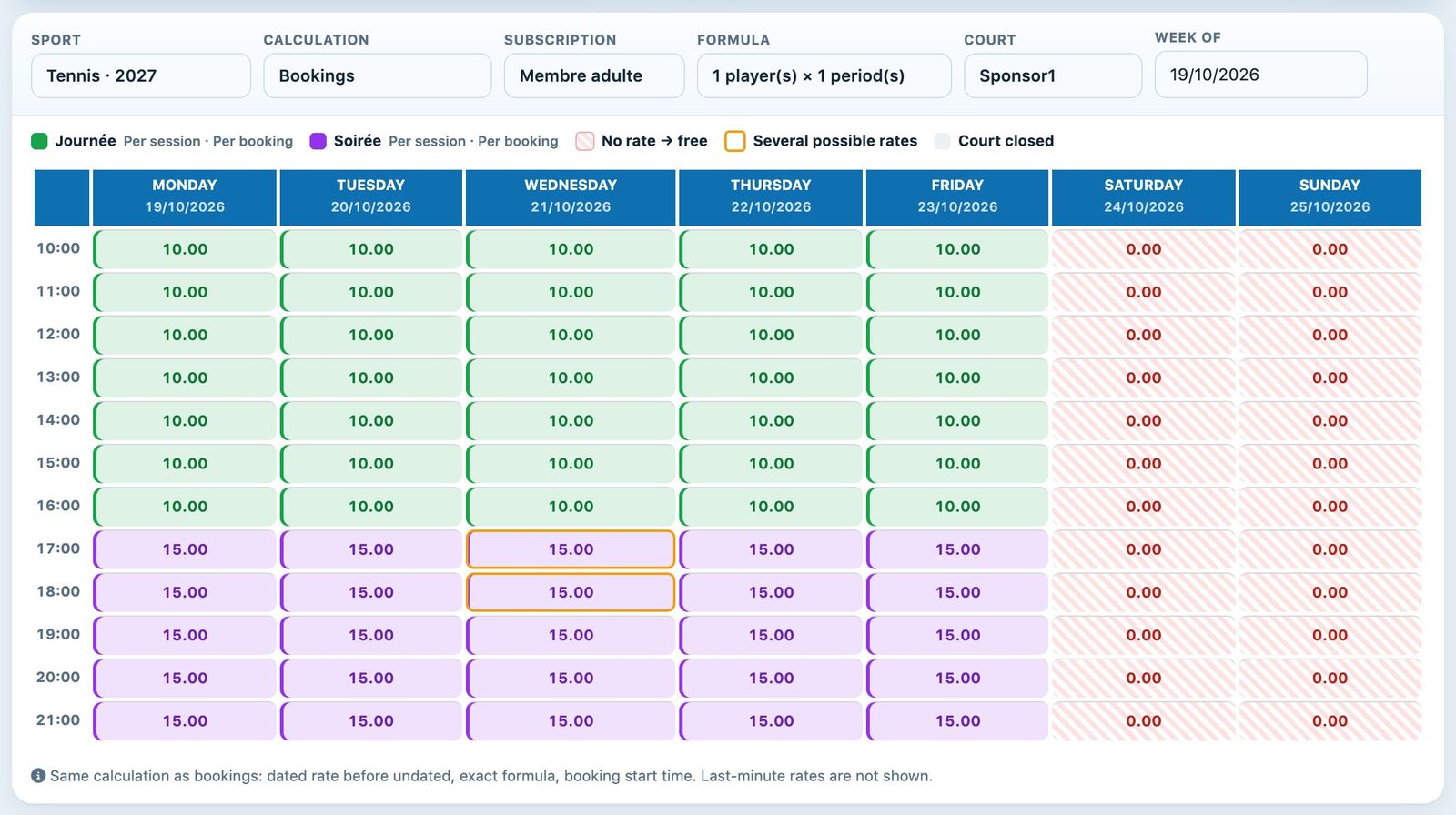
Membre adulte, 1 player × 1 period, court Sponsor1: "Journée" on weekdays until 17:00, "Soirée" afterwards, nothing at weekends
- No rate → free (red hatching, 0.00): no price matches this slot, the booking will be free. This is often an oversight: here, no rate is set for the weekend.
- Several possible rates (orange border): two prices with the same priority overlap and the system takes the first one found, arbitrarily. Here, the "Happy hour" rate on Wednesday from 17:00 to 19:00 overlaps "Soirée": you need to reduce the time range of one of them, or give one of them dates.
- Court closed (grey): the court is not open at this time.
Hover over a cell to see the details of the calculation and the other possible rates.
The grid applies the same rules as bookings: a dated rate takes precedence over an undated one, the formula must match exactly and the start time of the booking is what counts. Last-minute rates are not shown.
Check the coverage of all subscriptions
Below the grid, the Coverage check reviews all subscriptions and all formulas of the displayed week, across all courts:
- Rates: the rates applied, with their mode. The amount can be edited directly in the cell: type the new amount, then Enter to save, or Esc to cancel. A link icon indicates a rate shared by several subscriptions: the change then applies to all of them.
- No rate: the number of open slots without a rate out of the total number of open slots (for example 48 / 168), or "Complete" if everything is covered.
- Ambiguous: the number of slots where several rates are possible.
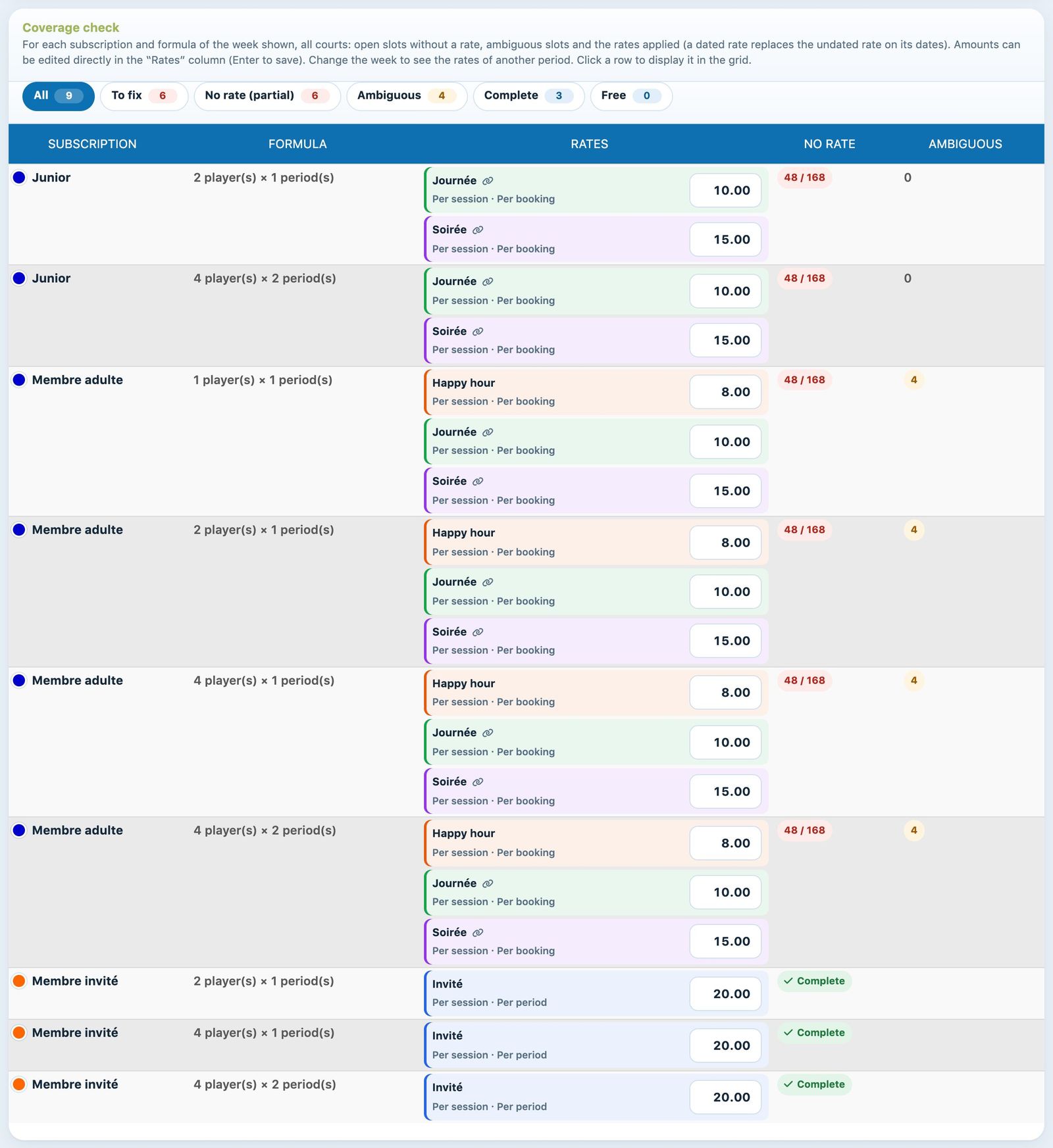
The coverage check: juniors and adult members have slots without a rate, guests are complete
The All, To fix, No rate (partial), Ambiguous, Complete and Free chips filter the rows. Click a row to show it in the grid.
Warning: do this check at each new season and after each price change. A subscription without any rate books for free; a "Free" row is only normal if it is intended.
To create or correct a price, see the article Create booking prices: per session or per season.
Plugin.ch Tutorial — Manage subscriptions