


Tennis school tutorial
Managing registrations (administrator)
Invite members, follow and correct registrations
Once the lesson has been created, invite your members to register, then follow the registrations received and correct them if necessary.
1Send the invitations
In the side menu, open Messages, then Sending group e-mails. Choose the recipients by category, for example the Junior subscription, or type a name, a lesson or a subscription in the field To.
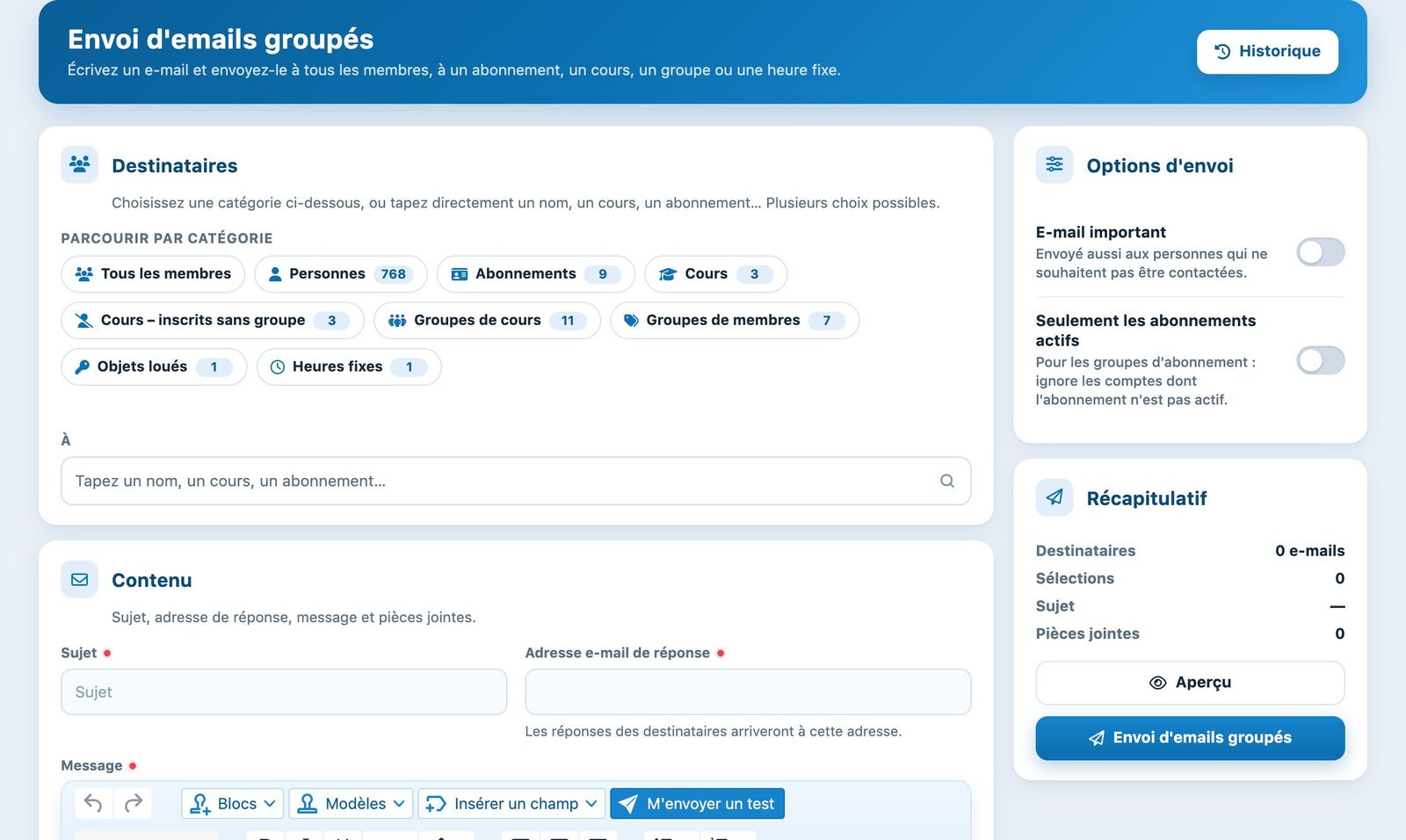
The Sending group e-mails page.
In the message, insert the field [COURS]: it adds a direct link to the lesson registration for each recipient. The field [PRENOM] personalises the greeting. First send yourself a test with Send me a test. See Sending group emails.
Later, the field [GROUPE] lets you tell each pupil their day, time and court. Do not use [COURS] and [GROUPE] in the same e-mail.
2Follow the registrations
Open Lessons, then Manage registrations and choose the lesson. The table lists each registered person with the date, the number of lessons per week and the chosen rate; the header shows the number of registered people, places and registrations to invoice.
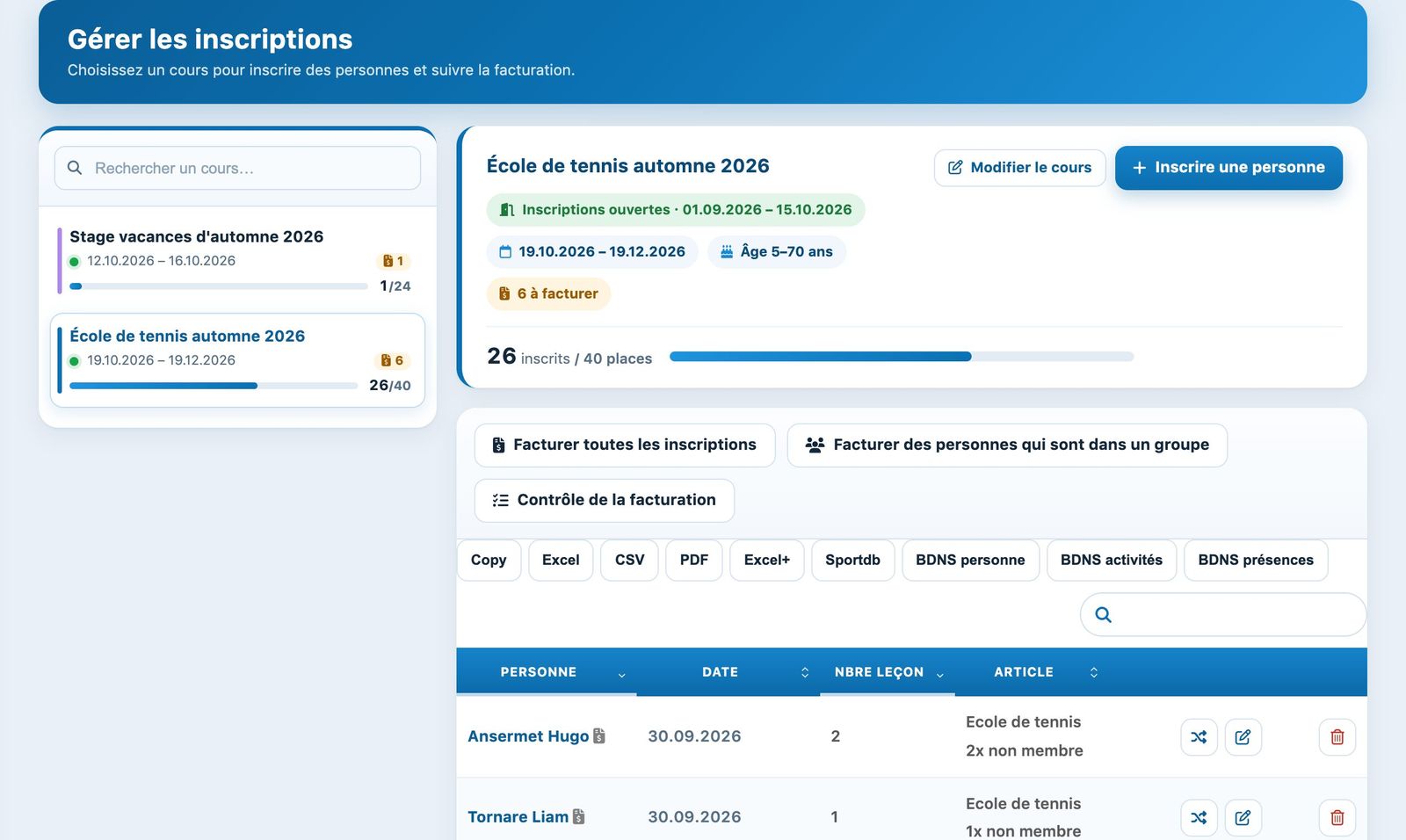
The registrations received for the tennis school.
3View a registered person's answers
In Manage groups, hover over a pupil's card: their answers (AHV number, photos, comment) and their rate are displayed. Their preferences are written directly on the card, numbered in the order chosen. The Excel+ button in Manage registrations exports all the answers.
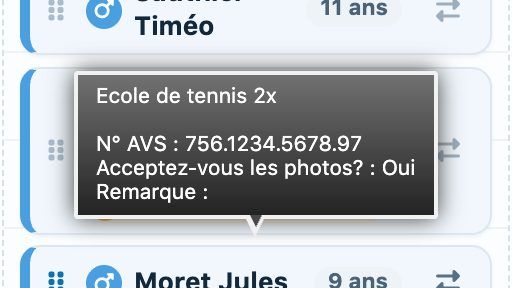
A registered person's answers when hovering over their card.
4Edit a registration
In the list of registrations, the pencil opens Modify registration: subscription, preference and answers to the questions (for example a wrong AVS number).
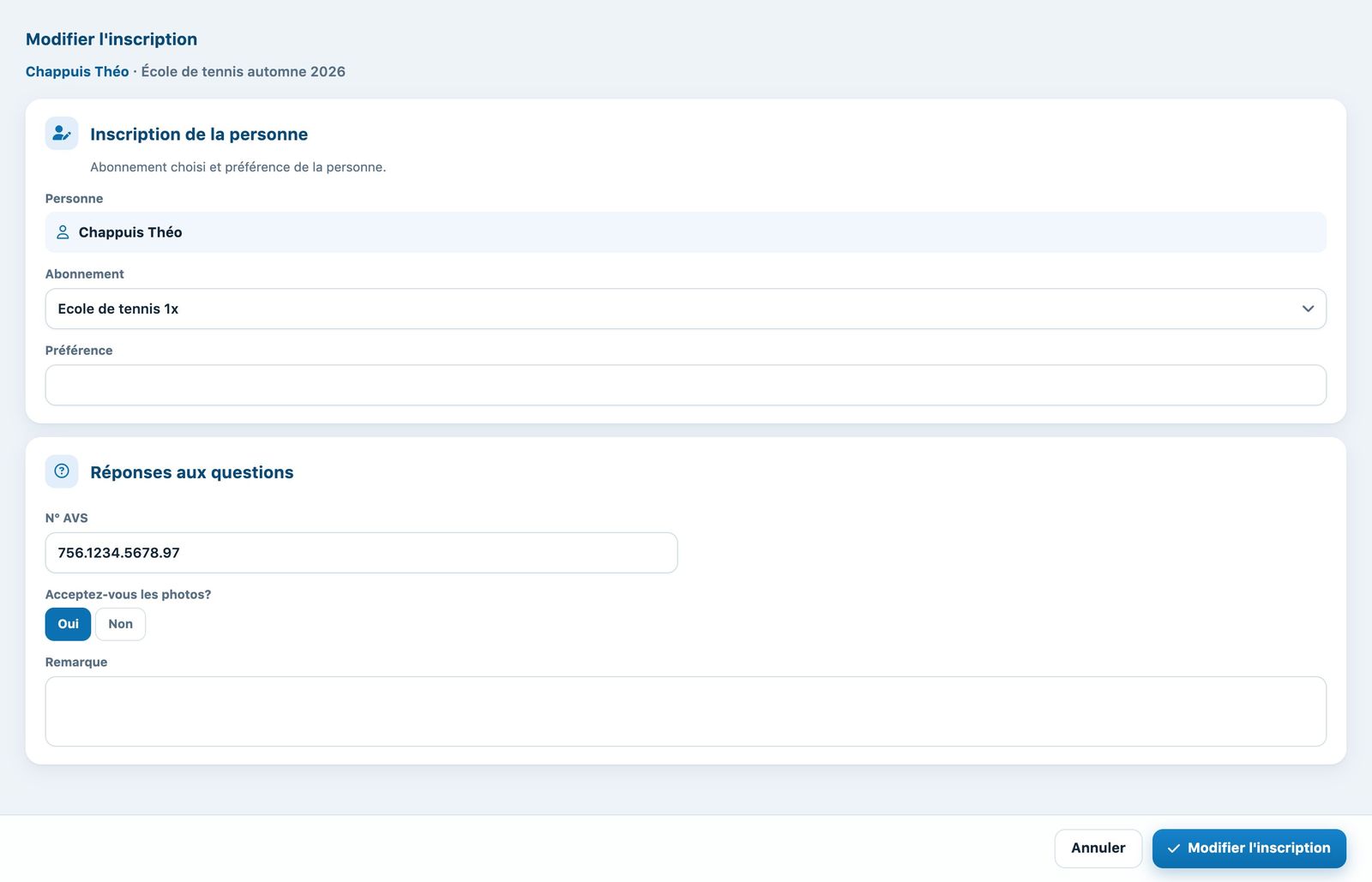
Editing a registration.
To move a pupil to another lesson (from "mini" to "competition", for example), use the crossed arrows: Transfer registration moves them, outside any group, to the chosen lesson and rate.
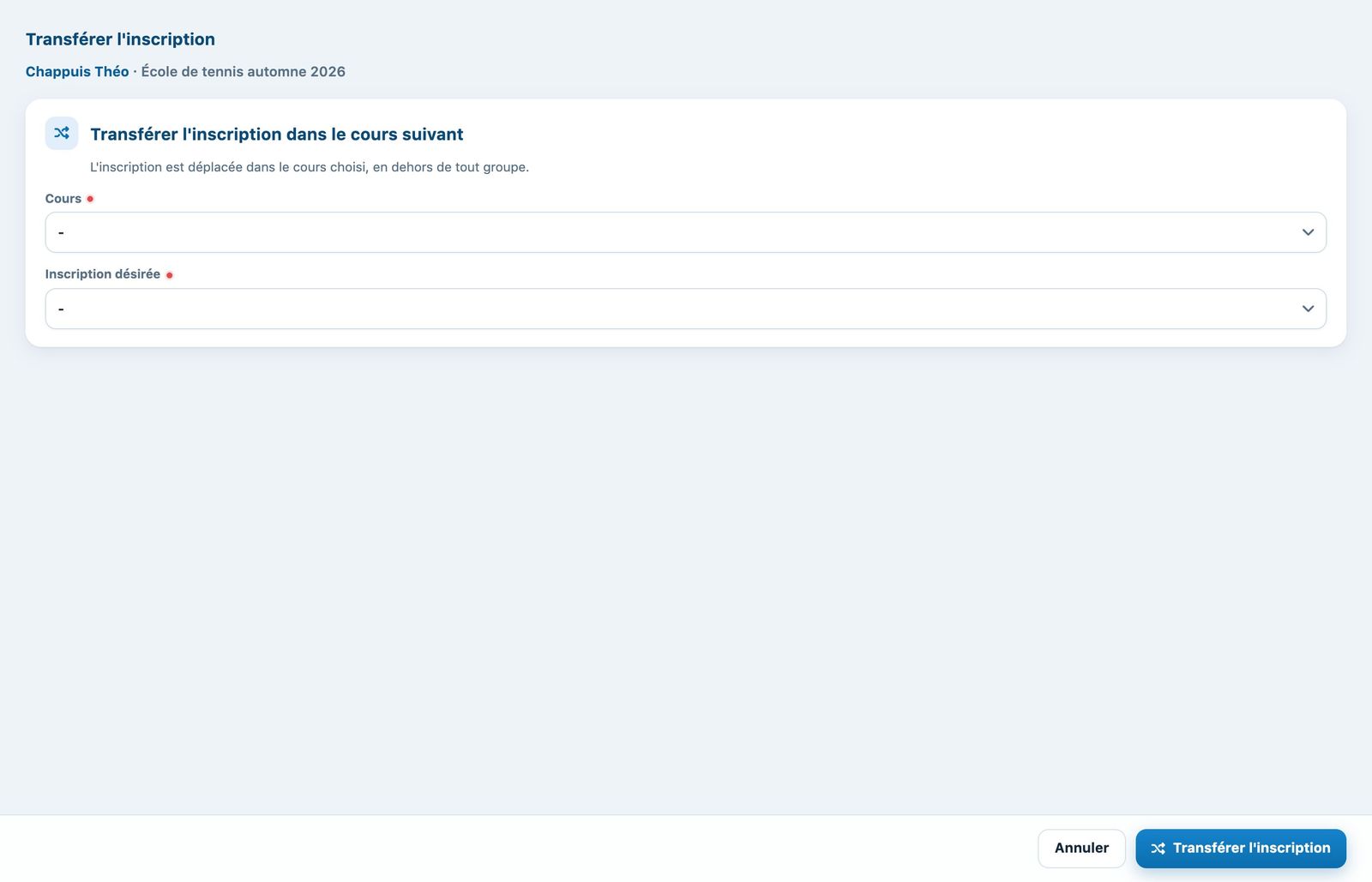
Transferring a registration to another lesson.
1x or 2x a week: if a pupil asked for 2 lessons but can only be placed in one group, change their rate before invoicing with the rate change button on their card (see Change the rate of a registration).
Plugin.ch tutorial — Tennis school tutorial