


Manage parameters
Manage email sending
Send the club's e-mails from your own mailbox: SMTP, Office 365 or Google
Plugin.ch's automatic e-mails (booking confirmations, invoices, reminders, notifications…) are sent from the club's mailbox. This way they reach your members much more reliably and end up in spam less often. For this, Plugin.ch must be able to connect to your mailbox.
In the side menu, open Parameters, then Manage e-mail. The Manage e-mail transfer server (SMTP) page offers three connection methods, as tabs: SMTP, Office 365 and Google. When the page opens, the tab of the method currently saved is shown. Only one method is active at a time: the last one saved replaces the previous one.
Method 1: SMTP (most providers)
Choose the SMTP tab. These are the same details you enter in your e-mail software (Outlook, phone…). Your e-mail provider lists them in its help pages.
- SMTP server: the address of the outgoing server, for example smtp.your-domain.ch.
- Port: usually 465 with SSL, or 587 with TLS.
- Name shown for reply and Reply e-mail address: the name and address your members reply to, for example the club secretariat.
- Username and Password: the mailbox login details, usually the full e-mail address and its password.
- Encryption method : None, SSL or TLS. Most servers require one: SSL with port 465, TLS with port 587.
The Name and e-mail address used for sending messages line is shown for information: it is the name and address of the club manager. To change them, see the article Manage club manager.
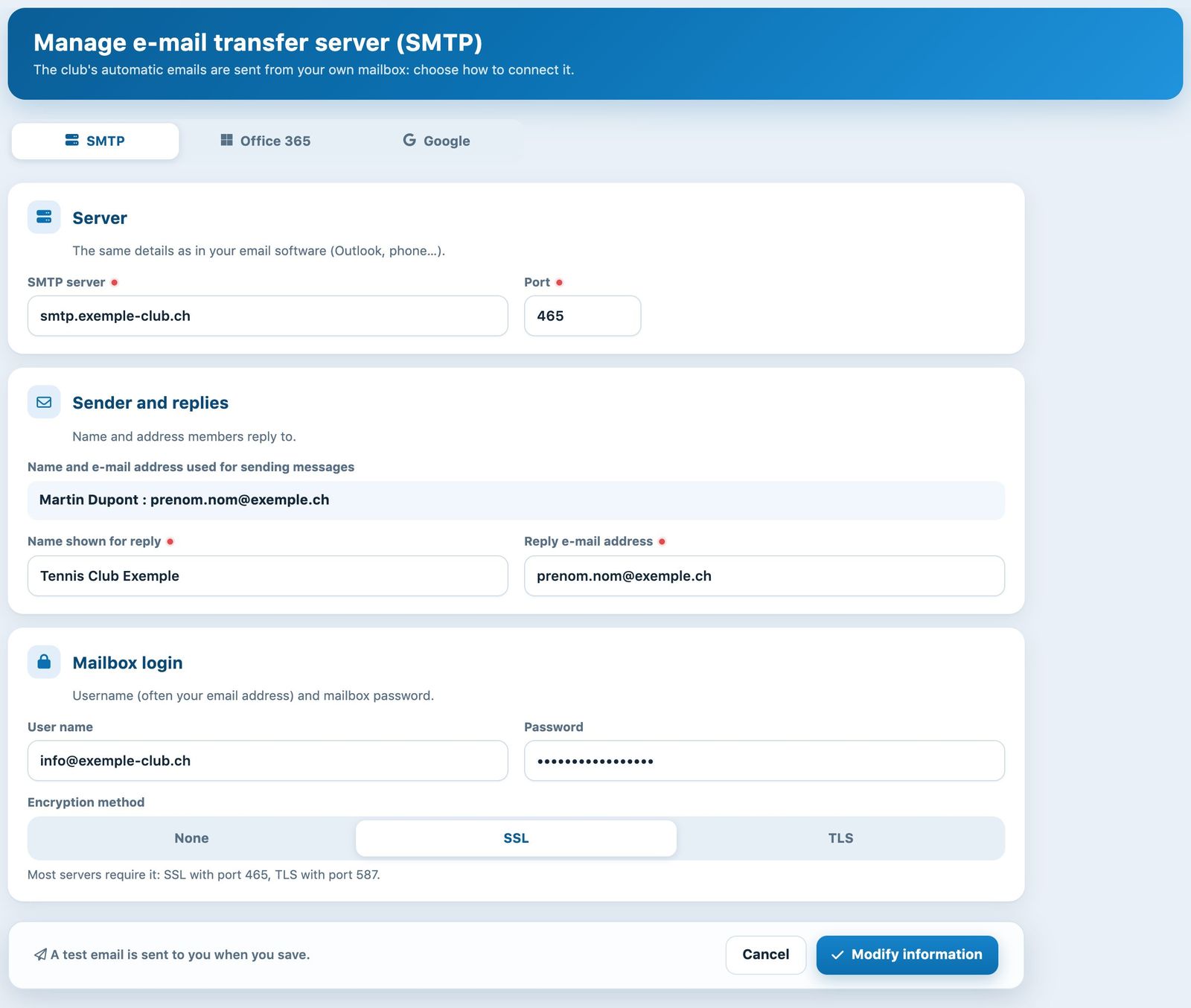
SMTP tab (dummy values)
Click Modify information. Plugin.ch connects to your server and sends you a test e-mail. The settings are only saved if this sending succeeds: the message “The SMTP server has been configured” appears and you receive the e-mail “Send test e-mail”. If it fails, the server's error message is shown: correct the server, port, encryption or password, then try again.
Swisscom / Bluewin: first try the server smtpauths.bluewin.ch with port 465 and SSL. If it is refused, try smtpauth.bluewin.ch with port 587 and TLS.
Method 2: Office 365 (Microsoft 365)
If the club mailbox is hosted with Microsoft 365, use the Office 365 tab: the connection uses a Microsoft authorisation (OAuth) and Plugin.ch never knows the mailbox password. Plugin.ch must first be registered in your Microsoft account, which is usually done by the person who manages your Microsoft 365.
- In the Azure portal (Microsoft Entra ID), create an App Registration of type “Web”.
- As the redirect URI, register the address shown in the blue box of the Office 365.
- Add the SMTP.Send and offline_access permissions, then create a client secret. Copy the value of the secret, not its ID.
- Check in the Exchange admin centre that authenticated SMTP (“Authenticated SMTP”) is allowed for the mailbox.
In the Office 365 tab, then fill in Client ID, Client Secret and Tenant ID, then click Modify information. You are redirected to Microsoft: sign in with the mailbox that should send the club's e-mails and accept the authorisation. Back in Plugin.ch, a green banner shows Connected Office 365 mailbox: followed by the mailbox address. The club's e-mails are now sent from this address.
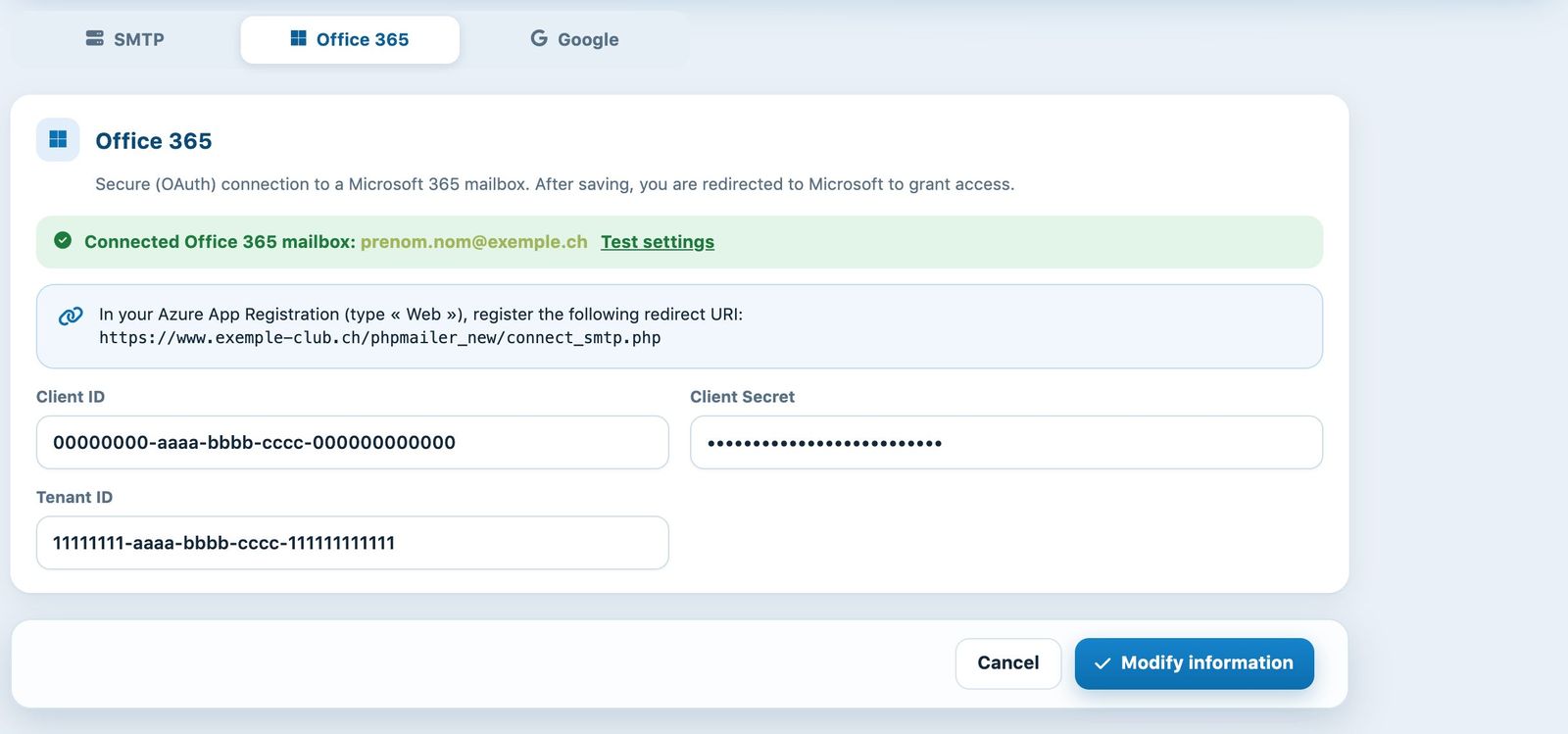
Office 365 tab: connected mailbox and redirect URI to register with Microsoft (dummy values)
The Test settings link in the green banner checks the connection to the mailbox without sending any e-mail to members.
Warning: if you save the credentials again (for example a new client secret when it expires), the previous authorisation is deleted. You are redirected to Microsoft and must sign in again for sending to resume.
Method 3: Google (Gmail or Google Workspace)
For a Gmail or Google Workspace mailbox, use the Google tab. First create an OAuth client ID of type “Web application” in the Google Cloud console of your account, with the same redirect URI as the one shown in the Office 365 tab. Then fill in Client ID and Client Secret, then click Modify information: you are redirected to Google to authorise access with the club mailbox.
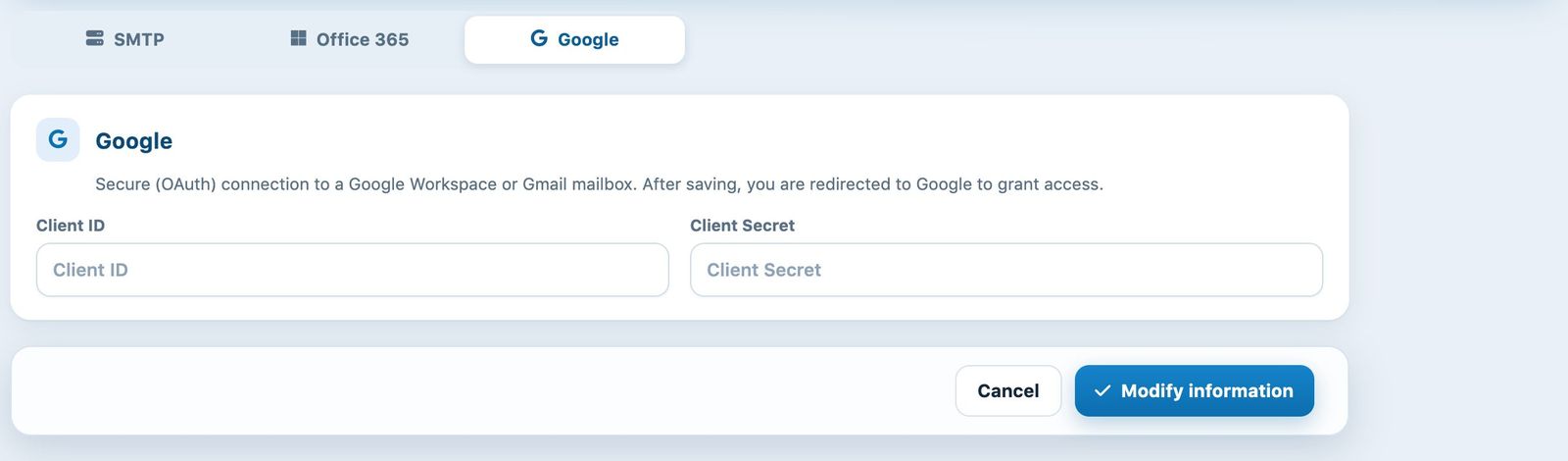
Google tab
Good to know
- The content of automatic e-mails is set elsewhere: see the article Manage automatic e-mails.
- If members stop receiving e-mails after the mailbox password has changed, come back to this page and enter the new password (SMTP method) or reconnect the mailbox (Office 365, Google).
- The button Cancel button restores the values shown when the page was loaded, without saving anything.
Plugin.ch Tutorial — Manage settings