


Process payments
Processing via bank files
Import your bank's payment file to automatically mark invoices as paid
Your bank provides a file of payments received by QR-bill (XML format ISO 20022 camt.054). When you import it into Plugin.ch, each payment is matched to its invoice using the payment reference, and invoices are automatically marked as paid.
How a payment finds its invoice
Each QR-bill has a 27-digit reference. It contains your bank's customer number, the person's number and the invoice number, followed by a check digit. When the member pays with their e-banking, the bank passes on this reference: Plugin.ch therefore knows exactly which invoice is paid, without any manual entry.
Accepted formats: camt.054 XML files (recommended) and the old .v11 files. Banks have not issued V11 files since the end of 2021: if you still receive them, ask your bank for the camt.054 format. If you import a camt.053 account statement by mistake, Plugin.ch extracts the QR-bill payments from it and ignores the rest.
Import the file
Download the camt.054 file from your e-banking. In Plugin.ch, open Invoices → Manage invoices and click Import payments at the top of the page (this button only appears if your club has set up its QR-bill account). In the panel, click Choose file, select the file, then click Validate payments.
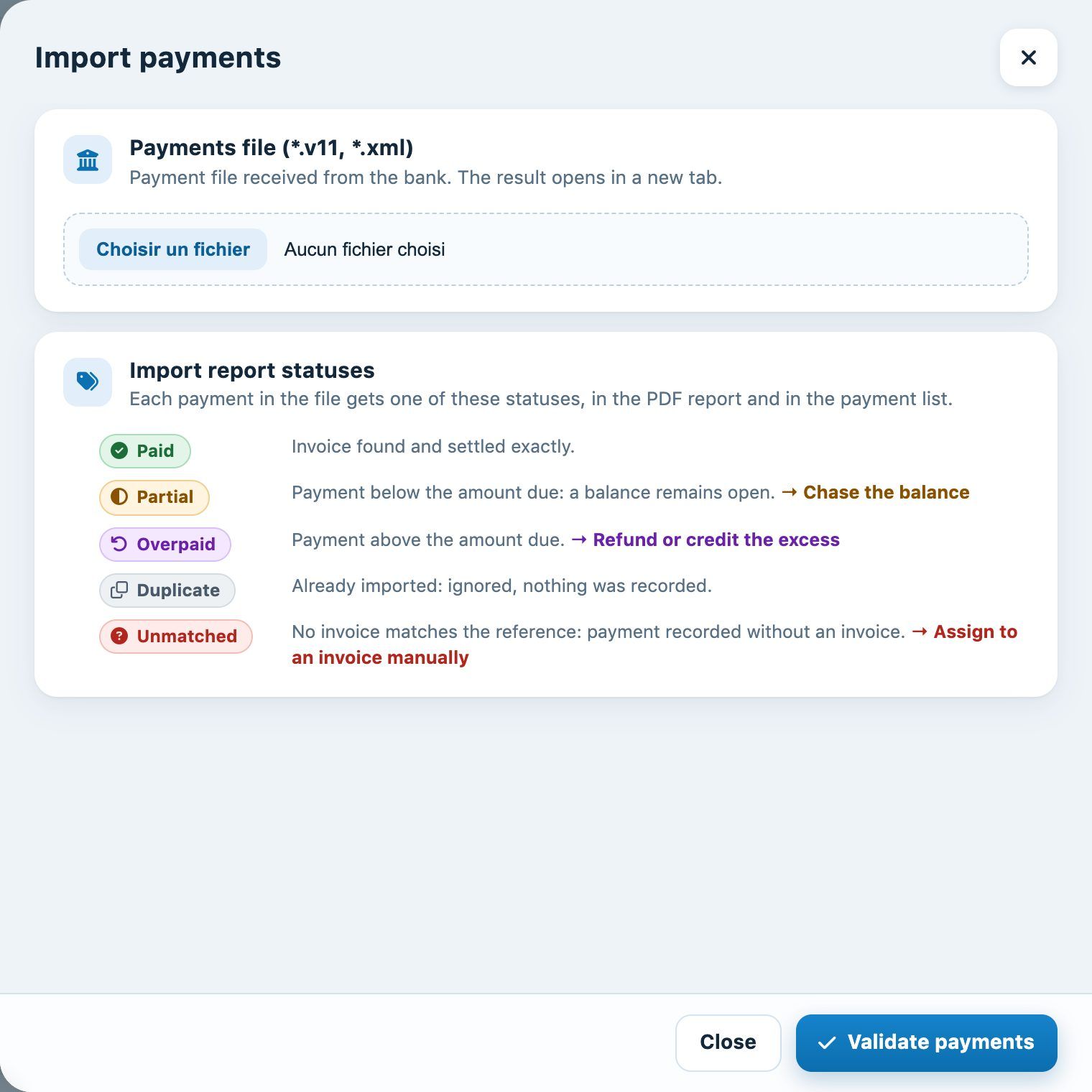
The “Import payments” panel and the status legend
The import report opens in a new tab (PDF). Keep it with your accounting records.
Read the import report
Each payment in the file receives a status, in the report as well as in the List of payments :
- Paid: invoice found and settled exactly.
- Partial: payment lower than the amount due; a balance remains open and can be reminded.
- Overpaid: payment higher than the amount due; refund or credit the excess.
- Duplicate: payment already imported; it is ignored and nothing is recorded a second time.
- Unmatched: no invoice matches the reference; the payment is recorded without an invoice and must be assigned manually.
File imported twice: don't worry, payments already imported are recognised as Duplicate and are not counted twice. However, if a member really paid the same invoice twice, the second payment appears as Overpaid: the money has indeed been paid into your account and must be refunded or carried forward.
Review a file already imported
In the same panel, the list Files already imported lets you reopen the report of a previous import with the button Open.
Check and handle special cases
After the import, open Invoices → List of payments and click the chip To handle: it groups partial payments, overpayments and unmatched payments. Overpaid or unassigned amounts can also be found in Invoices → List of instalments.
Tip: import the bank files regularly (for example every week) and before creating reminders, so as not to remind a member who has already paid.
Plugin.ch Tutorial — Process payments