


Manage parameters
Gate access log
Who came in, when and through which door
When the doors of your courts or club are fitted with an RFID card reader or a keypad, every opening attempt is recorded. The gate access log shows who came in, at what time and through which door, and above all helps you understand why a door did not open when a member reports it.
Open the log
In the left side menu, open the module Parameters and click Gate access log. This menu entry only appears if RFID is activated in Manage RFID validation.
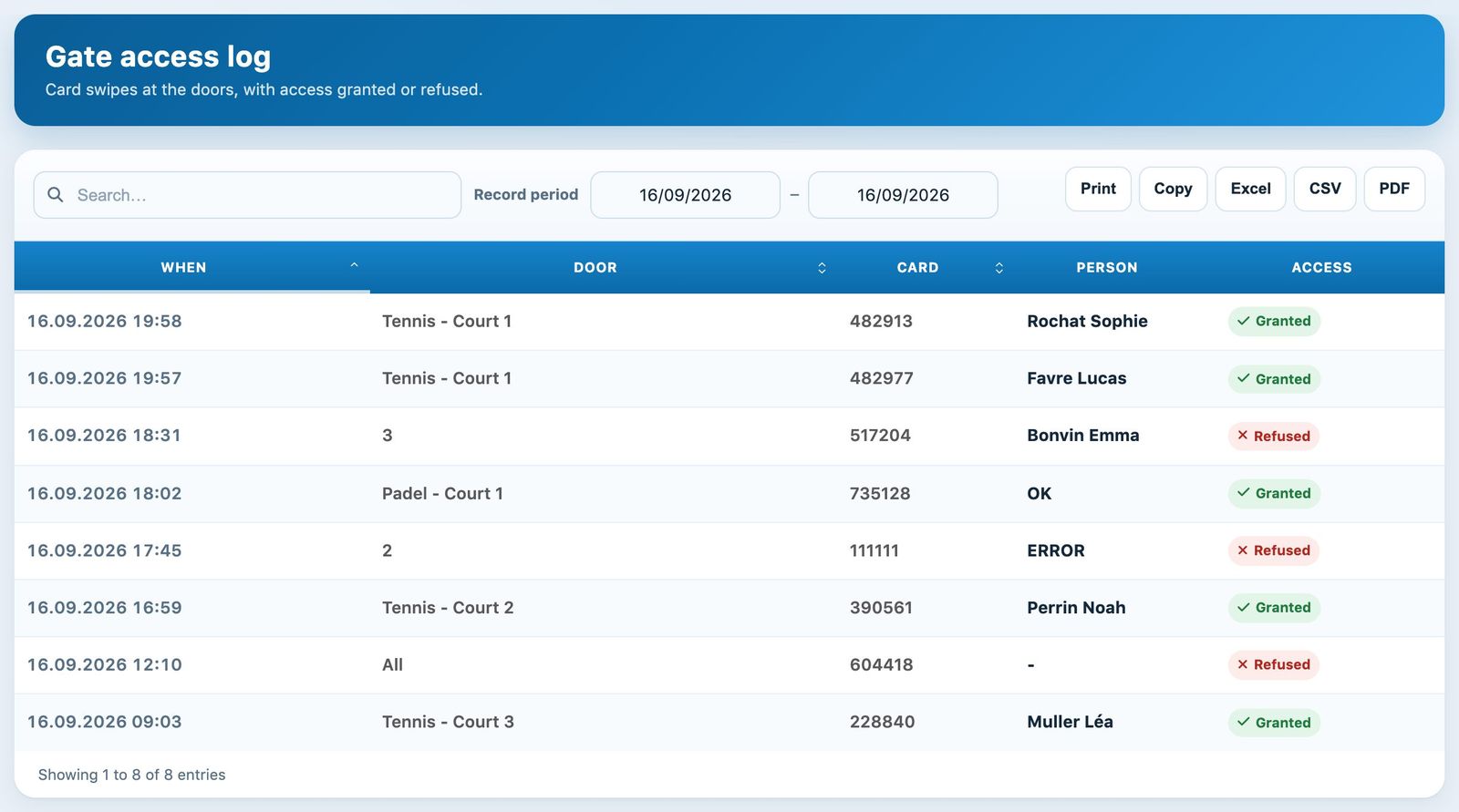
The gate access log for one day.
Choose the period
When it opens, the log shows the date selected at the top of the screen. To see another period, click the two dates to the right of Record period and choose the first and last day: the log reloads immediately. The most recent entries are at the top of the list.
The field Search… filters all columns: type a name, a card number or a court name to keep only the matching rows.
Read the log
- When: the date and time of the entry.
- Door: the court opened (for example “Tennis - Court 1”) when access is granted for a booking. For a refusal, it is the number or name of the door sent by the reader; “All” means a general check, such as the club's main entrance.
- Card: the number of the card presented, or the code typed on the keypad.
- Person: the member who owns the card. A dash means the card is not known in any club. For a code typed on the keypad, OK means a valid booking code and ERROR a wrong code or one used outside the slot; with a personal code, the member's name is shown.
- Access : Granted (the door opened) or Refused.
Why is access refused?
- the member has no booking on this court at this time, or arrives too early or too late;
- the card is not registered for this member, or the member no longer belongs to the club;
- the clubhouse is closed and you have turned on Close RFID doors out of hours on the Manage clubhouse page;
- not all players have swiped their card yet and you have turned on Open only if everyone has validated on the Manage access page;
- the code typed is wrong or does not belong to the current booking.
Export the log
The buttons on the right of the bar print or export the rows displayed: Print to print, Copy to copy to the clipboard, then Excel, CSV and PDF for files. The export takes the period and the current search into account.
Tip: when a member reports that a door did not open, search for their name or card number on the day concerned: the row shows the door, the time and whether access was refused.
To set up the access system itself, see the articles Manage access and Manage RFID validation.
Plugin.ch Tutorial — Manage settings