


Manage items
Assign an item to a member
Assign a billable item to one or more members, or to a group
An item linked to a person is automatically added to the next invoice that concerns them: when an invoice group is created or when an existing group is refreshed. Items are not carried over from one season to the next: they must be linked each time.
Open the “Link an item to a member” page
In the left side menu, open Invoices then Link an item. The page lists all items already linked: the person, the Name on invoice, the quantity, the total and, in the column Invoice, the invoice group in which the line was invoiced.
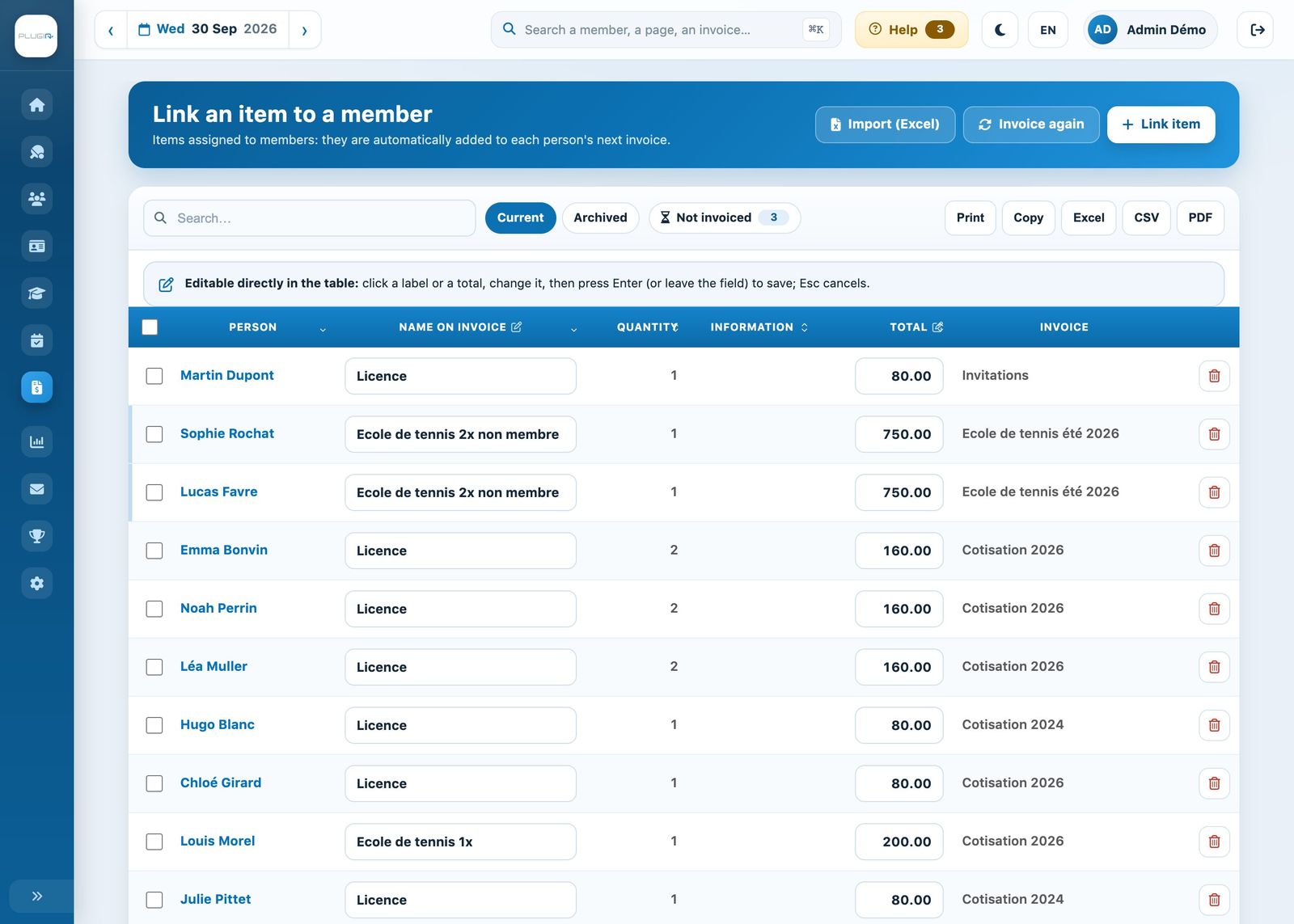
The list of items linked to members
The chips Current and Archived switch between current links and those from past invoicings. The chip Not invoiced shows only the links still waiting for their invoice. The name and total can be edited directly in the table: click in the field, change the value, then press Enter; Esc cancels.
Link the item
Click Link item at the top right. In the panel:
- People: type a name and choose one or more people. You can also choose a group of members: the item is then linked to each member of the group.
- Item: choose the item. The Name on invoice and the Unit price are taken from the item and can still be changed. If the item has several age-based rates, the price table is displayed: the right rate is applied according to each person's age.
- Quantity: 1 by default.
- long description (if the option is enabled): a detailed text printed on the invoice.
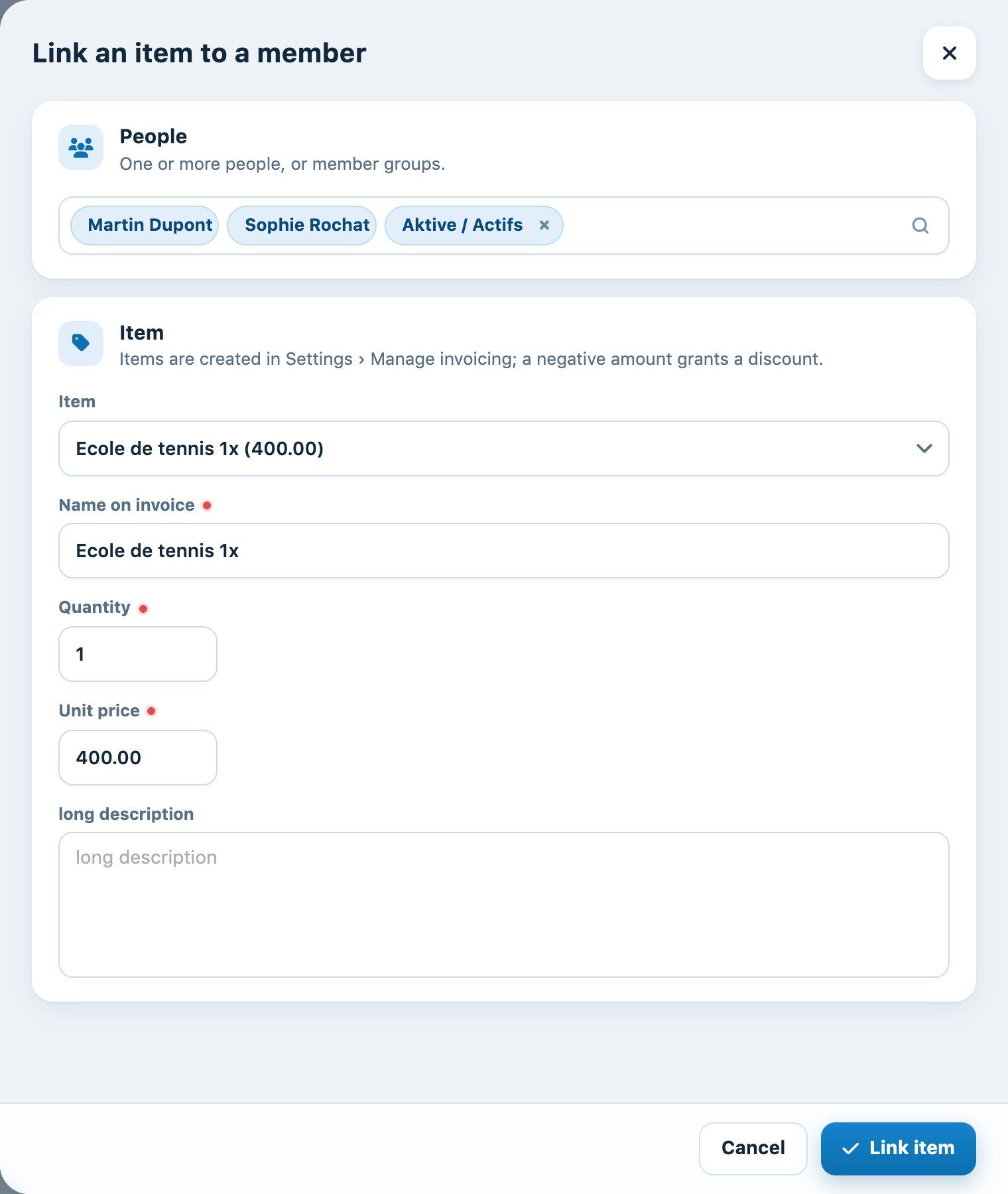
The “Link an item to a member” panel
Click Link item at the bottom of the panel. The new lines appear in the list, without an invoice for now.
Discount enter a negative price, for example -50.00, to grant a discount that will be deducted from the person's next invoice.
Link an item to many people with an Excel file
For a long list (for example the people signed up for winter lessons or the licences of all interclub players), click Import (Excel). A wizard reads the file as you received it, suggests the item for each row, finds the people among the club members and creates the missing ones. See the article Import linked items from Excel.
Invoice an already invoiced item again
The button Invoice again puts an item's links back “to be invoiced”. This is useful when the same item must be invoiced again to the same people, for example an annual rental. Choose the item: the preview Invoicings concerned shows how many links will be taken back and in which invoicings they had been invoiced. The field Invoiced since limits the operation to links invoiced from a given date.
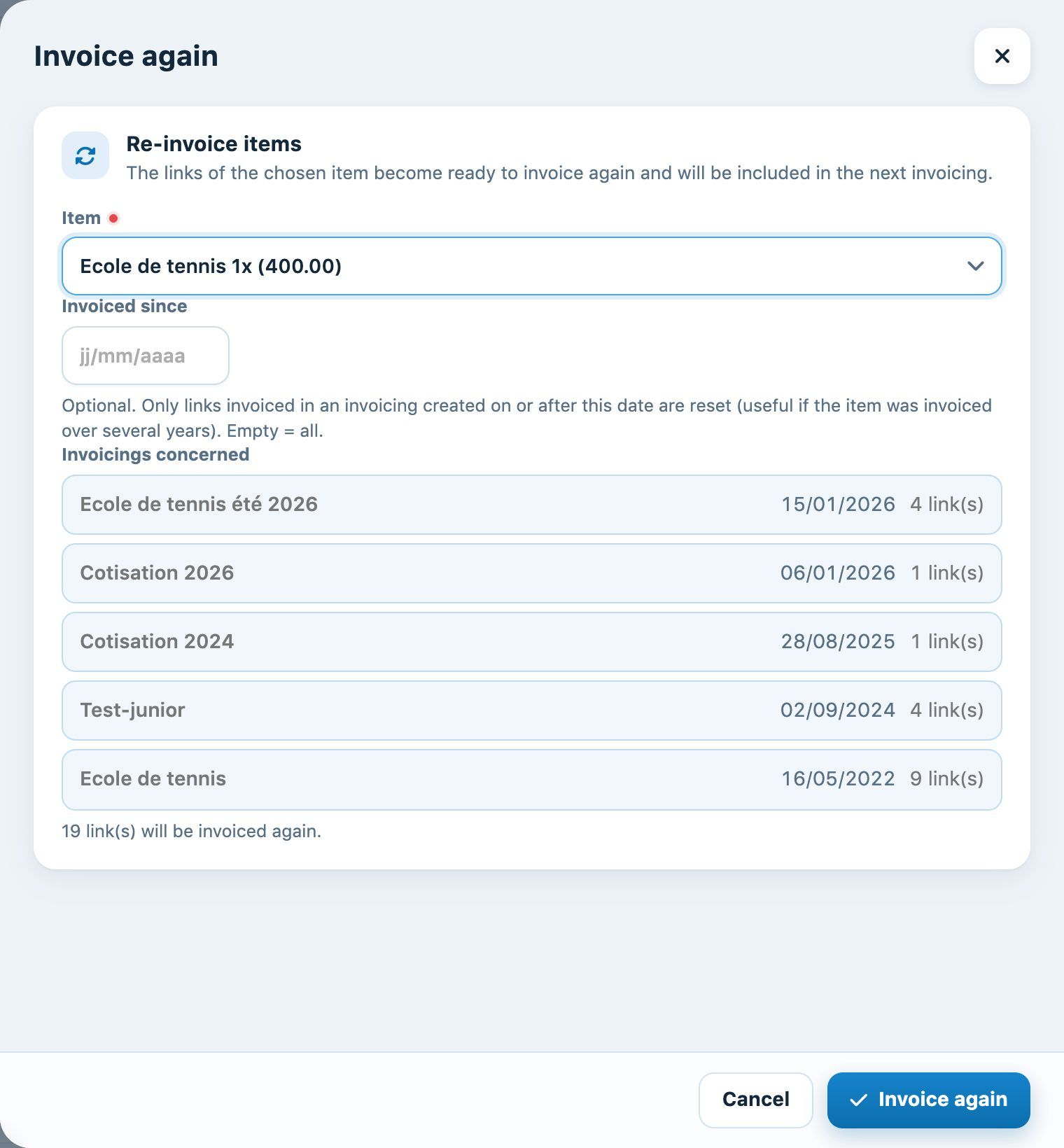
Putting an item's links back into invoicing
Check on the member's record
A person's items can also be found on their record (Members → Manage members, click on the name), in the tab Linked item. The column Invoice shows the invoicing that took them over; a line that is still empty is waiting for its invoice.
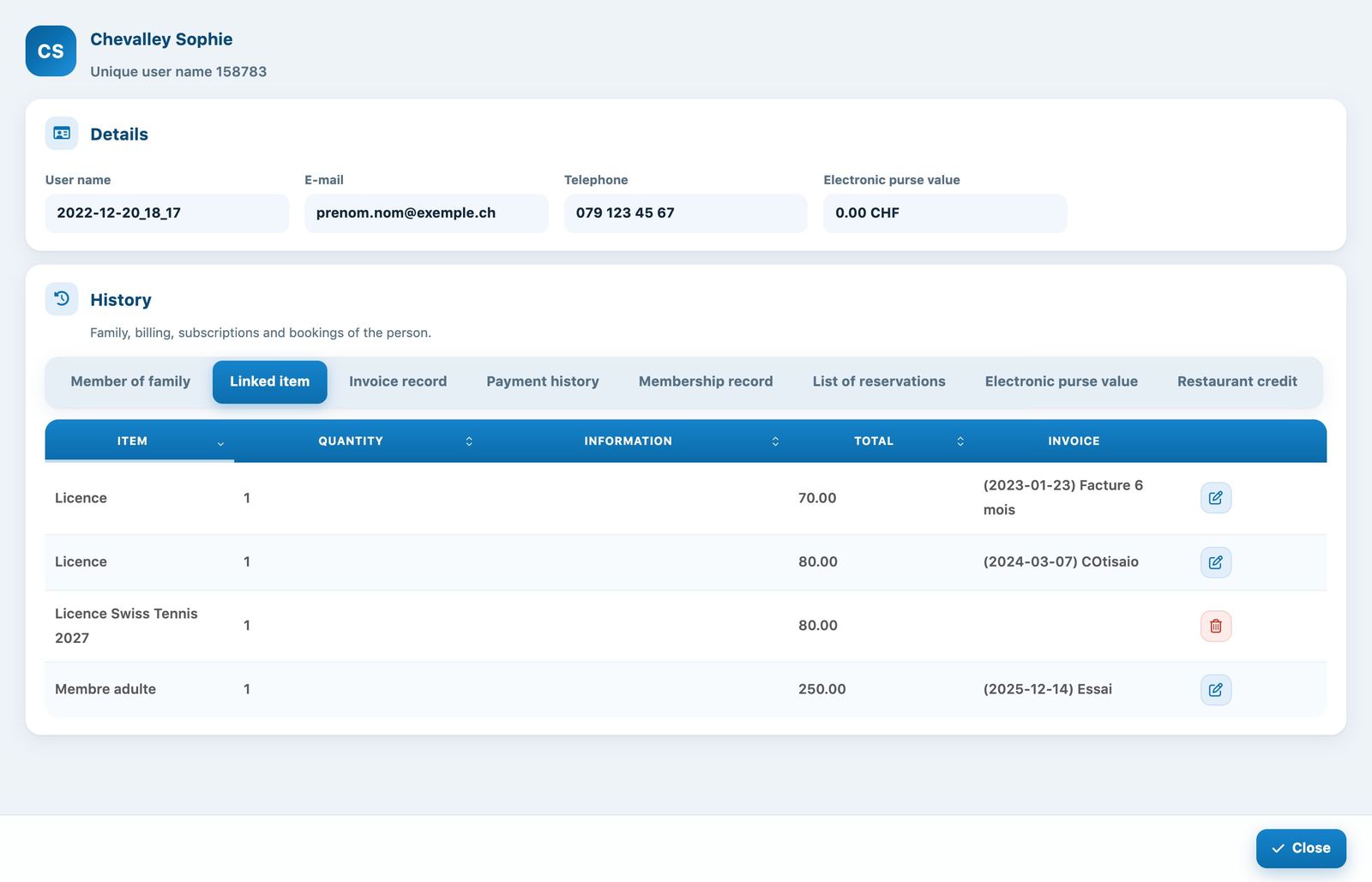
The “Linked item” tab of a member's record
For the difference between a membership fee and an item, see Invoicing a membership fee or an item: what's the difference?
Plugin.ch Tutorial — Manage items