


Manage invoices
Print invoices
Generate the PDFs to print: one invoice, a whole group or just the selection
Plugin.ch generates print-ready PDFs with the QR-bill. Only invoices whose type is “paper” are included in bulk printing; e-mail invoices are sent from the menu Send.
Before printing: disable “scaling” (or choose “actual size”, 100%) in the print window of your browser or PDF reader. The QR-bill must keep its exact dimensions to be read by banks.
Print a whole group
In Invoices → Manage invoices, choose the group, then open the menu Print :
- Print unprinted invoices: a single PDF with all paper invoices that have not yet been printed. This is the usual choice after creating the invoices.
- Print unpaid invoices: all paper invoices still open, whether already printed or not.
- Print unprinted reminders and Print unpaid reminders: the same choices for reminders.
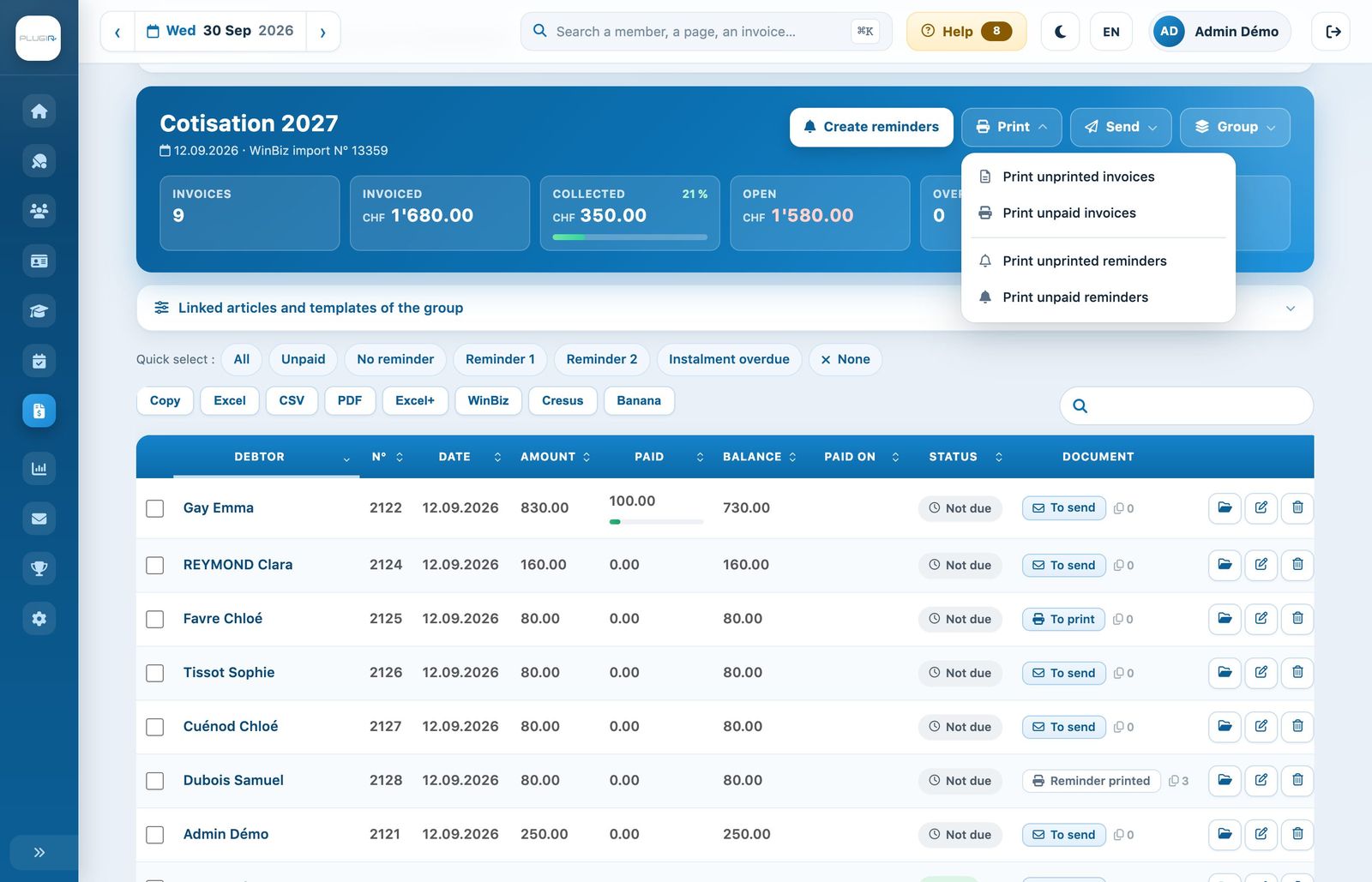
The “Print” menu of an invoice group
The PDF opens in a new tab. In the column Document, printed invoices now show Printed. The small counter next to it shows the number of copies printed.
Print a single invoice
In the column Document, click the badge To print (or Printed for a new copy) of the invoice: the PDF opens and the invoice is marked as printed. In Open invoices & reminders, the menu ⋯ of a line also offers Print or View PDF.
Print a selection
Tick the invoices you want, or use the Quick select (All, Unpaid, No reminder, Reminder 1, Reminder 2, Instalment overdue). The selection bar appears at the bottom of the screen:
- Print: a PDF with the ticked invoices;
- Print paid ones: prints the ticked invoices whatever their status, including those already paid or sent by e-mail, for example to hand over a copy;
- Cancel printing: resets the ticked invoices to the status To print, for example after a printer jam.
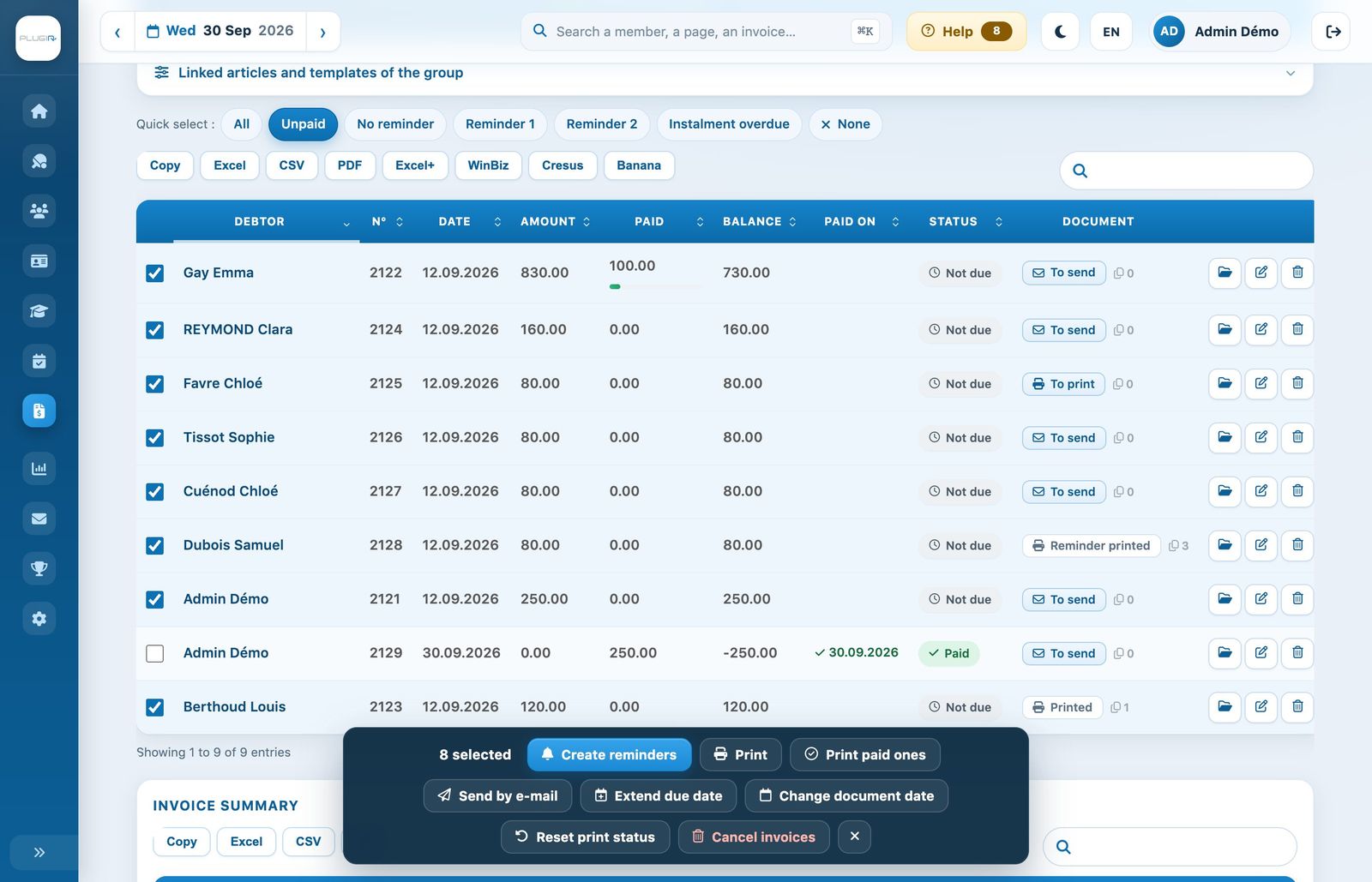
The “Unpaid” quick select and the selection bar
Tip: print a first copy and check it (address in the envelope window, readable QR-bill) before printing the whole group.
Plugin.ch Tutorial — Manage invoices