


Manage invoices
Manage family discounts
Automatically grant a discount to families when invoicing membership fees and courses
A family discounts is a rule: if a family meets a condition (for example two adults and at least one child), a discount is automatically added to its invoice. The discount is calculated at invoicing time, on invoices grouped by family: it follows the family, is added when a member joins and is removed if it no longer applies.
Prerequisite: family members must be linked to each other (member record, tab Member of family) and invoices must be created with the option Group family invoices. You also need an item with a negative amount, for example “Family discount”, which provides the accounting account for the discount.
Open the family discounts page
In the left side menu, open Invoices then Manage family discounts. The list shows the existing discounts with their sport, their Rule in plain language and their Status. A discount marked Never applied is not added to any invoice: open it to correct it, or use Repair when the button is offered.
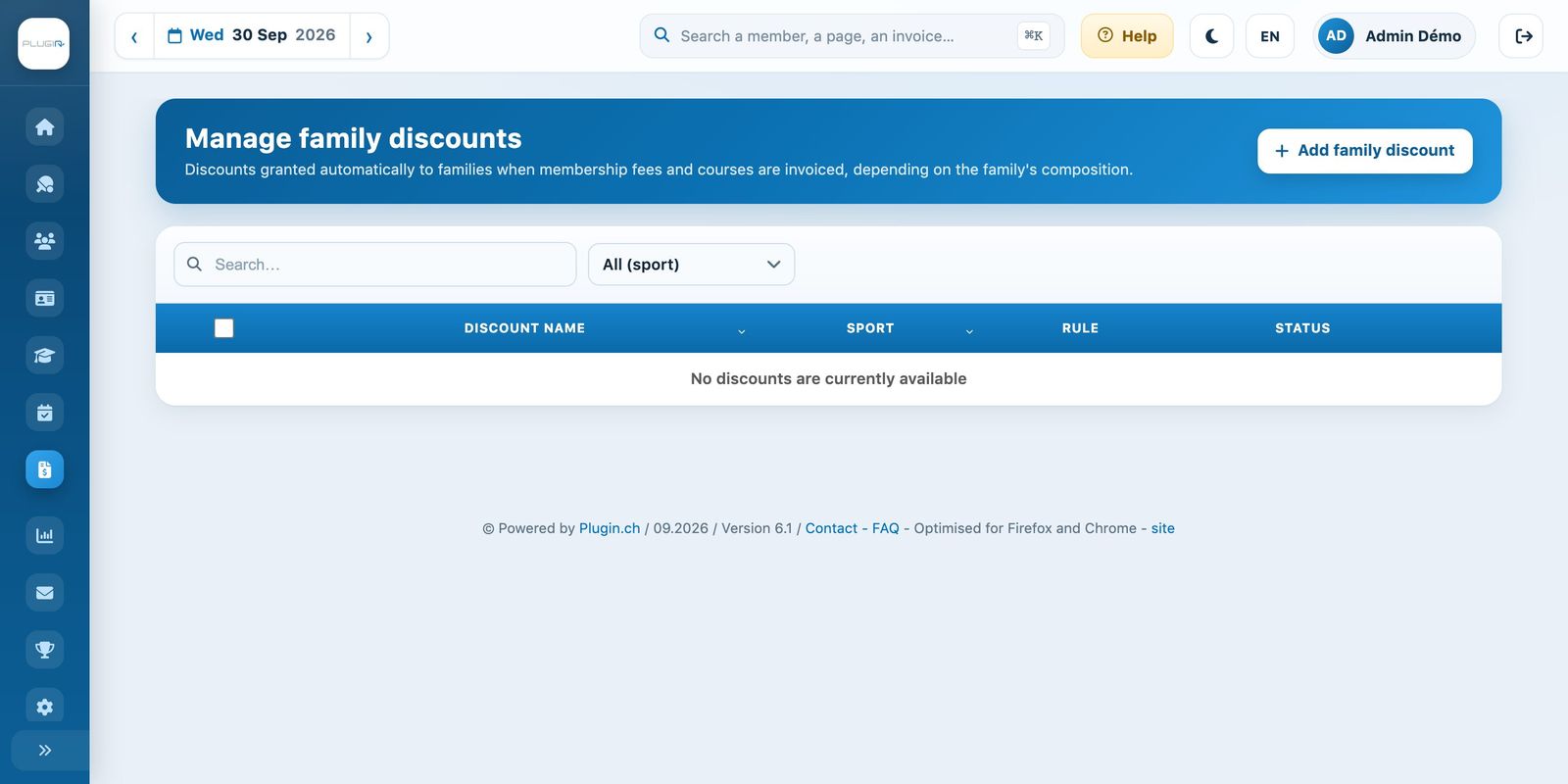
The “Manage family discounts” page
Create a discount
Click Add family discount. In the panel:
- Discount: the sport-season concerned, the Discount name (printed on the invoice) and the Accounting item (type the first letters of the item with a negative amount);
- What the discount applies to : Membership fees (memberships) or Lessons (tennis school courses). For courses, choose the courses concerned or keep all courses of the sport-season;
- Family composition: who must be part of the family. For example “At least 2 member(s) among Adult member”, then Add a condition “At least 1 member(s) among Junior” = two parents and at least one child. Each person counts only once.
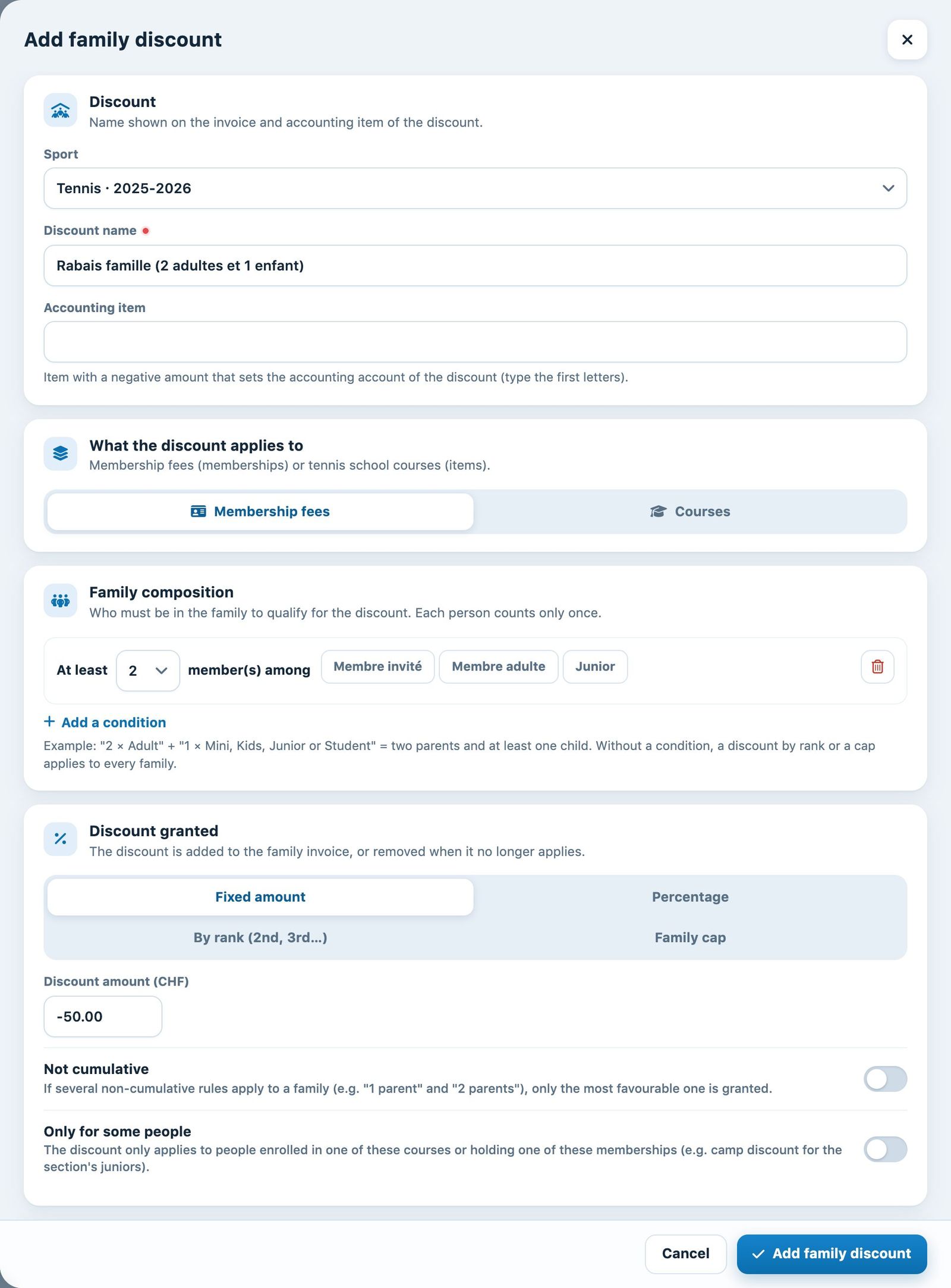
The “Add family discount” panel
Choose the discount granted
The section Discount granted offers four modes:
- Fixed amount: an amount deducted from the family's invoice;
- Percentage: a percentage of the membership fees or courses concerned;
- By rank (2nd, 3rd…): a tiered discount, for example 10% for the 2nd member and 20% from the 3rd. The discount goes to the cheapest members;
- Family cap: the family does not pay more than a given amount.
The switch Not cumulative prevents two rules from being combined (for example “1 parent” and “2 parents”): only the most advantageous one is granted. Only for some people limits the discount to people registered for certain courses or holding certain membership fees.
Test before saving
The section Test on a family lets you put together a fictitious family and click Calculate: the calculation is the same as for invoicing. Check the result, then click Add family discount.
When does the discount appear? When invoices are created: it appears as a negative line on the family's invoice. It is also recalculated when a membership fee or a course is added to an existing invoice. An invoice already created that does not change is not recalculated on its own: see step 5.
Apply a rule to invoices already created
If you add or correct a rule after the invoices have gone out (for example a course ticked afterwards), the discount is not added to existing invoices on its own. After you save the rule, a panel Family discounts on invoices already created opens as soon as invoices are affected. You can also open it at any time with the button Invoices already created, at the top of the page, or from an invoice group (Group → Recalculate family discounts).
The panel is a preview: nothing has been changed yet. For each invoice it shows the columns Current, After and Difference, with the discount lines added or removed. Tick the invoices to correct, then click Correct ticked invoices. The Future invoices only closes the panel without changing anything.
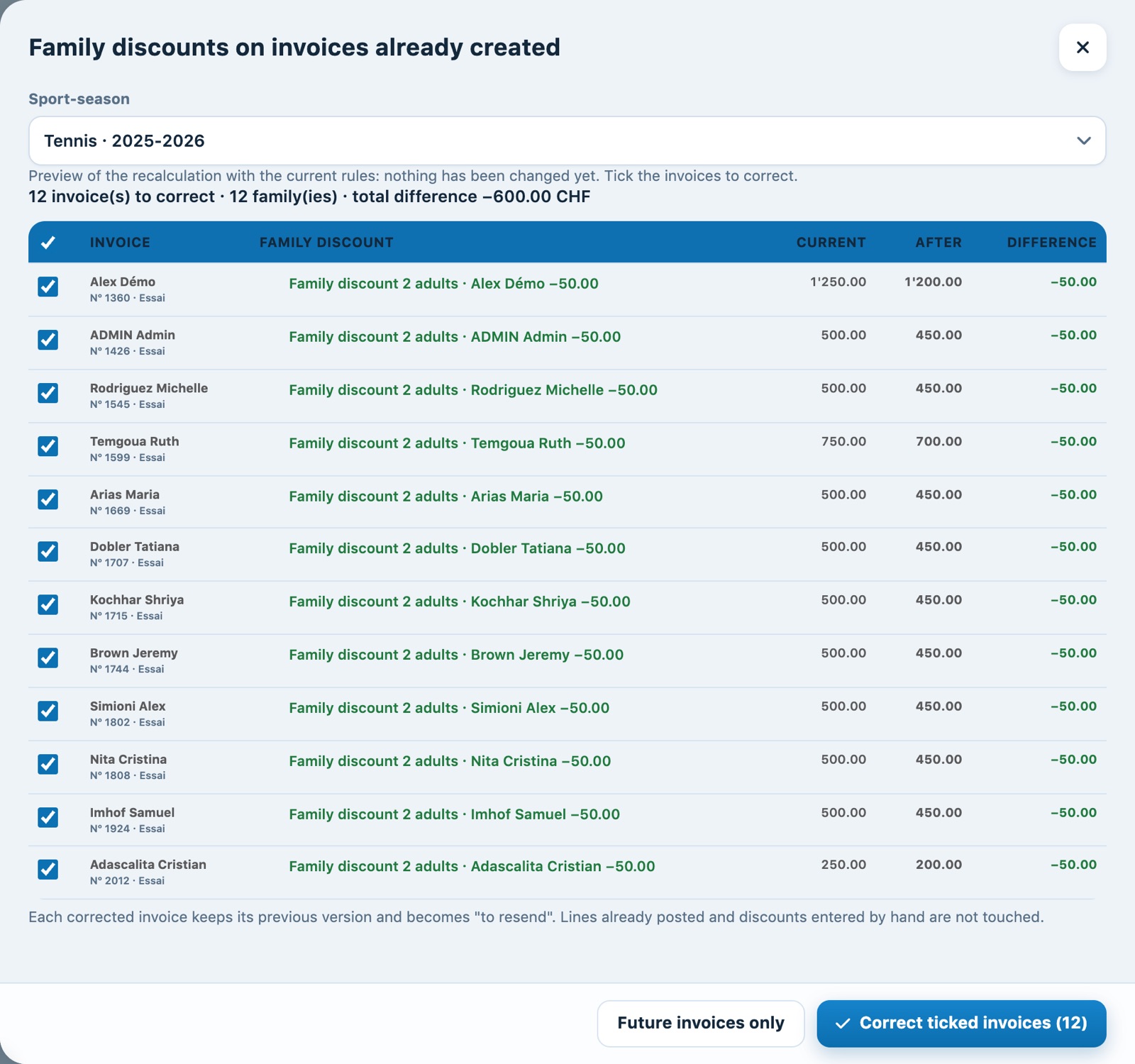
The "Family discounts on invoices already created" panel
Invoices already paid: they are marked Already paid and are not ticked by default. A discount added to a paid invoice leaves an overpayment, to refund or credit to the wallet; a removed discount leaves a balance to claim. It is up to you to settle it.
Each corrected invoice keeps its previous version and becomes "to resend": remember to resend it. Lines already posted and discounts entered by hand are never changed.
After copying a season: check the rules
When a season is created from an existing season, its family discounts are copied as they are and apply from the first invoicing run. Each copied rule carries the badge To check on the family discounts page, with the points to check: subscriptions and amount, courses concerned, discount reserved for pupils of courses from the old season.
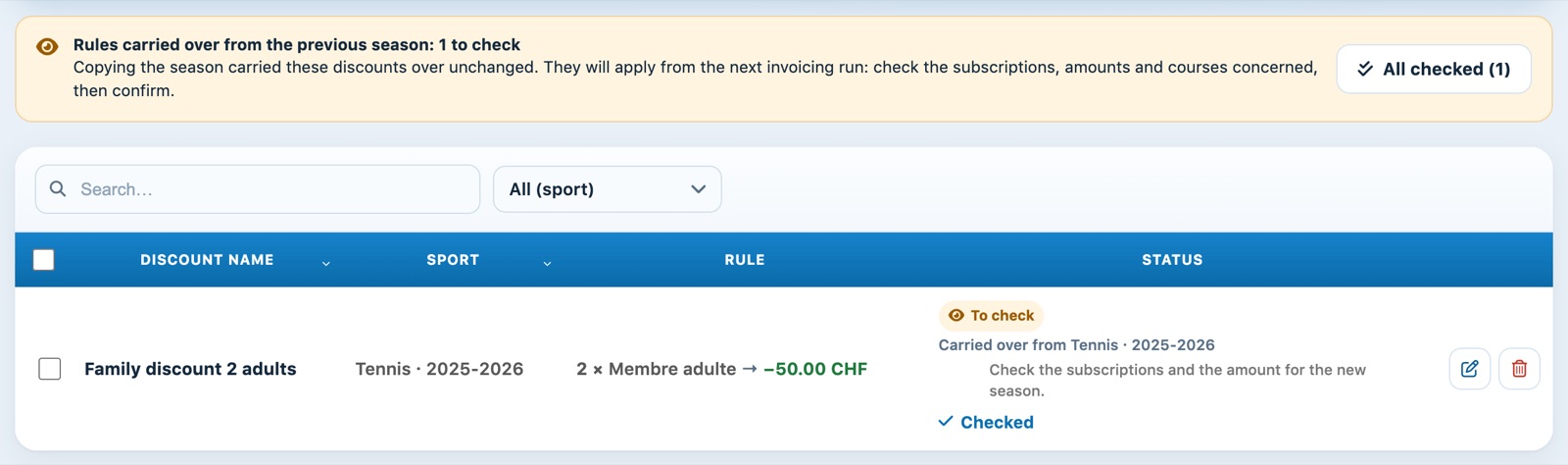
A copied rule, to check
Open the rule to correct it (saving it confirms it), or click Checked if it is right. The button All checked confirms all rules at once. As long as rules remain to be checked, creating an invoice group for this season shows the warning Family discounts to check before invoicing.
Discounts on courses: courses are not copied with the season. An "all courses" rule also counts camps created later: a warning on a new course's form reminds you; untick the discount if the camp does not qualify. A course copied with Copy lesson keeps the discounts of the original.
Plugin.ch Tutorial — Manage invoices