


Manage parameters
Manage challenge tournaments
Turn on the module and create your club's challenge tournaments
In a challenge tournament, registered players challenge each other and climb the ranking by winning their matches. The Manage challenge tournaments page turns on the module for your club, then lets you create your tournaments, edit them or join another club's tournament.
Open the page and turn on the module
In the left side menu, click Parameters, then Manage challenge tournaments. Set the Use the challenge tournaments module switch to Yes. It is saved as soon as you switch it: the message "Module modified successfully" confirms it.
The list of tournaments and the Join tournament and Add a tournament buttons then appear.
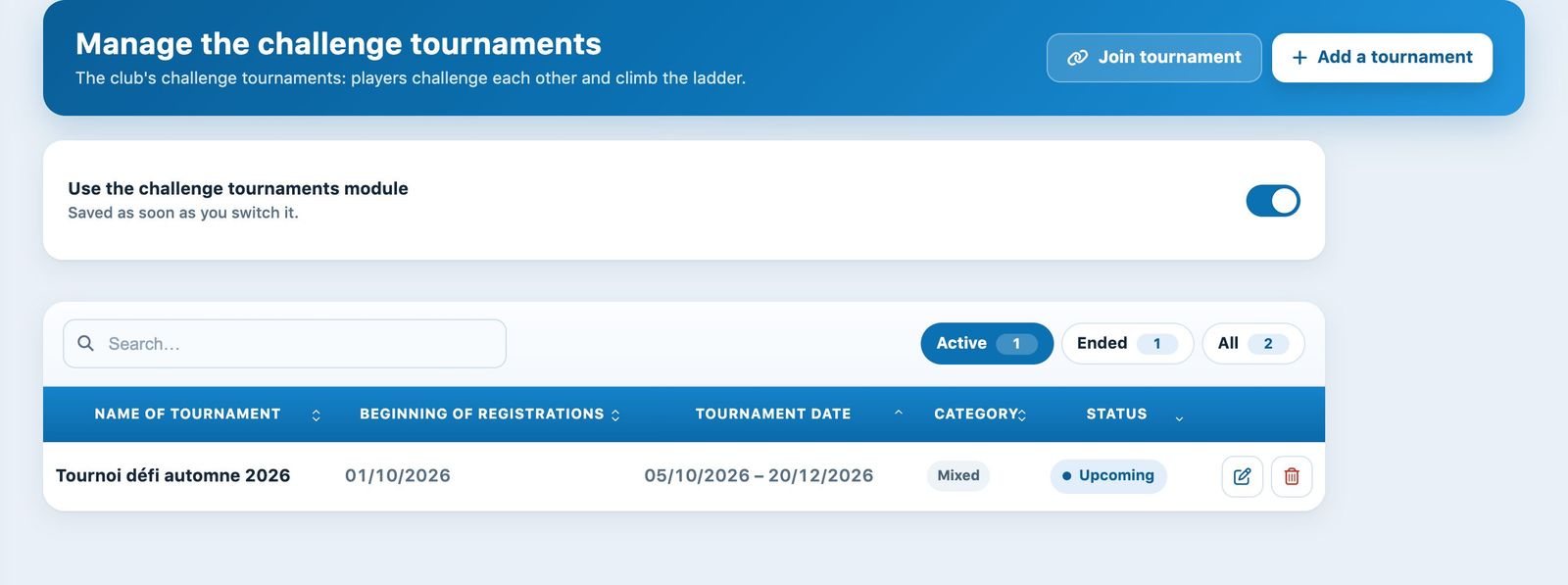
The module turned on and the list of tournaments
For each tournament, the list shows when registrations open, the dates, the category and the status (Current, Upcoming or Ended). The chips above filter the list: Active (current and upcoming, shown by default), Ended or All. The Search… field filters by name.
Create a tournament
Click Add a tournament. The side panel that opens has four cards: Tournament, Participants, Challenge rules and Explanation. Fill in the first two first.
| Name of tournament | The name shown to players. |
| Beginning of registrations | Date from which members can sign up. |
| Tournament date | Start and end date of the tournament. |
| Category | Man, Woman or Mixed. |
| Age required | Minimum and maximum age of participants (0 to 99 by default). |
| Maximum number of participants | Beyond that, registrations are closed. |
| Administrator's e-mail address | Address that receives the tournament notifications. |
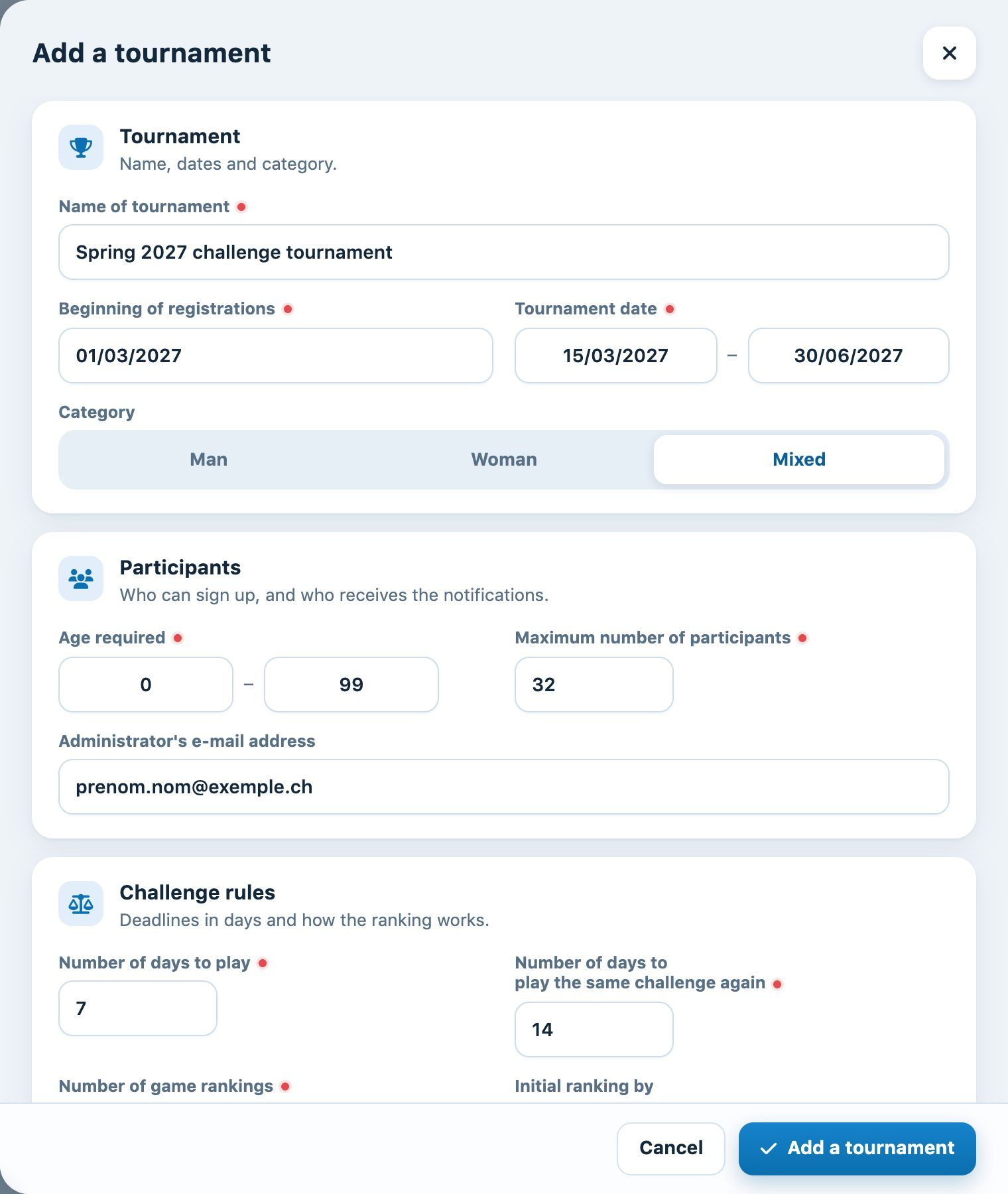
Tournament name, dates, category and participants
Set the challenge rules
| Number of days to play | Time allowed to play a challenge once it has been launched; the deadline is given in the e-mail sent to the challenged player. |
| Number of days to play the same challenge again | Number of days to wait before you can challenge the same opponent again. |
| Number of game rankings | Number of places above them that a player can challenge. With 3, the 10th can challenge the players ranked 7th, 8th and 9th. |
| Initial ranking by | Extra member field used to set up the first ranking (for example a level or an official ranking). |
| Improve ranking with a win | Yes: the winner of a challenge moves up the ranking. |
Finally, write in Explanation the rules shown to players on the tournament page.
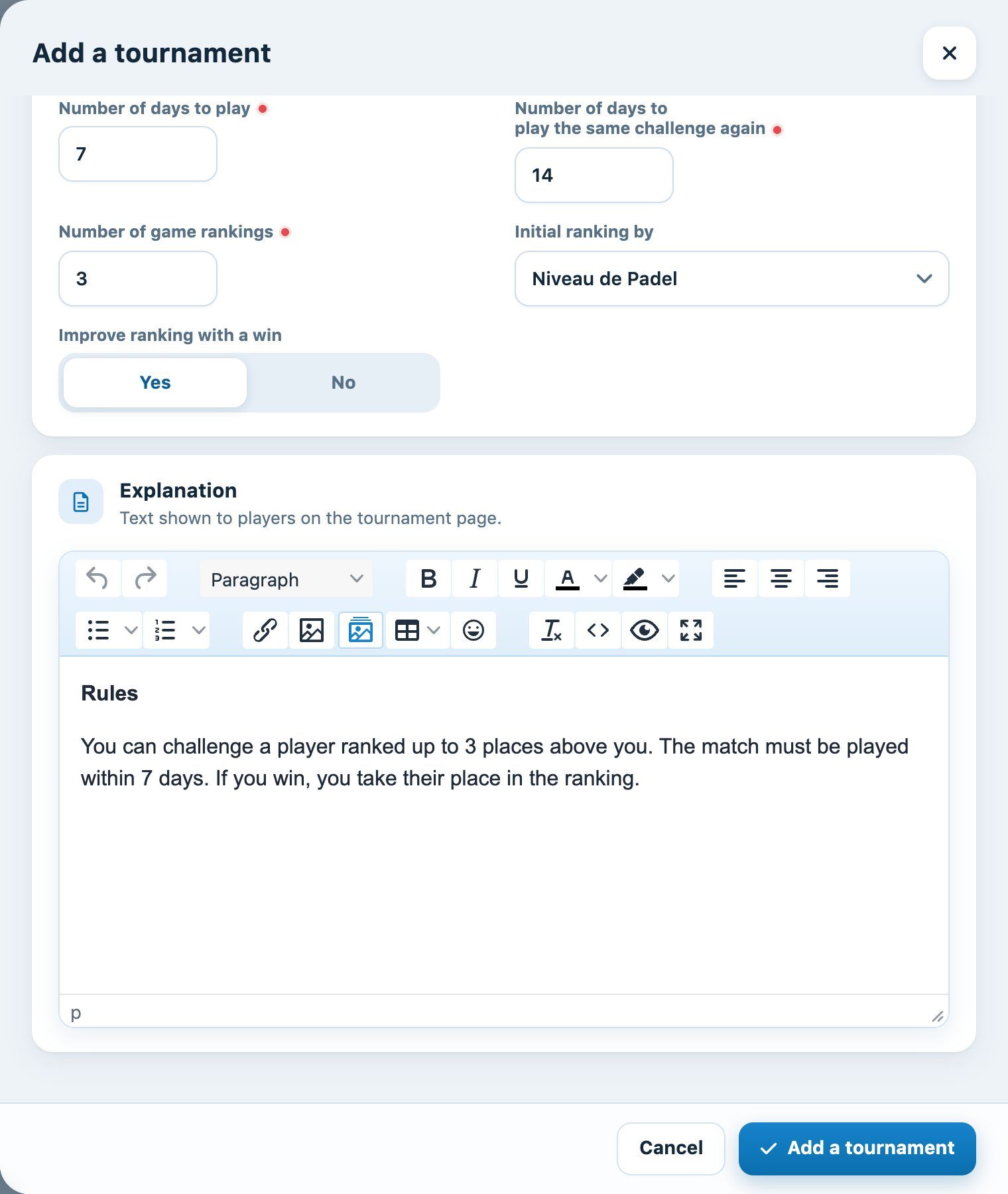
The challenge rules and the rules shown to players
Click Add a tournament at the bottom of the panel: the tournament appears in the list. Dates cannot be in the past.
Edit a tournament and share it
Click the pencil icon at the end of a tournament's row. The Modify the tournament panel has the same fields, preceded by the Shared key. Click Copy and send this key to another club so it can join this tournament: its members will then be able to challenge yours. Click Save to confirm your changes.
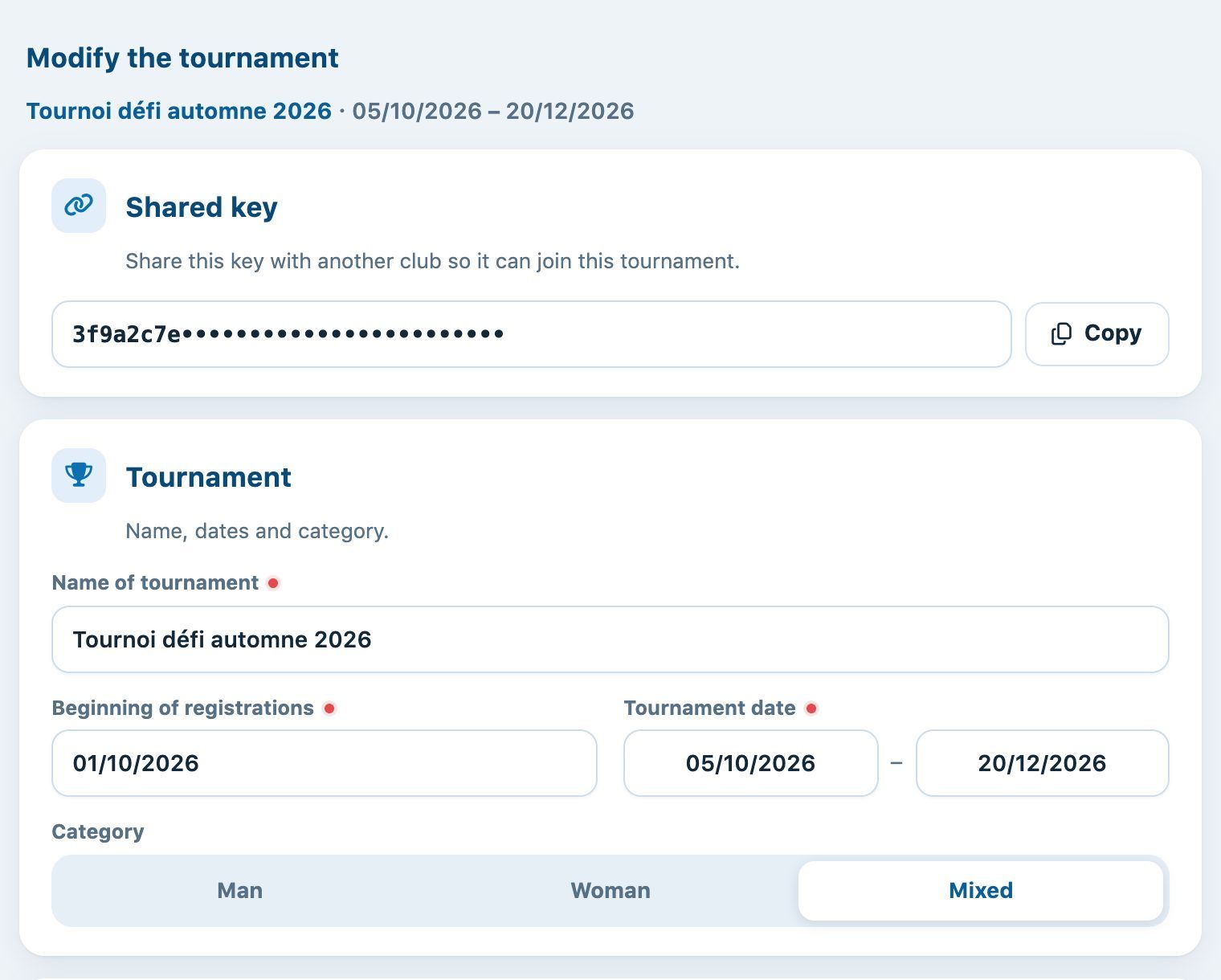
The shared key at the top of the edit panel
Conversely, to take part in another club's tournament, click Join tournament, paste the key you received into Tournament shared key, then click Join tournament.
Delete a tournament
Click the bin icon at the end of the row, then confirm. The tournament is permanently deleted.
Plugin.ch Tutorial — Manage settings