


Manage reservations
Creating and managing recurrences
A recurrence places the same booking every week over a period: a training session, a tennis school, an interclub match… The slots are taken in the schedule and shown with the recurrence's text and colour.
To simply close a court to members (maintenance, watering, works) without creating a booking, use the page Court closures: see the article Close courts.
1. The list of recurrences
In the left-hand menu, open Reservations → Manage recurrences. The list shows, for each recurrence, its text and colour, the sport, the period, the time, the courts and the days.
- The field Search filters on the text, and the sports drop-down list shows only one sport.
- The Active, Ended and All filters separate current or upcoming recurrences from those whose end date has passed.
- At the end of each row: copy the text and colour into a new recurrence, edit (pencil) or delete (bin).

2. Add a recurrence
Click + Add recurrence at the top of the page. The side panel opens:
- Sport: the sport and season concerned.
- Recurring: enter the Recurrence text (what is shown in the cells) and choose the Colour. Copy from takes over the colour, text and person of an existing recurrence. Assign to a person is optional.
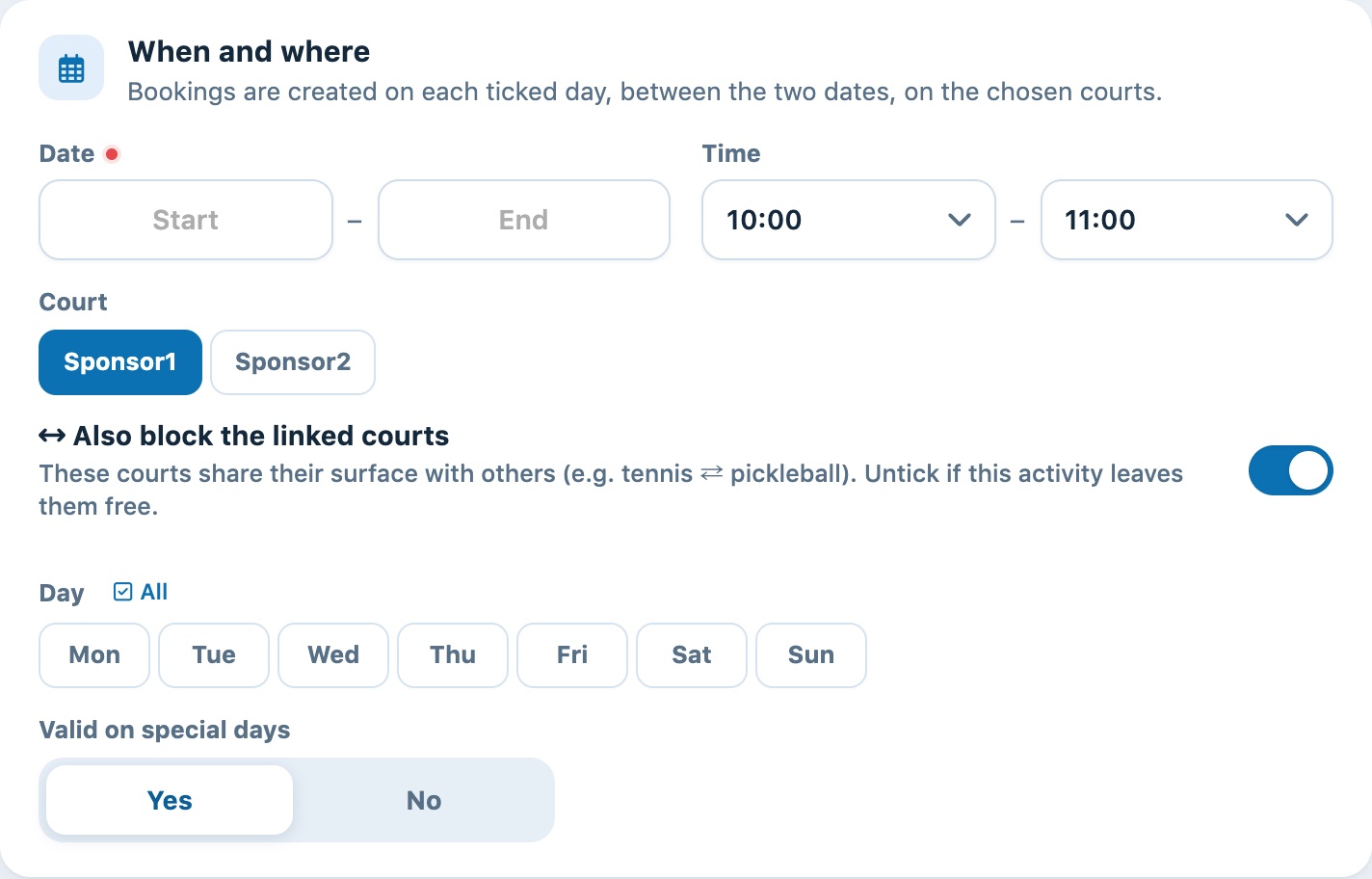
- When and where: the start and end dates, the start and end times, the courts and the days of the week (the All link ticks every day). Valid for special days: if you choose No, tick the special days (holidays, closures) during which the recurrence must not be placed.
- Assignment and payment (optional): enter a Price per day, choose the Payment method and turn on the Paid switch to record the bookings directly as paid.
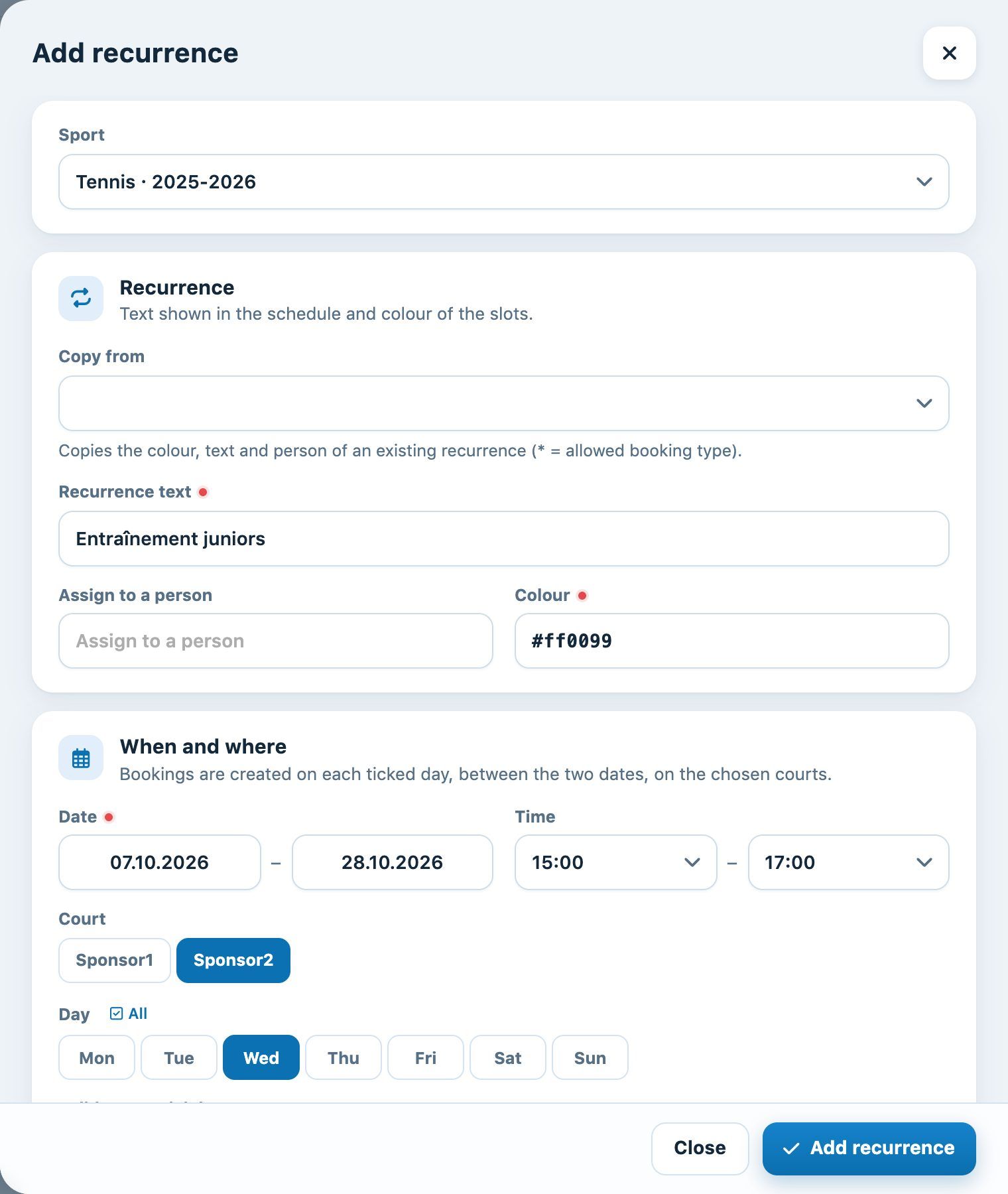
If one of the ticked courts shares its surface with other courts (hybrid court, for example a tennis court and its pickleball courts), the Also block the linked courts option appears below the courts. It is on by default: the recurrence then also blocks the linked courts at the same times. Turn it off if this activity leaves them free: the recurrence only occupies the ticked courts.
Click Add recurrence. The panel stays open so you can add another recurrence straight away; close it with Close.
Quicker: in the day schedule, drag across the free cells you want. The same panel opens, already filled in with the courts, hours and day (see Moving a booking and creating a recurrence in the schedule).
3. If slots are already booked
Before placing the recurrence, Plugin checks the dates. If bookings already exist, it lists them and offers three choices:
- Replace the reservations: the conflicting bookings are deleted and the recurrence takes all the dates;
- Do not replace: the slots already taken are skipped, the recurrence is only placed on the free dates;
- Cancel: nothing is saved, the form stays open.
Before replacing, warn the players concerned: their bookings are deleted.
4. Edit or delete a specific date
In the schedule, click a cell of the recurrence: the Recurring booking panel opens.
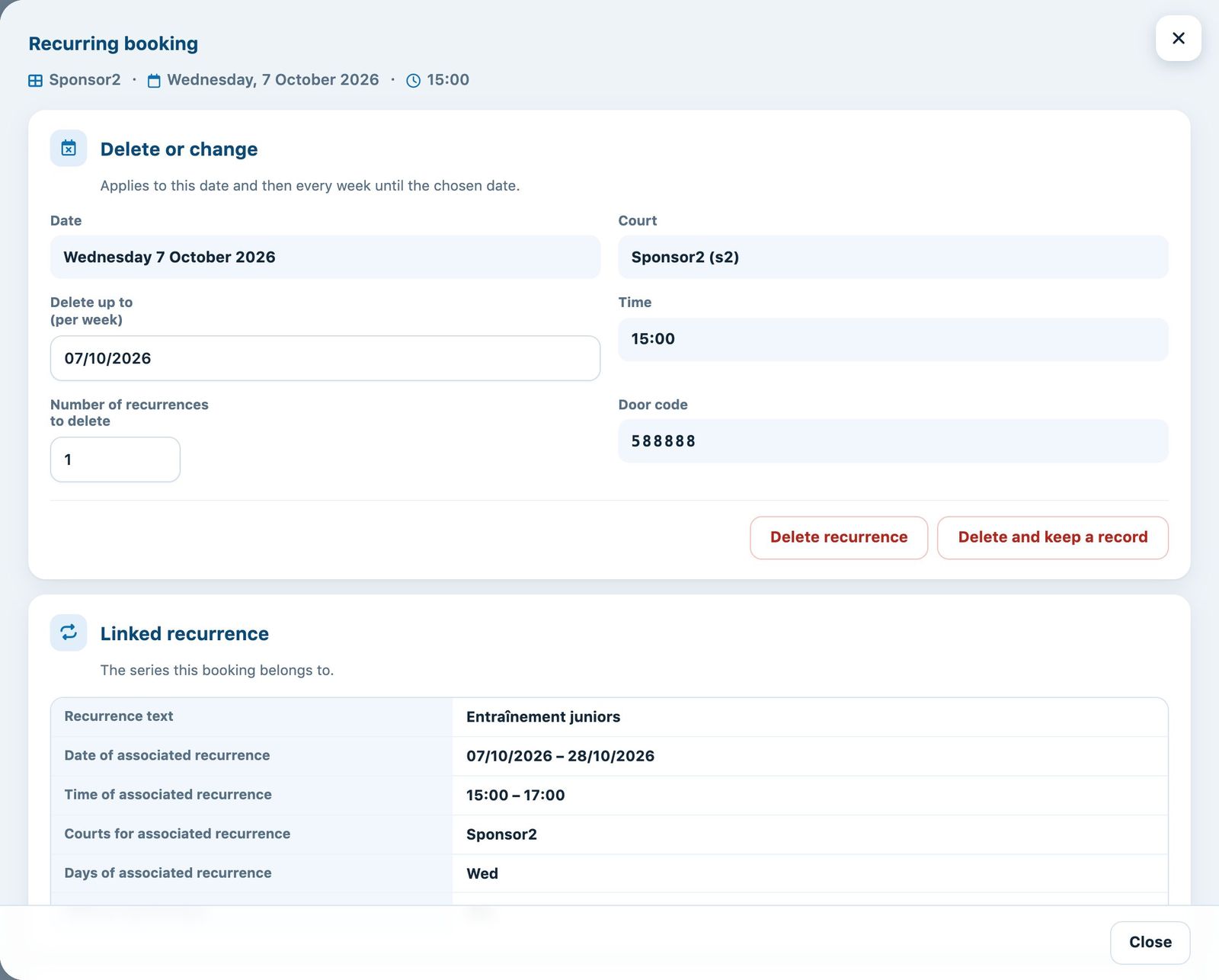
- Delete or change: applies to this date and then, every week, up to the date chosen in Delete up to (per week); you can also enter the Number of recurrences to delete. The Delete recurrence button removes these dates from the schedule.
- Linked recurrence: reminds you of the series the booking belongs to.
- Delete selected dates: tick the dates of the series to remove, for example the holiday weeks.
- Assignment and payment: the person, price and payment of this booking.
To change the whole series (text, colour, period, times, courts or days), use the pencil in Manage recurrences, then Save. The bin deletes the recurrence and all its bookings.
5. Good to know
- Recurrences are not carried over when a season is copied: create them again for the new season.
- In Manage the set times, the slots already taken by a recurrence appear hatched, so that you do not place a fixed hour there (see Manage the set times).
- Members can also create recurrences if their membership type allows it: see Manage recurrence authorisations.
Plugin.ch Tutorial — Manage bookings