


Manage parameters
Manage general settings
Turn on the modules your club needs and choose what members see
The Manage parameters page gathers the Yes/No switches that turn on Plugin.ch's main modules for your club: set hours, lessons, electronic purse, advanced price management, till, booking grid display, etc. When a module is on, its pages appear in the side menu; when it is off, they disappear.
Open the
In the left side menu, click Parameters, then Manage parameters. If the menu only shows icons, click the double-arrow button at the very bottom of the menu (Collapse / expand the menu) to display the labels.
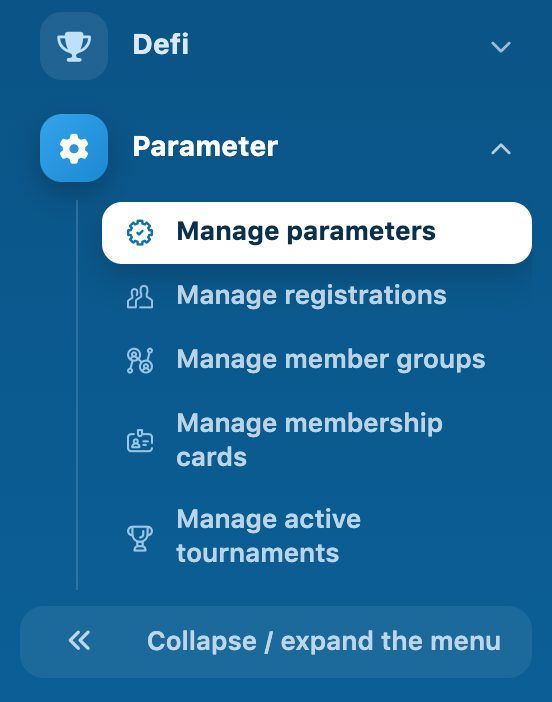
The Parameter module in the side menu
The blue banner at the top of the page shows your plan (for example PlugIn Pack : Pro). Some options only exist in the higher plans. The settings are split into four cards: Modules, Prices, counts and till, Display and This computer.
Modules
This card turns on the features offered to administrators and members.
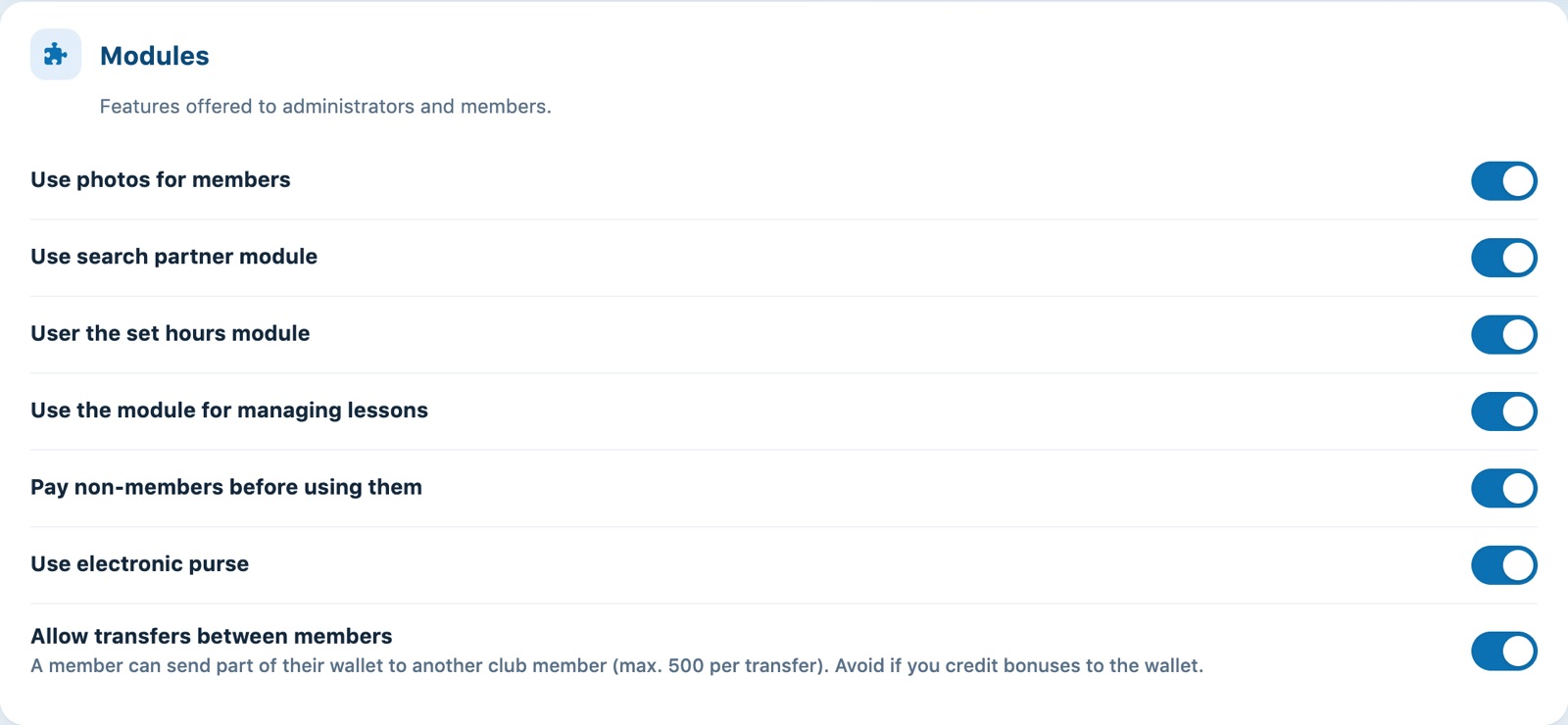
The Modules card and its Yes/No switches
| Use photos for members | Lets you add a photo to each member's record; it can then be printed on the membership card. Not available in the basic plan. |
| Use search partner module | Members can post a search for a playing partner on the club website. See Find your playing partner. |
| User the set hours module | Adds the Manage the set times page to the Reservation module (weekly bookings over a whole season). See Manage the set times. |
| Use the module for managing lessons | Turns on the Lesson module: lessons, groups, registrations and invoicing. See Activating the Lessons module. |
| Pay non-members before using them | A member can only book with a non-member (guest) if they still have invitations on their account, bought in advance or included in their subscription. When this is off, guests are not limited. |
| Use electronic purse | Each member has a balance they can top up and use to pay for their bookings. The balance is shown on the member's record. See Manage online payments. |
| Allow transfers between members | A member can send part of their wallet to another club member, at most 500 per transfer and never more than their balance. The amount is debited from their wallet and credited to the recipient's; both movements appear in each member's wallet history. No accounting entry is created: the money stays in the club's wallets. Disabled by default; avoid it if you credit bonuses to the wallet. For the member side, see Send money to another member. |
Prices, counts and till
These advanced options concern the club's rates and till.
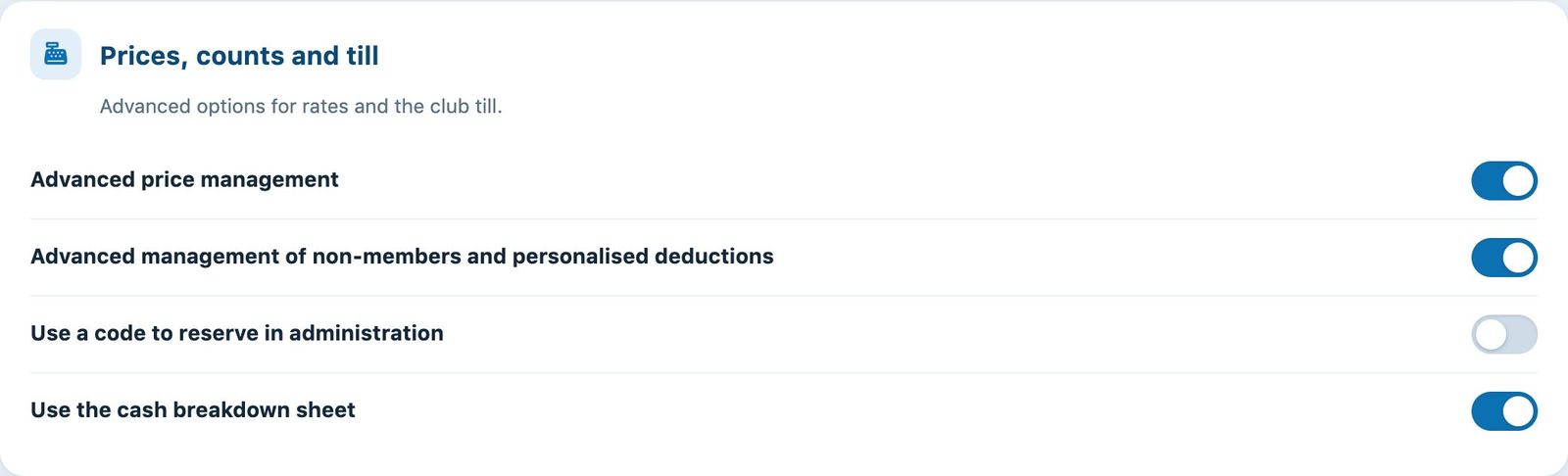
The pricing and till options
| Advanced price management | Adds the Manage prices page to the Subscription module: rates by subscription, court, day and time slot. See Create booking prices: per session or per season. |
| Advanced management of non-members and personalised deductions | Adds the Manage non-member and personalised deductions page to the Subscription module, to set how many units or invitations each booking deducts. |
| Use a code to reserve in administration | The administration booking form asks for a personal code: this way you know which administrator created, changed or deleted a booking. Together with the cash breakdown sheet, the page Manage the deleted traces appears in the Reservation module. |
| Use the cash breakdown sheet | Lets you take payment for bookings at the club and adds to the Reservation module the pages Manage cash register prices and Cash register record. Together with advanced price management, it is also a prerequisite for promotional codes. |
Display
This card sets what members see on the booking grid.
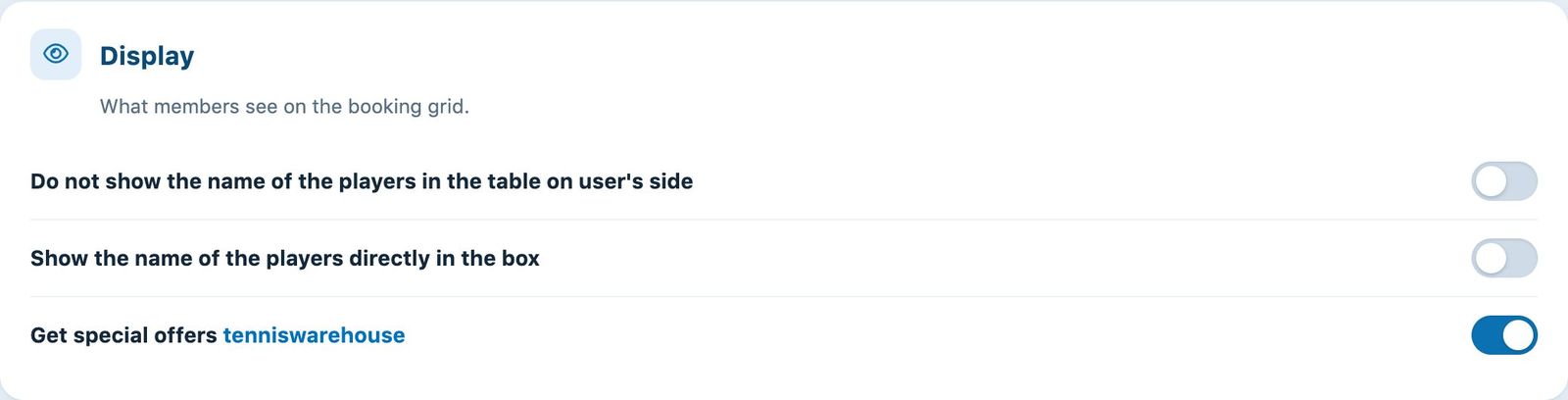
The booking grid display options
| Do not show the name of the players in the table on user's side | Members see that a court is taken, but not by whom. The administration always sees the names. |
| Show the name of the players directly in the box | The names are written in the booking box, without having to click on it. |
| Get special offers tenniswarehouse | Shows a box with offers from our partner Tennis Warehouse on the member site. |
This computer
These two settings only apply to the browser you are using right now: they are not saved for the club. Set them directly on the computer or tablet installed in the clubhouse.
- This computer is a terminal: the computer works as a self-service terminal for members.
- Use virtual keyboard on this computer: a keyboard appears on screen, useful on a touch screen without a keyboard.
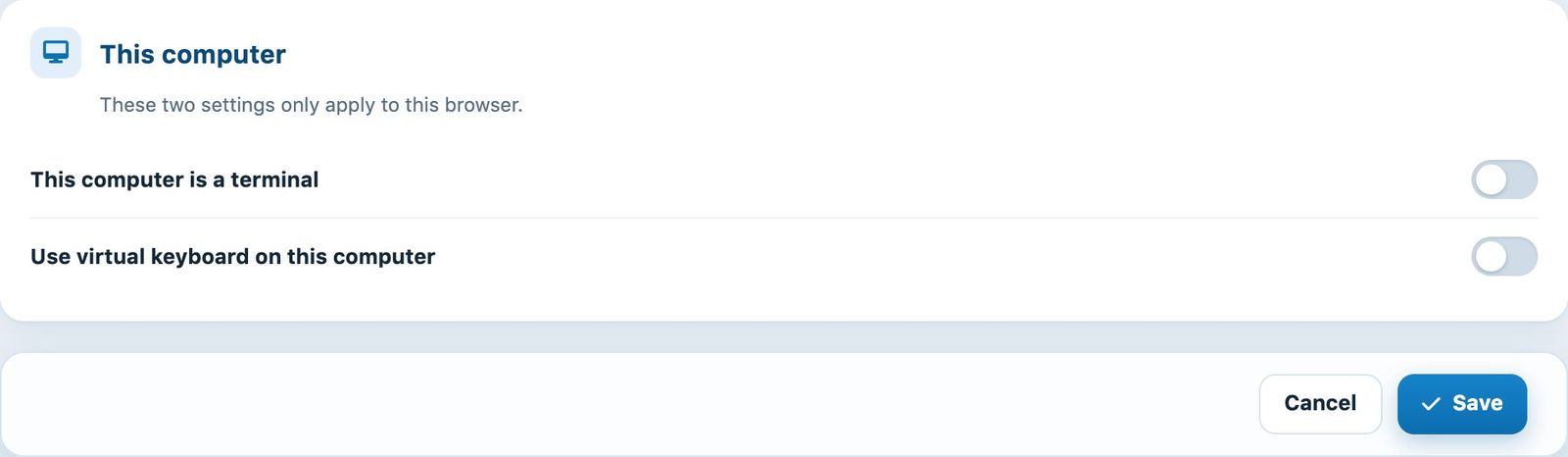
The settings specific to this browser and the save bar
Save
Click Save at the bottom of the page. The message "The modifications have been made" confirms the save. The Cancel button puts the switches back as they were when the page was opened.
The pages of the modules you have just turned on or off appear in or disappear from the side menu from the next page.
Plugin.ch Tutorial — Manage settings