


Manage parameters
Manage special days
Public holidays, school holidays and closures: the dates when the club runs differently
Special days are the dates when your club runs differently than usual: public holidays, school holidays, year-end closure, an event or a tournament. You define them once here; they are then used as a reference in several other club settings.
- Recurrences: a recurring booking can be skipped on the special days you tick.
- Lessons: a course group can exclude certain special days, on which there is no lesson.
- Restrictions: a restriction can apply only on special days.
- Clubhouse: the club can be treated as closed on special days.
Open the page and activate special days
In the left side menu, open the module Parameters and click Manage special days.
At the top of the page, turn on the switch Use special days system. The setting is saved as soon as you toggle it, with no button to click. While it is off, the list and the add button stay hidden and the special-day options do not appear in recurrences, courses and restrictions.
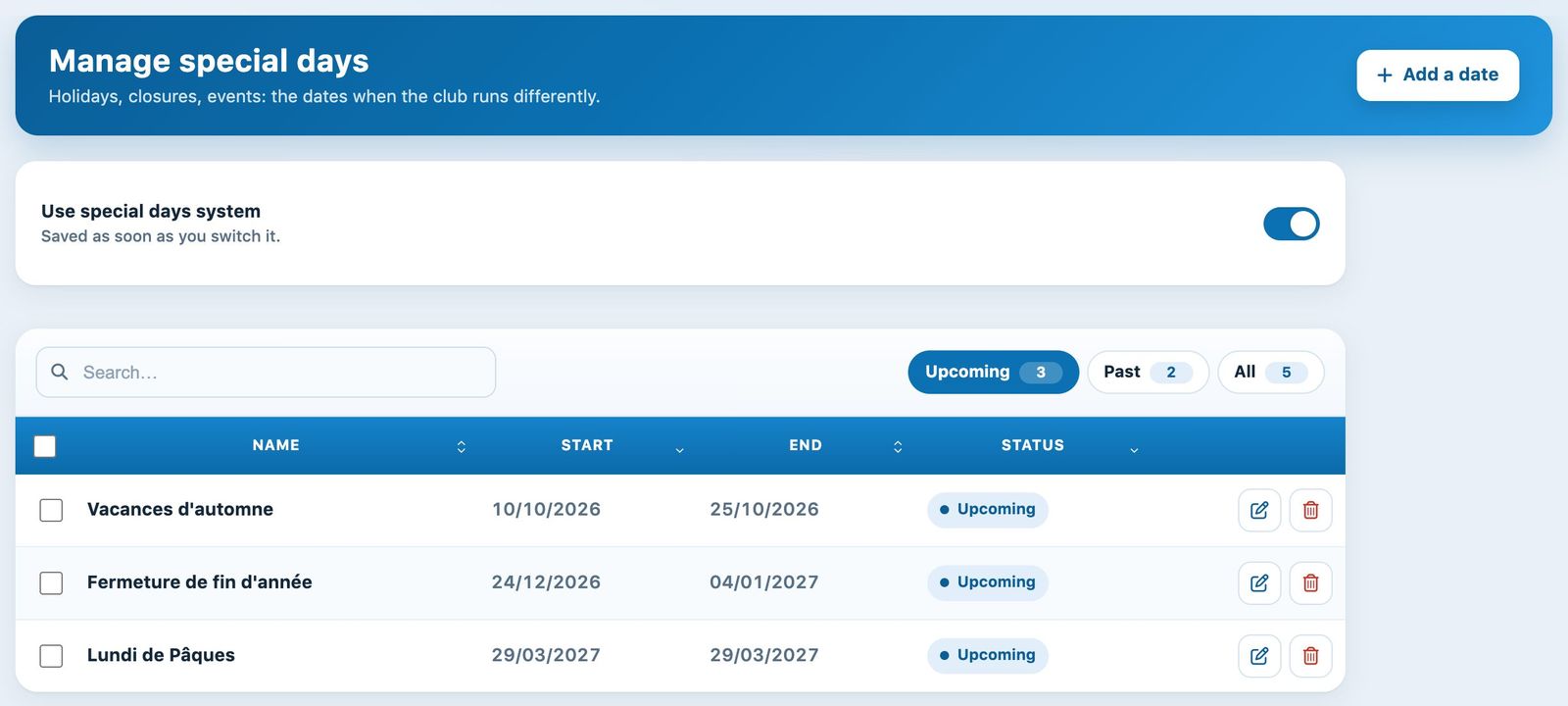
The Manage special days page: the module switch, then the list of dates.
Add a special day
Click + Add a date in the blue banner. A panel opens on the right of the screen.
- Name: a short, meaningful name (25 characters maximum), for example “Autumn holidays” or “Easter Monday”. This is the name you will find on the other pages to tick the days concerned.
- Start and End: pick the dates in the calendar. For a single day, use the same start and end date; if you leave the end empty, it takes the start date. Only today's or future dates can be chosen.
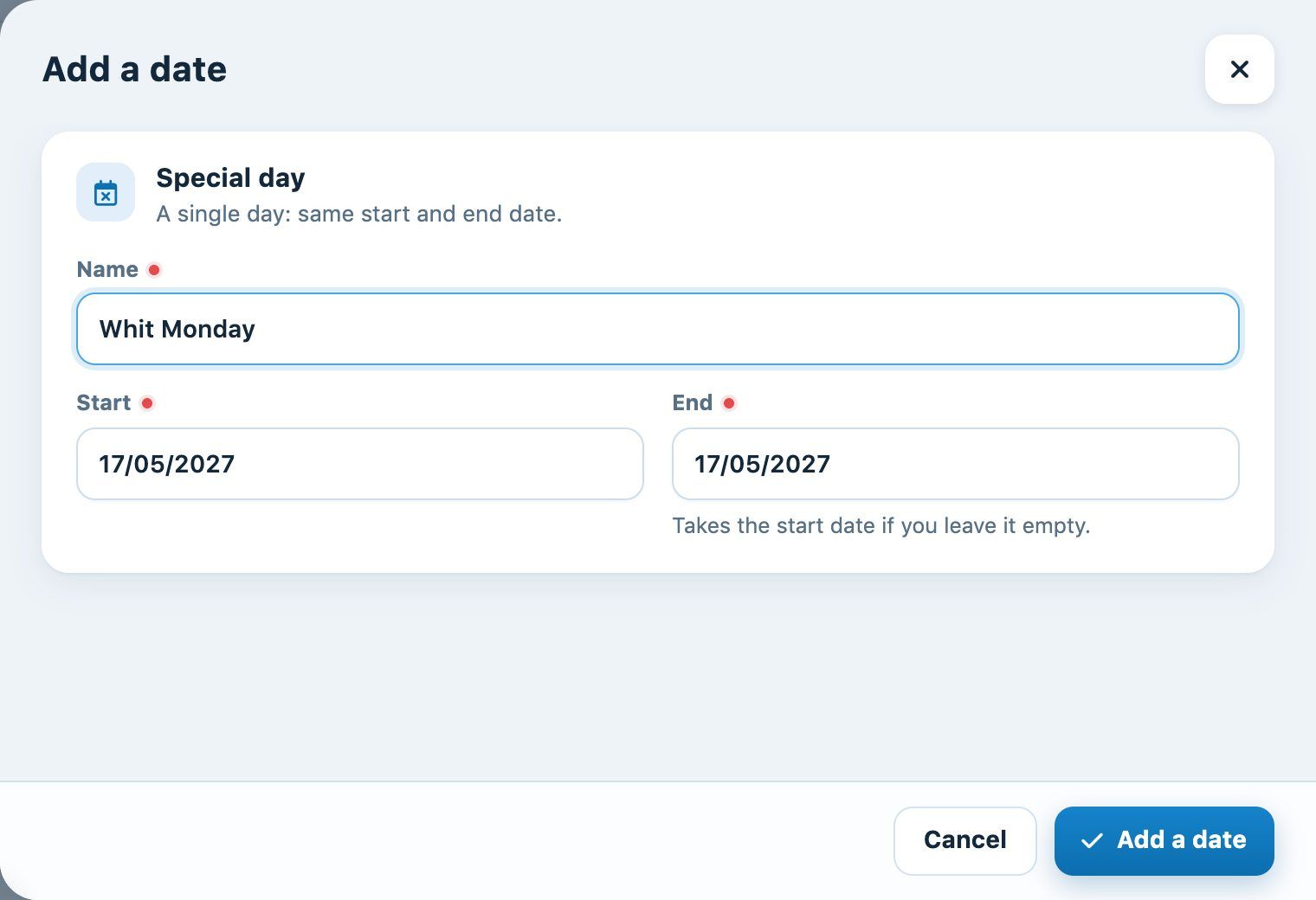
The Add a date panel, filled in for a public holiday.
Click Add a date at the bottom of the panel. A message confirms the addition, the panel closes and the date appears in the list straight away, without reloading the page.
Find, edit or delete a date
The list shows the name, start, end and status of each special day. The chips above the list filter the display:
- Upcoming: current and future dates (default view);
- Past: finished dates;
- All: all dates.
The field Search… filters the list by name. Click a column heading to sort.
To correct a date, click the pencil icon on its row. The Modify the date panel opens with the same fields; click Save to confirm.
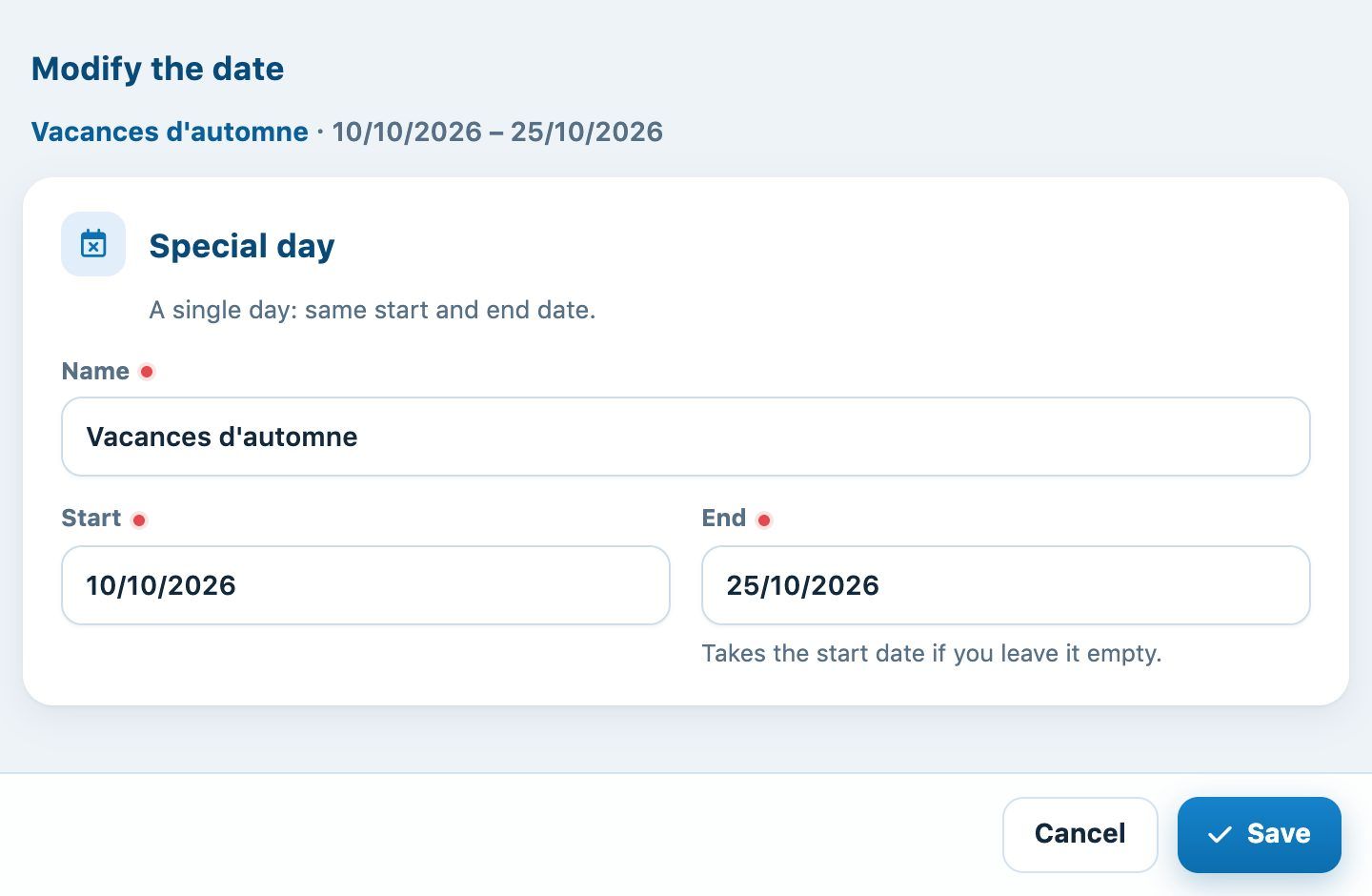
The Modify the date panel.
To delete a date, click the red bin icon. The row disappears and a Cancel button lets you undo it for a few seconds. To delete several at once, tick them: a bar appears at the bottom of the list with the button Delete.
Warning: a special day can be used by a recurrence, a course group or a restriction. If you delete it or change its dates, these settings take it into account immediately. For a new year, add a new date (for example “Autumn holidays 2027”) rather than editing the old one.
Where do you use your special days?
- Recurrences: in the recurrence form, answer No to Valid on special days, then tick the special days on which the recurring booking must not take place.
- Courses: in a course group, set Valid on special days to No and choose the special days on which there is no lesson.
- Restrictions: the option Only use on special days limits the restriction to the ticked dates. See the article Manage restrictions.
- Clubhouse: the option The clubhouse is closed on special days treats the clubhouse as closed on those dates. See the article Manage clubhouse.
Tip: enter the public holidays and school holidays of the whole season as soon as it opens. You can then tick them in one go when you create recurrences and courses.
Plugin.ch Tutorial — Manage settings