


Manage memberships
Manage membership type
Create and configure your club's subscription types
A subscription type (Junior, Membre adulte, Étudiant, Guest…) defines what a player is allowed to do: how many days in advance they can book, how many current bookings they can have, with how many players and for how many periods, how they pay and how much their membership fee costs. The same type can be used for several sports and seasons: its settings are shared, only the formulas (players × periods), prices and restrictions vary by sport-season.
Open the list of subscription types
In the left side menu, open Memberships then click Manage membership type.
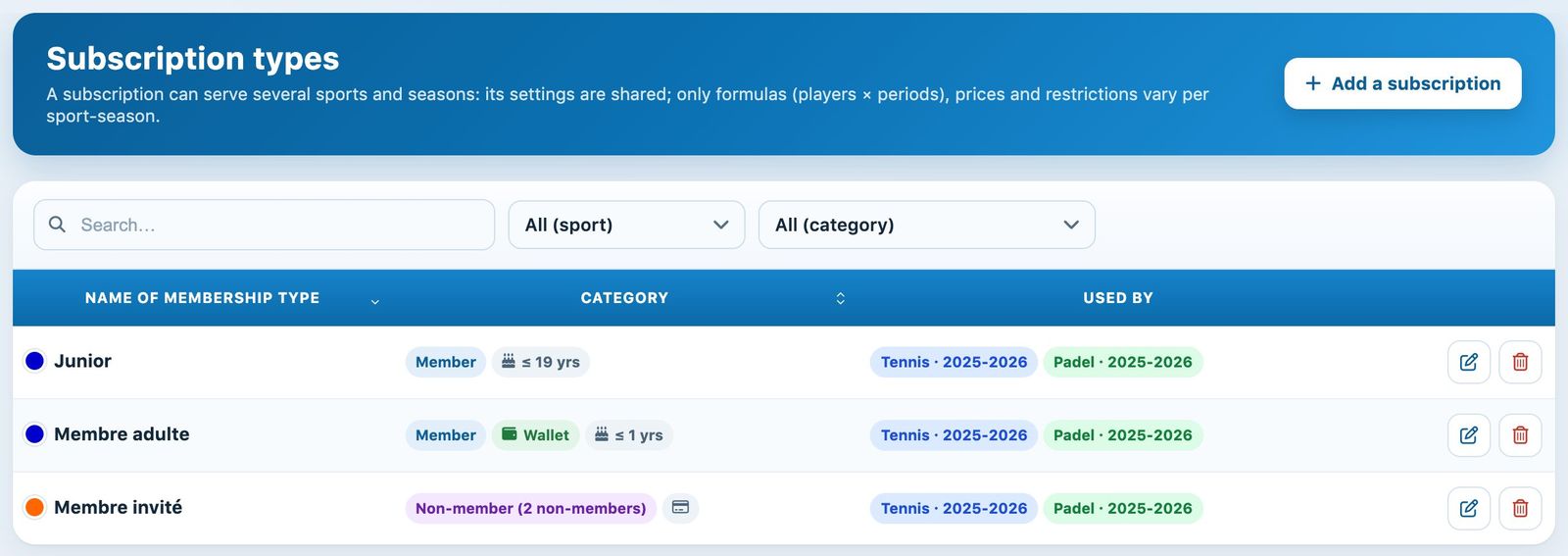
The list of subscription types, with their category and the sport-seasons that use them
Each row shows the type's colour, its Category (with badges such as the wallet or the maximum age) and the sport-seasons that use it (Used by). Filter the list with All (sport) and All (category).
Name, category and sports
Click + Add a subscription. At the top of the panel:
- Name and Group colour: the name shown in lists and the colour used in the schedule.
- Category: it determines the options offered further down.
- Member: the usual subscription for club members.
- Non-member (2 non-members): when a member books with a person of this type, their non-member quota is deducted.
- Member's guest: for guests who play with a member.
- Pay-as-you-go: the person has a number of units (hours) to use, set by Number of personalised units.
- Admin rental: lets the administration have two people who are not registered in Plugin.ch book a court.
- Sports and seasons: the main sport-season and, in Also for, the other open sport-seasons where the same subscription is offered. A person who receives this subscription then also gets it in these sports.
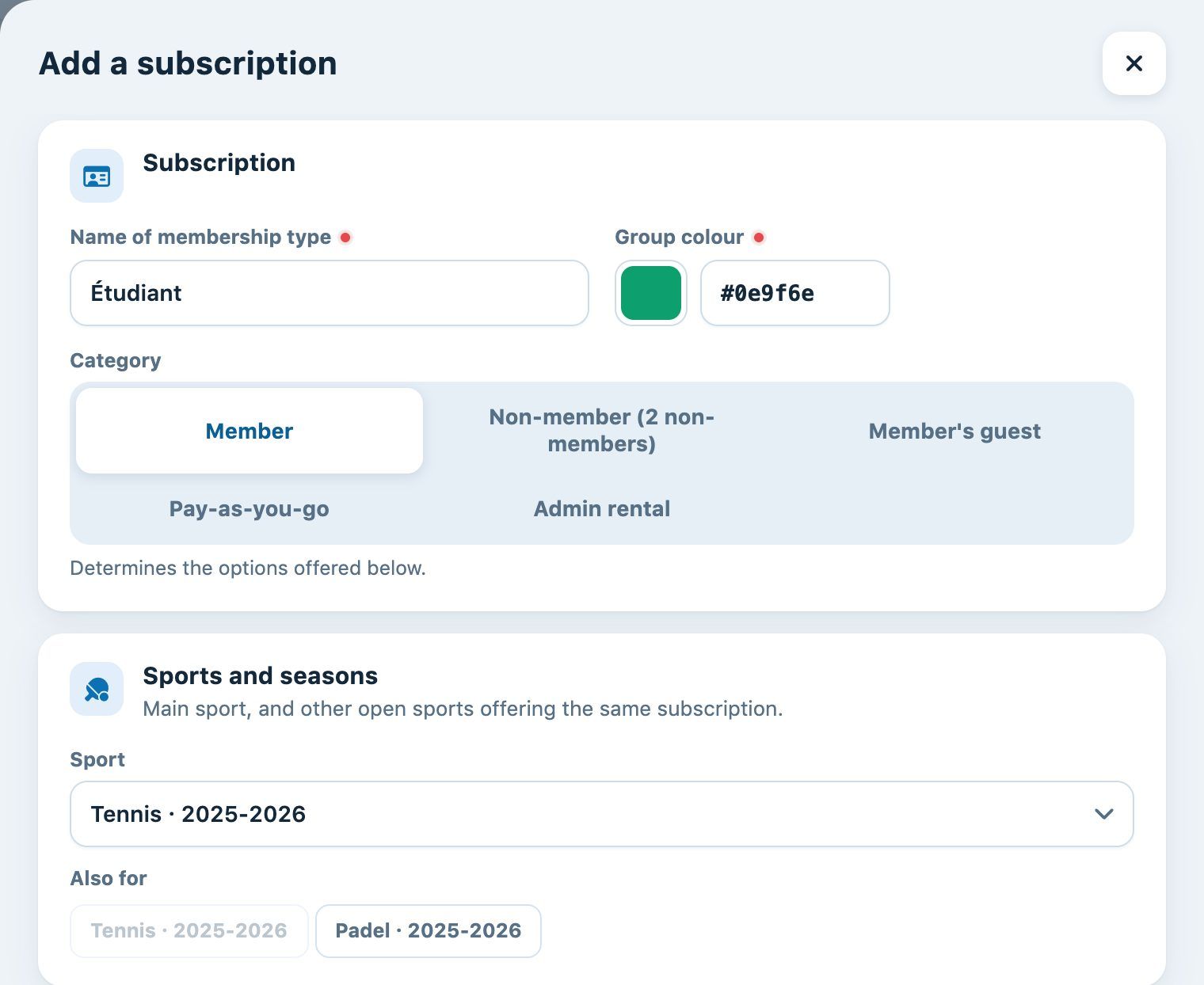
Name, colour, category and sport-seasons of a new "Étudiant" subscription
Bookings and formulas
| Setting | Effect |
|---|---|
| Number of days ahead allowed for booking | Number of days visible and bookable in advance (for example 7). |
| Period of deletion authorised (+- HH:MM) | Until when the player can delete their booking. For a booking at 15:00, 01:00 allows deletion until 14:00; -00:15 until 15:15. |
| Number of reservations currently authorised | Number of future bookings a player can have at the same time. |
| Quota of free non-members per season | Number of free non-member invitations per season. The paid quota appears if the club uses paid invitations. |
| Authorise simultaneous reservations | Allows several bookings at the same time on different courts (for example for a coach). |
| Authorise subsequent reservations | Allows booking two consecutive slots. |
| Does not count in the reservation quotas | Bookings of this type count neither in its quotas nor in those of its partners. |
| Additional information at reservation | Requires information (for example the names of guests) to be provided before confirming the booking. |
| Does not validate reservation | With RFID validation: the booking does not need to be validated at the club. |
The Players × periods formulas lists the combinations allowed for booking, for example 2 players for 1 period or 4 players for 2 periods. The length of a period is shown in brackets. These formulas are specific to each sport-season; Add reservation option adds a row.
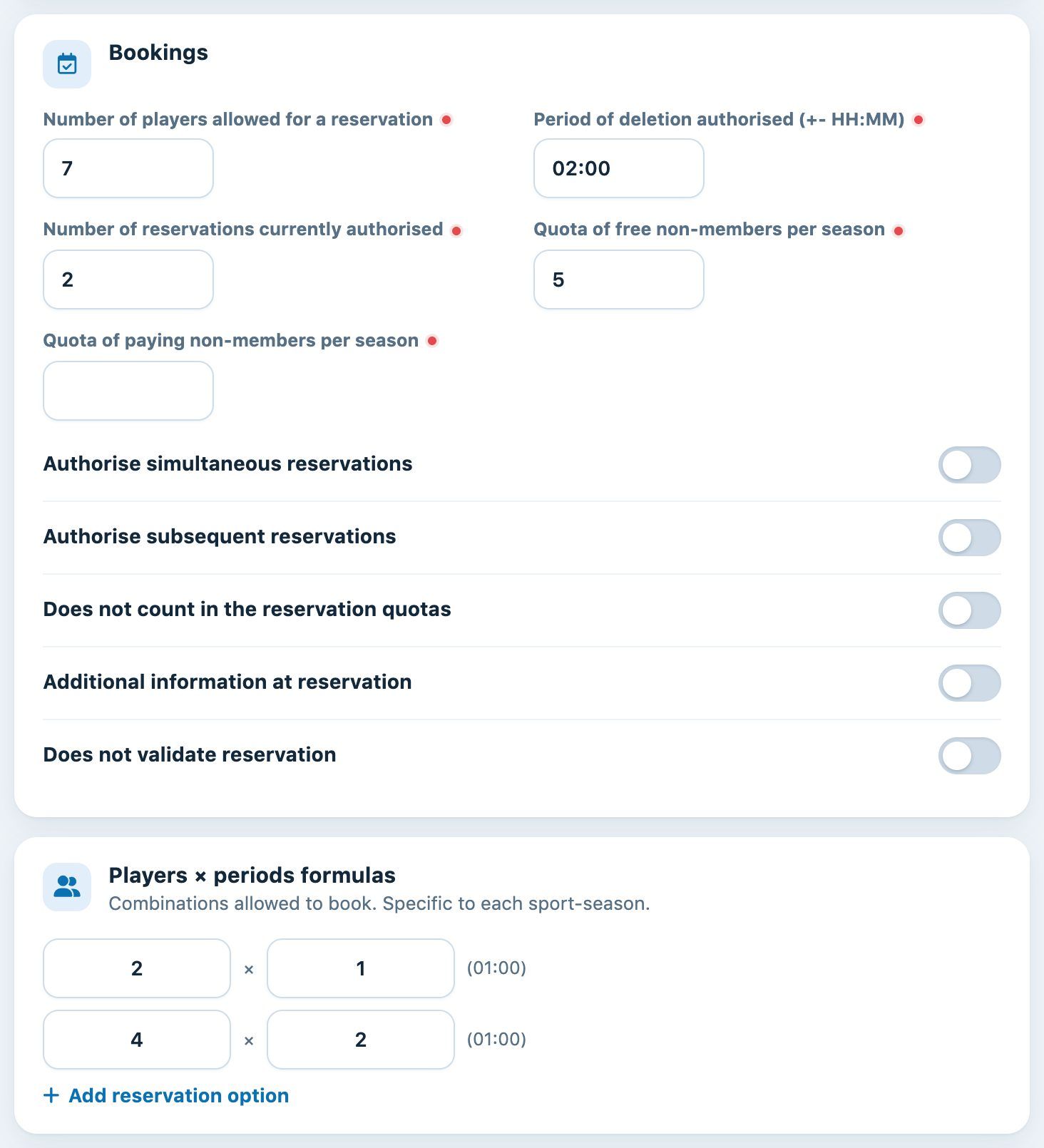
Booking settings and players × periods formulas
Payment and billing
Depending on the modules enabled for your club, the panel offers:
- Booking payment : Payment of reservations by credit card (the player pays for each booking online), Use the electronic purse, Pay at the cash desk, as well as the Waiting time for refund if the reservation is resumed (HH:MM) and the Refund method for card payments. For the categories concerned, Offers (packs) let you sell bundles of hours, invitations or credit online.
- Subscription billing : Price of annual membership, Item name on invoice, description and account number, the articles billed automatically on joining or every year, and the option Buy the subscription online.
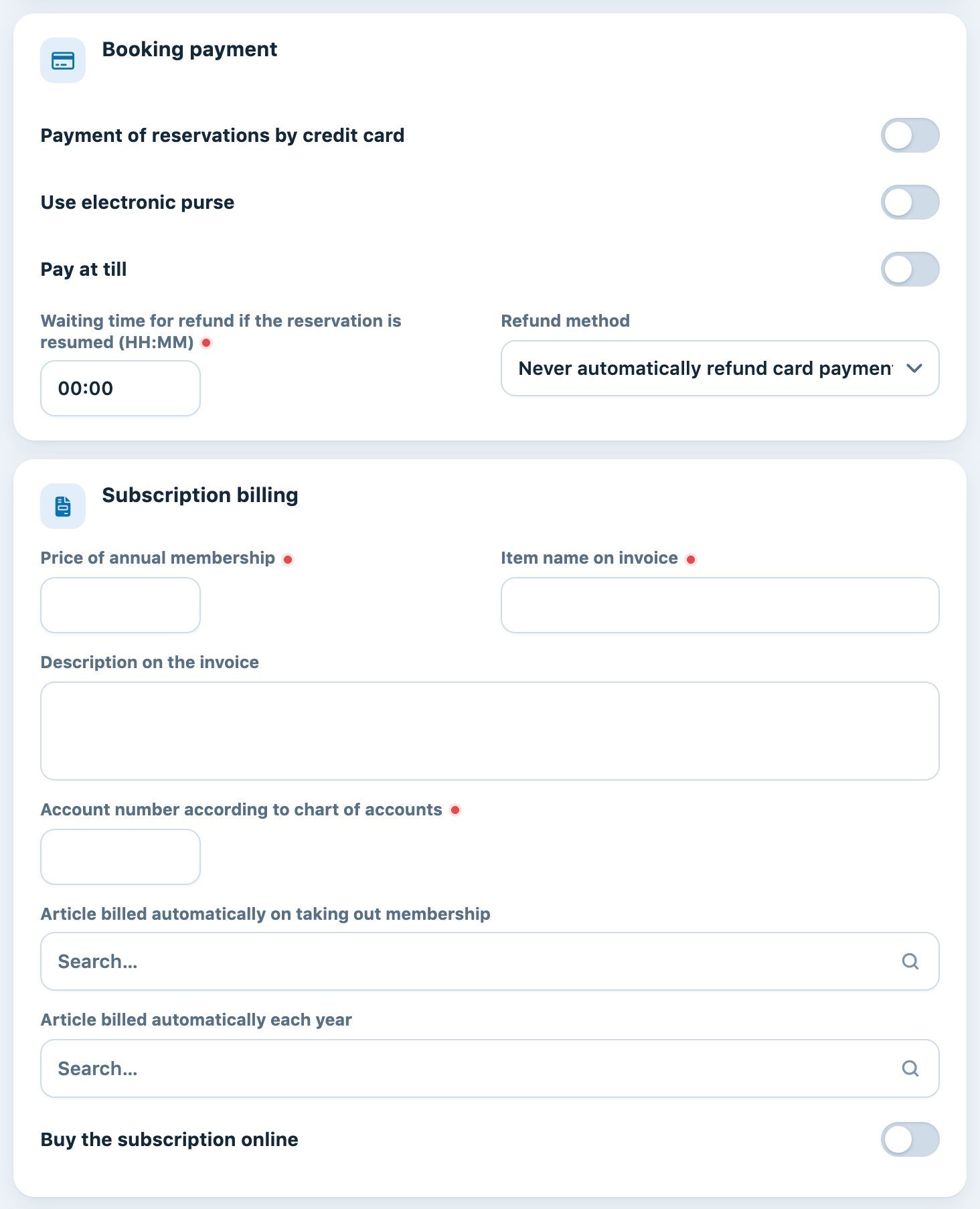
Booking payment and membership fee billing
Registration, age and validity
- Available on registration: the subscription is offered to people who sign up online (if online registration is enabled).
- Default membership (when editing): the type assigned by default.
- Upper age limit: enter the Maximum age (current year) and the Membership from this age. When subscriptions are copied for a new season, members who exceed this age automatically move to the chosen category, for example from Junior to Membre adulte.
- Limited in time (if the option is active for your club): validity period in days or months, then the Subscription after expiration.
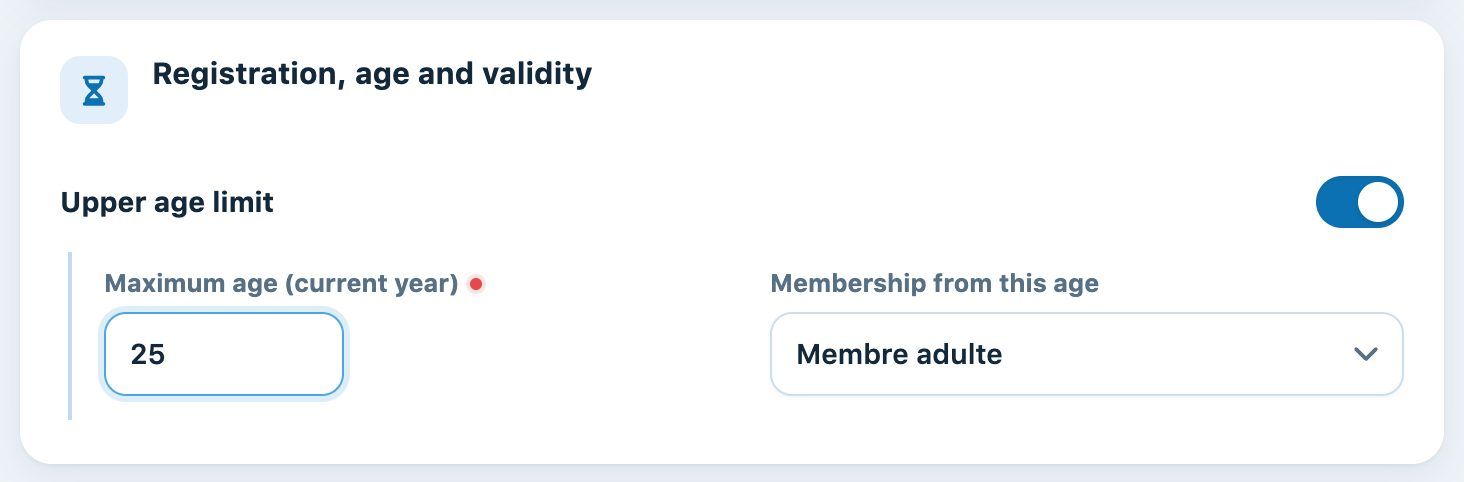
Automatic move to "Membre adulte" after age 25
Click Add a subscription to save.
Edit or remove a subscription
Click the pencil icon to open the Edit subscription. If the subscription is shared, the Subscription shared by several sports or seasons box reminds you that the settings apply to all these sport-seasons: only the players × periods formulas are specific to the chosen sport-season.
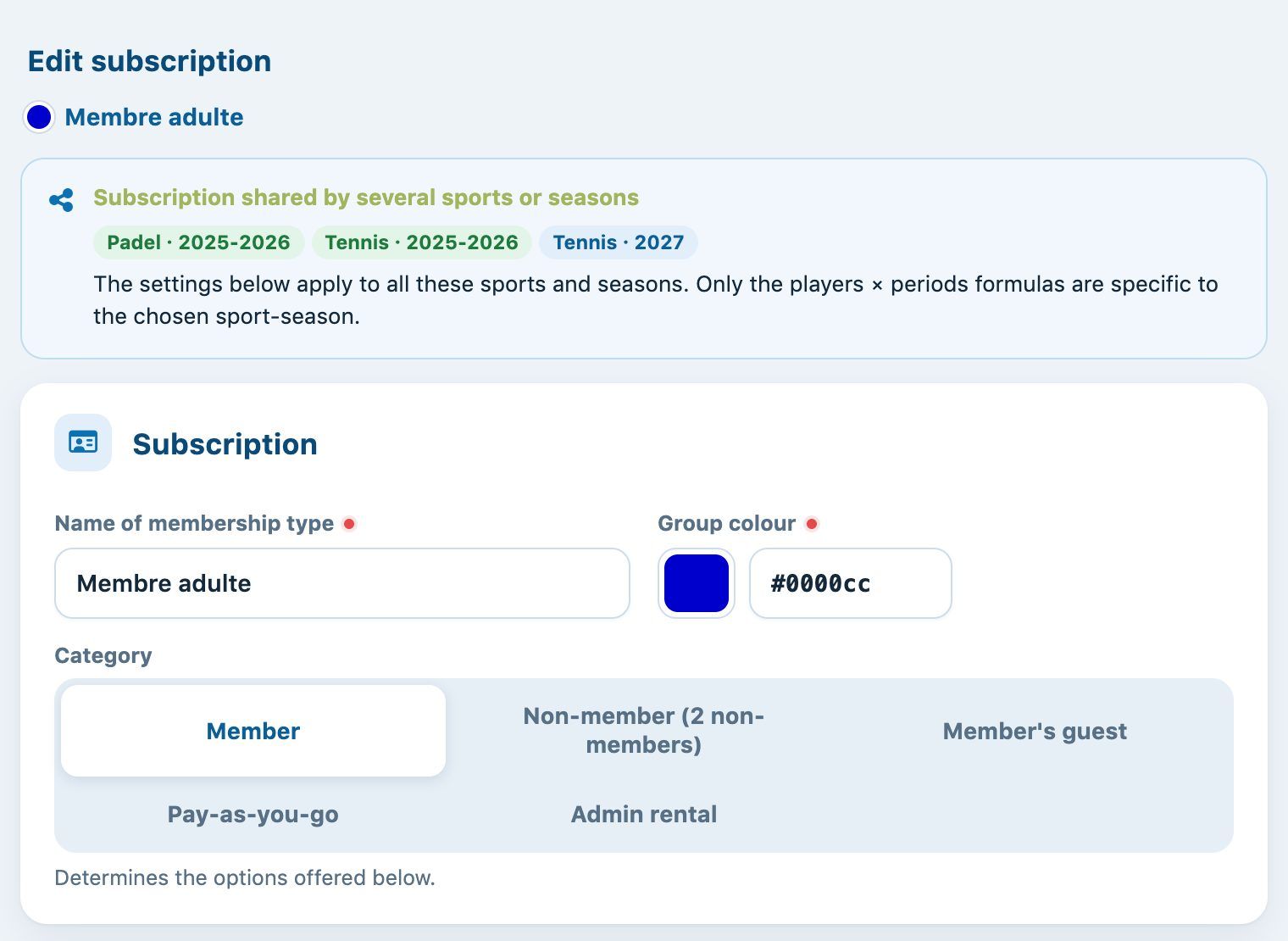
A subscription shared by three sport-seasons
The trash icon removes the subscription from a sport-season; if it is used by several, Plugin.ch asks which one. A subscription still linked to other items (members, prices…) is not deleted.
Tip: booking prices are defined per subscription type in Memberships → Manage prices. See the article Create booking prices: per session or per season.
Plugin.ch Tutorial — Manage subscriptions