


Manage parameters
Manage invoicing
Options, accounts, QR-bills, document templates and the club's items
The invoicing page brings together all the settings for the club's invoices: the options, VAT, the account numbers for your accounting software, the QR payment slips, the texts of invoices and reminders, and the list of billable items.
To open it, click Parameters in the left-hand side menu, then Manage invoicing. The page is titled Manage invoicing module.
Important: the settings at the top of the page (options, VAT, accounts, payment slips and templates) are only saved with the Modify module parameters button in the save bar. The items at the bottom of the page are saved one by one from their own panel.
Enable invoicing and choose the options
Turn on the switch Use invoicing module. As long as it is off, the rest of the page is hidden. Once invoicing has been saved, the Parameter menu also shows Use ledger, Use EBICS, Manage offers and Manage invoicing regions.
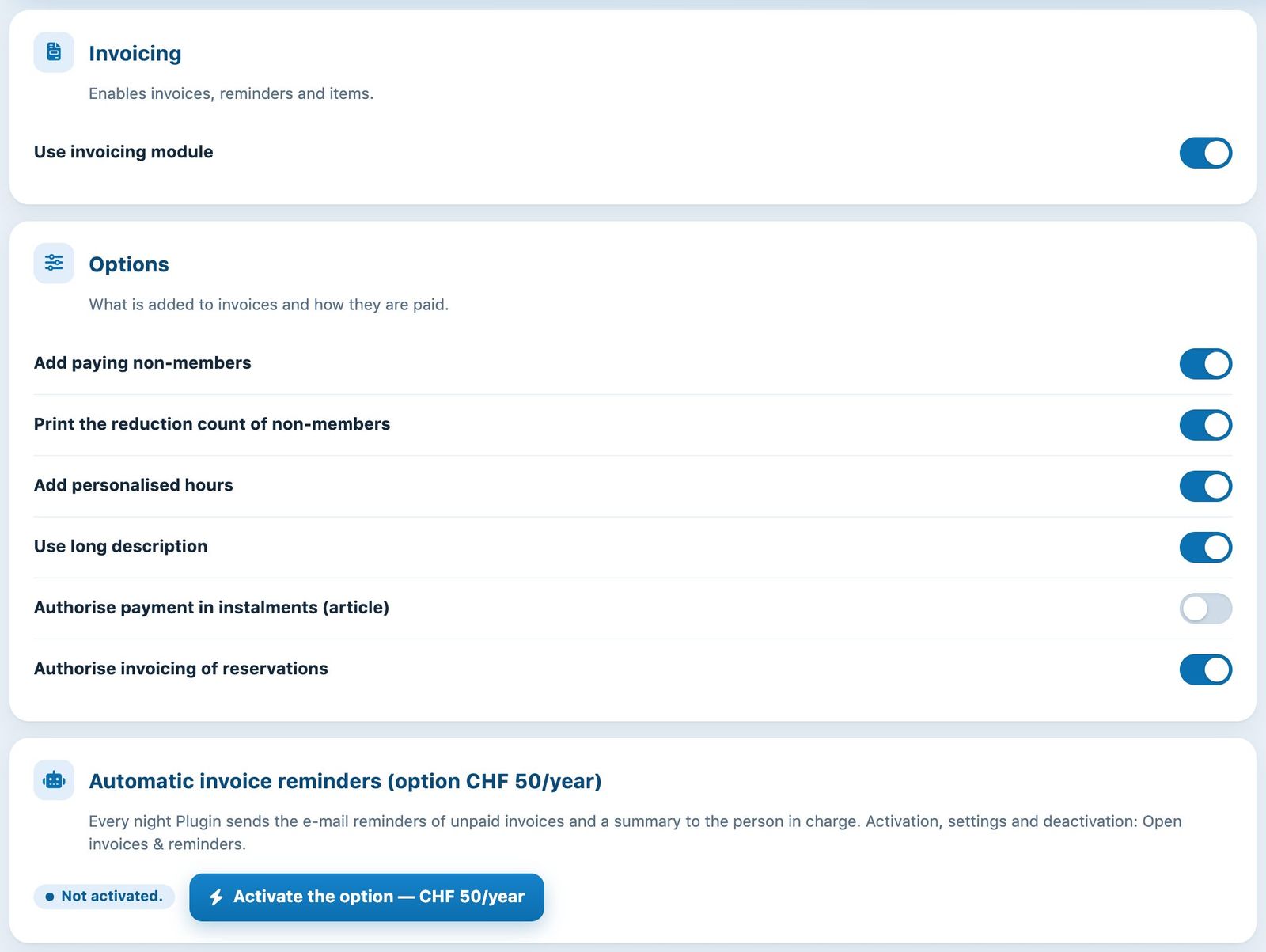
Enabling the module, options and automatic reminders
The options in the Options section are set with Yes/No switches:
- Add paying non-members: adds the amounts owed for paying non-members (guests) to the invoices.
- Print the reduction count of non-members: prints the details of these games with non-members.
- Add personalised hours: adds the hours played on a pay-per-hour basis to the invoices.
- Use long description: adds a field for a detailed description to the items, shown on the invoice.
- Authorise payment in instalments (article): lets you set for each item in how many instalments it can be paid.
- Authorise invoicing of reservations: lets you invoice bookings instead of having them paid at the time of booking.
The Automatic invoice reminders section presents a paid option: every night, Plugin.ch sends the e-mail reminders of unpaid invoices and a summary to the person in charge. The Activate the option — CHF 50/year button takes you to the Open invoices & reminders page, where the option is set up and turned off. See also the article Manage payment reminders.
VAT and accounting software
If your club is registered for VAT, enter its number in VAT N° (if applicable), in the format CHE-123.456.789, then state whether your prices are VAT Included or Excluded. With a VAT number, each item gets the switch Subject to VAT.
Turn on the switch Use the accounting software WinBiz, Banana, Crésus or Bexio if you export your accounts to one of these programs. The Account numbers section then appears, and items get an account number. With a VAT number and accounting software, the VAT account field is also added to the list.
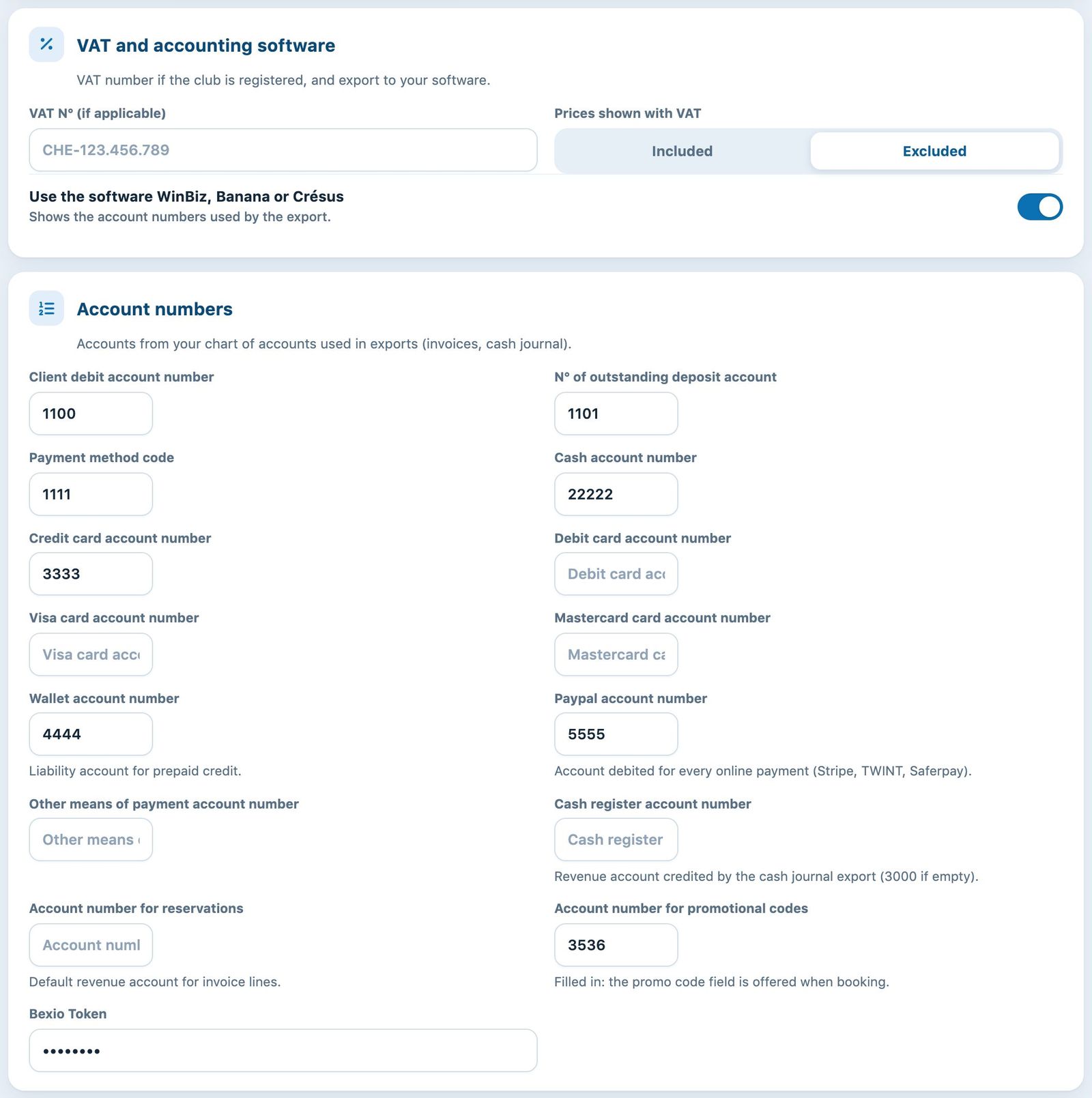
VAT, accounting software and account numbers
Enter the account numbers
Each field takes a number from your chart of accounts. These numbers are used in the exports of invoices and of the cash journal. The most important ones:
| Field | Role |
|---|---|
| Client debit account number | Receivables account: the amount of the invoices issued is posted here (1100 by default). |
| Account number for QR payment, cash, cards, other means of payment | Account debited when an invoice is paid by this means (QR transfer, cash, card…). |
| Wallet account number | Liability account for the members' prepaid credit. |
| Paypal account number | Account debited for every online payment (Stripe, TWINT, Saferpay). |
| Cash register account number | Revenue account credited by the cash journal export (3000 if empty). |
| Account number for reservations | Default revenue account for invoice lines that have no account of their own. |
| Account number for promotional codes | As soon as it is filled in, the promo code field is offered when booking. |
| Bexio Token | Connection key to Bexio, provided by Bexio. Keep it confidential. |
Tip: the Cash journal and Reservations fields expect revenue accounts (class 3), not payment accounts. The means of payment, on the other hand, expect cash or suspense accounts (class 1).
Set up the payment slips and the QR-bill
The Payment slips and QR-bill section contains one configuration per bank account. The Default configuration is always there. For each one, fill in:
- QR-IBAN: your bank's special IBAN for QR-bills with reference;
- Postal account number and BVR membership number: only useful if you still print old payment slips;
- Invoice due date (in days) and Reminder due date (in days): payment period printed on the documents;
- Print offset — Envelope address: shift the address Towards right (mm) or Towards bottom (mm) so that it falls in the window of your envelopes.
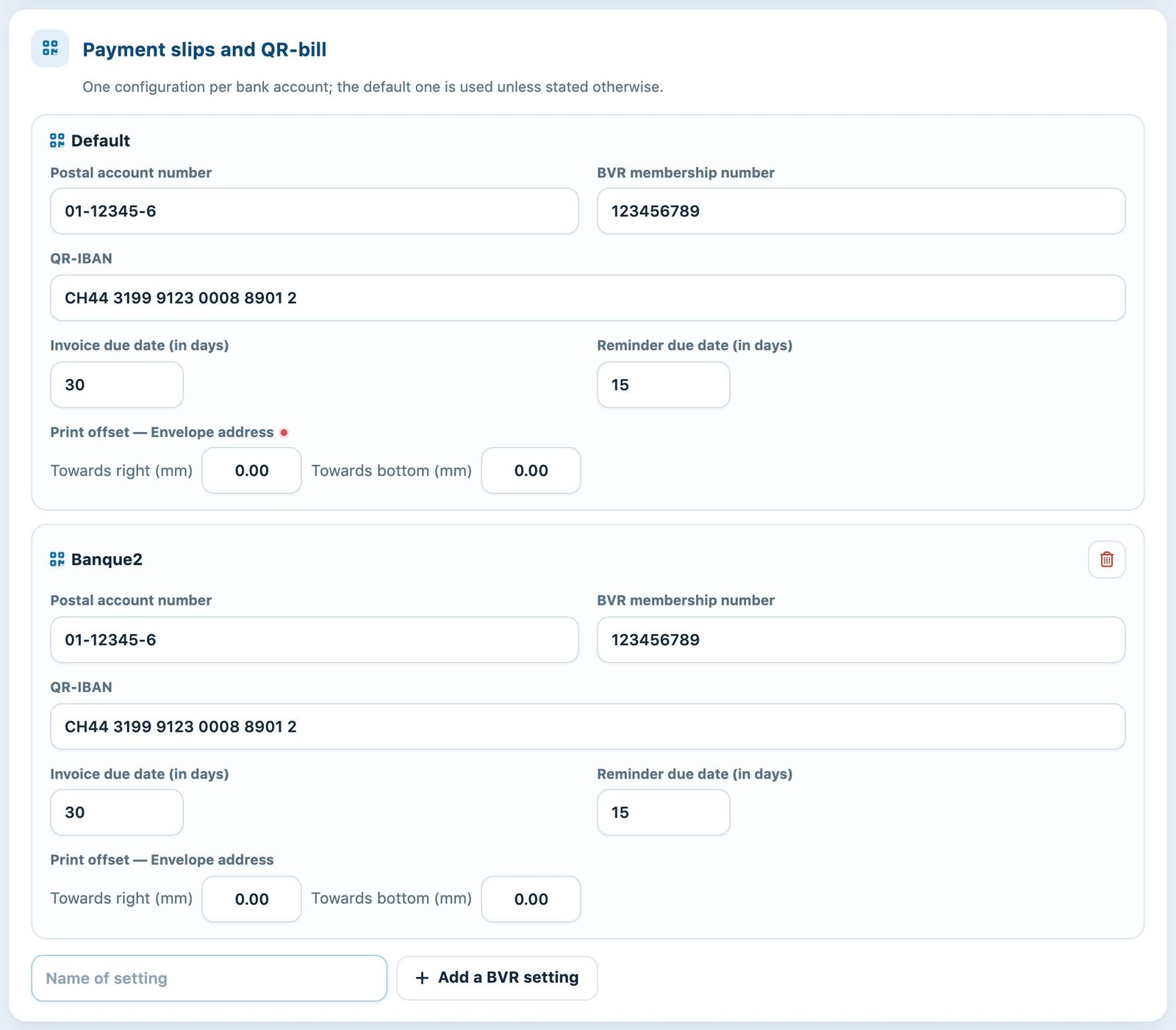
“Default” configuration and a second configuration for another bank account
For a second bank account, type a name without spaces in Name of setting, then click Add a BVR setting. Once there are several configurations, you choose which one to use in the invoice creation form (menu Invoices → Manage invoices). The bin icon deletes a configuration.
Tip: when printing invoices, print at 100% (without “Fit to page” or scaling), otherwise the QR section and the address will no longer be in the right place.
Write the document templates
The Document templates section contains the texts of invoices and reminders. Each tab corresponds to a document type: Paper invoice template, Invoice template by e-mail, Paper reminder template and Reminder template by e-mail. With the offer module, two more tabs are added for quotes. The number on the tab shows how many templates there are.
On the left, the list of templates shows for each one how many invoice groups use it and the date of the latest. Click a template to open it on the right:
- Template: the name of the template, which you will choose when creating the invoices;
- Attach PDF: a document added to the invoice (rules, season programme…);
- Text shown before the table: for paper, the text placed above the table of amounts;
- Text shown after the table: for paper, the text placed below the table of amounts;
- Subject: for e-mail, the subject of the message, followed by the message text.
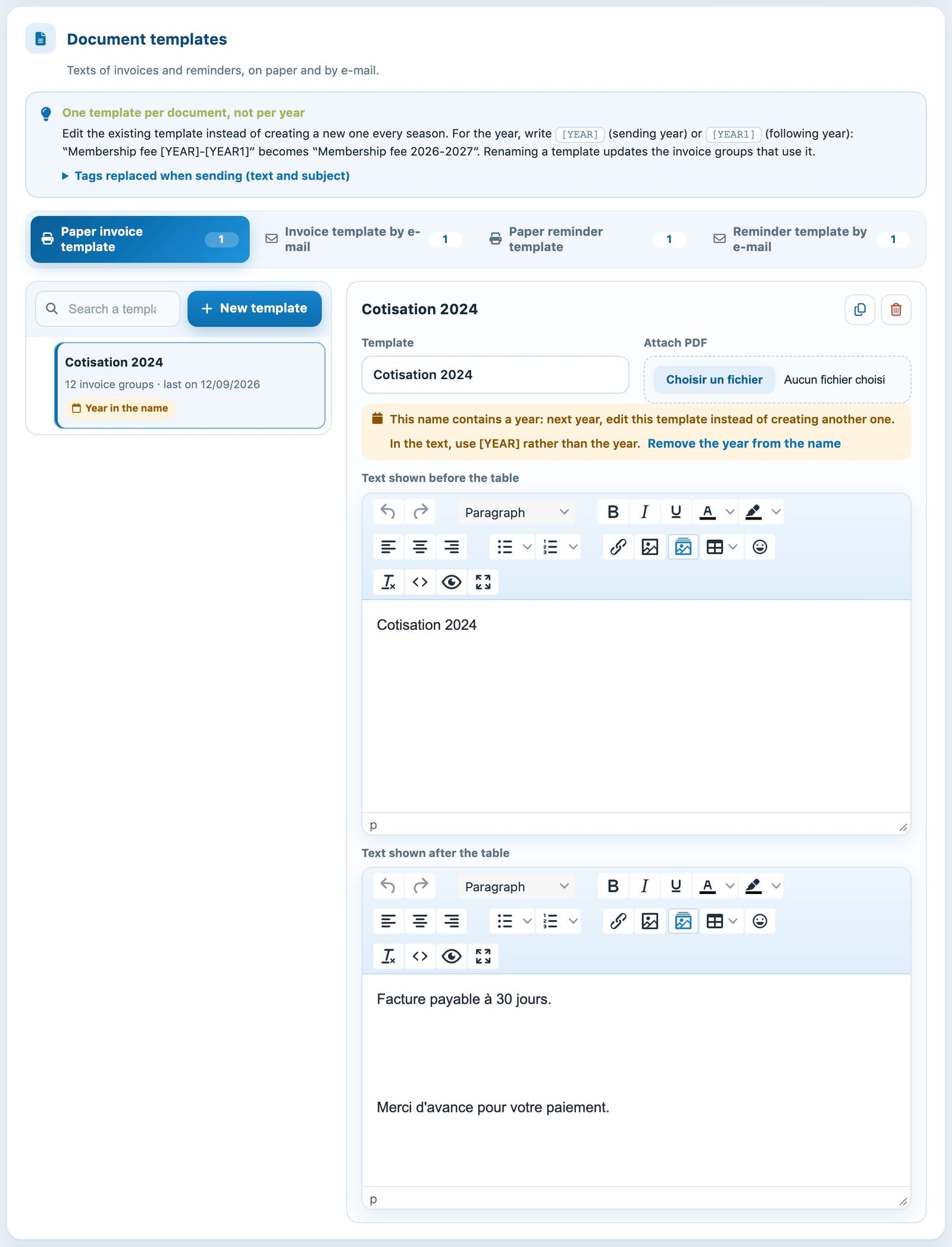
Tabs per document type, list of templates and editor of the selected template
Expand Tags replaced when sending (text and subject) to see the available tags: [TITRE] (Mr / Mrs), [PRENOM], [NOM], [CHER] (“Dear”), [YEAR] (sending year) and [YEAR1] (following year).
One template per document, not per year: edit the existing template each season instead of creating a new one. Write “Membership fee [YEAR]-[YEAR1]” rather than the year itself. A template whose name contains a year carries the badge Year in the name; the link Remove the year from the name fixes it. Renaming a template updates the invoice groups that use it.
To add a template, click New template. In the panel, enter the Template name, choose in Start from a blank template or a copy of an existing one, then click Create template. If a similar template already exists, the panel points it out and suggests editing it rather than creating another one.
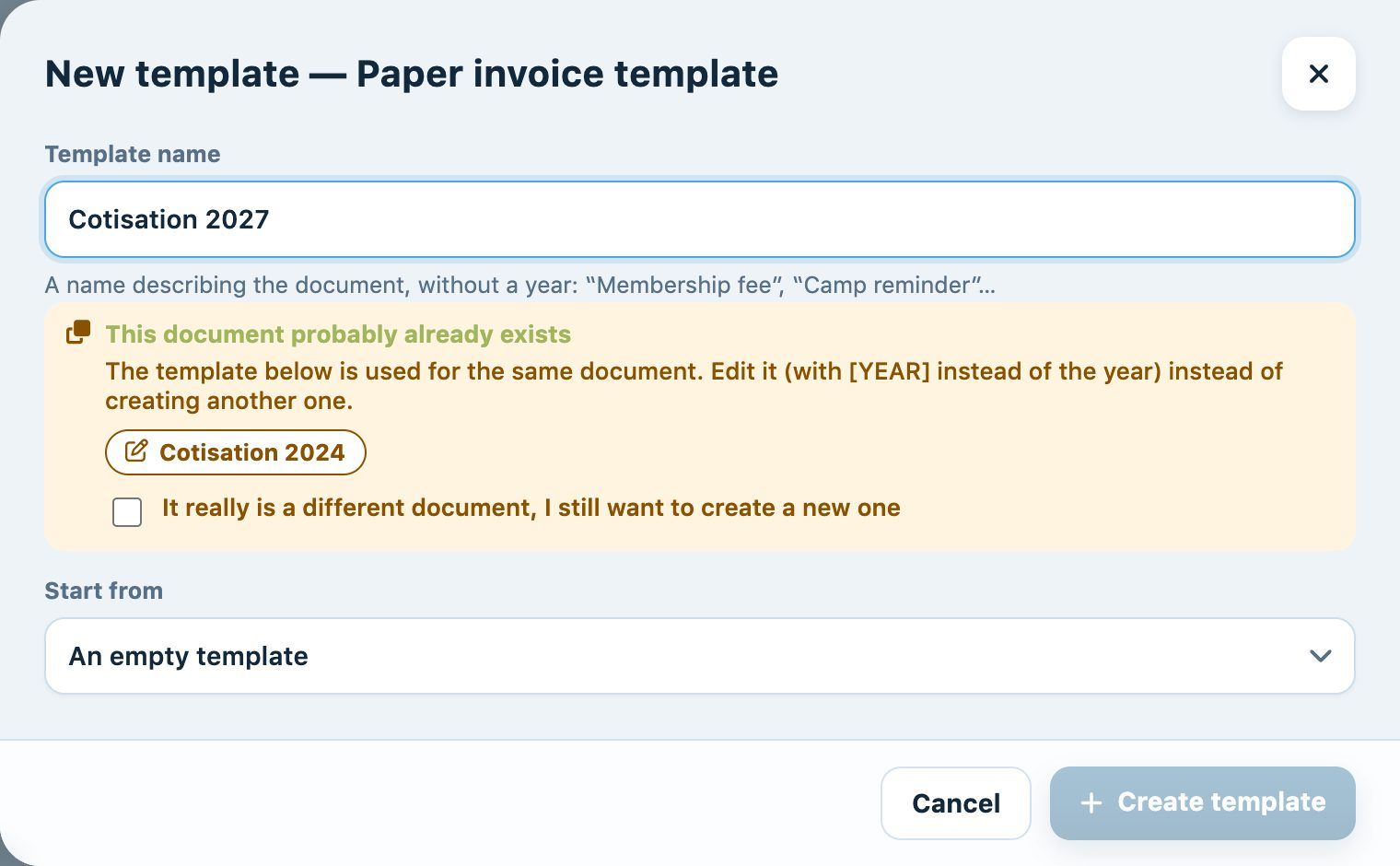
The “New template” panel points out a template already used for the same document
The icons at the top of the editor duplicate or delete the template. If the deleted template is used by invoice groups, Plugin.ch asks which template they should use instead. Remember to click Modify module parameters.
For sample texts, see the article Invoice and Reminder Texts.
Manage items
Below the save bar is the list of Items: membership fees, camps, licences, balls… An item mainly sets the accounting account number and a suggested price. The label and amount can be changed every time you link the item to a person: a single “Junior camps” item is enough for all camps.
With accounting software, the By account view groups items by account number; the List view shows them in a table. The search field filters the items. For each item you see its price, the number of uses (or “Never used”) and the icons to edit or delete it.
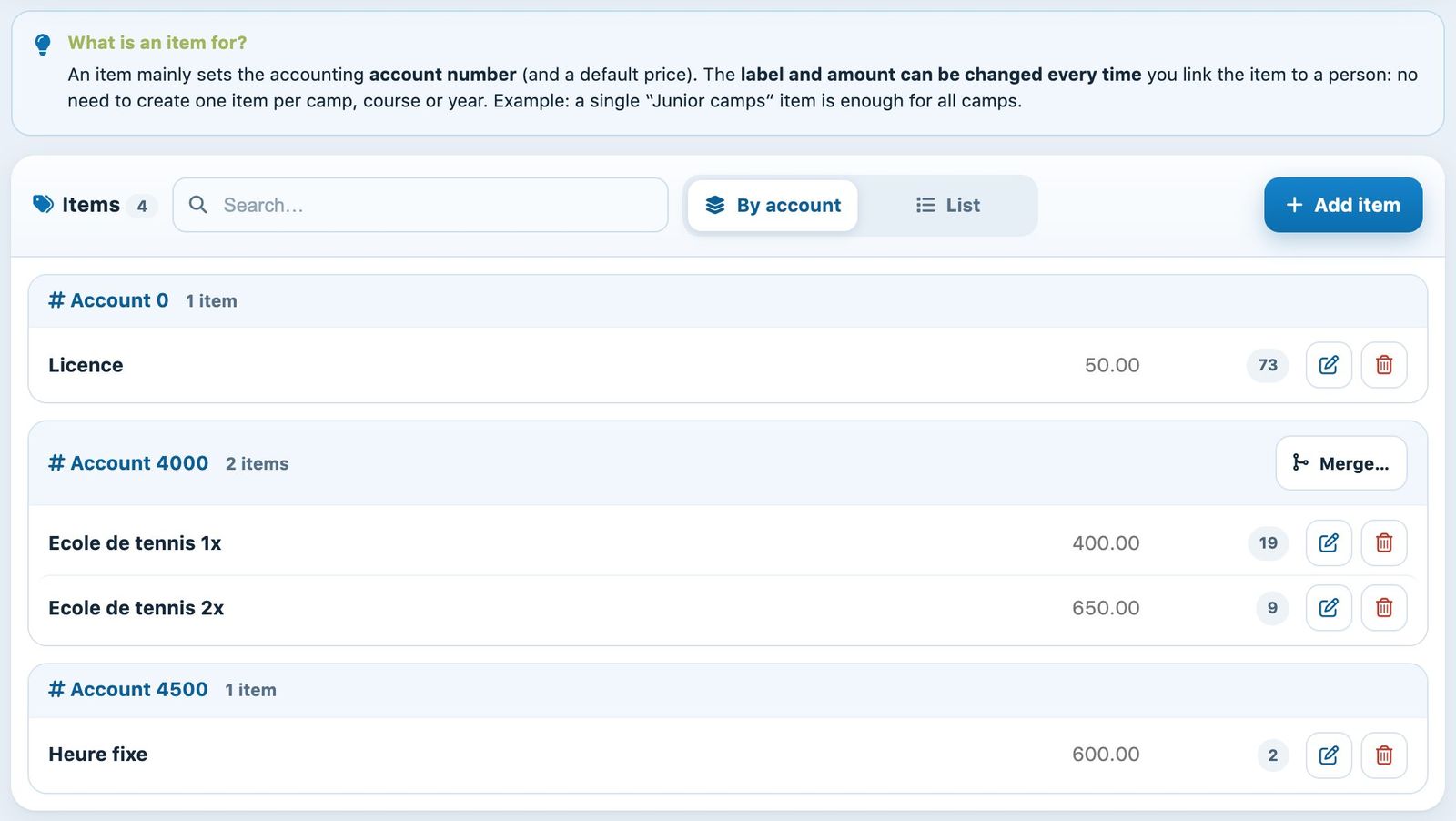
Items grouped by account, with the number of uses
Add an item
Click Add an item. In the panel, enter the Item name, then a price per age band (for example 0 – 999 for everyone); Add a rate adds an age band. Depending on your options, also fill in the Long description, the number of instalments (Payable in, 0 = payment in one go), the Account number, the Article code of your software and Subject to VAT. Finally, click Add an item at the bottom of the panel.
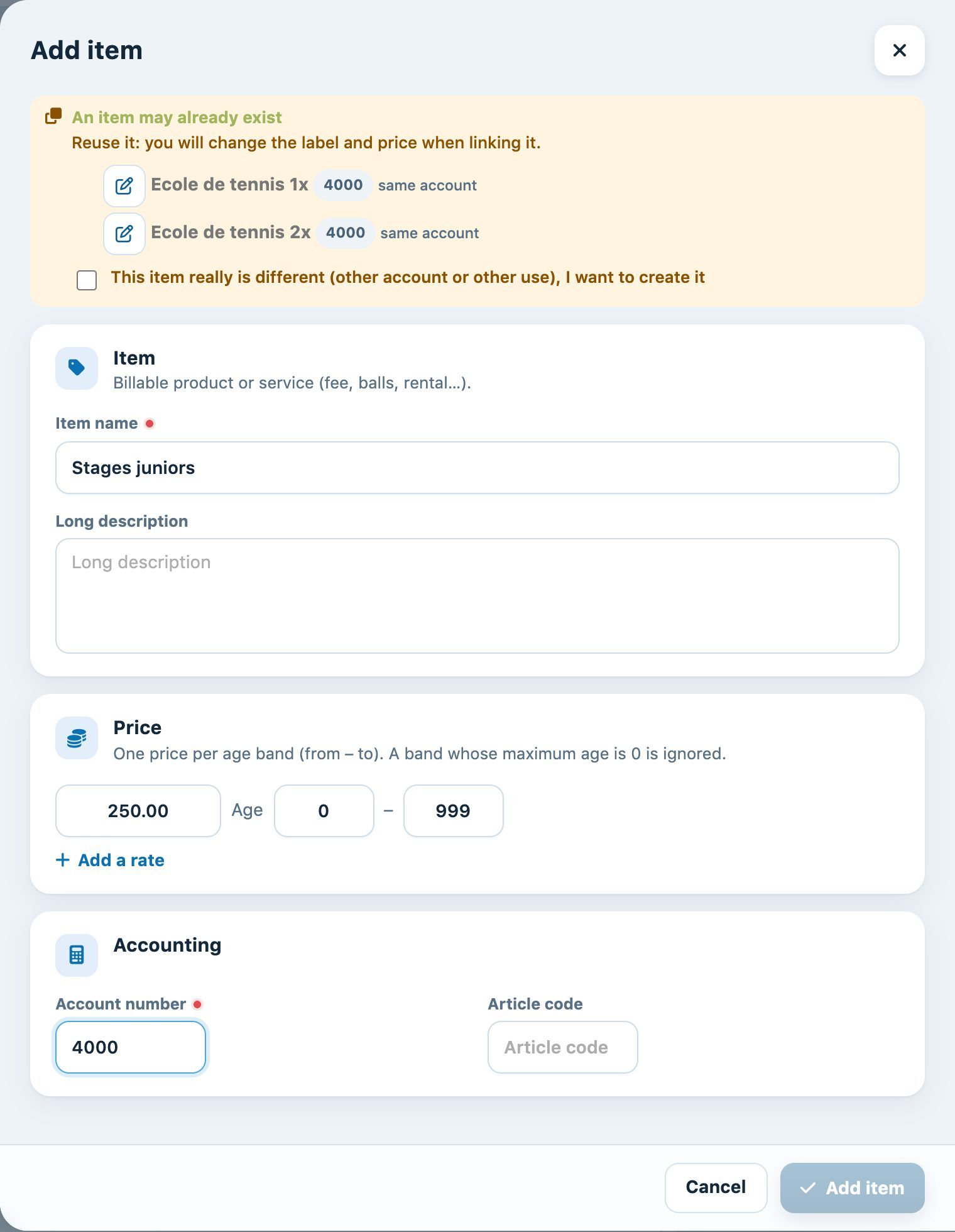
Plugin.ch suggests reusing an item with the same account
If an item already has the same account or the same label, the box An item may already exist suggests it. Reuse it; to create the new item anyway, tick the confirmation box. See also the articles Create an item and Edit or delete an item.
Merge duplicate items
When several items share the same account number, the button Merge… appears on the group. In the panel, choose the item to Keep and tick the ones to Merge. Plugin.ch shows what will be taken over (people's lines, course registrations, fixed hours, invoice groups…) and flags any difference in price or VAT, to be confirmed with a box. Lines already invoiced keep their label and amount.
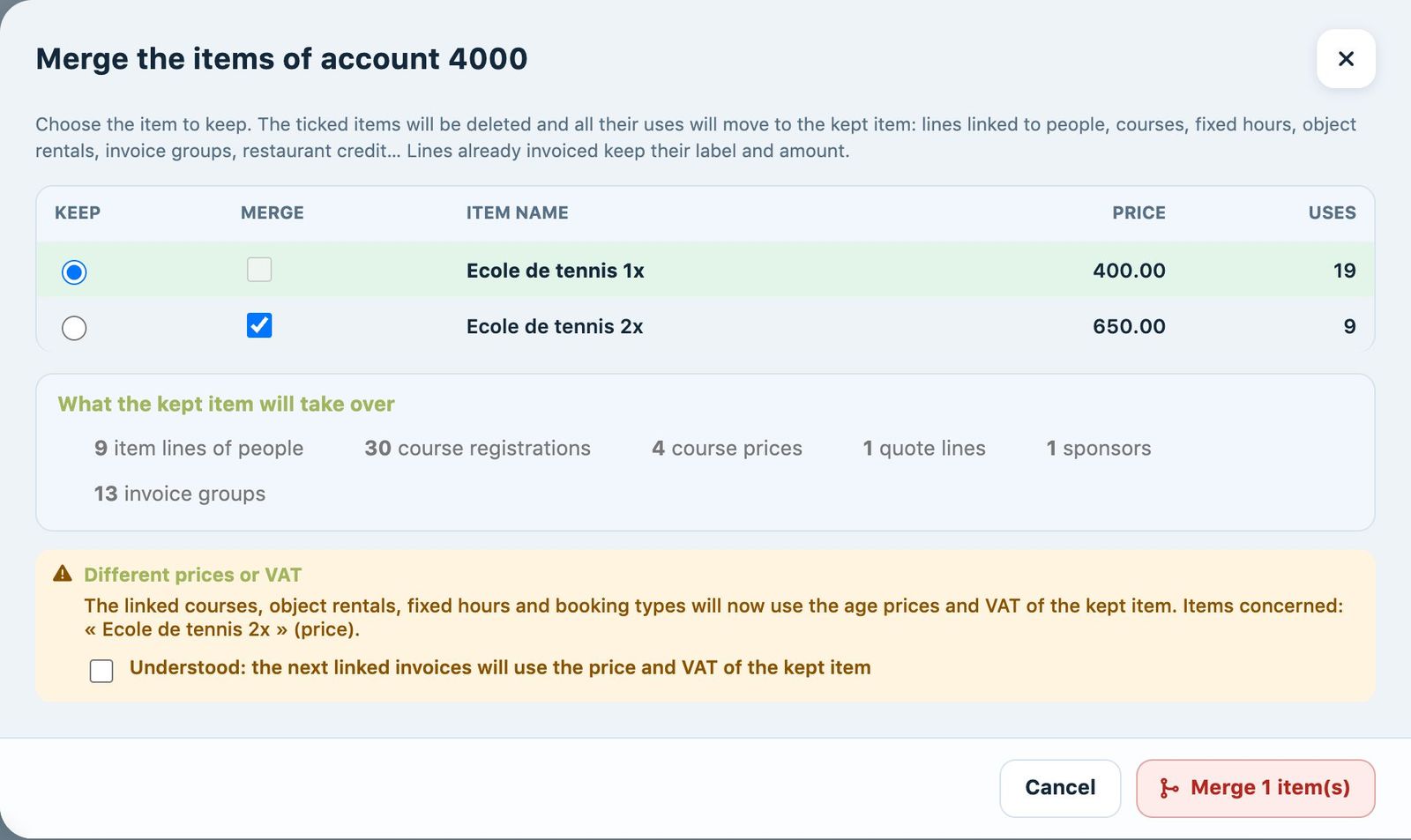
Preview of a merge: kept item, uses taken over and price warning
The latest merges are listed under Recent merges, with a link Undo the merge that recreates the merged items.
Plugin.ch Tutorial — Manage settings