


Messages and emails
Writing an e-mail with the editor
Ready-made blocks, templates, custom fields, images and test e-mail: everything the text editor offers.
The same editor is used to write automatic e-mails, group e-mails and the messages shown to members. In addition to the usual formatting (bold, colours, lists, links, tables), it offers tools to compose a polished e-mail without knowing HTML.
1Add blocks
The menu Blocks inserts ready-made elements, already laid out to display correctly on a phone as well as on a computer.
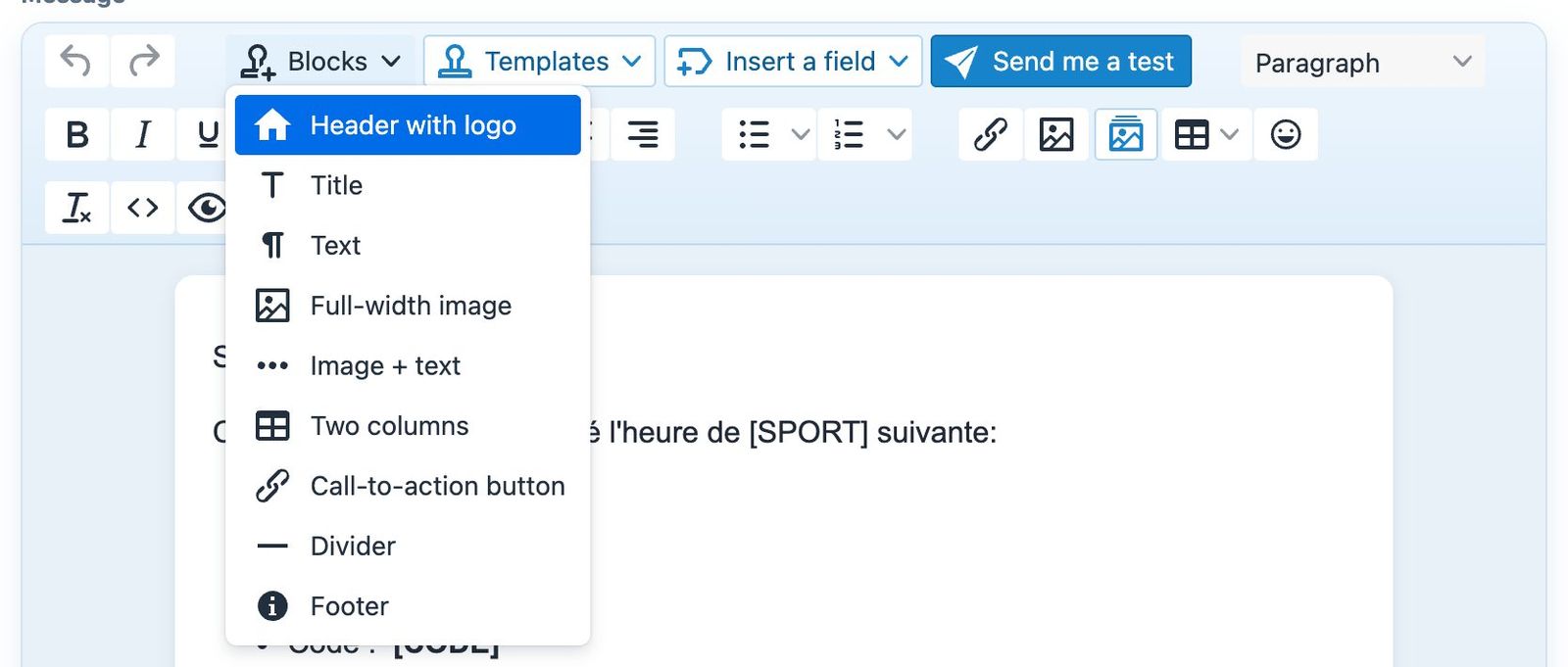
The editor's Blocks menu.
- Header with logo and Footer: the club's logo and name at the top, a reminder of the club and the link to its website at the bottom.
- Title, Text and Divider: to structure the message.
- Full-width image, Image + text and Two columns: to present information with a photo.
- Call-to-action button: a clickable button, for example “Book a court”.
Then click in the block to replace the sample text with your own.
2Start from a template
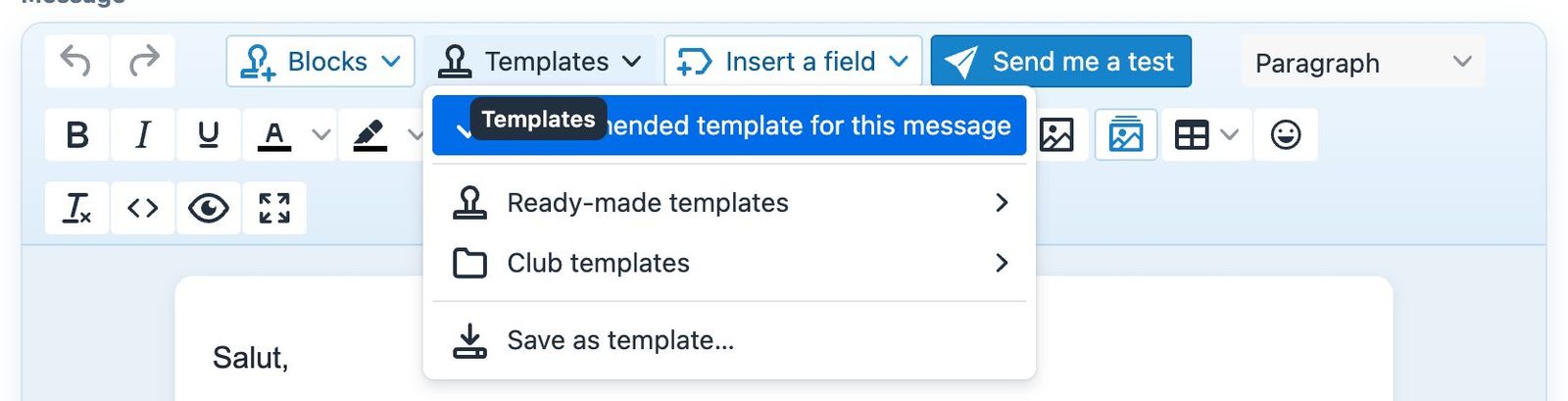
The Templates menu of an automatic notification.
- Recommended template for this message: offered for each automatic e-mail, in your language. It uses the right variables for the notification and also fills in the subject if it is empty.
- Ready-made templates: monthly newsletter, tournament announcement, facility closure, season opening, membership fee reminder.
- Club templates: the templates saved by your club's administrators.
- Save as template…: saves the current message under a name, to reuse it. A template with the same name is replaced, and templates are shared between the club's administrators.
Choosing a template replaces the current content of the editor. You are asked to confirm first.
3Insert a custom field
The menu Insert a field lists the variables available for this e-mail, with their meaning. Click a variable to insert it at the cursor position: when the e-mail is sent, it is replaced with the value specific to each recipient, for example their first name or the date of their booking.
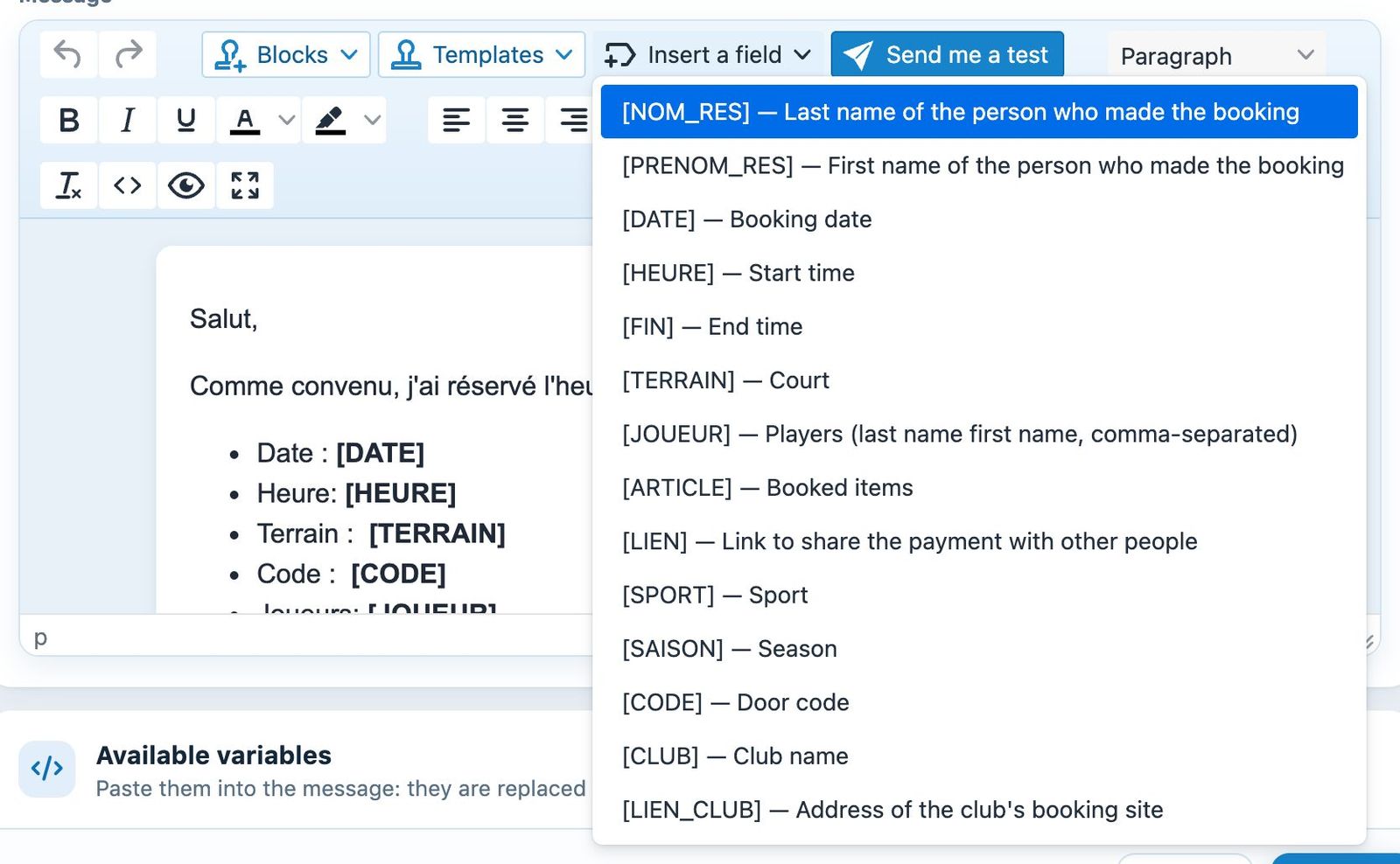
The fields offered for the “Add a reservation” notification.
The list depends on the e-mail: a booking confirmation offers the date, time and court, a birthday e-mail offers the age. [CLUB] and [LIEN_CLUB] are always available in automatic e-mails.
4Add images
The button My images in the toolbar opens the club's image gallery. Click an image to insert it, or upload a new one with Send an image…. JPG, PNG, GIF and WebP formats are accepted, up to 5 MB; images are reduced to 1200 pixels wide before uploading.
5Check with a test e-mail
The button Send me a test sends the message to your own e-mail address only, the one on your record. Fields are replaced with examples, so you can check how it looks in your own mailbox before enabling a notification or starting a group mailing.
If the test fails, check that your record contains a valid e-mail address and that the club's e-mail sending is correctly configured in Parameters. Tests are limited to a few within a short time.
The eye-shaped button shows a preview of the message, and the full-screen button enlarges the editor so you can work more comfortably.
Plugin.ch Tutorial — Messages and e-mails