


Manage invoices
Create invoices
Create an invoice group for membership fees and items, then complete it by refreshing
In Plugin.ch, invoices are created by group: a group brings together all the invoices of a single invoicing, for example “Membership 2027” or “Summer tennis school 2027”. This guide describes each option of the creation form, then how to complete an existing group.
One group per invoicing: if you create a second group with the same membership fees, invoices get scattered and a member may be invoiced twice. To add new members or new items to an existing group, always use Update invoices, as explained in step 6.
Prepare the invoicing
Before creating the invoices, check:
- the memberships of the members (categories and age-related changes), in Members → Manage memberships: the membership fee invoiced depends on them;
- the linked items for members (licences, camps, discounts), in Invoices → Link an item ;
- the equipment rentals (lockers, keys), to be invoiced first in Invoices → Rental of items so that they appear on the same invoice.
Open the creation form
In the left side menu, open Invoices then Manage invoices and click Create invoices at the top right. The panel New invoice group appears on the right of the screen.
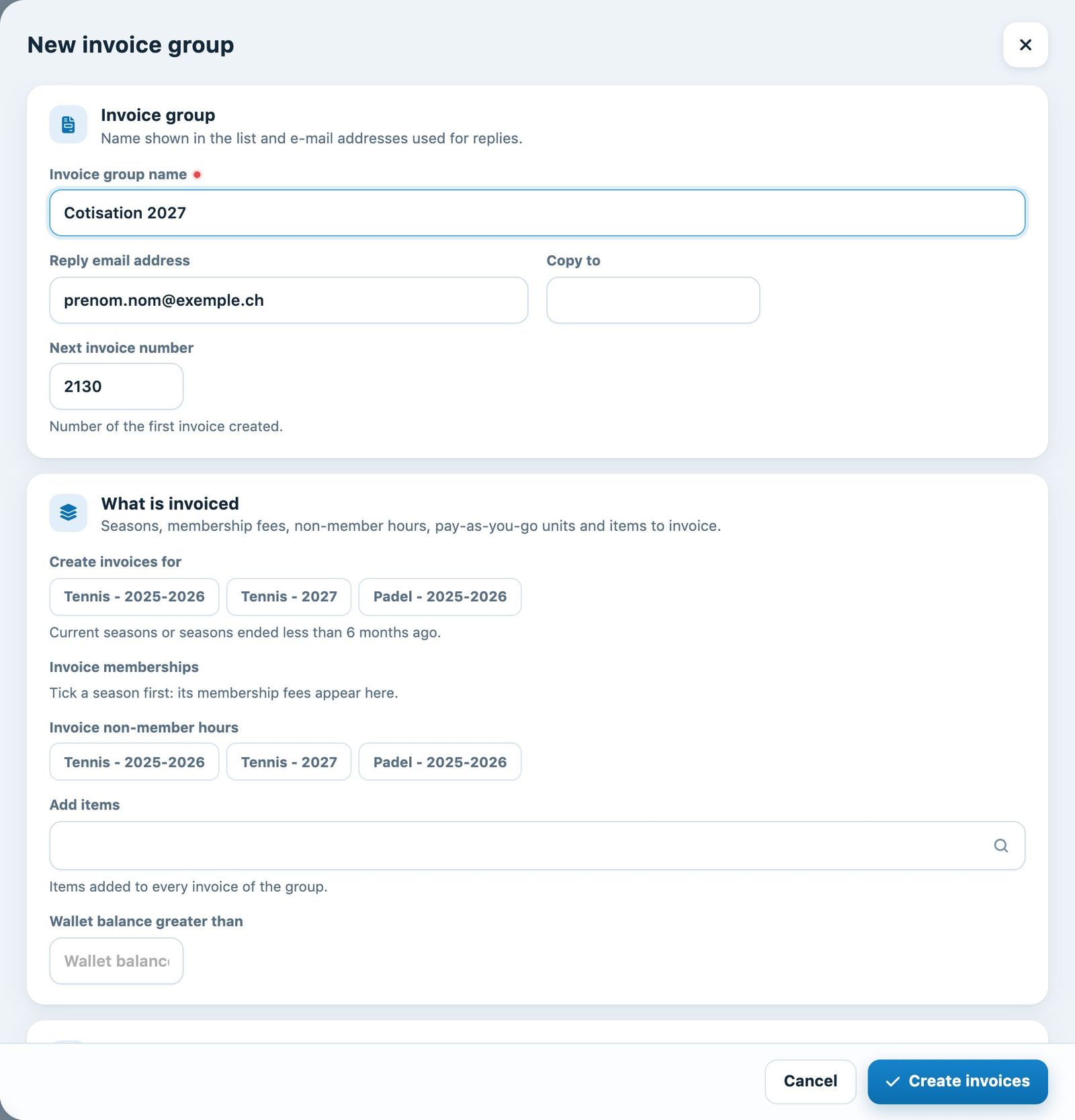
The “New invoice group” panel
In the section Invoice group :
- Invoice group name (required): a clear name, shown in the list of groups, for example “Membership 2027” or “Licences 2027”.
- Reply email address: the address members reply to when they receive their invoice by e-mail.
- Copy to (optional): receives a copy of each invoice e-mail.
- Next invoice number: the number of the first invoice created; the following ones are numbered consecutively.
Choose what is invoiced
The section What is invoiced determines the content of the invoices:
- Create invoices for: tick the sport-season(s) concerned. Only seasons that are in progress or ended less than 6 months ago are offered.
- Invoice memberships: the membership types of each ticked season are displayed. Tick those to invoice; each member who holds one of these memberships receives their membership fee.
- Invoice non-member hours and Invoice personalised units (if these options are enabled): invoice paid bookings with guests or pay-per-use bookings.
- Add items: the items linked to members (menu Link an item) to include in these invoices.
- Wallet balance greater than (wallet option): adds the statement of bookings for people whose wallet balance exceeds this amount.
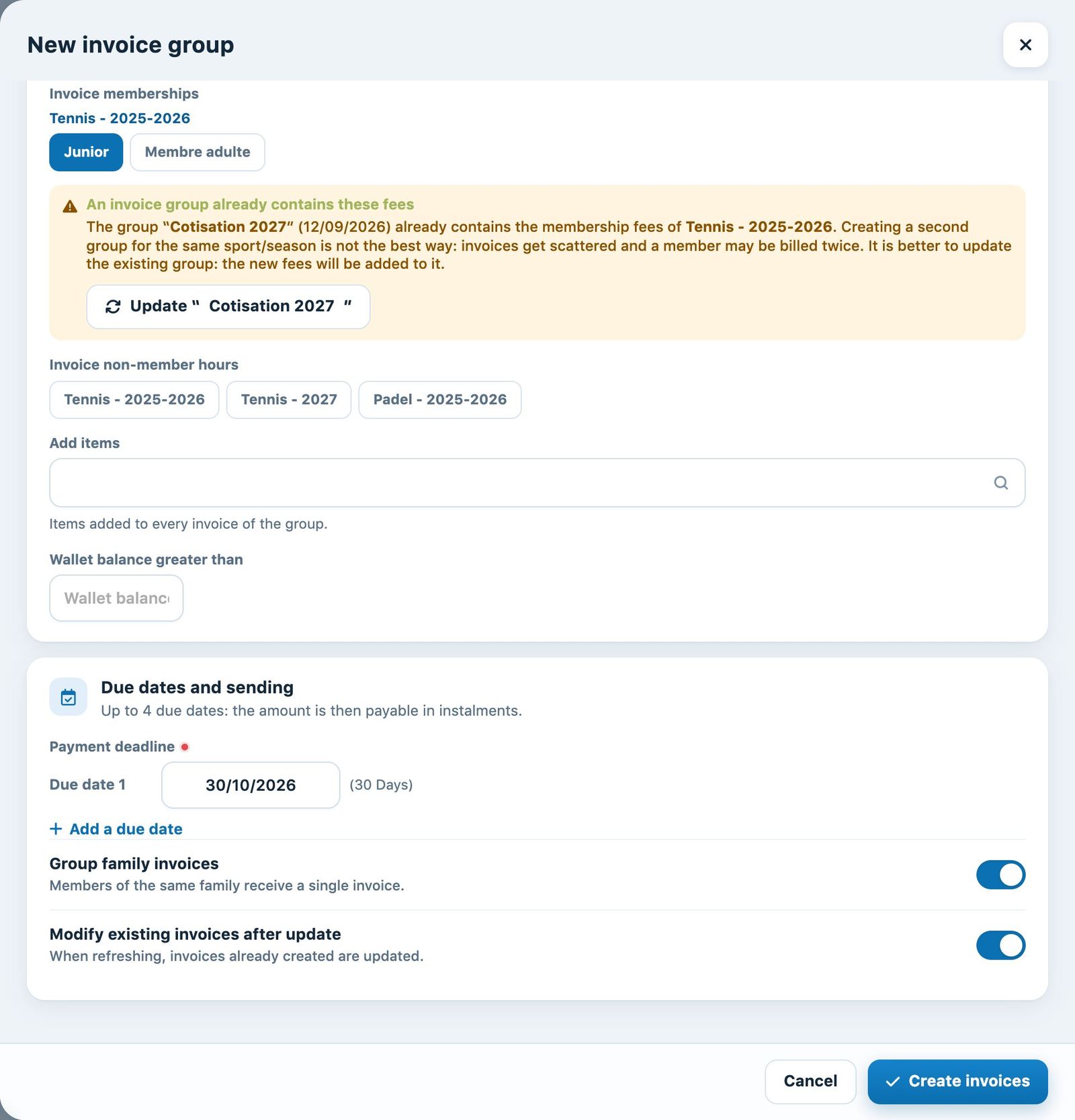
The membership fees of the ticked season and the existing group warning
If a group already contains the chosen membership fees, the box An invoice group already contains these fees is displayed. The button Update “…” opens the refresh of the existing group directly: this is almost always the right solution.
Set the due dates and sending
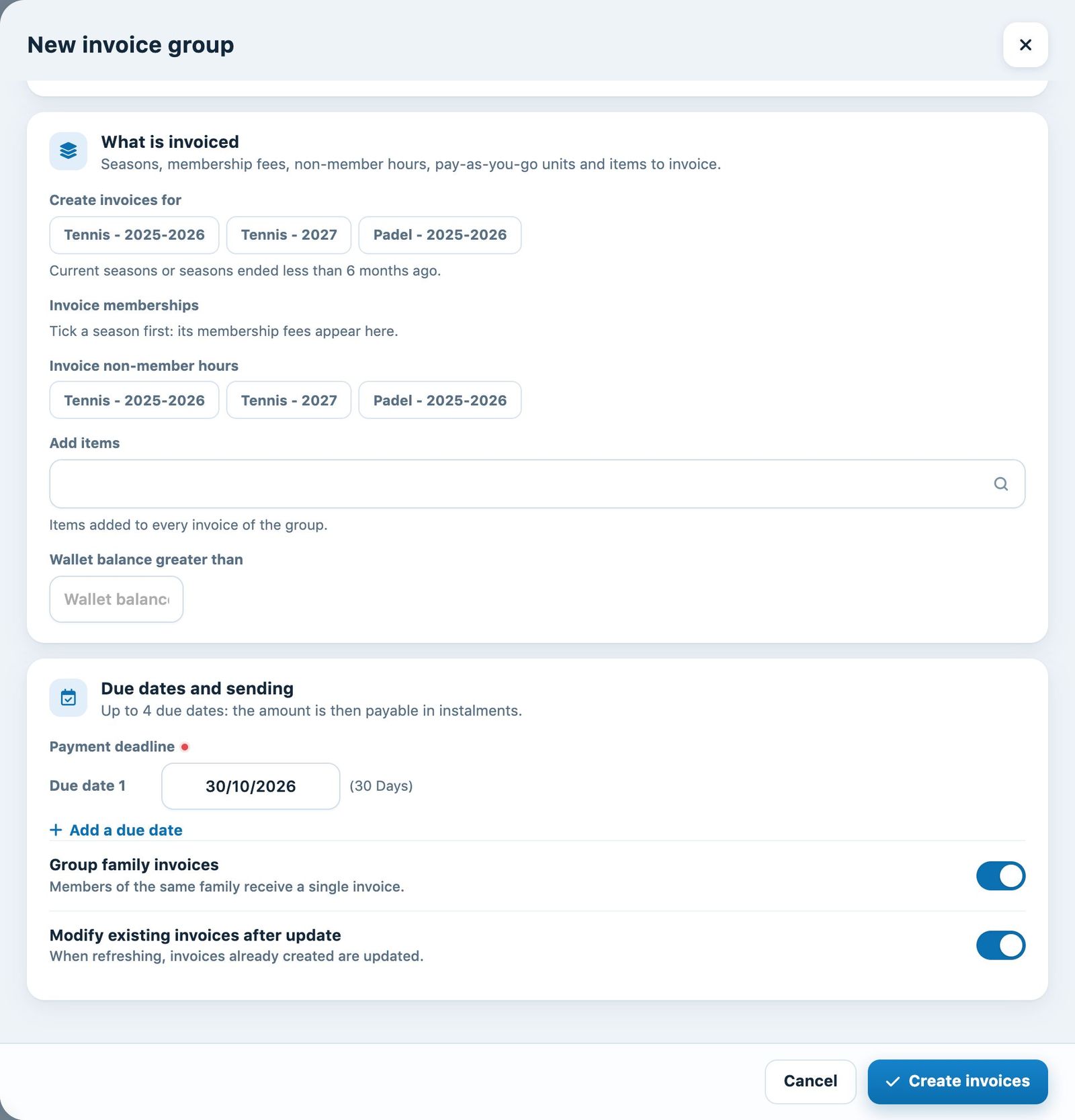
Due dates, family grouping and update on refresh
- Payment deadline: the payment deadline, suggested according to the club's payment term. Add a due date allows payment in several instalments (4 due dates at most). Reminders are calculated from these dates. A due date that has already passed on the day of sending is recalculated automatically: see How invoice dates are calculated.
- BVR template (if your club has several accounts): the bank account and QR-bill template used for this group.
- Group family invoices (on by default): members of the same family receive a single invoice, addressed to the head of the family.
- Modify existing invoices after update (on by default): invoices already created are updated (new items, amounts) when the group is refreshed.
If your club has several text templates, the section Text templates lets you choose the Invoice template, the E-mail template, the Invoice reminder template and the E-mail reminder template. Templates are prepared in Parameters → Manage invoicing.
Start the creation
Click Create invoices. Creation can take one to two minutes; a countdown is shown during processing, then the page reloads. The new group then opens on the page: its figures (Invoices, Invoiced, Received, Open, Overdue, To print / send) and the list of its invoices.
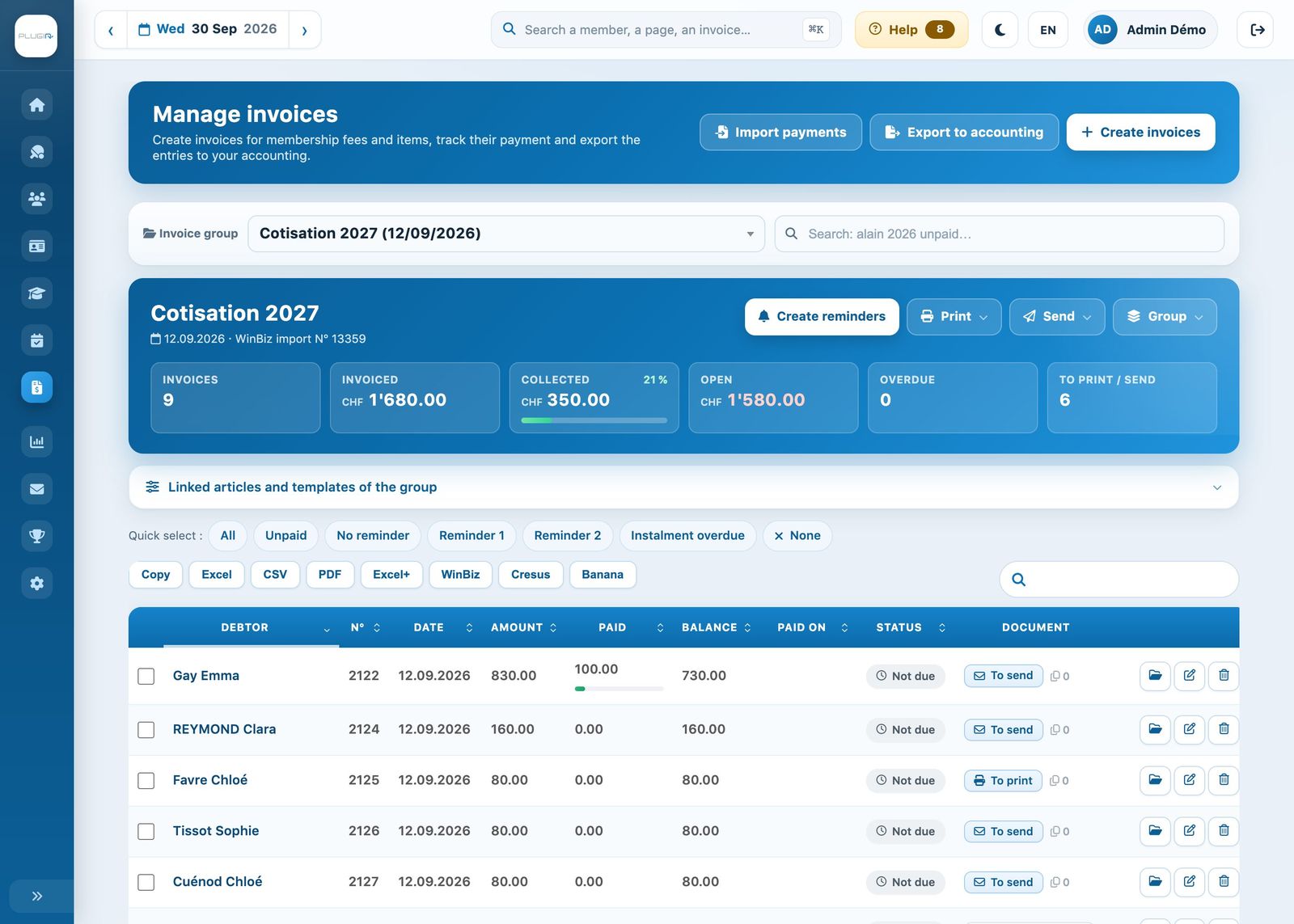
An invoice group after its creation
Each invoice is sent by e-mail or on paper according to the choice made in the person's record. For printing and sending, see Print invoices and Send invoices by email.
Complete a group: “Refresh invoices”
A new member, a membership change or an item linked after creation? Open the group, then click Group → Update invoices. Missing invoices are created; if the option Modify existing invoices after update is on, existing invoices are also updated. A membership fee already invoiced is never invoiced a second time. The menu does not offer Update invoices for a group that invoices non-member hours or pay-as-you-go units.
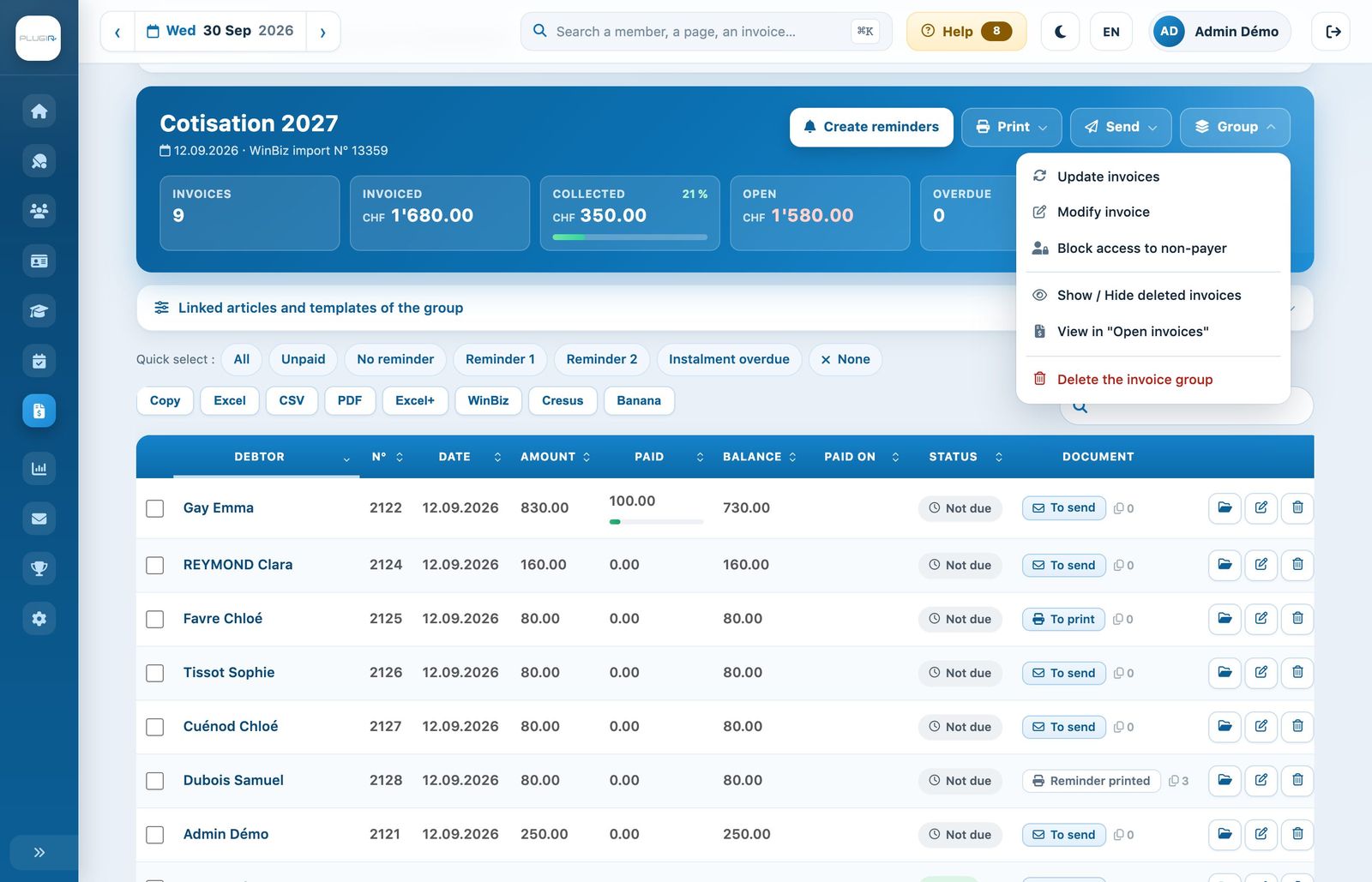
The “Group” menu: refresh, edit the group, block access for non-payers
The same menu also offers:
- Edit invoice group: changes the group settings, which will apply at the next refresh;
- Block access to non-payer: blocks bookings of people who have not paid;
- View in "Open invoices": shows this group's open invoices in the reminder tracking.
A group dedicated to an item: to invoice licences, for example, first link the item to the players concerned (Link an item), then create a “Licences 2027” group without ticking any membership fee and choosing the item in Add items. See also Invoicing a membership fee or an item: what's the difference?
Plugin.ch Tutorial — Manage invoices