


Tennis school tutorial
Invoicing check and Youth and Sport export
Check invoicing consistency and export the data for the BDNS
After invoicing, check that each assigned pupil has been invoiced, then export the files for the national sports database (BDNS) for Youth and Sport.
1Check invoicing
In Manage registrations, choose the lesson and click Invoice control. The panel sorts the checks into two families; each chip shows the number of people concerned, click it to display the list.
- Groups : In a group, not invoiced (student placed in a group, with no line to invoice and no linked invoice) and No group (enrollment placed in no group, invoiced or not);
- Invoicing : Overdue invoices (linked invoice with an open balance and a passed due date), In lessons without invoice, Multiple presence in the invoice, Invoiced but not in lessons and In lessons without linked articles.
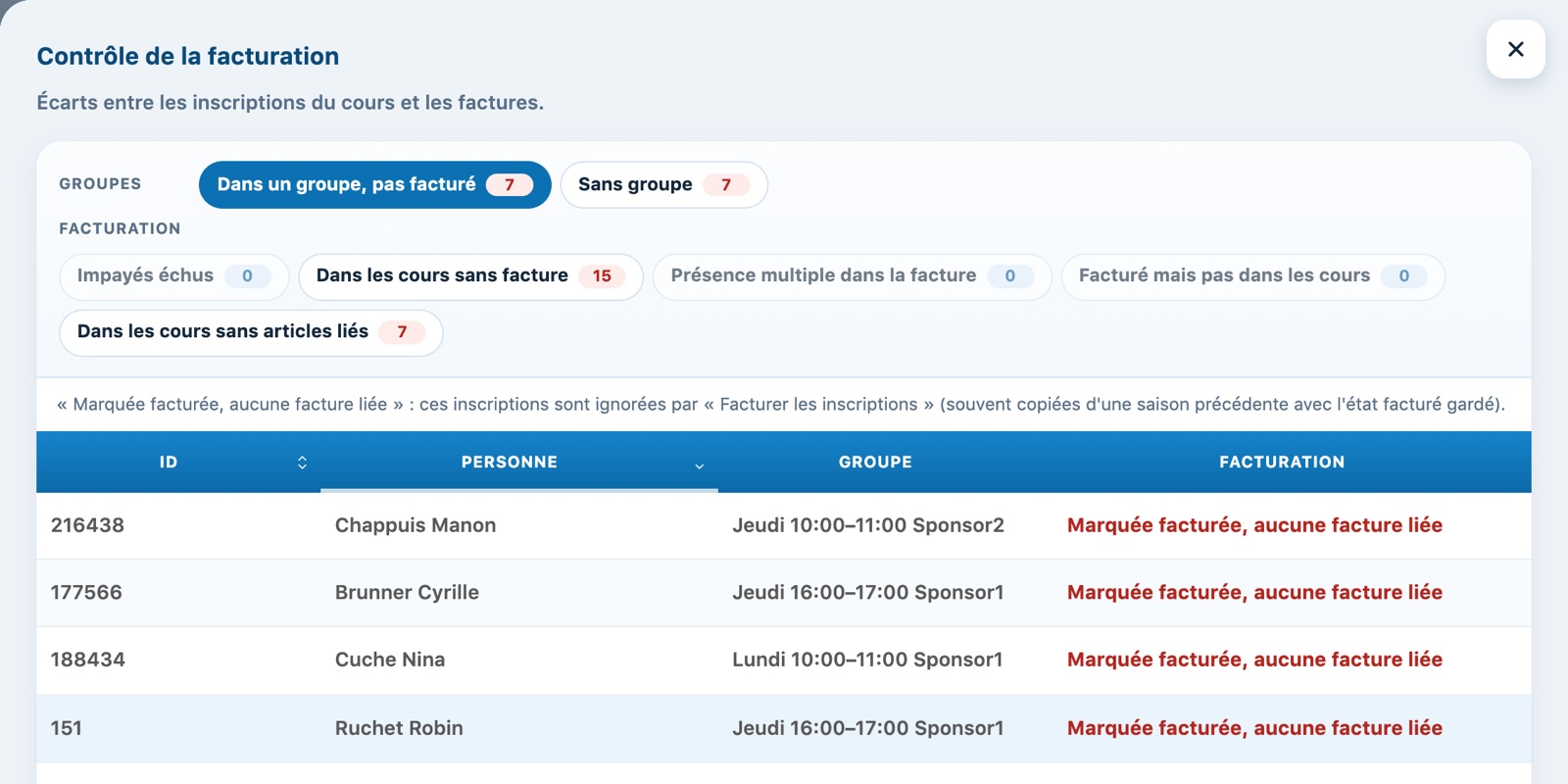
The invoice control of a lesson, with the Groups and Invoicing families.
In the lists of the Groups family, the Invoicing column shows where each enrollment stands. An enrollment Marked as invoiced, no linked invoice is ignored by the invoicing buttons: check it before invoicing. The details of each check are in Manage lesson enrollments.
Run this check after creating the invoices: as long as the items are not on an invoice, the invoiced pupils still appear under "In lessons without invoice".
2The Youth and Sport exports
The buttons above the list of registered people produce the files for the BDNS:
- BDNS personne: the participants (name, date of birth, sex, AVS number taken from the registrations, nationality, language, address);
- BDNS activités: the group lessons (date, start time, duration, place);
- BDNS présences: for each lesson, the instructors and the participants with their attendance;
- Sportdb: the former export format of the list of participants.
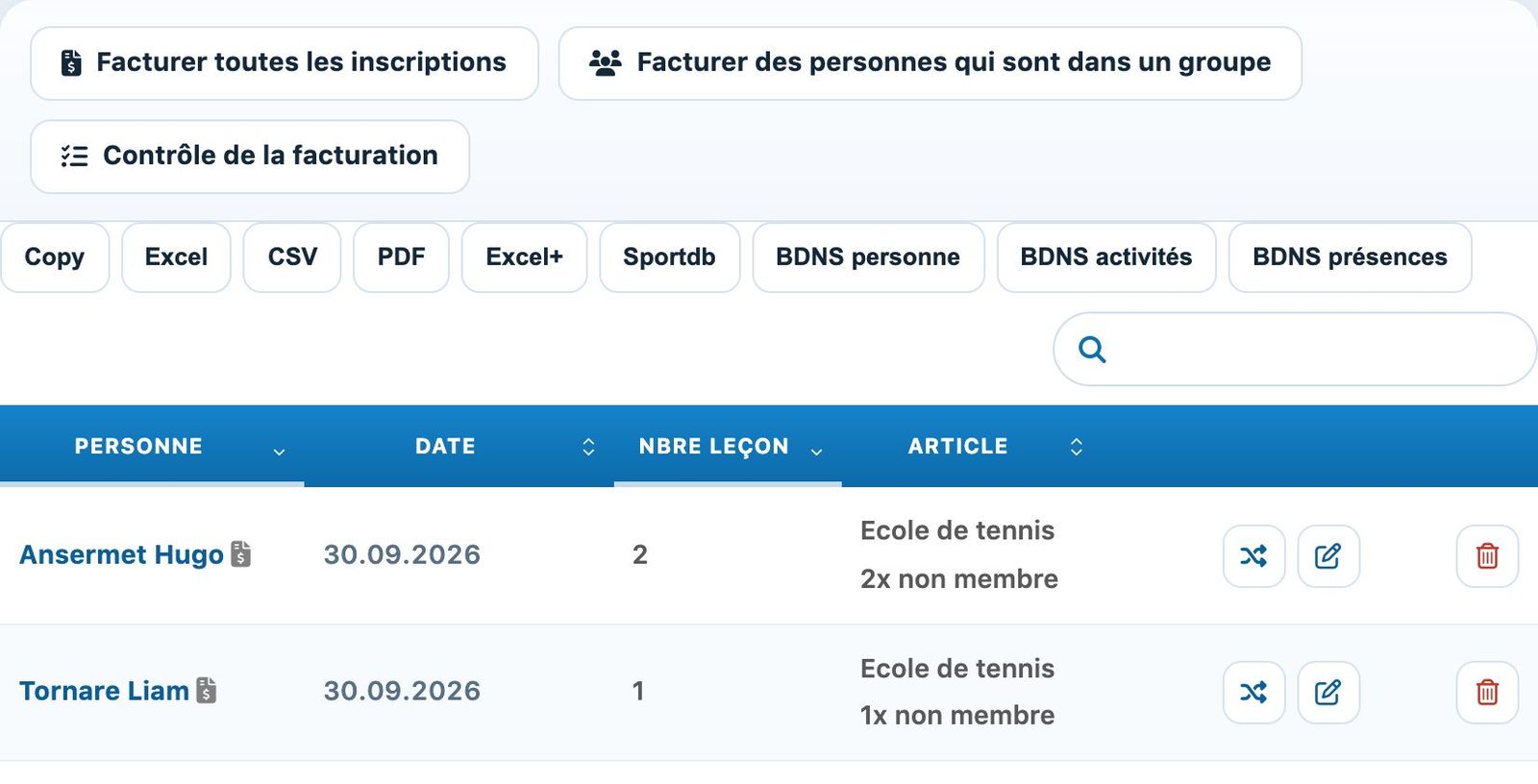
The export buttons above the list.
3Import into Youth and Sport
Download the three BDNS files and import them into the Youth and Sport portal. Attendance comes from the boxes ticked in the Presence panel of each lesson.
Prerequisite: each participant must have an AVS number starting with 756 (the lesson's "N° AVS" question) and the groups must be confirmed in the bookings, otherwise the activities and attendance are empty.
Plugin.ch tutorial — Tennis school tutorial