


Manage reservations
The weekly view and the all-sports view
In addition to the day schedule, the administration offers two other views: the weekly schedule, which shows seven days of one sport, and the all-sports view, which brings all the club's courts together on a single grid. You switch from one to the other with the buttons Day, Week and All sports at the top of each schedule.
1. The weekly view
In the left-hand menu, open Reservations → Weekly view. The grid shows the seven days starting from the date chosen in the date picker at the top of the screen: each day has one column per court.
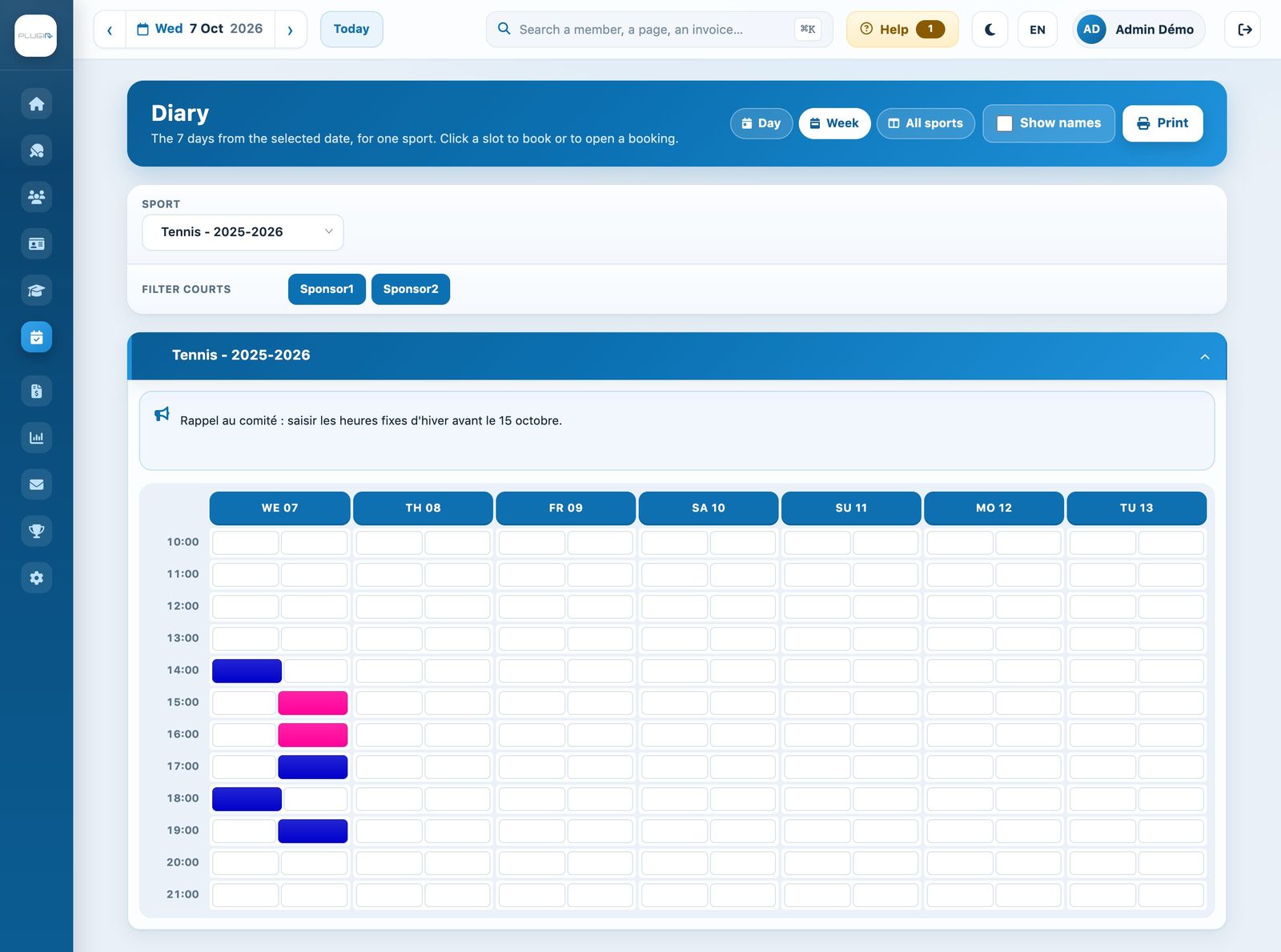
- Sport: choose the sport and season to display.
- Filter courts: click a court to hide it or show it again.
- The messages of the day appear above the grid.
- Click a cell to book or to open a booking: it is the same panel as in the day schedule.
Print the week
Tick Show names if the players' names must appear on the sheet, then click Print: a printable version of the weekly view opens in a new tab. Handy for putting up the week's schedule in the clubhouse.
2. The all-sports view
Open Reservations → Overview of all the sports. This page only appears in the menu if the club has several sports open on the same date (or uses offers). All the sports and courts of the day are side by side: ideal for the front desk handling tennis, padel and the other sports at the same time.
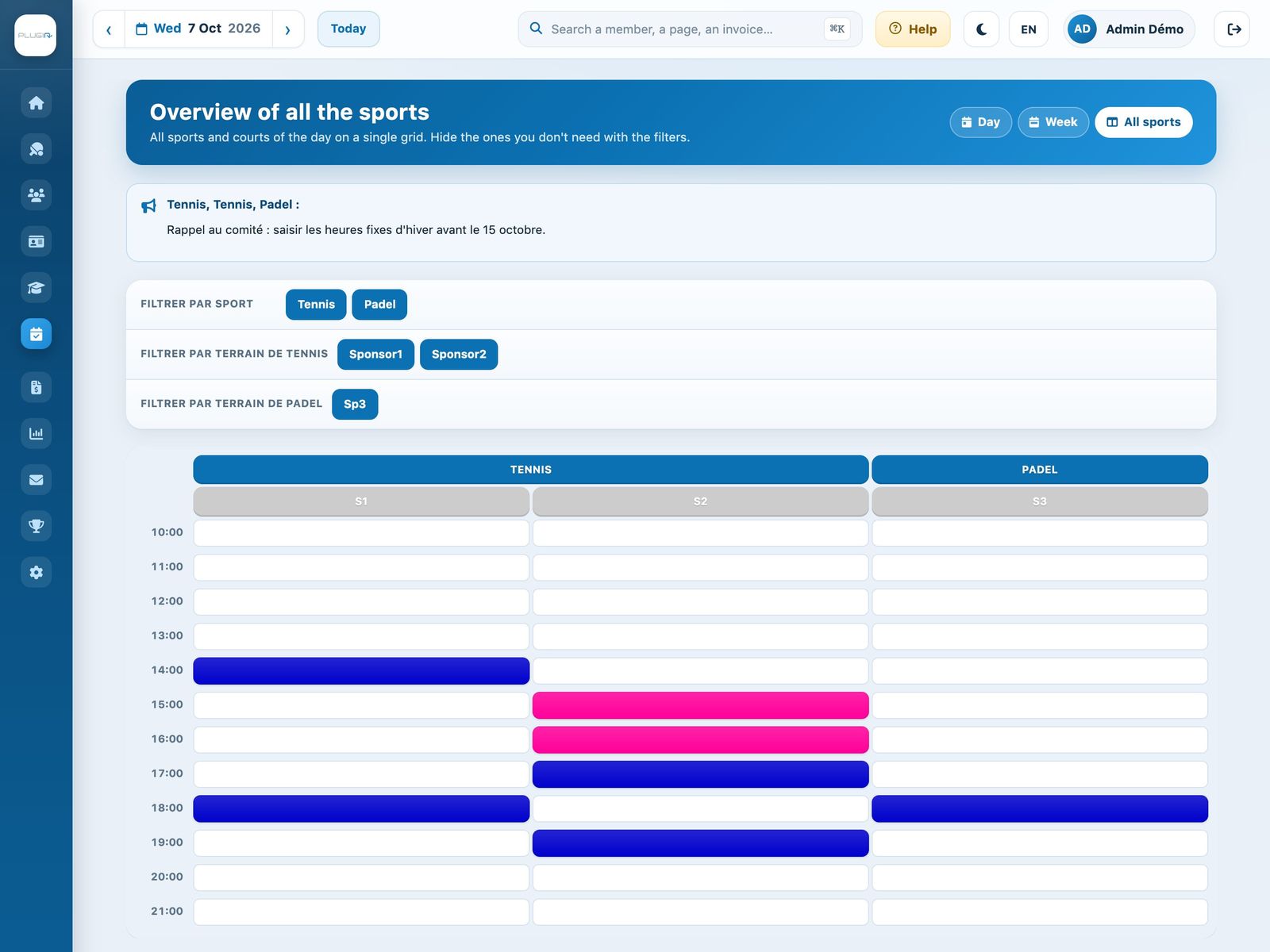
- Filter by sport: hide a whole sport you do not need.
- Filter by court for…: hide a specific court of each sport.
- The filters are remembered in your browser: you get the same view on your next visit.
- Click a free cell to create a booking, or a booking to open it.
To move a booking by drag and drop or create a recurrence by dragging across cells, use the day schedule (Manage reservations): see Moving a booking and creating a recurrence in the schedule.
For everything about creating, editing and collecting payment for a booking, see the article Managing bookings in the schedule.
Plugin.ch Tutorial — Manage bookings