


Manage seasons
Link a sport to a season
Open a sport for a season, copying an existing season or starting from scratch
A sport can only be booked if it is linked to a season. This link (the "sport-season", for example Tennis · 2025-2026) holds the opening hours, the length of periods and the booking options. Courts, subscription types, prices and restrictions are then specific to each sport-season.
Open the list of linked sports
In the left side menu, open Sport then click Link a sport to a season. The list shows the period and status of each sport-season. Filter it with the All (sport) list and the Active, Ended and All.
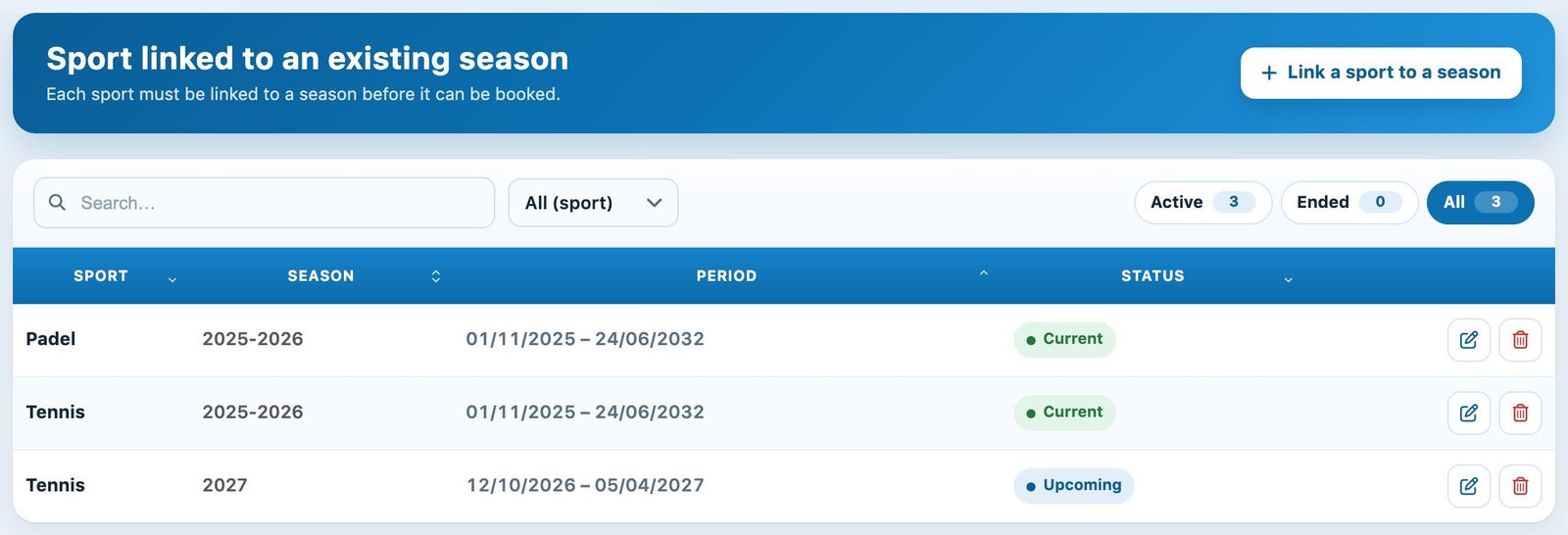
Sports linked to a season, current and upcoming
Choose the sport, the season and the starting point
Click + Link a sport to a season. In the Sport and season section, choose the sport (Choice of sport) and the season (Choice of season). Only seasons that ended less than two years ago are offered.
Then choose the Starting point : Copy an existing season or Start from scratch.
Copy an existing season
The setup of the season chosen in Copy from is copied: restrictions, periods and booking options. The switches in the What to copy section decide the rest:
- Copy courts: the courts and court groups.
- Copy membership types: the subscription types and fixed hours, which will need to be re-validated. Together with the courts, the prices are also copied.
- Copy individual memberships: each member's subscription, moving up a category according to age. In Copy subscriptions from, choose the season whose members are copied; it can be different from the one used as a template.
- Deactivate individual accounts: members will need to be reactivated, for example after paying their membership fee, before they can book.
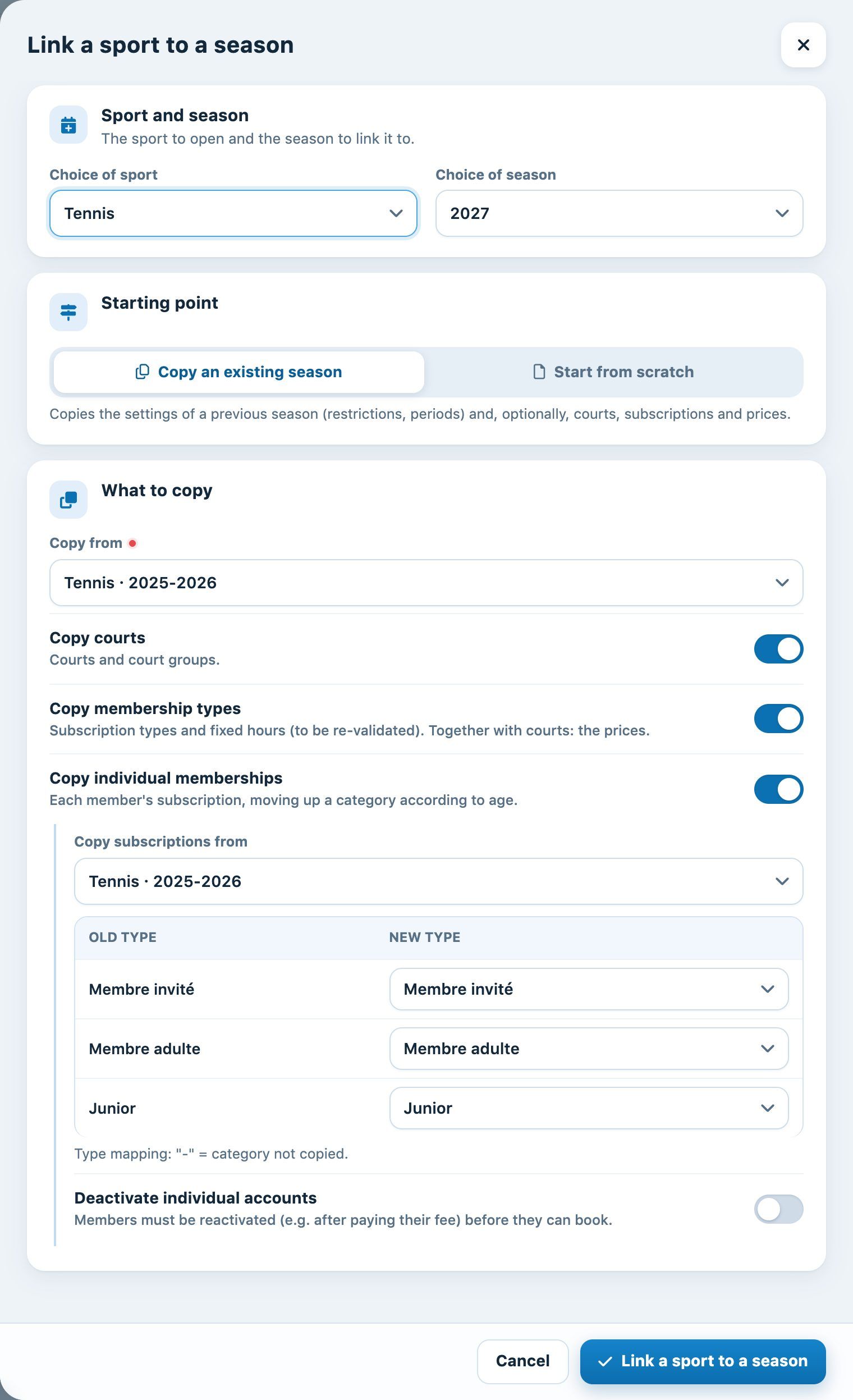
Copying Tennis · 2025-2026 for the 2027 season, with the mapping of subscription types
The Old type → New type table maps each subscription type of the source season to a type of the new season. It is pre-filled when the type exists in both; choose "-" to not copy a category.
Click Link a sport to a season. The message "In progress…" remains displayed during the copy, which can take a good minute for a large club, then "The sport has been linked to the season." appears.
Start from scratch
With Start from scratch, the panel offers two sections:
- Opening hours: opening time, closing time and length of a period (01:00 to book by the hour, 00:30 by the half hour). Add periods lets you change the length depending on the time of day. See the article Manage booking periods.
- Options : Show name of manager on admin side (the name of the person who booked appears in the schedule slot), Allow flexible reservations (freely change the end time or the number of players of a booking), Allow open reservations (players can create matches open to other members) and, if the club uses it, Use RFID validation.
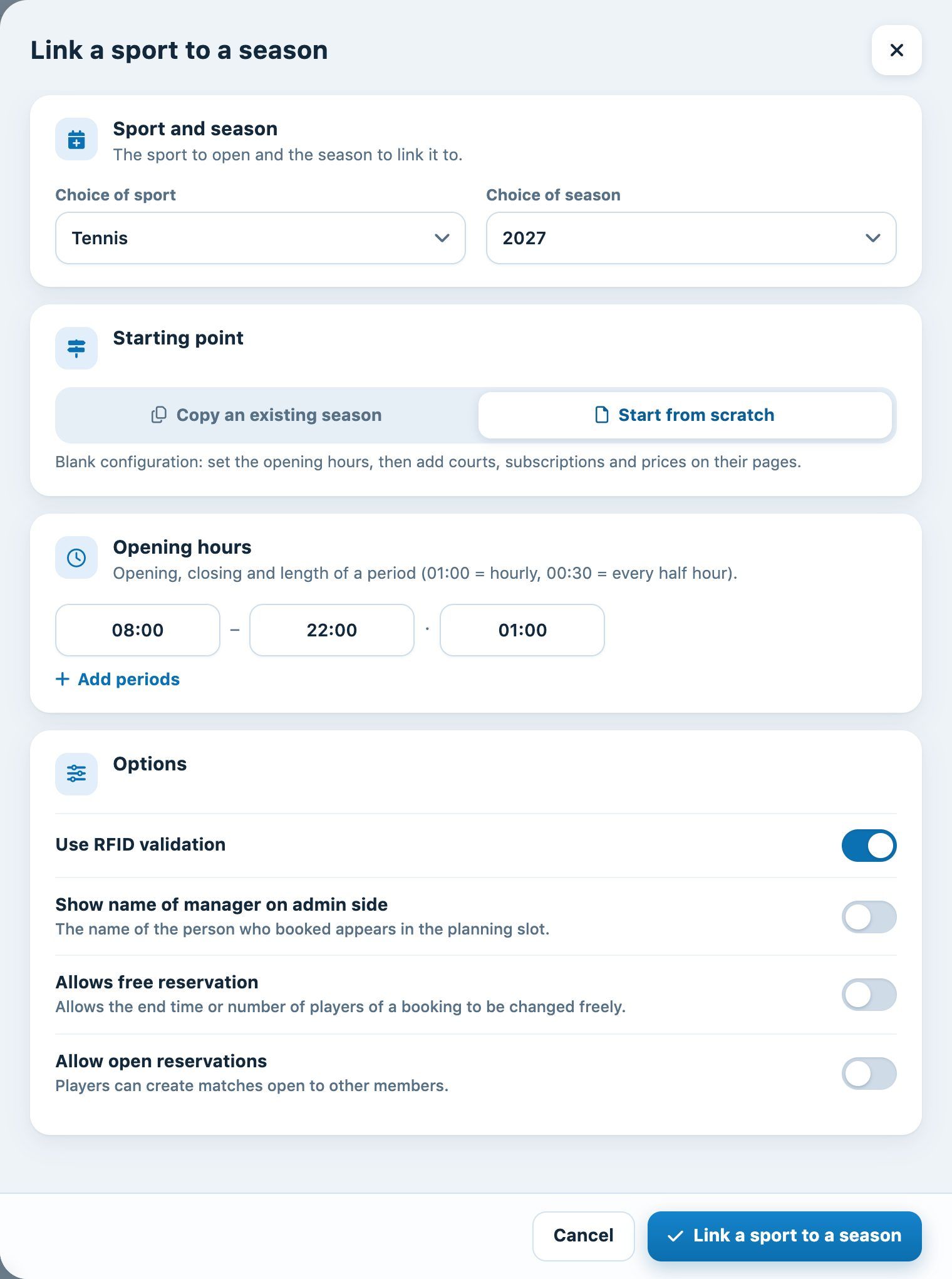
A sport-season set up from scratch
With open bookings, you can choose the Value of the level displayed? and the Forbidden hours for open matches, per day of the week. Then add the courts, subscription types and prices on their pages.
Edit or delete a sport-season
Click the pencil icon of a sport-season to open the Edit linked sport panel. There you will find the options above as well as the Number of days visible without login: the number of days of the schedule visible to visitors who are not logged in.
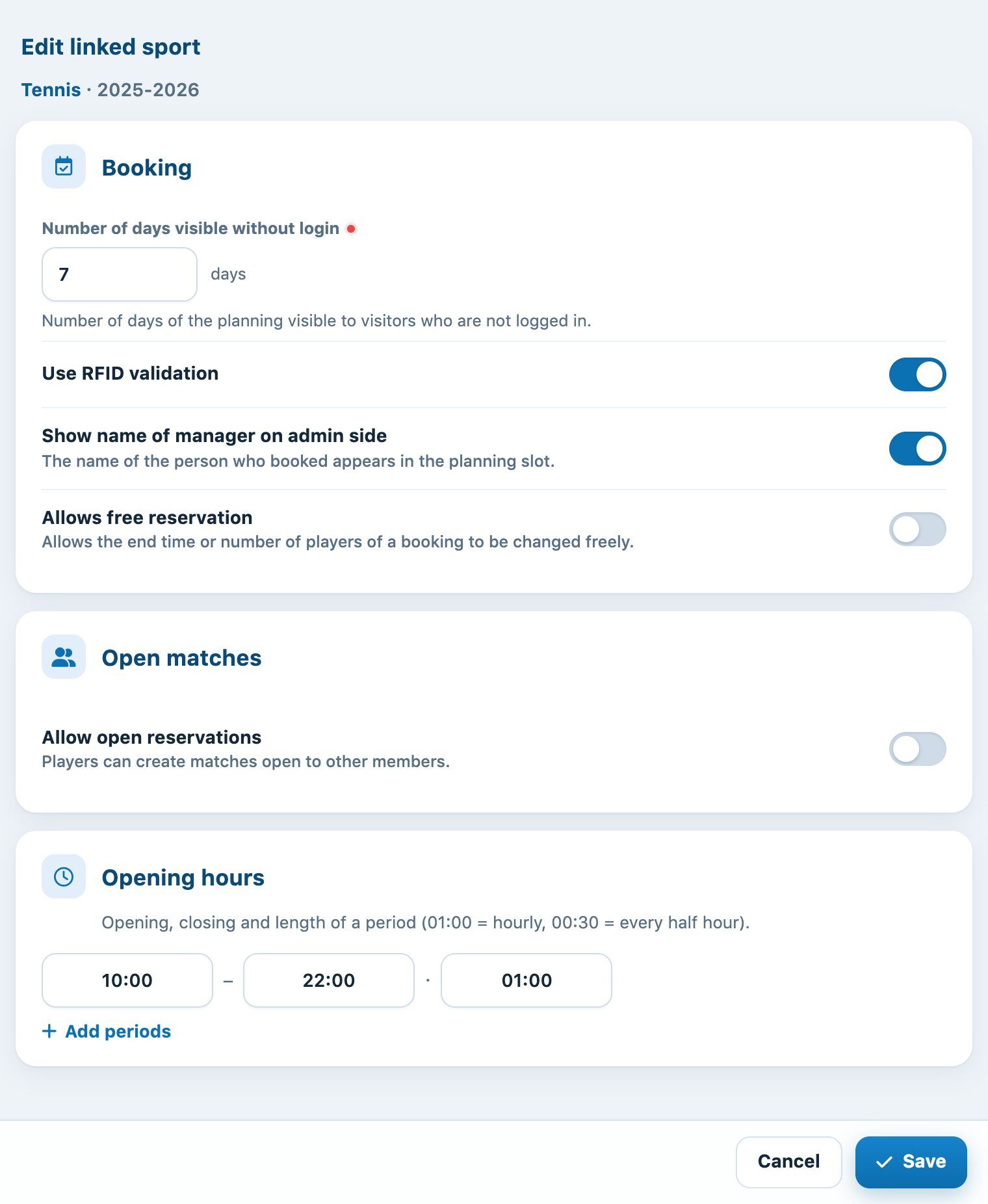
The "Edit linked sport" panel
The trash icon deletes the link, but only if nothing is attached to it: a sport-season that has courts, subscriptions or bookings is not deleted.
Plugin.ch Tutorial — Manage seasons