


Manage items
Import linked items from Excel
Invoice a list received in Excel (lessons, licences, rentals) without typing it again
Your tennis school, coach or office sends you the list of participants with what each person must be invoiced? Import it as it is: Plugin.ch recognises the columns, suggests the item for each row, finds the people among the club members, creates the missing ones and adds the lines to their next invoice.
To open the wizard: in the menu Invoices, open Link an item then click Import (Excel) at the top of the page.
Nothing is saved before the last step: you first see who will be found, who will be created and what will be invoiced. The file is only kept for the duration of the import (24 hours at most).
Choose the file
Drag the file into the area Drop your file here or click to choose it: Excel (.xlsx, .xls), LibreOffice (.ods) or CSV, 15 MB at most. The file may have a title above the table: the header row is found automatically.
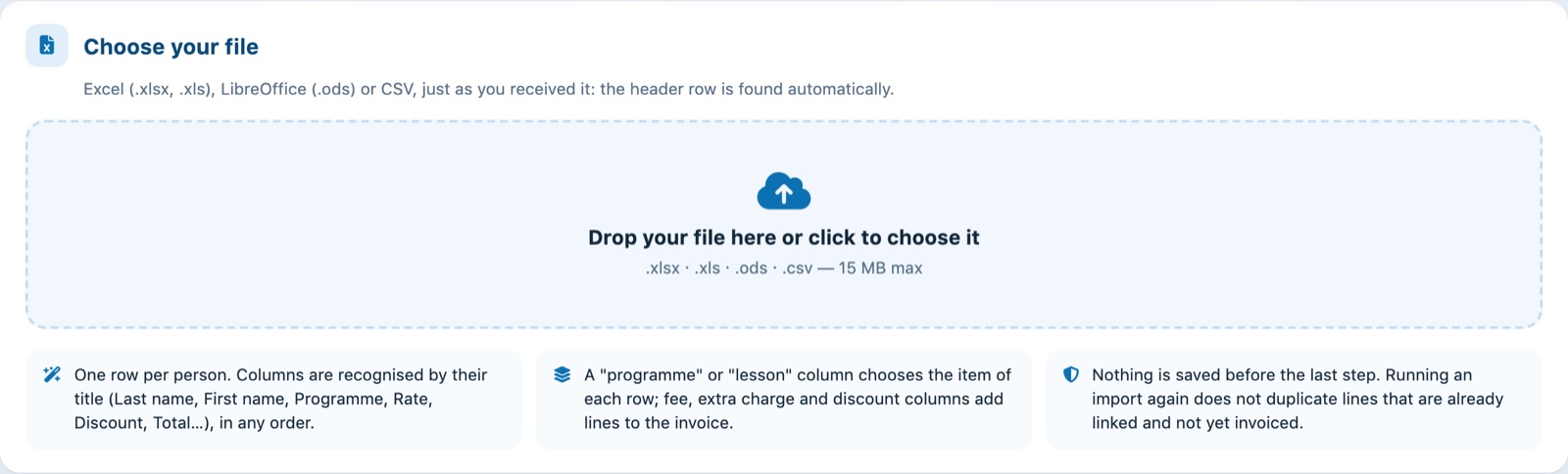
The first step of the wizard
The file must have one row per person, with at least the last name and first name. The Template file button downloads an example table.
Check the columns
Each column is recognised by its title, in any order and in French, German, English or Italian. The Used for column shows what Plugin.ch will do with it; change it if needed.
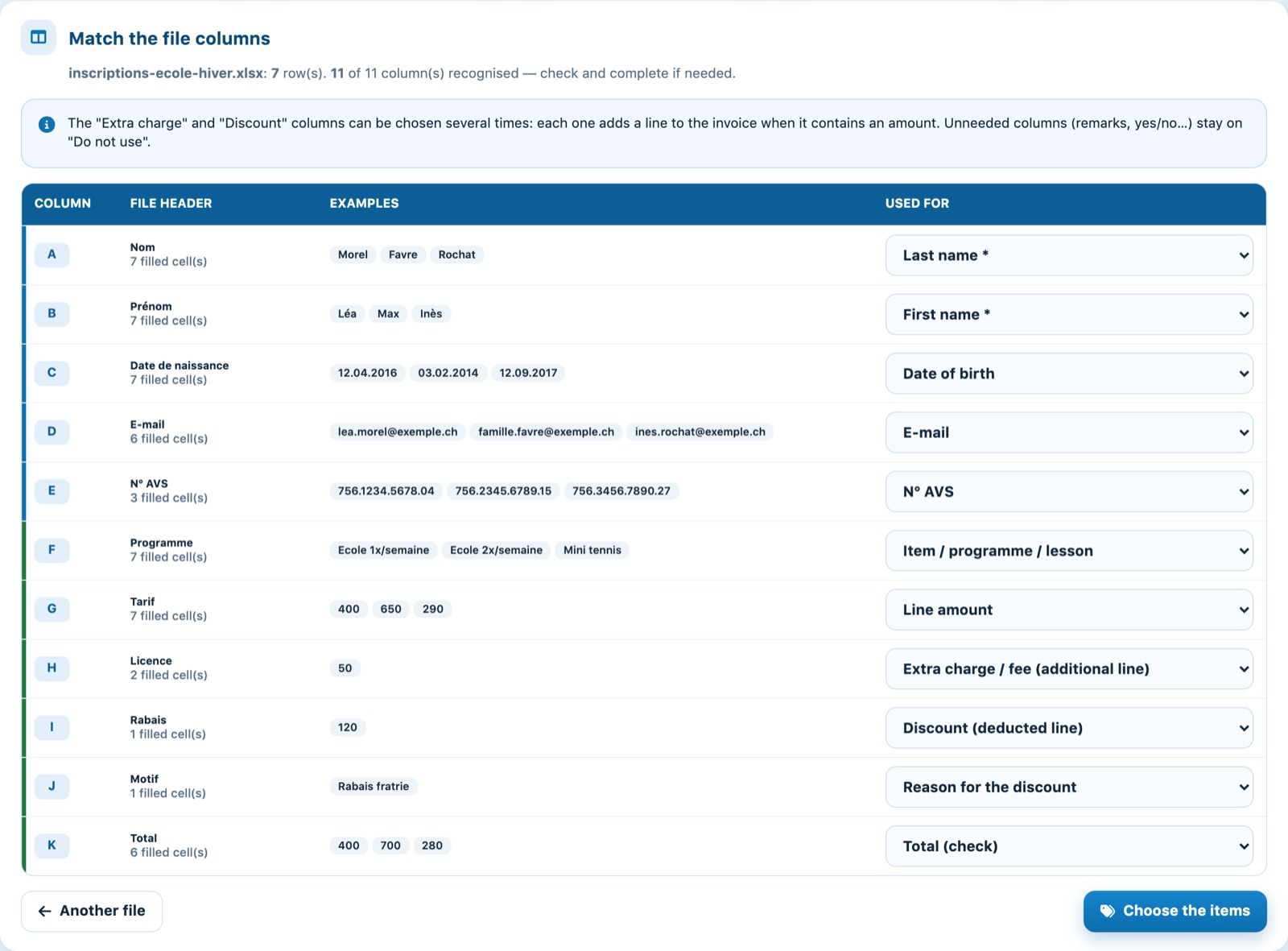
The file columns and how they are used
| Used for | Effect |
|---|---|
| Item / programme / lesson | Chooses the item for each row (next step). |
| Line amount | Amount invoiced. Without this column, the item price is used, based on age if the item has several rates. |
| Extra charge / fee (additional line) | Adds a line when the cell contains an amount (non-member fee, licence, 2nd training…). Can be chosen for several columns. |
| Discount (deducted line) | Adds a negative line. The text of the column Reason for the discount, if there is one, is used as the name. |
| Total (check) | Not invoiced: used to check that the calculated lines give the same total as the file. |
| Custom member fields | For example the AVS number: written on the created profiles and, if you wish, on existing profiles where it is empty. |
Columns only useful to create a person (address, postcode, phone…) are also recognised. Leave the other columns on — Do not use —. Click Choose the items.
Choose the items
For each value of the item column (for example each lesson programme), Plugin.ch suggests the most similar club item and shows how many rows and what amount are concerned:
- Suggested: the item clearly matches;
- To check: check the suggestion;
- To choose: no item matches, choose one.
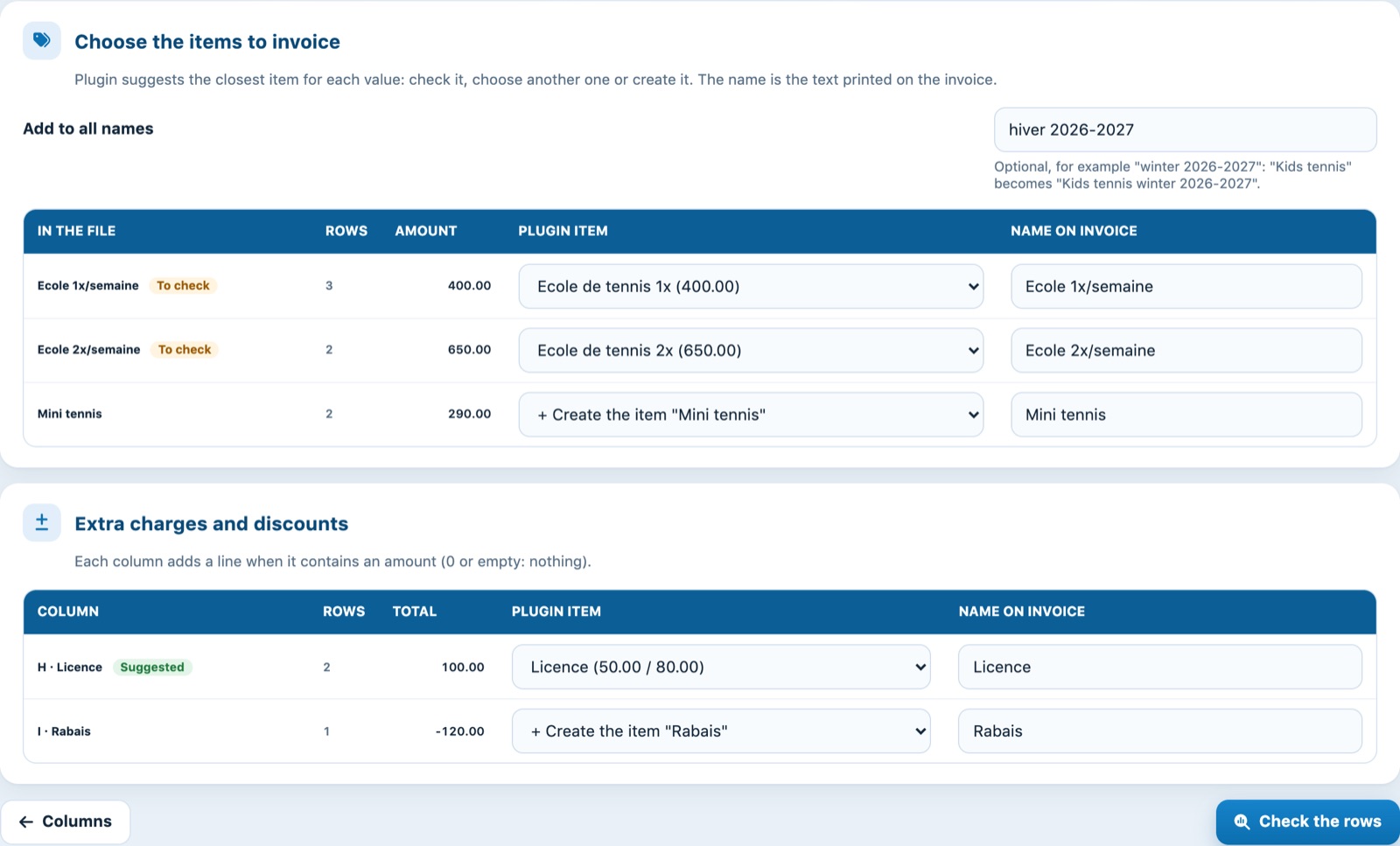
An item and a name for each value of the file
In the list, you can also choose Invoice nothing to ignore a value, or create the item if it does not exist yet. The Name on invoice column is the text printed on the invoice. The Add to all names field completes all the names, for example with “winter 2026-2027”.
Extra charge and discount columns each have their own item. For an extra charge, Same item as the main line invoices the item of the row again, for example for a second training.
Your choices are remembered: the next time you import a similar file, the same values get the same items.
Click Check the rows.
Check the rows
Each row of the file is matched with the club members, and only with them: by member number, AVS number, e-mail and first name, or last name, first name and date of birth. Plugin.ch also spots people written slightly differently (short first name, double last name, typo, almost identical date of birth): these rows are marked in orange, with the reason for the match, and grouped under Matches to confirm.
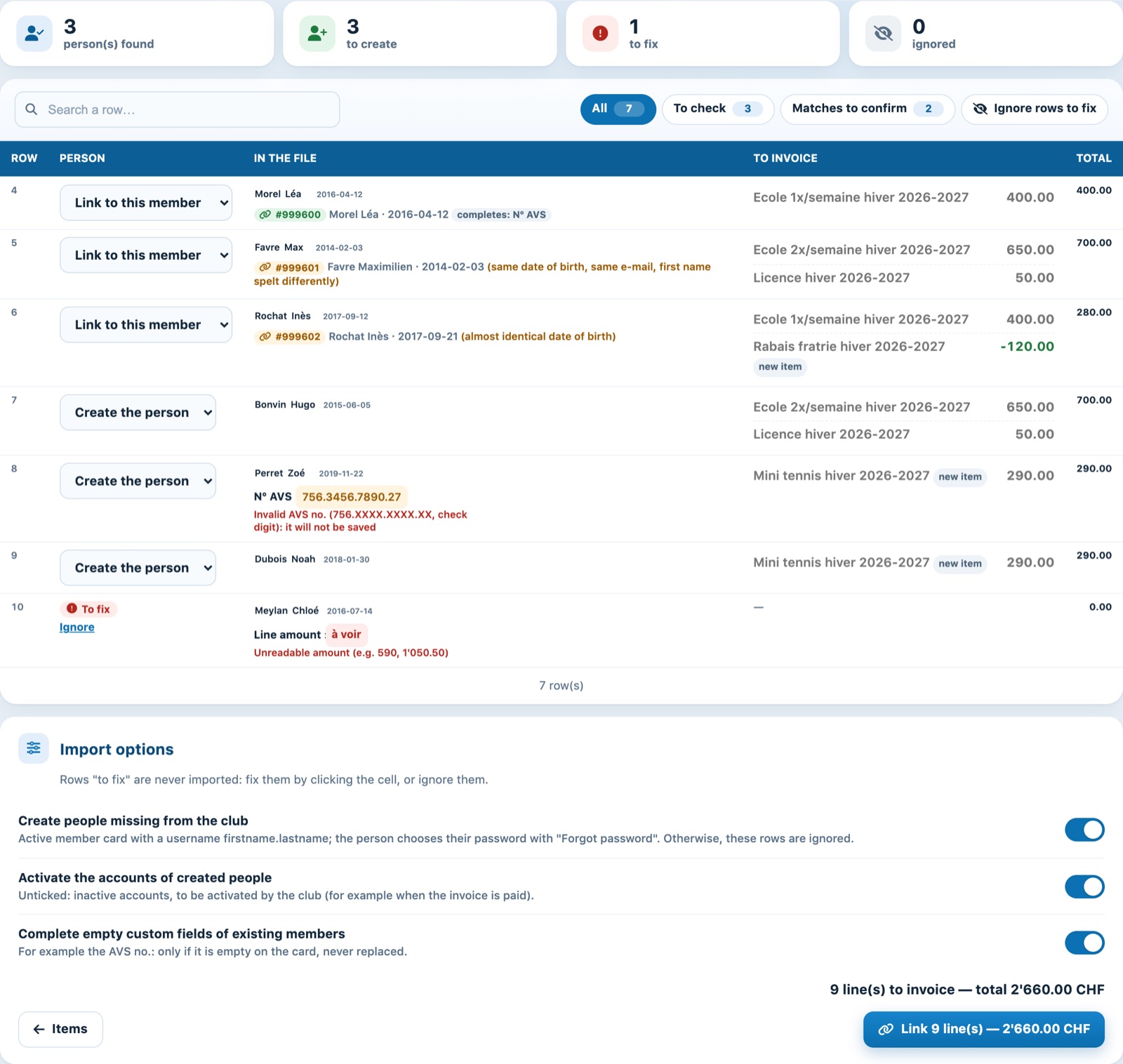
Person found or to create, and lines to invoice for each row of the file
For each row, the Person list lets you choose:
- Link to this member: the person found;
- Create the person (or Create a new person if the match is wrong);
- Ignore the row.
The column To invoice column shows the lines that will be added. An unreadable value (amount, date, AVS number…) is shown in red or orange: click it to correct it. A difference with the Total column of the file is shown under the row total.
Import options:
- Create people missing from the club: if unticked, these rows are ignored;
- Activate the accounts of created people: if unticked, the accounts stay inactive until the club activates them;
- Complete empty custom fields of existing members: for example the AVS number, never replaced if it is already filled in.
A created person gets the username firstname.lastname. They choose their password with “Forgot password”. The import does not send them any e-mail.
Import
The button at the bottom of the page shows the number of lines and the total. Click it and confirm. New items are created first, then the lines are processed in small batches: keep the page open until the end.
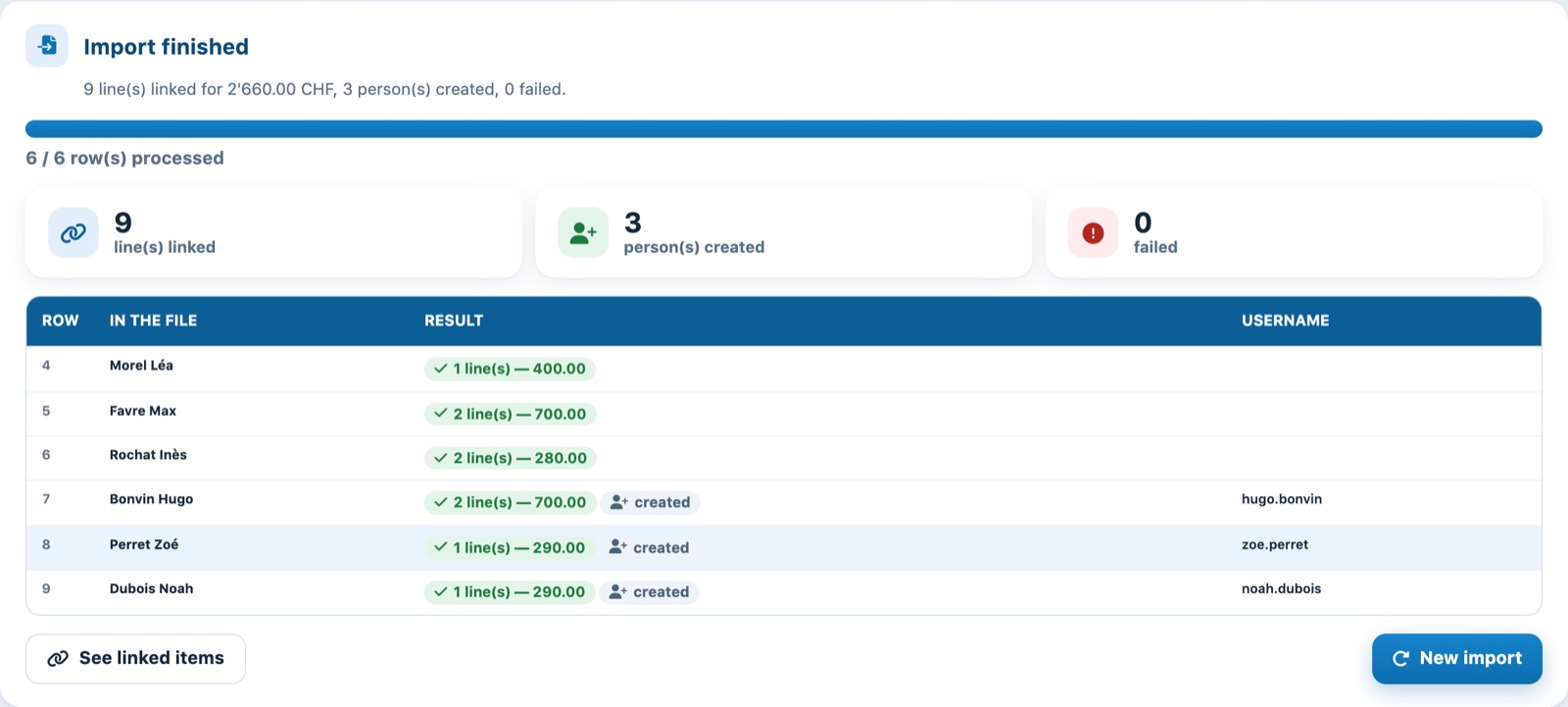
The result row by row
The result shows for each row the linked amounts, the people created with their username and any failures. The lines appear on the page Link an item, without an invoice: they will be included in each person's next invoice.
Importing the same file twice: a line already linked to the same person, with the same item and the same name, and not yet invoiced, is not added a second time. To invoice the same item twice, change the name.
To link an item to just a few people, see the article Assign an item to a member.
Plugin.ch Tutorial — Manage items