


Manage invoices
Manage payment reminders
Track all open invoices, create reminders and send them, group by group or across all groups
Reminders are used to recover unpaid invoices. For each invoice, Plugin.ch calculates its actual due date (invoice, instalment or last reminder) and shows you the next step. You create the reminders, then print them or send them by e-mail, just like invoices.
Set the reminder period
In Parameters → Manage invoicing, the field Reminder due date (in days) sets the payment period granted by each reminder. The texts of paper and e-mail reminders are prepared on the same page. For reminder fees, add a “Reminder fee” item to the invoice concerned (pencil, section Add an item to the invoice).
Open “Open invoices & reminders”
In the left side menu, open Invoices then Open invoices & reminders. The page brings together all unpaid invoices, across all groups. At the top, the cards Total open, Overdue amount, To remind, Partial payments and Collections summarise the situation. A red box also flags people whose membership fee has been invoiced several times.
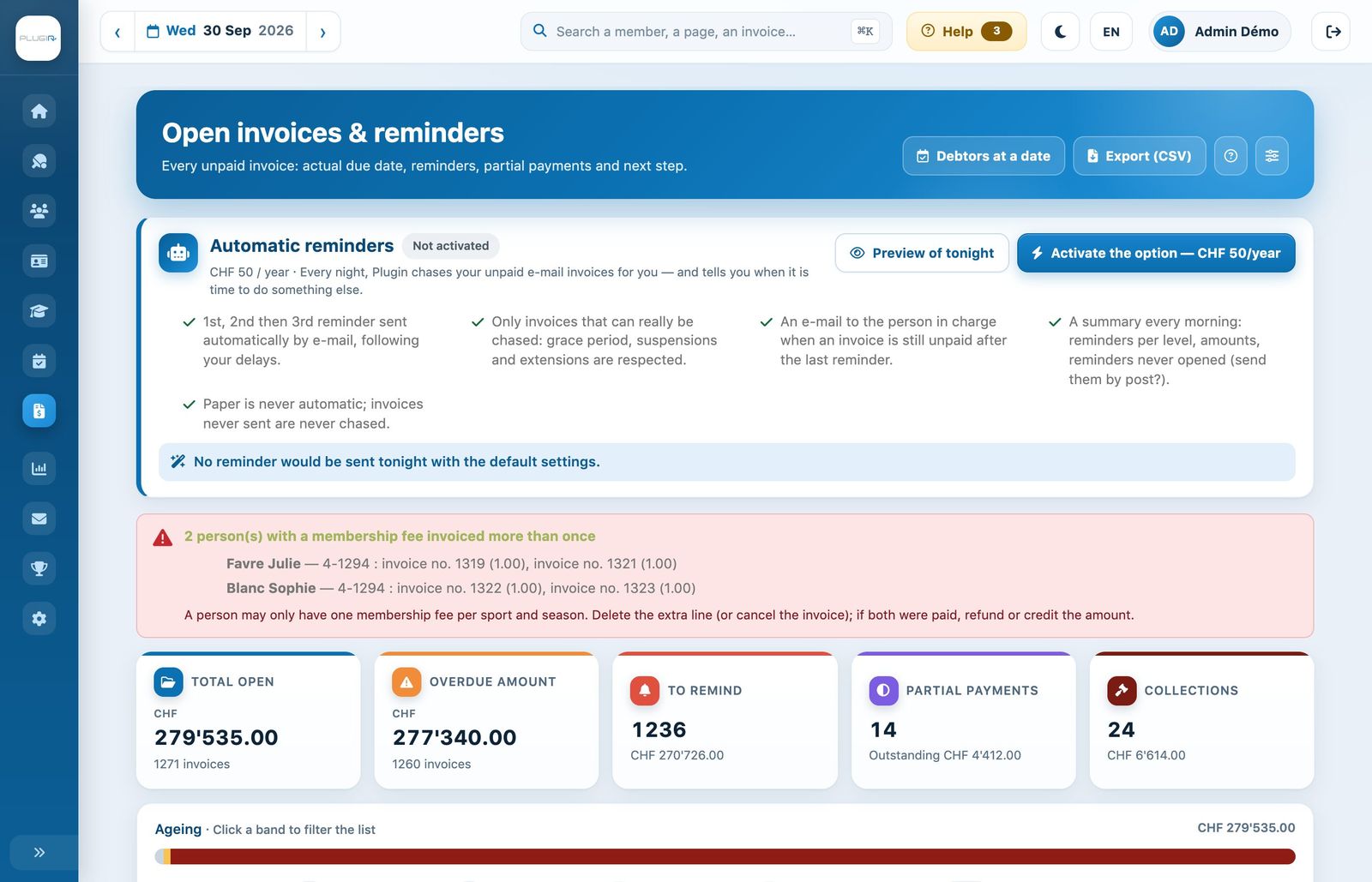
The “Open invoices & reminders” page
The bar Ageing breaks down the open amount by delay (not yet due, 1–30 d, 31–60 d, 61–90 d, over 90 d); click a bracket to filter the list. The chips filter by situation: All open, To remind, Overdue, Reminders running, Collections, Partly paid, To send, Suspended… You can also filter by group, by year, by channel (paper or e-mail) or by invoice date with Invoiced from … to.
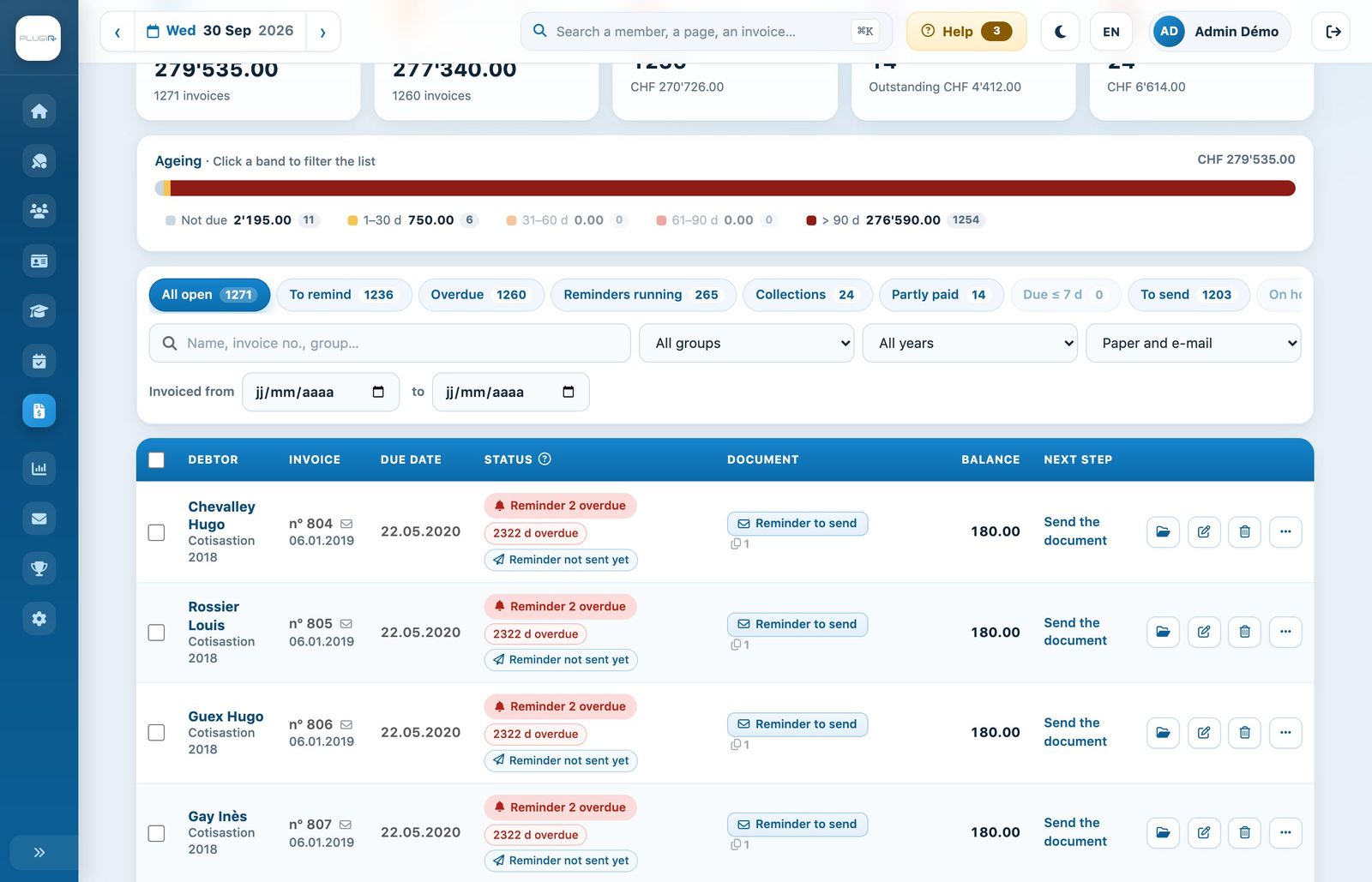
The filters and the list of open invoices
Read the tracking of each invoice
The column Status shows the situation (Upcoming, Due soon, Overdue, Reminder 1 sent, Reminder 1 overdue, Collections, Reminders on hold), the number of days overdue and, if applicable, Not sent yet or Partial payment. The column Next step tells you what to do: send the document, create the next reminder, wait for a date or consider debt collection. The help button next to Status opens the legend of all badges.
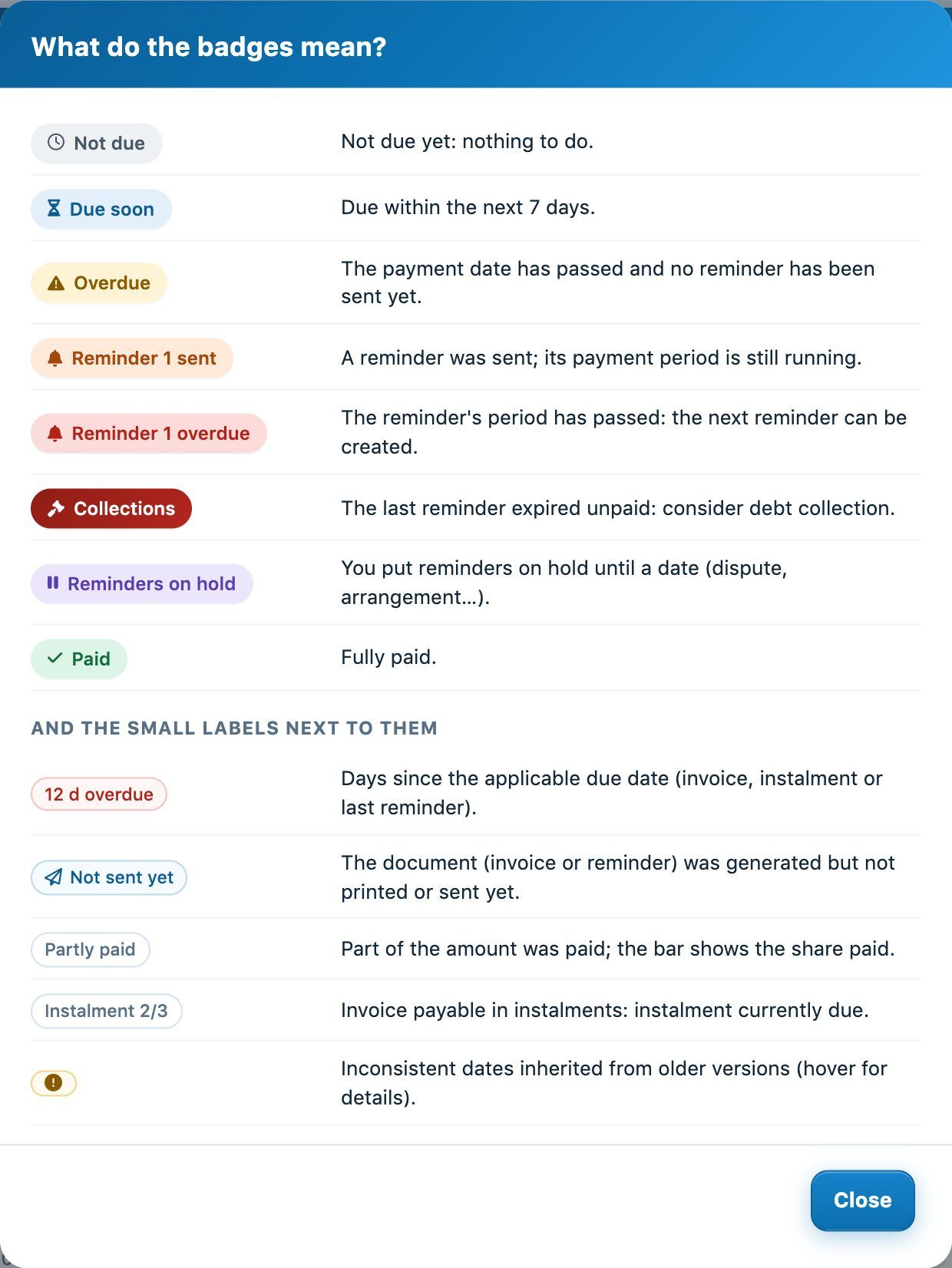
The legend of the tracking badges
Create the reminders
Tick the invoices to remind (for example with the chip To remind then the header checkbox), then click Create reminders in the selection bar. Plugin.ch only accepts invoices that can actually be reminded: invoices not yet due, on hold or already at the last reminder are excluded, and the confirmation window tells you so. It also warns you if some invoices have never been sent.
You can also create the reminders for a single group: in Invoices → Manage invoices, open the group and click Create reminders.
Print or send the reminders
A reminder that has been created is “to print” or “to send” depending on the invoice type. In the selection bar, Print creates the PDF of the current document (invoice or reminder) of the ticked invoices and Send by e-mail sends those that go out by e-mail. From a group, the menus Print and Send also offer Print unprinted reminders and Send unsent reminders by e-mail.
Handle a specific invoice
At the end of each row, the buttons open the File or the window Edit invoice, or cancel the invoice (Cancel invoice). The ⋯ menu groups the other actions: View PDF (or Print for a paper invoice), Send by e-mail, Debtor profile, Extend due date, Put reminders on hold (dispute, payment arrangement…) or Resume reminders, and Cancel last reminder.
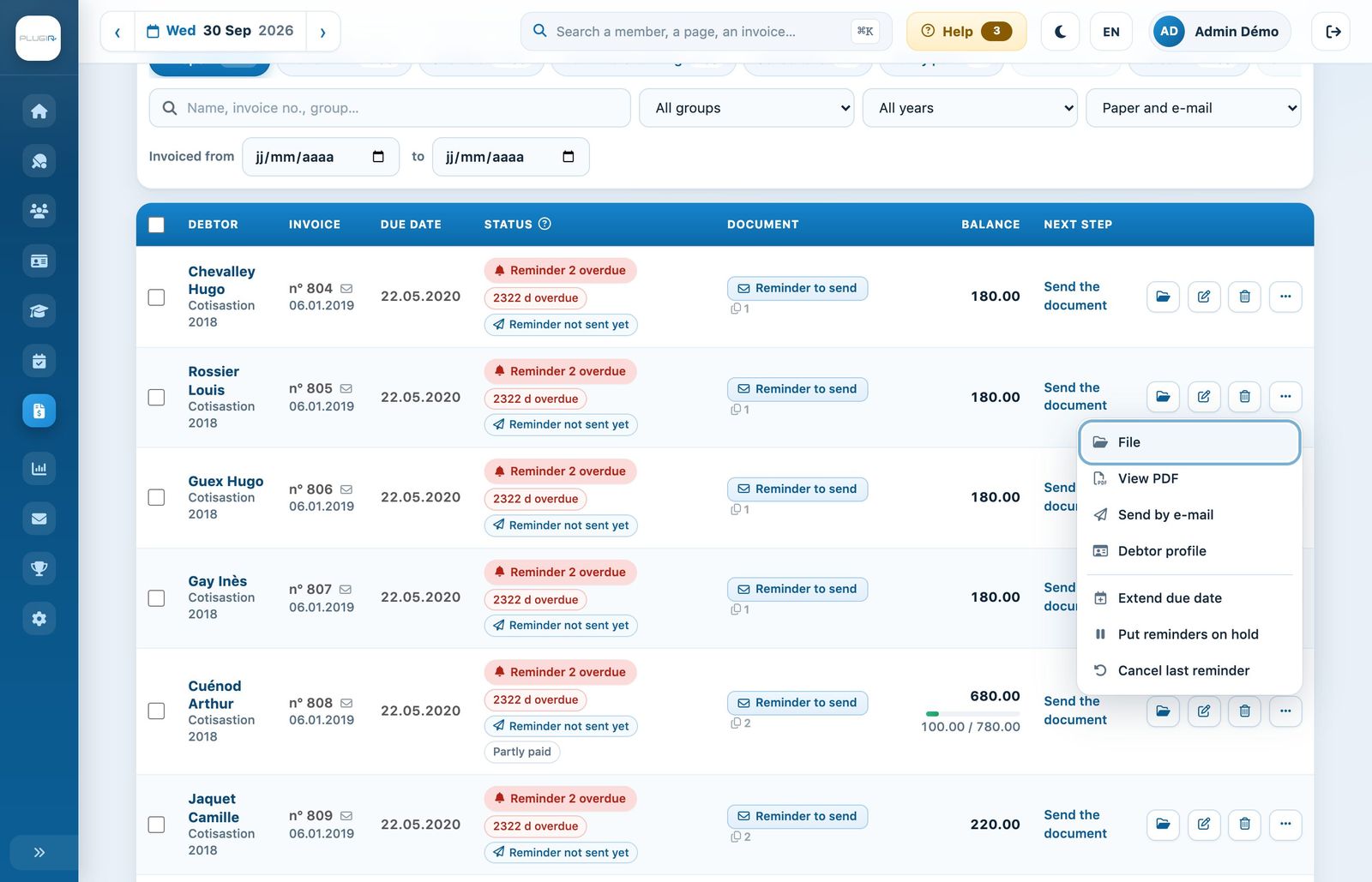
The action menu of an open invoice
The Invoice file shows the amounts, the due date to be met and its origin, the Timeline (invoice issued, printed, sent, read, reminders, payments, extensions), the Versions of the invoice with their PDF and the Invoice lines.
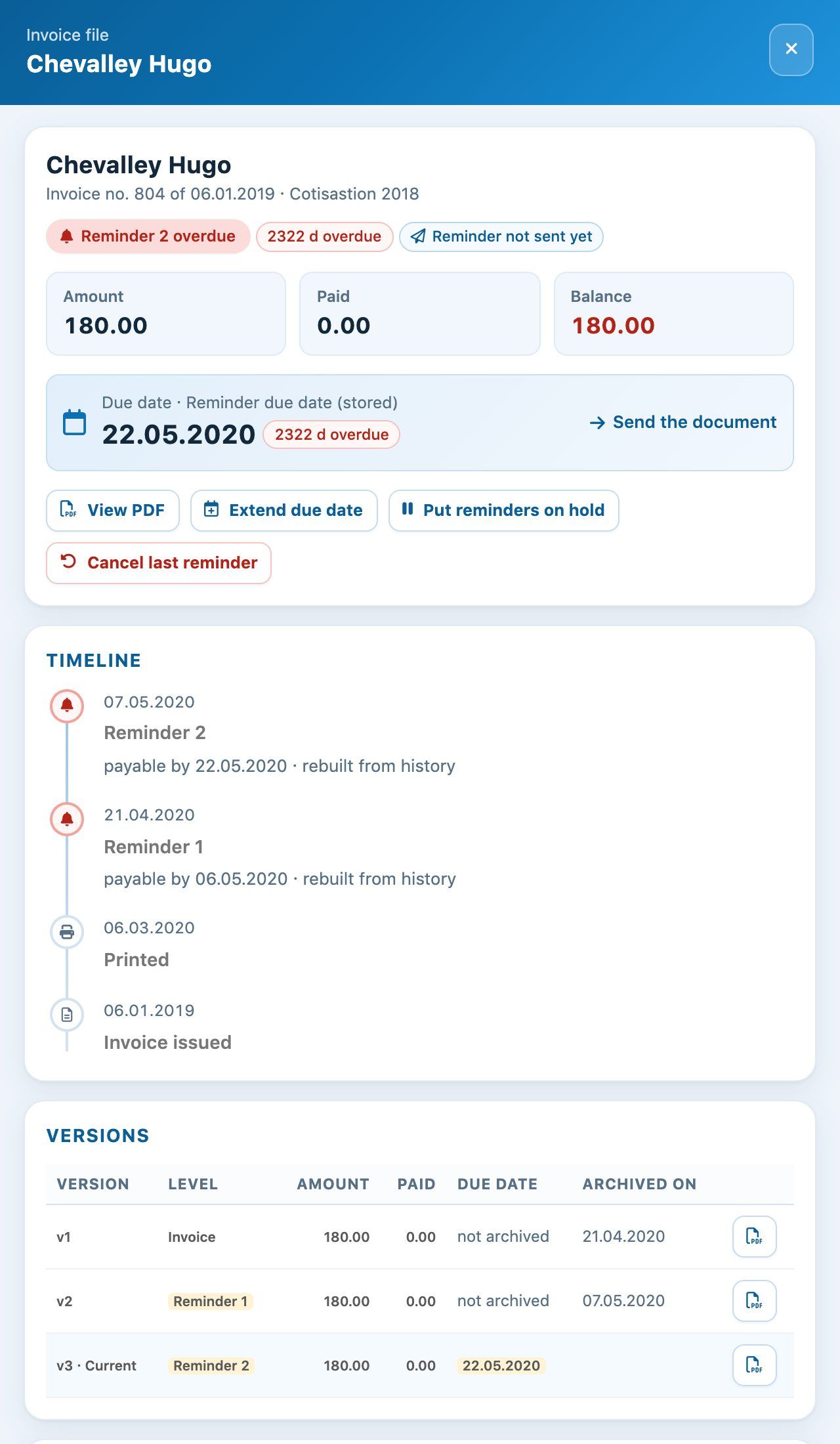
An invoice file: due date, actions and timeline
Extend or put on hold: an extension sets a new due date (with a reason visible in the file); putting on hold blocks reminders until a given date. In both cases, the invoice will no longer be offered for a reminder before that date.
How the due date of an invoice or reminder is set when it is sent: see How invoice dates are calculated.
Debtors at a date and export
The button Debtors at a date calculates the balance of each invoice counting only what was invoiced and paid at the chosen date (Position as of), for example at 31 December for the year-end closing; the list can be exported to Excel. Export (CSV) exports the displayed list of open invoices.
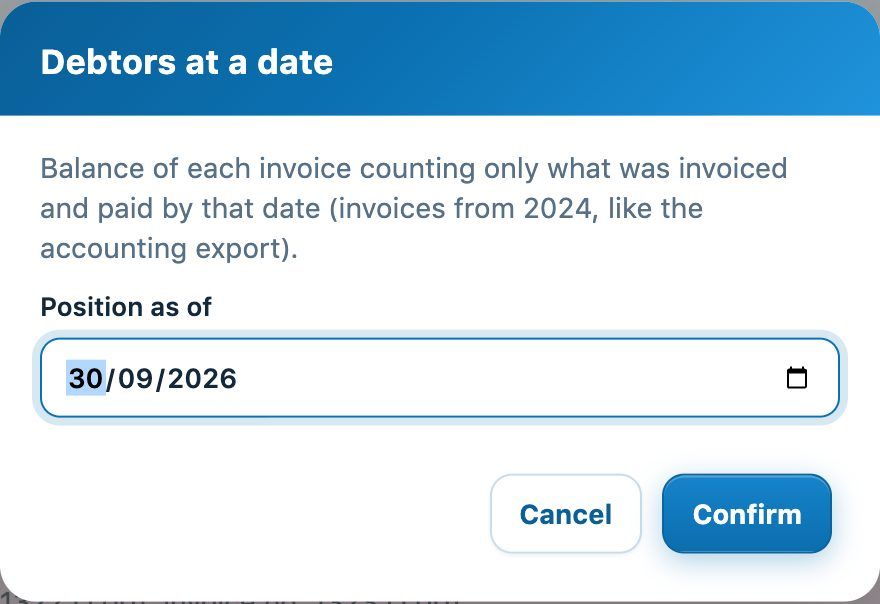
Debtors at a date
The settings button (sliders) sets the Grace period before reminding (days): it gives payments in transit time to arrive before an invoice is offered for a reminder.
Automatic reminders with the paid option Automatic reminders, Plugin.ch sends the e-mail reminders for you every night. See Automatic reminders for e-mail invoices.
Plugin.ch Tutorial — Manage invoices