


Messages and emails
Manage messages
Show an announcement to members on the booking site, for a specific period, audience and sports.
A message is an announcement shown to members on the booking site: courts closed for maintenance, a club evening, a membership fee reminder… You choose when it is shown, who sees it and for which sports.
1Open the list of messages
In the left menu, open Messages then click Manage messages. The page starts with the list of your messages.
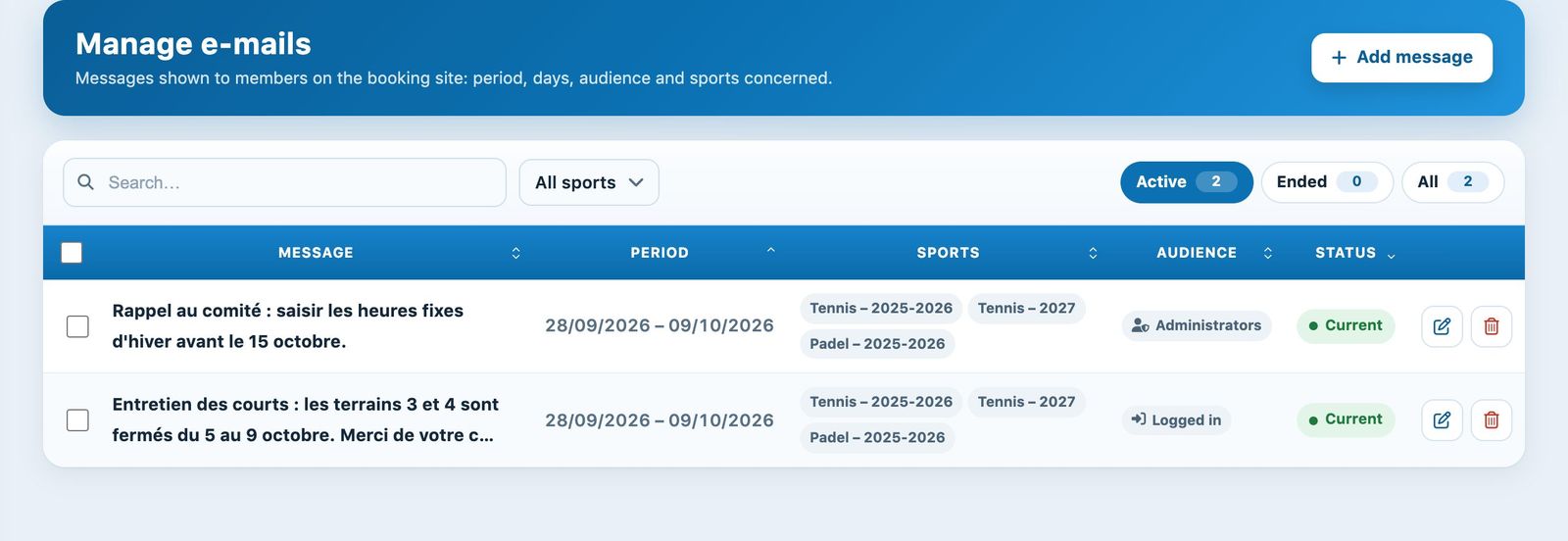
The list of messages, with the search, the sport filter and the status chips.
- The field Search… filters the list as you type.
- If the club has several sports, the drop-down list All sports shows only the messages of one sport.
- The chips Active, Ended and All filter by display period. The number on each chip shows how many messages are concerned.
- The column Audience summarises who sees the message: Everyone, Logged in or Administrators, with the badge To confirm if the member must confirm it.
- The column Status shows whether the message is Current, Upcoming or Ended.
2Add a message
Click Add message at the top right. The form opens in a side panel, without leaving the list.
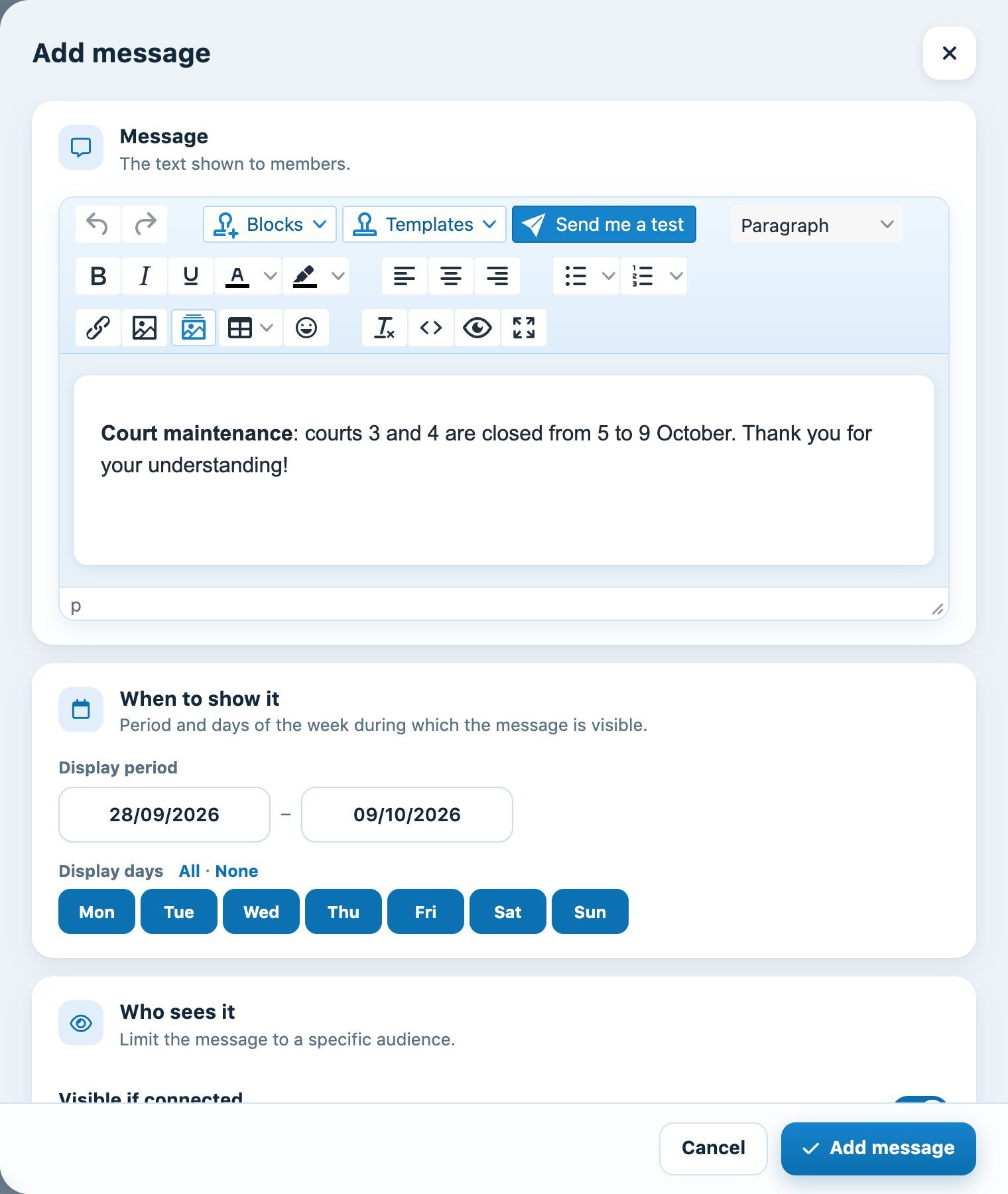
The add panel: the message text, then the display period and days.
- Message: write the text in the editor. You can format it, add a link or an image and use the menus Blocks and Templates (see the article Writing an e-mail with the editor).
- Display period: choose the start date and the end date. The end date cannot be before the start date.
- Display days: all days are ticked by default. Click a day to remove it, or use All and None. At least one day must remain ticked.
Then scroll down the panel to the sections Who sees it and Sports concerned.
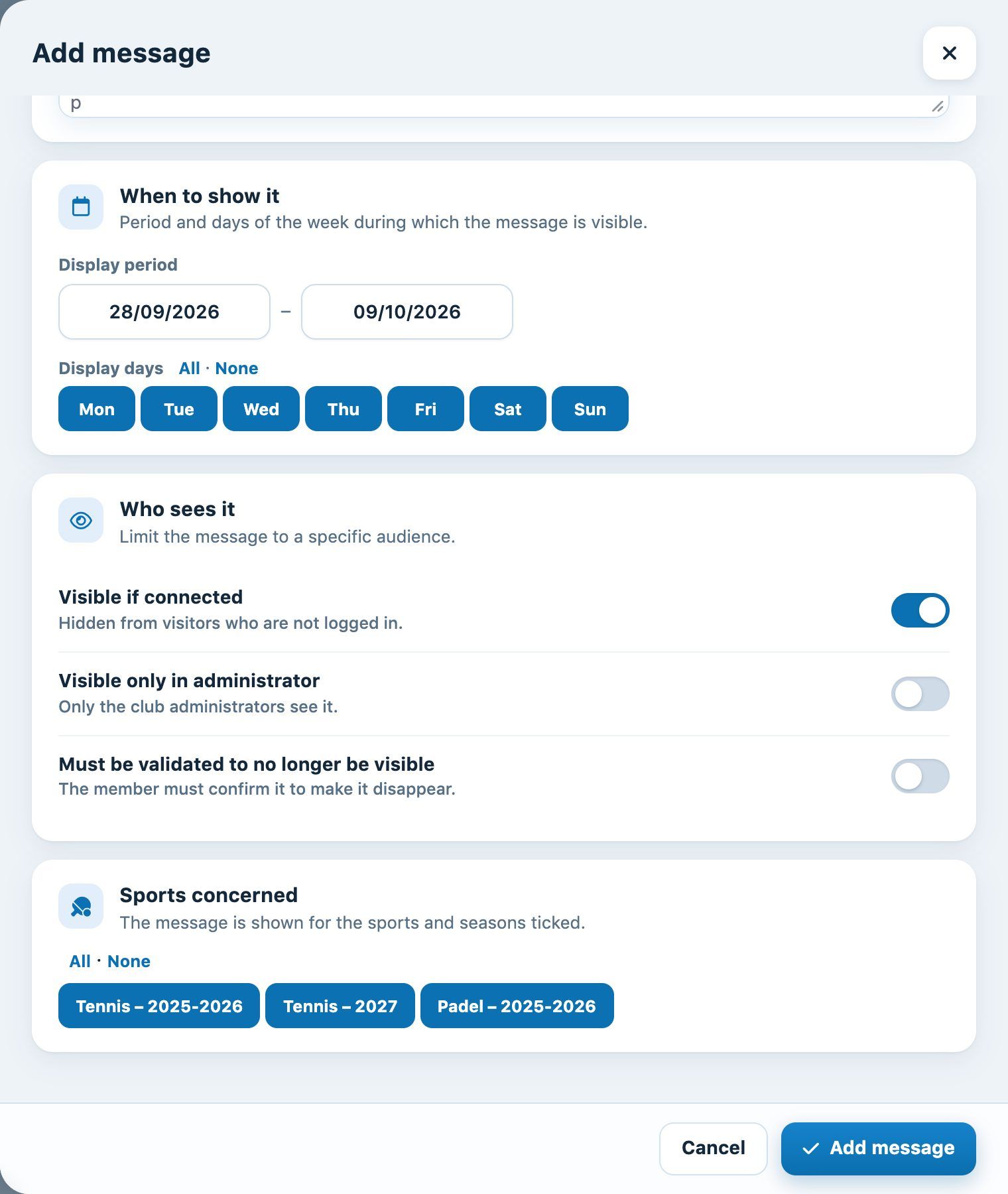
The audience switches and the choice of sports and seasons.
- Visible if logged in: the message is hidden from visitors who are not logged in.
- Visible only in administrator: only the club's administrators see it. Useful for an internal reminder to the committee.
- Must be validated to no longer be visible: the message stays displayed until the member has confirmed it. Use it for important information, for example a change in the rules.
- Sports concerned: the message is shown for the sports and seasons ticked. All current sport-seasons are ticked by default.
If no switch is on, the message is visible to everyone, including visitors who are not logged in: the list shows this with the badge Everyone.
Click Add message at the bottom of the panel. The message appears in the list and is shown to members from the start of its period.
3Edit or delete a message
- Click the pencil icon on a row to open the message in a panel and edit it.
- Click the trash icon to delete it. The row disappears and a button Cancel stays visible for a few seconds in case you made a mistake.
- To delete several messages at once, tick them: a bar appears at the bottom of the screen with the button Delete.
An ended message is no longer shown to members, but it stays in the list under the chip Ended. Delete old messages regularly to keep the list clear.
Plugin.ch Tutorial — Messages and e-mails