


Messages and emails
Manage automatic e-mails
Customise and enable the e-mails that Plugin.ch sends automatically: bookings, accounts, passwords, subscriptions…
Plugin.ch sends e-mails automatically when an event occurs: a booking is created, a password is requested, a membership fee is paid… Each e-mail is a notification that you can customise (subject, text, copy) and then enable or disable.
1Open the list of notifications
In the left menu, open Messages then click Manage automatic e-mails.
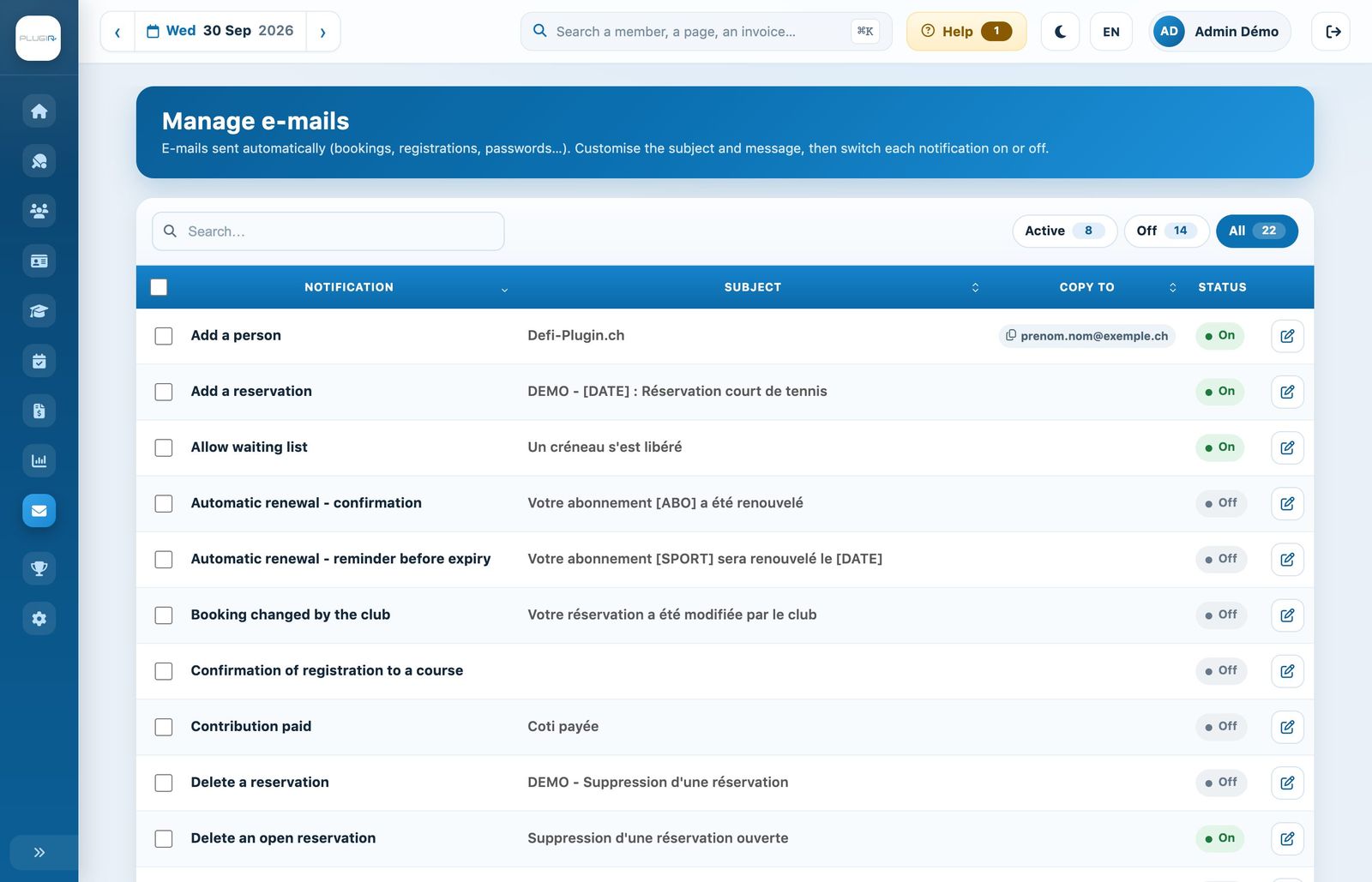
The club's list of notifications, with their subject, the copy address and their status.
- The field Search… finds a notification by its name or subject.
- The chips Active, Off and All filter the list by status.
- The column Copy to shows the addresses that receive a copy of every e-mail sent.
- The column Status shows whether the notification is On or Off. A notification that is off is never sent.
The list only shows the notifications that are relevant to your club: for example, Reservation not validated only appears if RFID validation is used, and Confirmation of registration to a course only if the courses module is enabled.
2Edit a notification
Click the notification's pencil icon. It opens in a side panel.
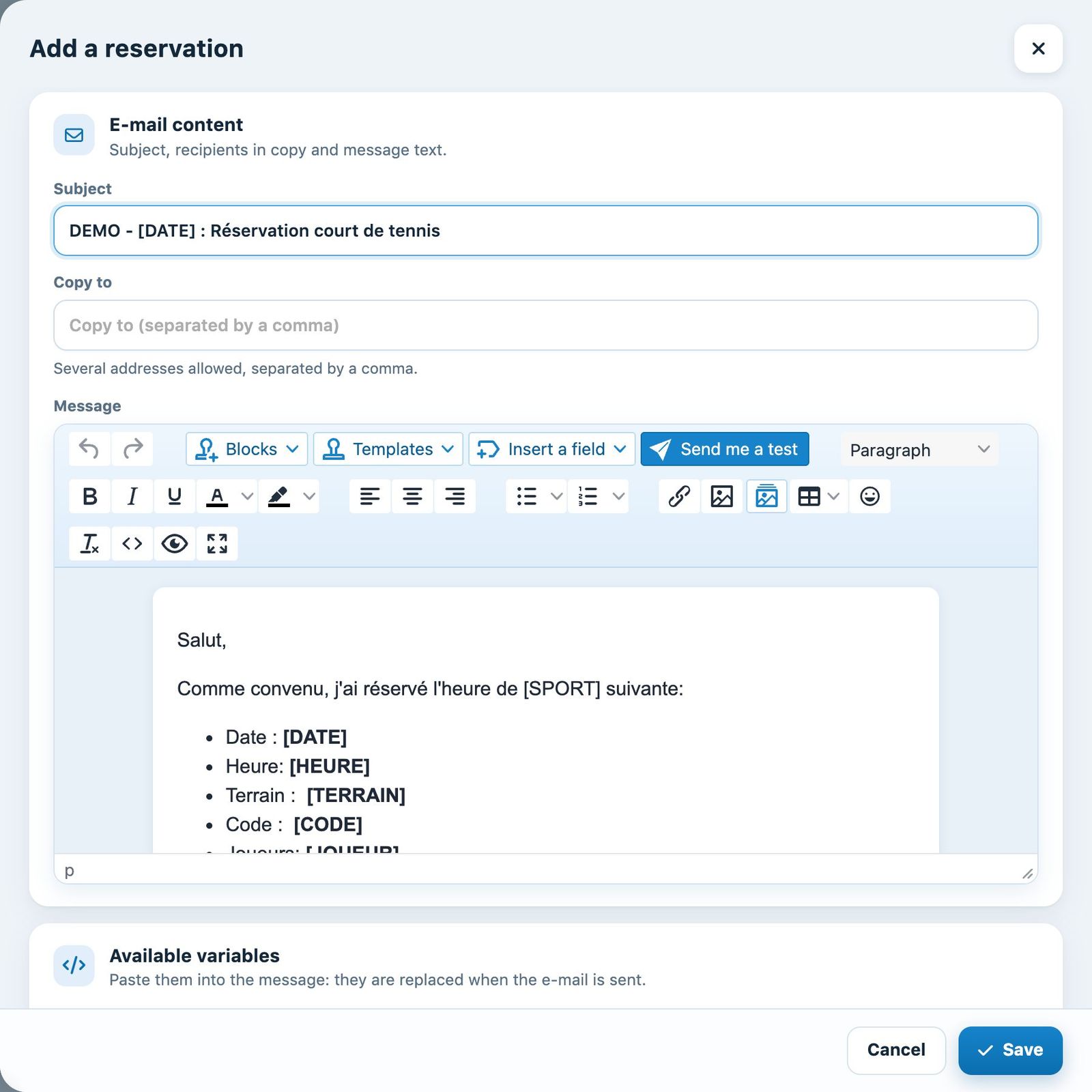
The panel of the “Add a reservation” notification: subject, copy and message.
- Subject: the title of the e-mail in the inbox. It can contain variables, for example
[DATE]. - Copy to: one or more addresses, separated by a comma, that receive a copy of every e-mail sent. Useful to keep the office informed.
- Message: the text of the e-mail, written in the editor. The menus Blocks, Templates, Insert a field and the button Send me a test are explained in the article Writing an e-mail with the editor.
Scroll down the panel: the section Available variables lists the variables of this notification, with their meaning.
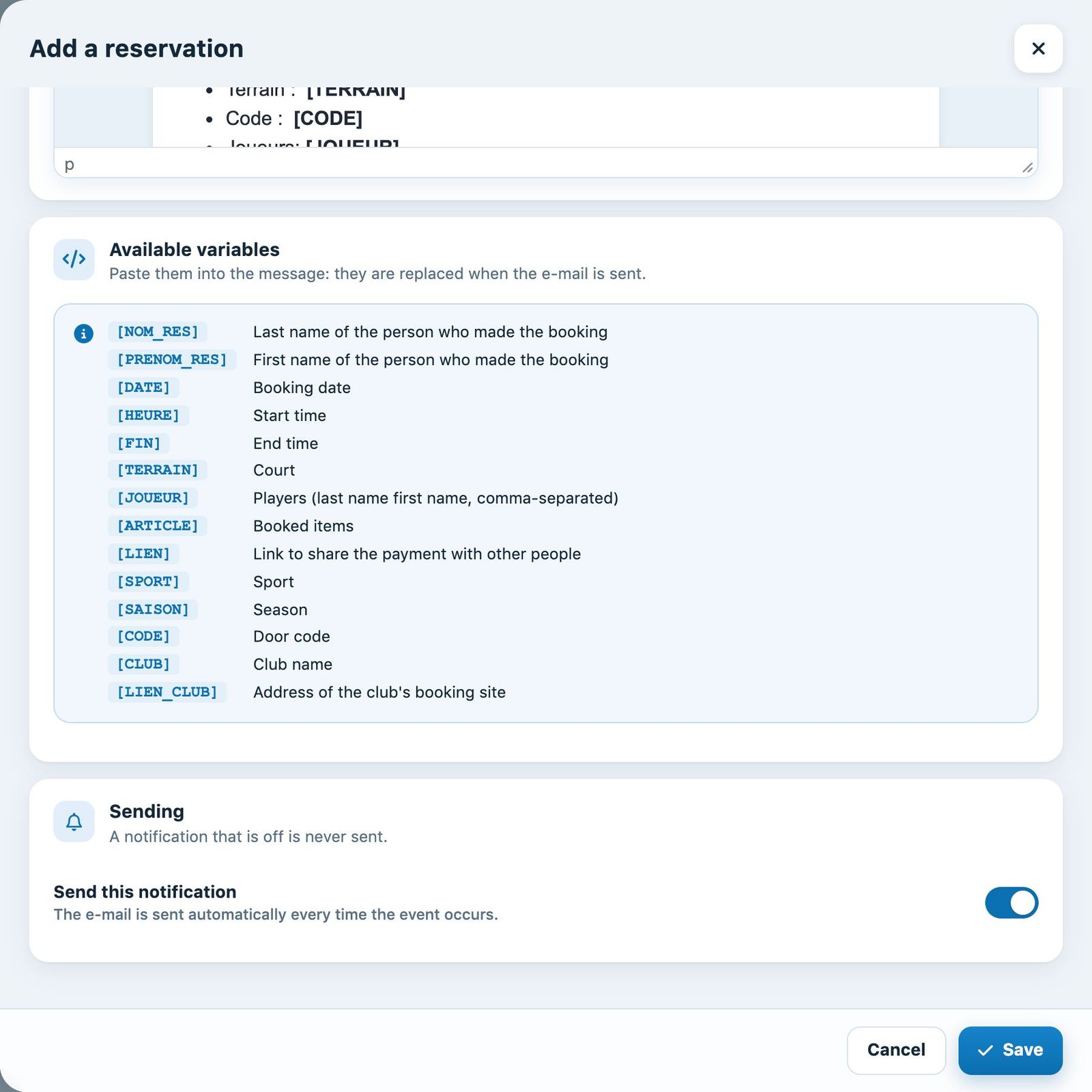
The notification's variables and the sending switch.
Each variable, for example [PRENOM] or [TERRAIN], is replaced with the actual value when the e-mail is sent. Type it in square brackets in the subject or the message, or use the menu Insert a field of the editor. Two variables exist for all notifications: [CLUB] and [LIEN_CLUB]. The first shows the club's name, the second the address of its booking site.
Finally, switch on or off Send this notification in the section Sending, then click Save.
The variables differ from one notification to another. A variable that is not listed in the panel is not replaced: it appears as is in the e-mail received.
3Enable or disable several notifications at once
Tick the notifications you want in the list. A bar appears at the bottom of the screen with the buttons Enable and Disable. The subject and text of each notification remain unchanged.

The bulk action bar, when notifications are ticked.
4The available notifications
| Notification | When is it sent? |
|---|---|
| Add person | When an account is created. The variable [PASS] gives the link to choose a password. |
| Modify person | When a person's details are modified. |
| Add a booking | For each new booking, to confirm it to the players. |
| Delete a reservation | When a booking is cancelled. |
| Booking changed by the club | When an administrator changes a booking (date, time, duration, court or players). Once enabled, it replaces the add and delete e-mails for changes. |
| Lost password | When a member asks to reset their password. The variable [PASS] gives the link to change it. |
| Lost password - multiple accounts | Same request, when several accounts use the same e-mail address: the variable [USER] shows the table of accounts. |
| Membership limit | Before the end of a time-limited subscription, to invite the member to renew it. |
| Automatic renewal - reminder before expiry | For subscriptions that renew automatically: one month and then ten days before the renewal date. |
| Automatic renewal - confirmation | When a subscription has just been renewed automatically. Enter an address in Copy to so you remember to invoice it. |
| Confirmation of registration | After an online registration, when accounts are not activated automatically. The variable [LIEN] gives the confirmation link, valid for 24 hours. |
| Membership fee paid | When a member's membership fee invoice is paid. |
| Allow waiting list | When a slot becomes available and someone had signed up on the waiting list. |
| Reservation not validated | When a booking has not been validated with the RFID badge. |
| New open reservation and Delete an open reservation | When an open booking (open match) is created and deleted. |
| Open match - a player joined | To the match creator when a player joins. |
| Open match - full | To all players when the match is full. |
| Online payment received, booking not created | When an online payment has been received but the booking could not be created, for example because the slot was taken in the meantime. |
| Sending a challenge request | When a player challenges another in a challenge tournament. The variables [OUI] and [NON] give the links to accept or decline. |
| Confirmation of registration to a course | When a person registers for a course. |
| Member's birthday and Inactive member | Every day, based on the member's date of birth or inactivity. See the article Birthday and inactive member e-mails. |
Online payment received, booking not created: no refund is made automatically. Enter an address in Copy to to be notified and handle each case with the member.
New notifications are created off: read their text, adapt it to your club, then enable them. E-mails are sent through the mail server configured in Parameters (see the article Manage email sending).
Plugin.ch Tutorial — Messages and e-mails