


Manage parameters
Manage membership cards
Print membership cards on your club's template
Plugin.ch prints your club's membership cards on a background you provide as a PDF (logo, colours, sponsors). On the Manage membership cards page, you turn on the module, upload this template and say where each detail is printed: name, season, subscription, member number, photo, barcode, etc.
Open the page and turn on the module
In the left side menu, click Parameters, then Manage membership cards. Set the Use the membership card printing module switch to Yes: the Template, Show when the membership card has already been printed and Layout cards appear.
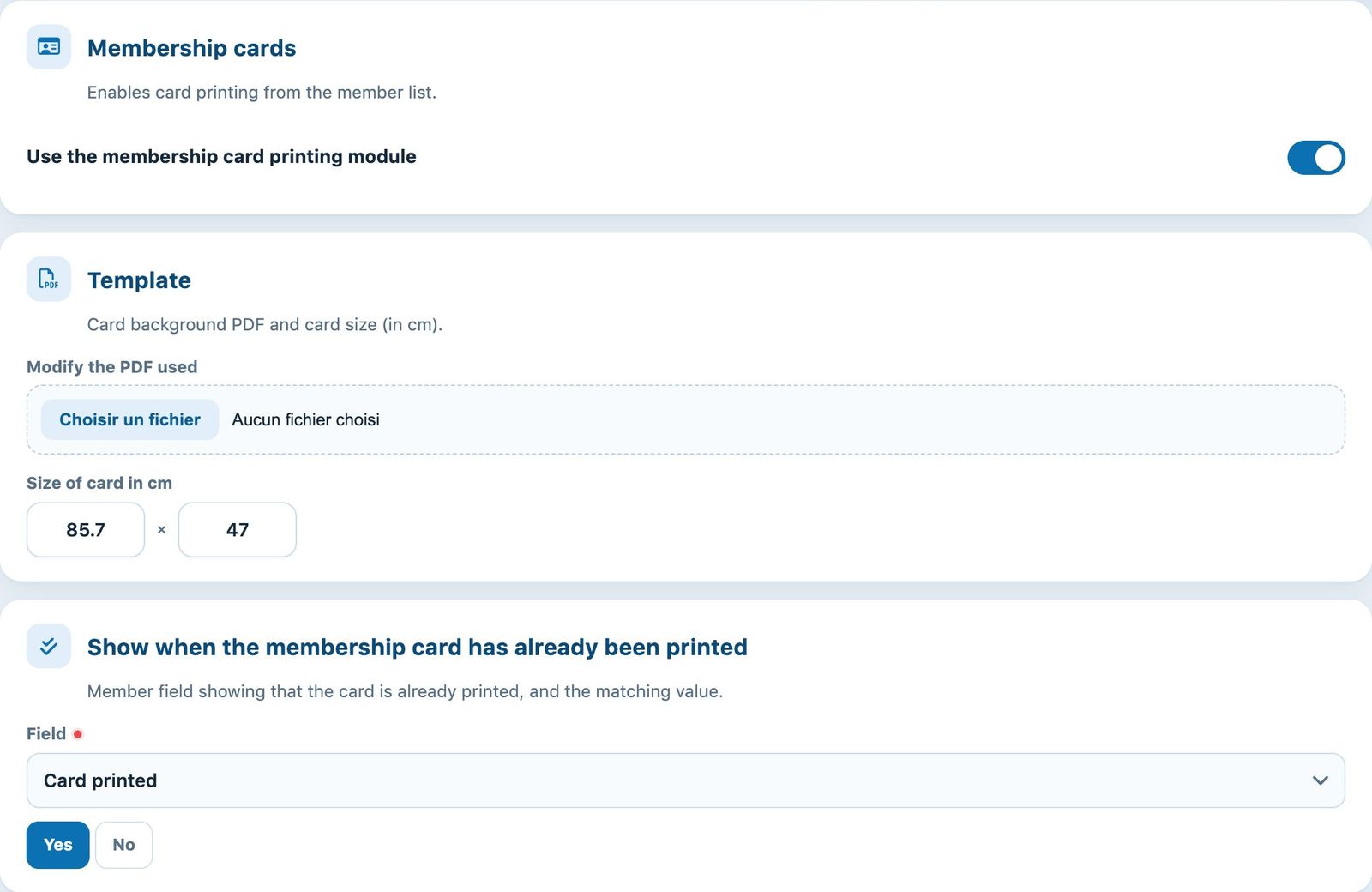
The module turned on, the template and the field that marks cards already printed
Upload the PDF template
In the Modify the PDF used, click Choose File and select the card background in PDF format (a single page). Once saved, its name is shown above the field.
In Card size (in mm), enter the width and height of the printed card. The suggested values, 85.7 × 47, match the size of a credit card: they are actually in millimetres.
Choose the "card already printed" field
The button Print cards button in the member list only prints cards that have not been printed yet. To recognise them, Plugin.ch uses an extra member field of the single-choice type, for example "Card printed" with the values Yes and No.
- In Field, choose this extra field.
- Then click the value that means "already printed" (here Yes). Members with this value are left out of the batch printing.
If no such field exists, a message asks you to create one: extra member fields are created in Members → Import from Excel.
Set up the layout
The Layout table has one row per detail. For each row to print:
- turn on the Printed? ;
- choose the Font (courier, helvetica or times; "B" for bold, "I" for italic), the Size in points and the Colour ;
- enter the position Pos. X and Pos. Y in millimetres from the top-left corner of the card.
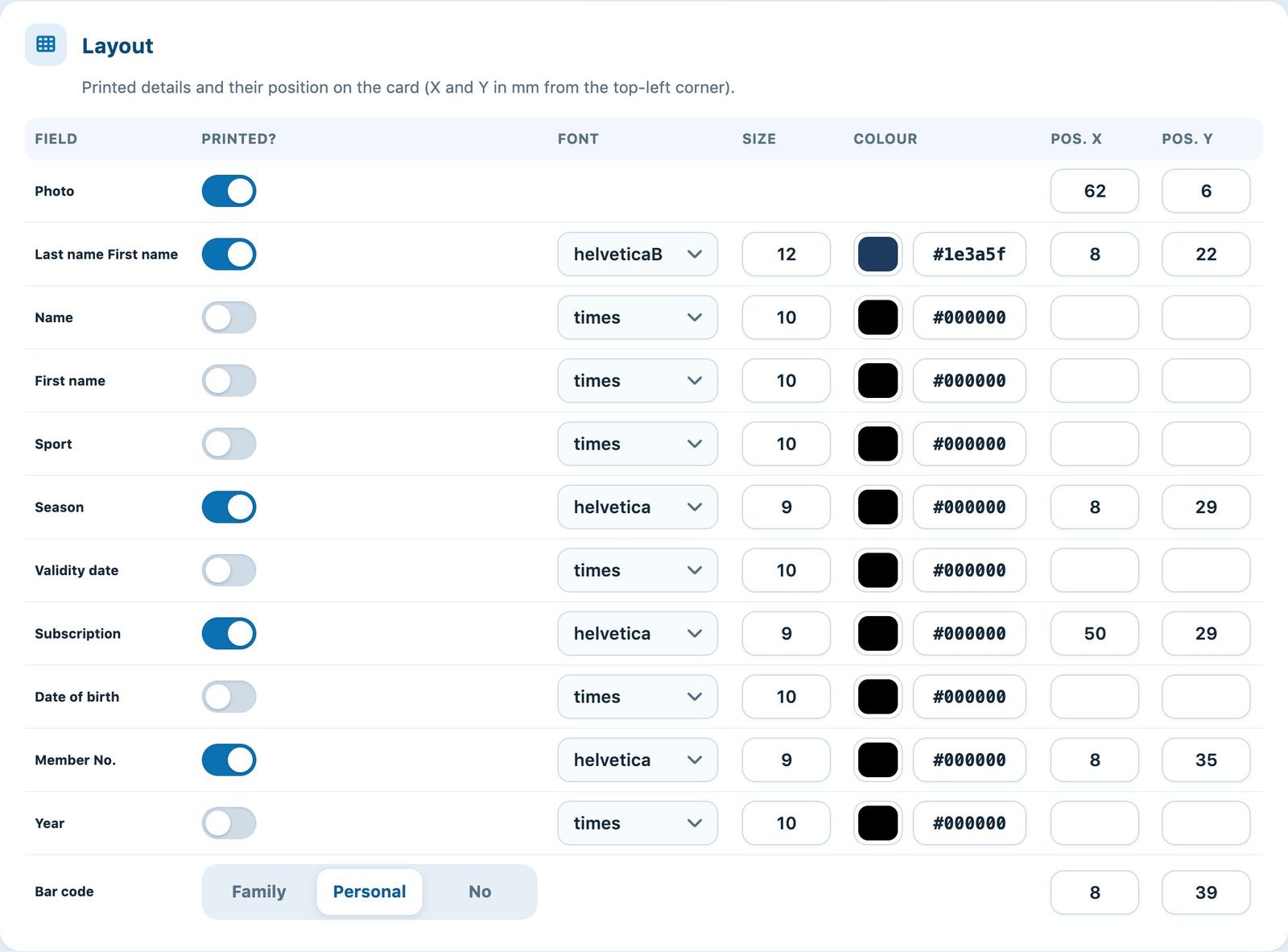
Example: photo on the right, name in bold, season, subscription, member number and personal barcode
The Photo has no font or colour: only its position counts. It requires the "Use photos for members" option of the general settings.
Row Bar code: choose Personal (the member's ID in Plugin.ch), Family (the same code for all members invoiced together) or No.
Save and test
Click Save at the bottom of the page. As soon as a template is saved, the Example of card button appears in the banner at the top of the page: it opens your own card as a PDF so you can check the positions. Adjust the X and Y values, save and try again until the result is right.
To print the cards afterwards, see Print member cards.
Plugin.ch Tutorial — Manage settings