


Manage parameters
Manage access
Court access codes generated for each booking
If your court doors are fitted with an access control system (keypad or badge reader, for example Spartime), Plugin.ch generates an access code for each booking. The code is valid only during the booked slot: the member receives it in the confirmation email and can find it again by clicking their booking on the board.
Open the page
In the left side menu, open the module Parameters and click Manage access. The page is titled Use access management in your club.
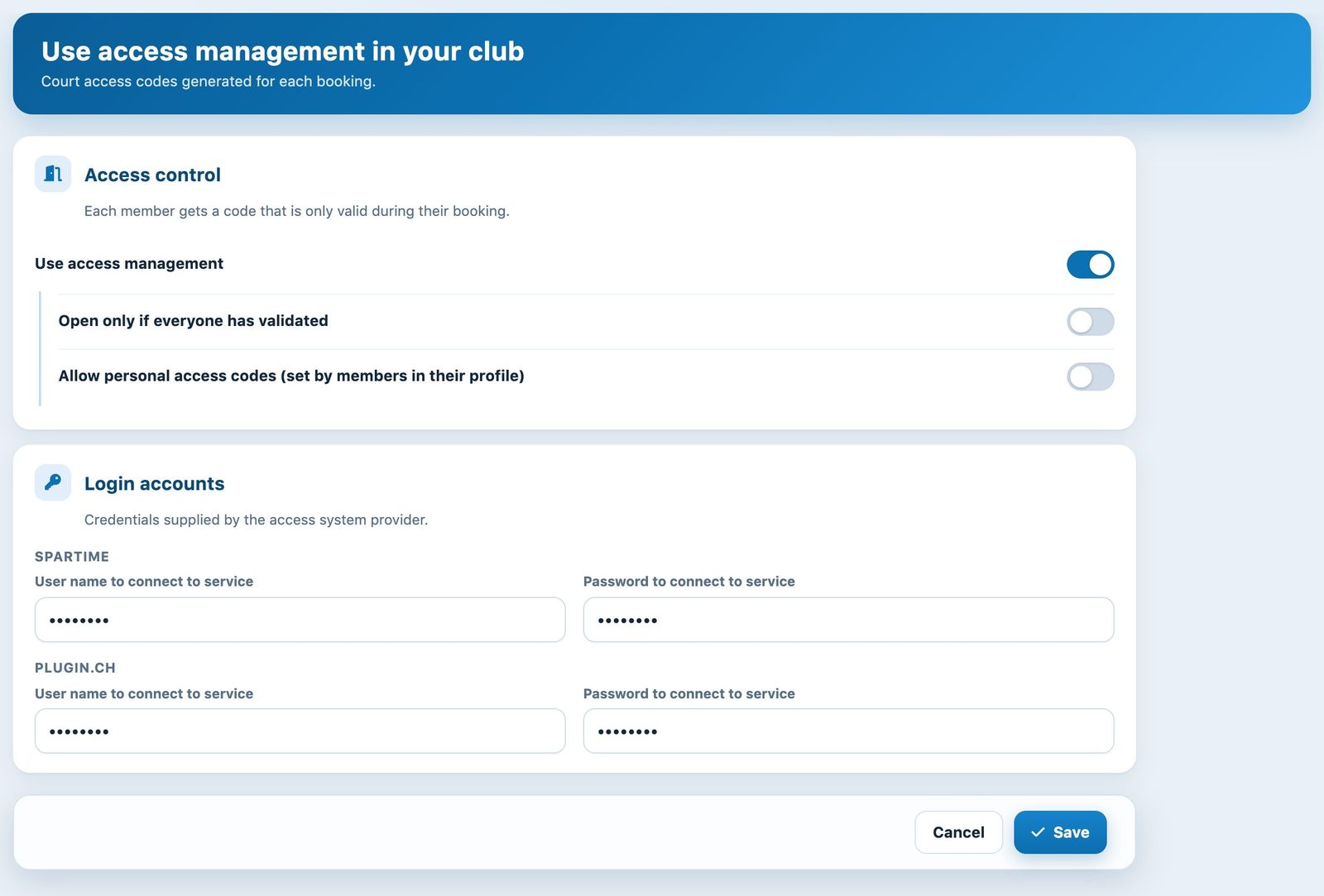
The access management page (credentials hidden).
Activate access management
Turn on the switch Use access management. Two options appear below:
- Open only if everyone has validated: the door opens only once all players in the booking have validated their attendance with their badge.
- Allow personal access codes (set by members in their profile): each member can choose a personal 6-digit code in their profile. This code opens the door during their own bookings, in addition to the code received by email. See the article How do I set my personal access code?.
Enter the login accounts
The Login accounts section contains the credentials that connect Plugin.ch to the access system:
- Spartime: the username and password of your account with the access system supplier;
- Plugin.ch: the username and password the access system uses to query Plugin.ch.
These credentials are given to you at installation. Do not change them without the agreement of your installer or Plugin.ch support: wrong credentials prevent the doors from opening.
Save
Click Save at the bottom of the page. A message confirms the save.
Good to know: your members find their booking code in the confirmation email and in the booking details. See the article Where can I find the court access code (door code)?. To check door entries, see the article Gate access log.
Plugin.ch Tutorial — Manage settings