


Manage parameters
Manage restaurant credit
A credit prepaid by your members and spent at the clubhouse
Restaurant credit is a prepaid balance that your members pay with their membership fee (or separately) and then spend at the clubhouse or club restaurant. Once the item is paid, the credit opens automatically on the member's account; each purchase is then deducted from the balance, which can never be exceeded.
Prepare the item
The credit is linked to a billing item. First create a dedicated item, for example “Restaurant credit 100.-” priced at 100 francs, in item management. See the article Create an item. You can invoice it on its own or link it to a membership fee (linked item): both open the credit.
Configure restaurant credit
In the left side menu, open the module Parameters and click Manage restaurant credit. Turn on the switch Use restaurant credit, then fill in the settings that appear:
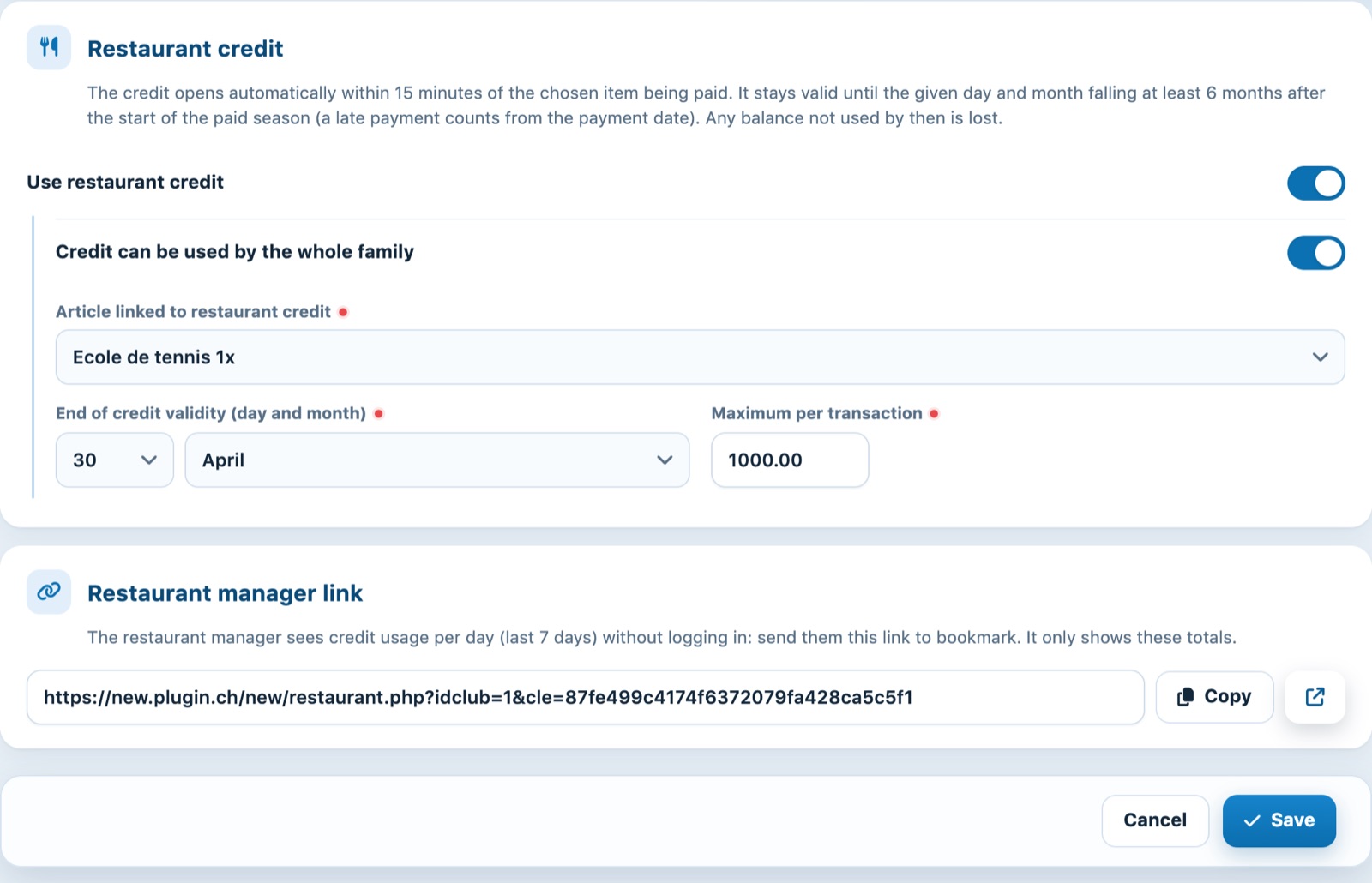
The Manage restaurant credit page.
- Credit can be used by the whole family: when on, the credit paid by a member can be used by every member of their family (the balance shown is the whole family's); when off, it is reserved for the person who paid it.
- Article linked to restaurant credit: the item whose payment opens the credit. This choice is required.
- End of credit validity (day and month): the day and month on which the credit expires. This choice is required.
- Maximum per transaction: the highest amount that can be deducted from the credit in one go. Leave 0 for no maximum.
Click Save at the bottom of the page. Cancel restores the values displayed before your changes.
When does the credit open, and how long does it last?
- The credit opens automatically within 15 minutes of the item being paid, for the amount paid. It immediately appears in the member's account and on their profile, with a Membership fee credit line in their history.
- Each payment opens its own credit: a member who buys the item twice in the same season receives both amounts.
- The credit stays valid until the first chosen date falling at least 6 months after the start of the paid season. Examples: with 31 December and a summer season starting in April, the credit is valid until 31 December of the same year; with 1 May and an April-to-April season, it is valid until 1 May of the following year.
- A membership fee paid late, after that date, opens a credit counted from the payment date, so that it remains usable.
- On the end-of-validity date, any unused balance is lost: an Expired balance line shows it in the member's history.
- An invoice line cancelled by an opposite line (same item, reverse amount) does not open a credit.
Using the credit at the clubhouse
Once restaurant credit is activated, the Manage restaurant credit page also appears in the Reservations module of the left side menu. With nobody selected, it lists the Club's current credits: each member with a credit, their balance and next expiry, plus the club total.
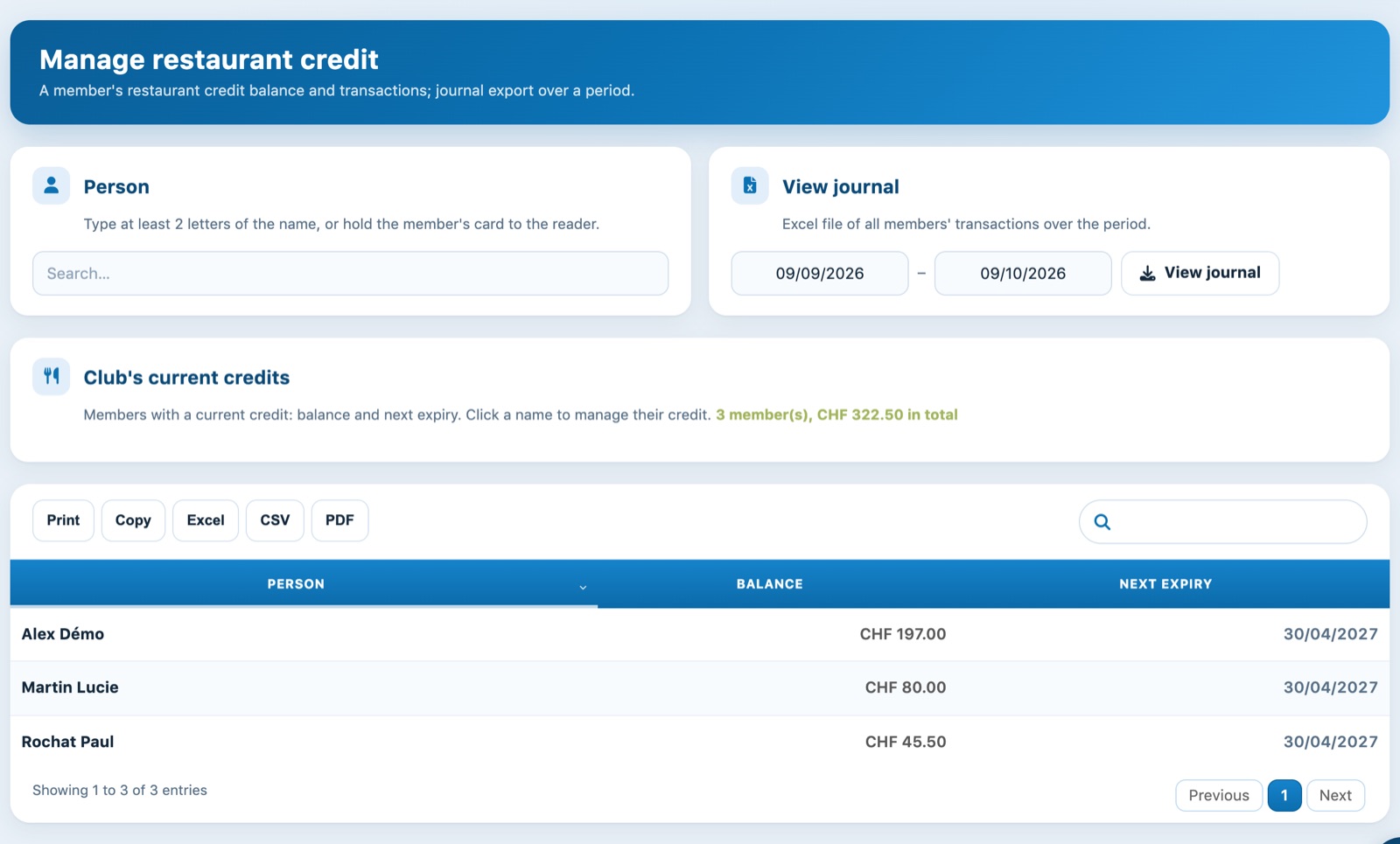
The club's current credits.
To manage a member's credit, type at least 2 letters of their name, hold their card to the RFID reader or click their name in the list. The page shows their credits, their end-of-validity date (Valid until) and the Balance available.
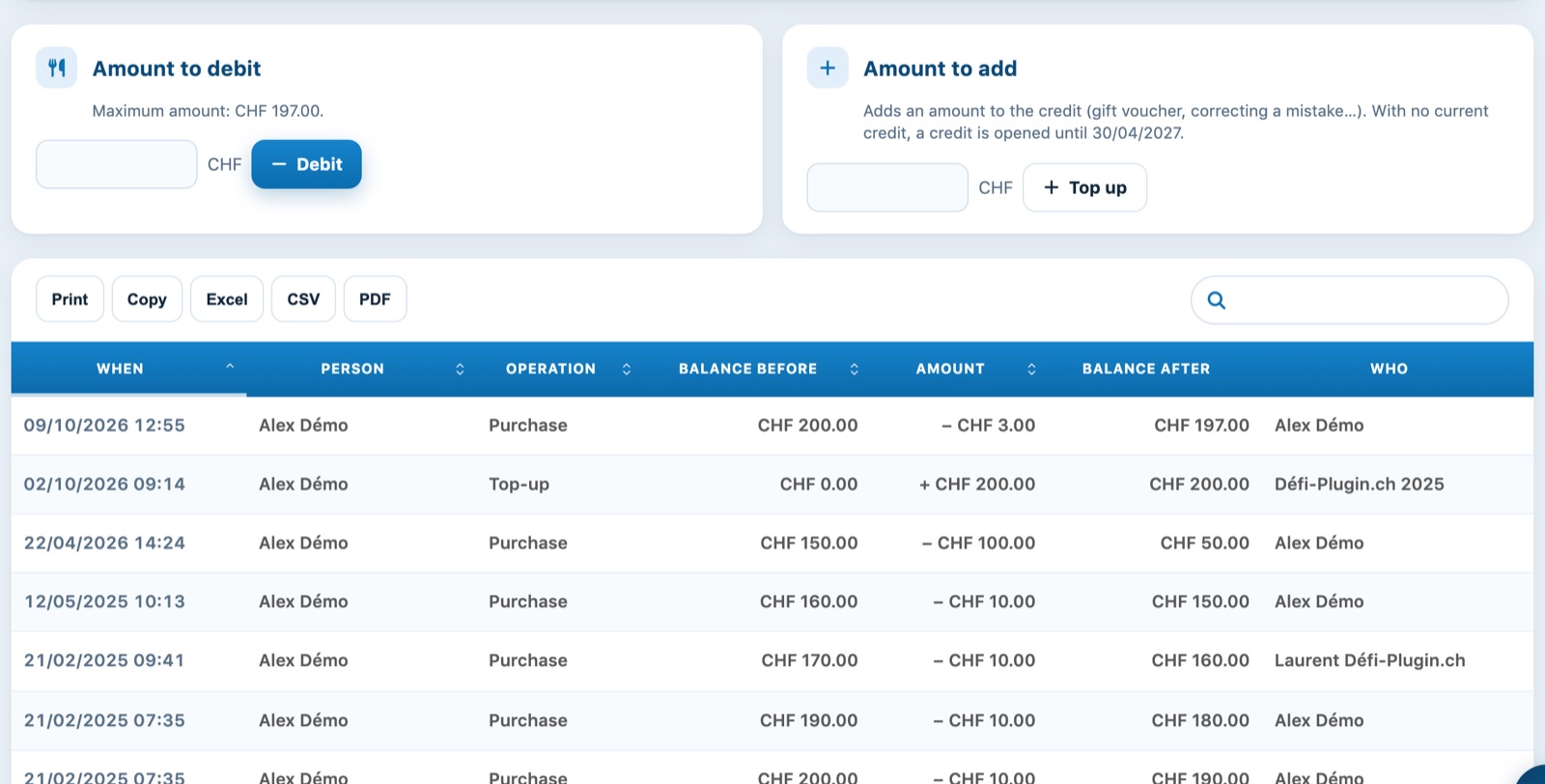
A member's credit: debit, top-up and history.
- Amount to debit: enter the amount of the purchase and click Debit, then confirm. The amount cannot exceed the available balance or the maximum per transaction: above that, the transaction is refused and nothing is deducted. The credit expiring first is used first.
- Amount to add: to give a voucher or correct a mistake, enter the amount and click Top up, then confirm. With no current credit, a new credit is opened until the date shown under the field.
- The history lists each operation with its type (Purchase, Top-up, Membership fee credit, Expired balance), the balance before and after, the date and the person who entered it.
- View journal exports all members' operations between the two chosen dates (end day included) to an Excel file.
An entry mistake is corrected by the reverse operation: an excess debit is offset by a top-up of the same amount, with an explanation to the member.
Seeing the credit on the member's profile
In the member list, click a member's name and then the Restaurant credit tab of their profile. The Balance available, each current credit with its end-of-validity date and the full history are shown, even if the member has not spent anything yet. The Manage credit button opens this member's management page directly.
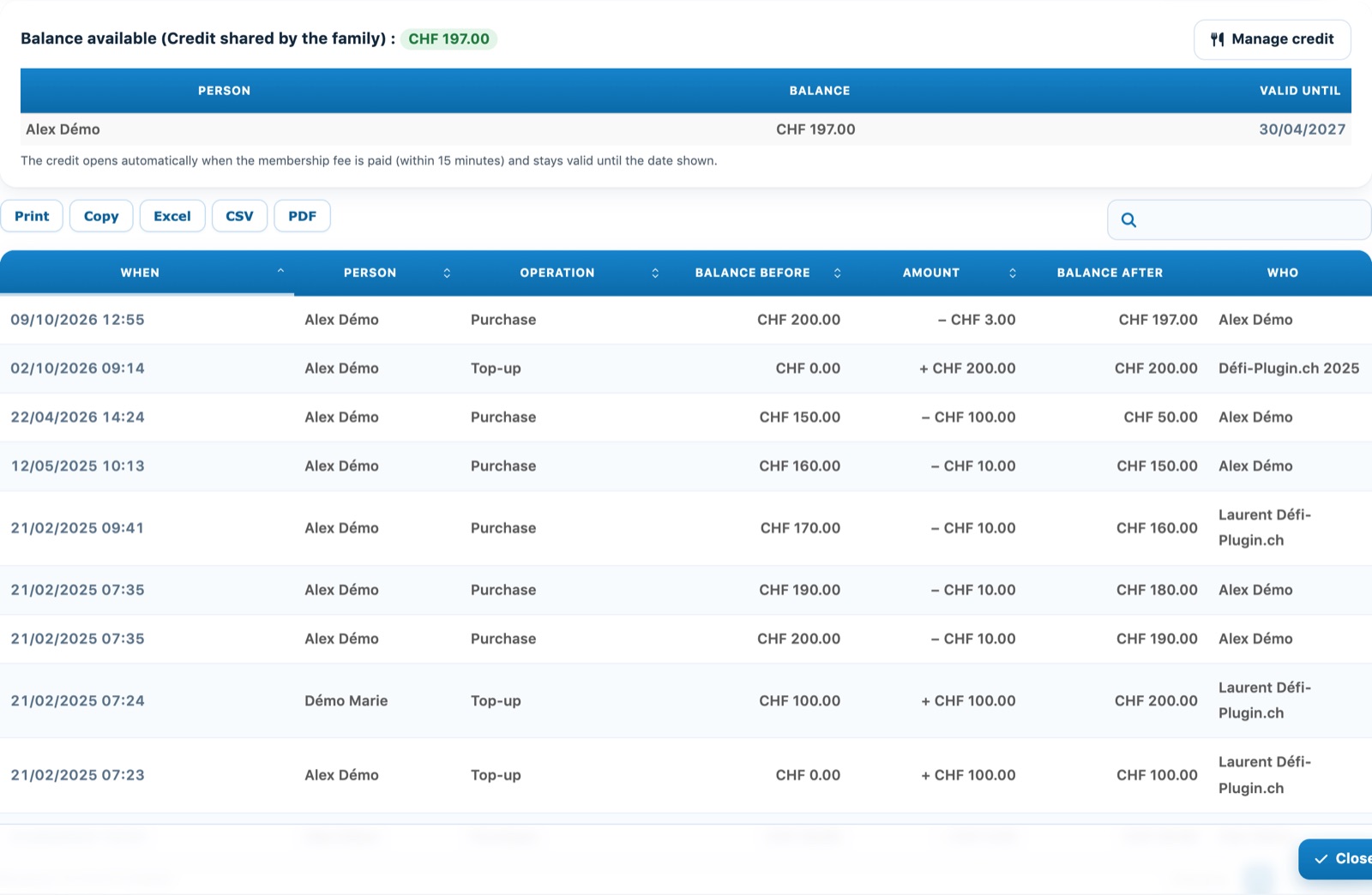
The Restaurant credit tab of a member's profile.
The restaurant manager and the members
In the Restaurant manager link section of the settings page, copy the link and send it to your restaurant manager: without logging in, they see for each of the last 7 days the number of bills paid with the credit and their total. Only purchases are counted, not top-ups or membership fee credits.
Members, for their part, check their balance and pay themselves with their phone. See the article How do I use my restaurant vouchers?. A member can only deduct an amount from their own credit: only the administrator can top it up.
Tip: choose an end-of-validity date after the end of your season, and remind your members of it when selling the credit.
Plugin.ch Tutorial — Manage settings