


Messages and emails
Sending group e-mails
Write an e-mail and send it to all members, a subscription, a course, a group or a fixed slot.
The page Sending group e-mails is used to write an e-mail and send it in one go to a whole audience: all members, subscription holders, course participants, a group of members, people with a fixed hour… A summary shows at all times how many e-mails will be sent.
1Open the page
In the left menu, open Messages then click Sending group e-mails. You can also use the shortcut Send a group e-mail on the home page.
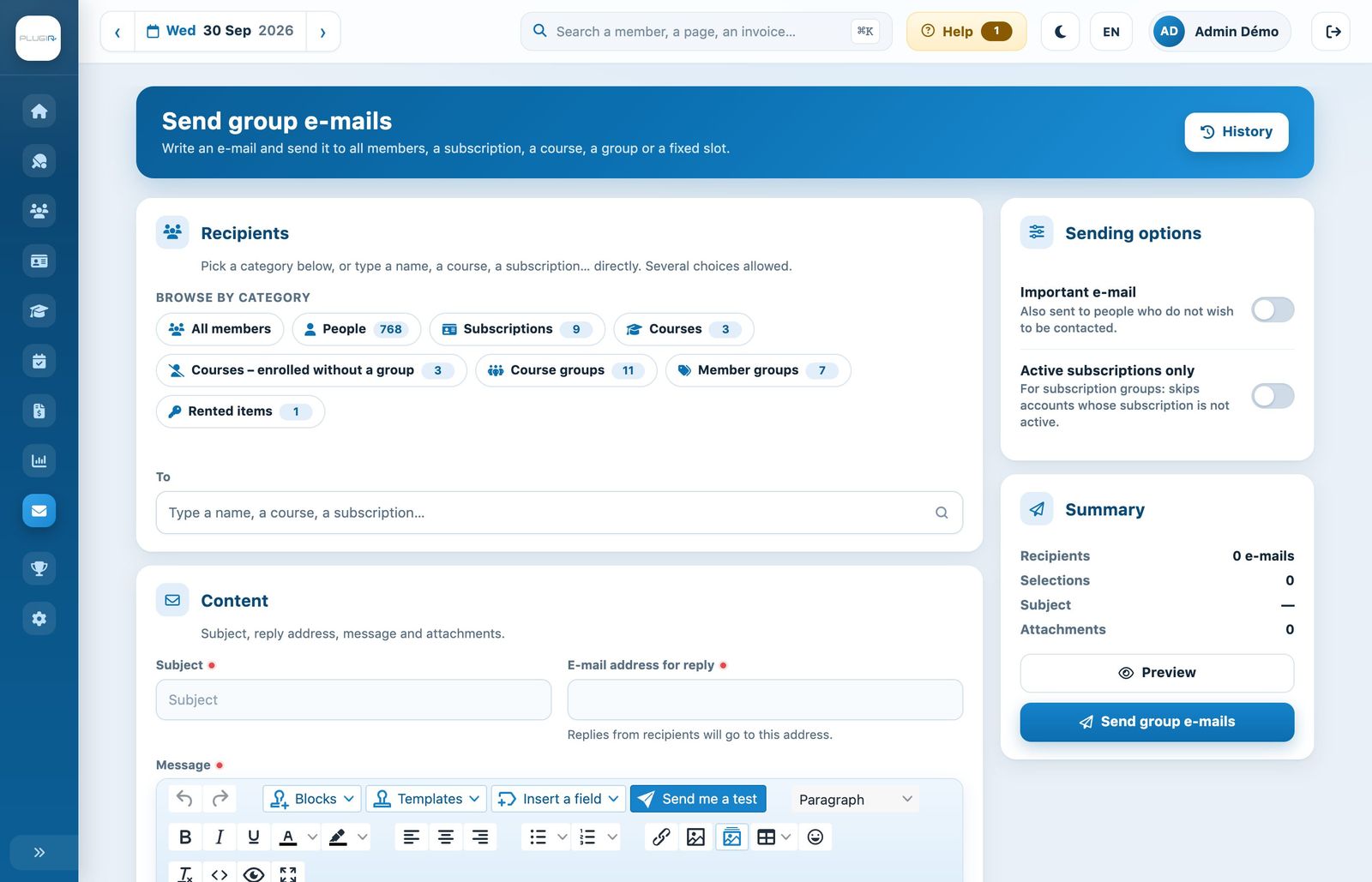
The sending page: recipients and content on the left, options and summary on the right.
If e-mails are still waiting to be sent, a box at the top of the page says so: e-mails are sent gradually, 25 every 15 minutes.
2Choose the recipients
The section Recipients offers categories under Browse by category. The number next to each category shows how many choices are available. Only categories that contain at least one choice are shown.
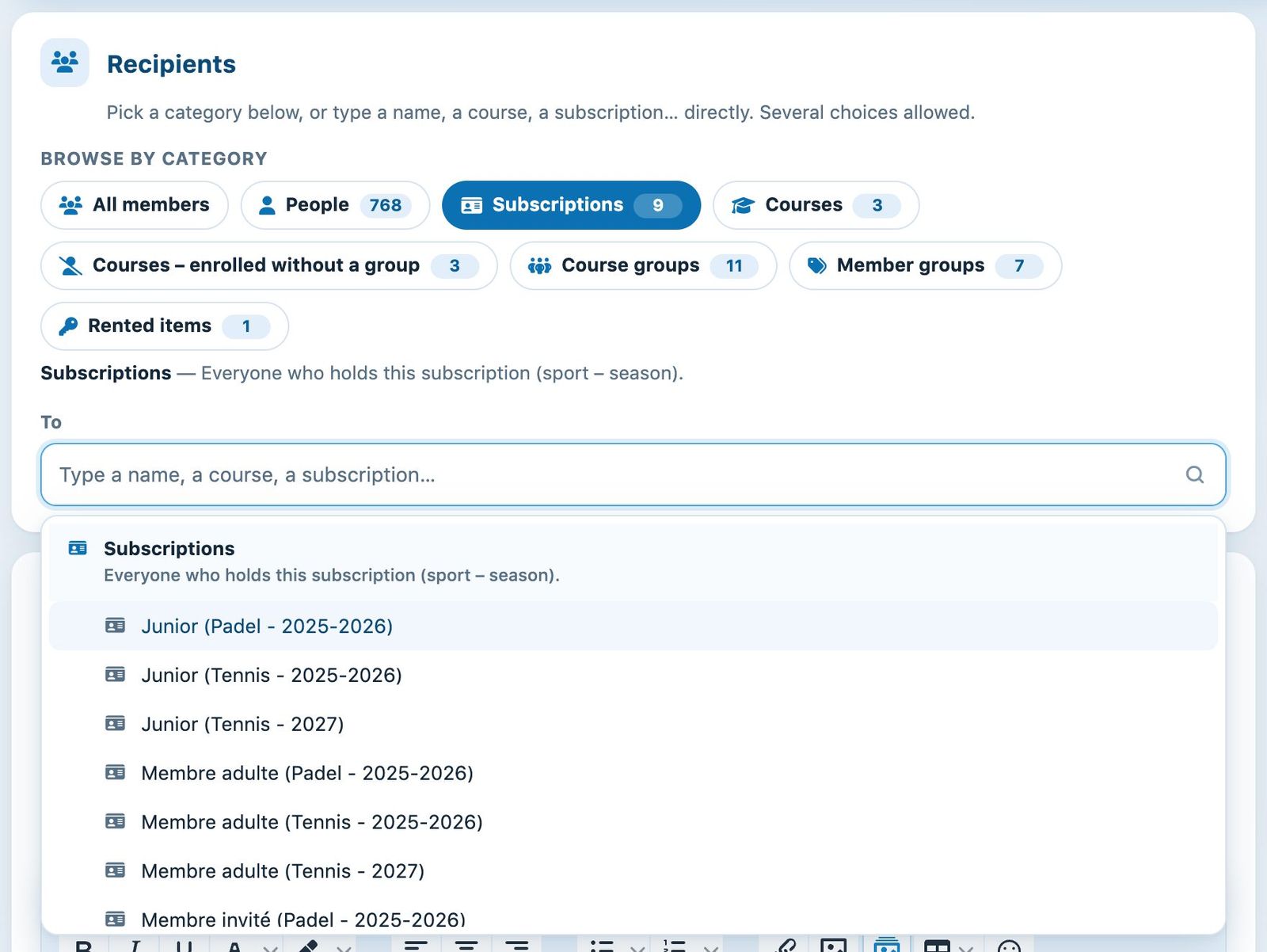
Clicking “Subscriptions” shows all the club's subscriptions, by sport and season.
- All members: all active members of the club. One click adds or removes it directly.
- People: one or more people, chosen by name.
- Memberships: everyone who has this subscription (sport – season).
- Lessons: everyone registered for this course.
- Courses – enrolled without a group: the course participants who are not placed in any group.
- Course groups: the participants of a specific course group (coach, day, time).
- Member groups: the members of a club group, for example the committee or the juniors.
- Rented items: the people renting an item from this list (locker, key…).
- Fixed slots: the people who have a fixed hour on that day.
Click a category to show its choices under the To field, then click the choice you want. You can also type a name, a course or a subscription directly in the To field. Several choices are possible: each one appears as a tag, which the small cross removes.
For security and traceability reasons, you cannot type an e-mail address directly: recipients are always chosen from the club's people. An e-mail address that appears in several selections receives the e-mail only once.
3Write the e-mail
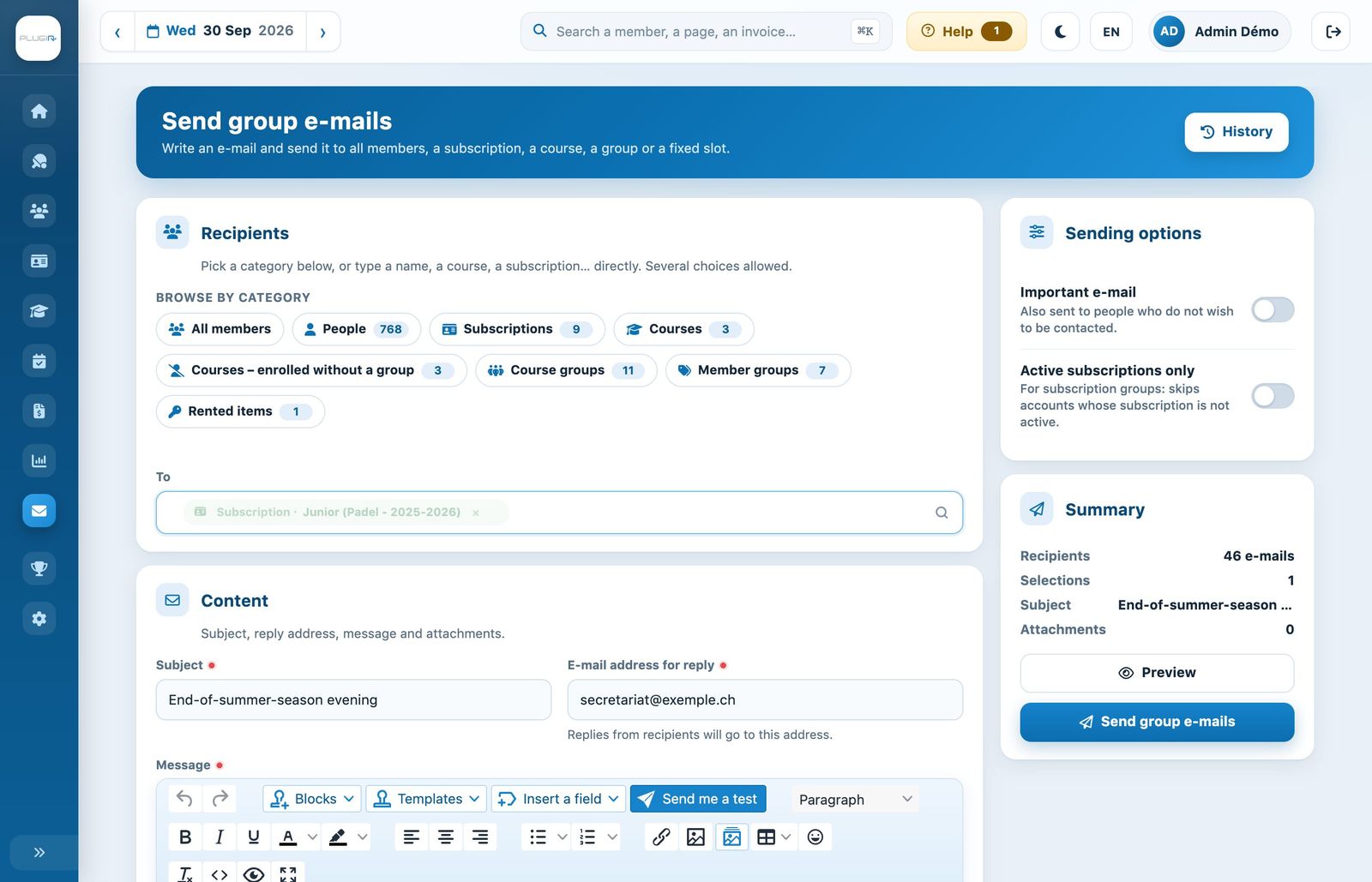
A subscription chosen as recipient, the subject entered and the summary updated.
- Subject: the title of the e-mail (required).
- E-mail address for reply: recipients' replies will arrive at this address (required). It is pre-filled with the club's sending address when one is configured.
- Message: the text, in the editor. The menu Insert a field adds, for example, each recipient's first name. See the article Writing an e-mail with the editor.
- Attachment: choose a file. The link Add an attachment adds one more file.
E-mails to course participants: the variable [COURS] adds a direct link to register at the tennis school, and [GROUPE] shows each person the day, time and court of their group. Use one or the other, never both in the same e-mail.
4Options, preview and sending
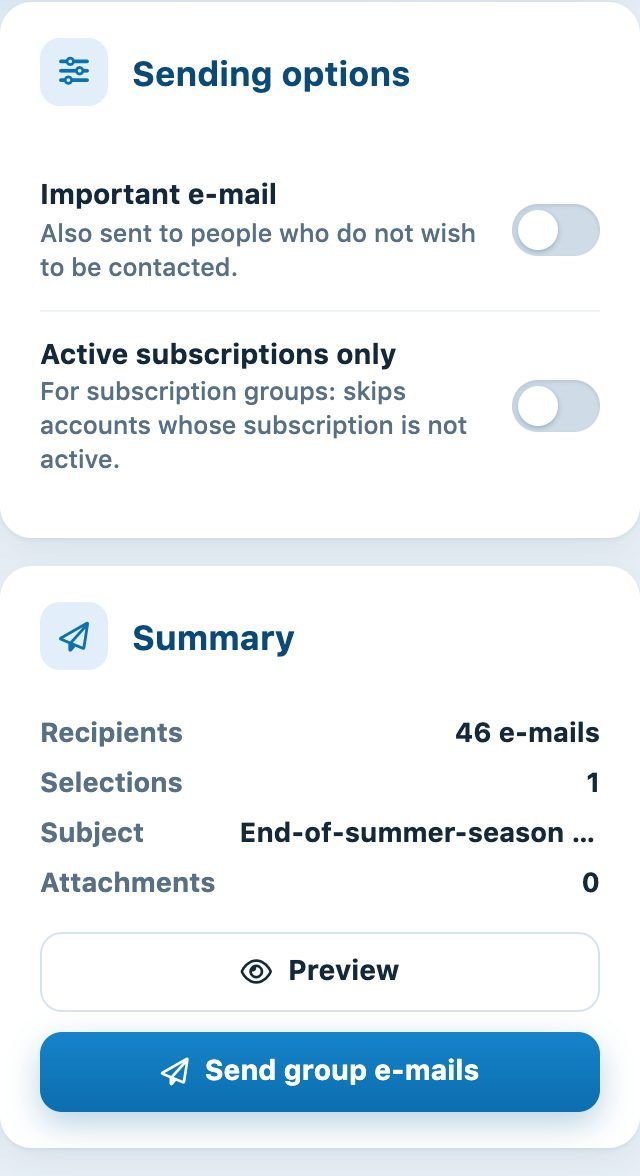
The sending options and the summary, with the number of e-mails that will be sent.
- Important e-mail: the e-mail is also sent to people who do not wish to be contacted. Keep this option for essential information (closure, general meeting…).
- Active subscriptions only: for recipients chosen by subscription, skips accounts whose subscription is not active.
- Also as a push notification: also sends a notification to the phone of recipients who have installed the Plugin.ch app. The notification shows the subject and opens the full message on the Club messages page of the app. As with the e-mail, it only goes to people who accept club news, unless Important e-mail is turned on. Recipients who have turned off “Club messages” notifications in their profile do not receive it.
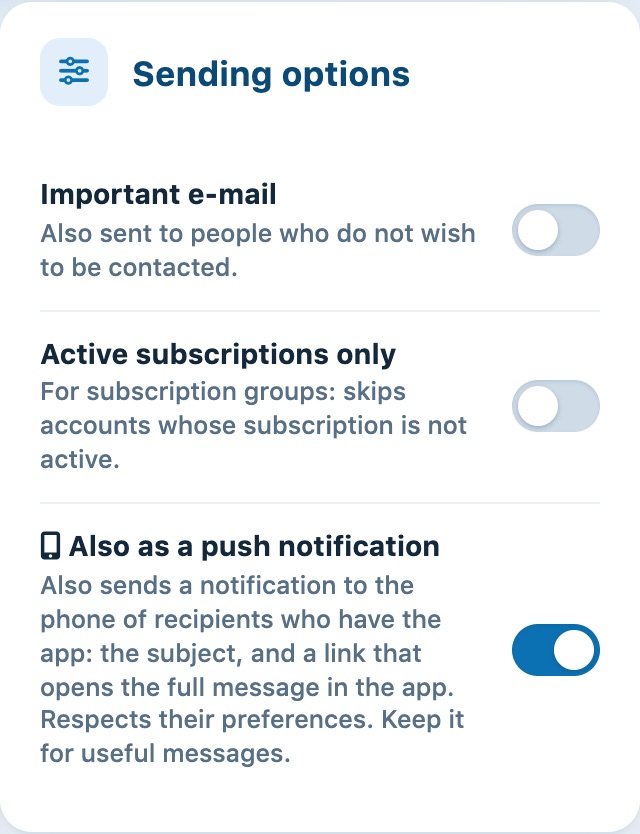
The Also as a push notification option, in the sending options.
Keep push notifications for useful messages (court closures, last-minute changes…). After sending, the confirmation message also shows the number of push notifications sent. Members find all the group e-mails they received in Club messages.
The summary on the right is updated as you work:
- Recipients: the number of e-mails that will be sent;
- Selections: the number of choices made in the To field;
- Subject and Attachments: to check the content at a glance.
If no e-mail address matches the selection, a warning is shown.
Click Preview to see the message as it will be received, then Sending group e-mails to send it. The e-mail goes into the sending queue immediately, with no further confirmation: check the recipients before clicking.
Tips: first test the result with the button Send me a test in the editor, which sends the e-mail to your own address only. Choose a clear subject and avoid sending several group e-mails on the same day. You can follow up on sent e-mails in History of sent emails.
The number of group e-mails depends on your plan. When the limit is reached, the send button is replaced by the message “You have reached the maximum number of e-mails authorised by your pack”.
Plugin.ch Tutorial — Messages and e-mails