


Manage courts
Create a new court
Add a court to an open sport, with its opening hours, visibility and groups
A court always belongs to a sport linked to a season (for example Tennis · 2025-2026). Before creating your courts, check that the season exists and that the sport is linked to it: see the articles Create a new season and Link a sport to a season.
The page shows the courts of the sports open on the date chosen in the date picker, at the top of the screen. To prepare the courts of an upcoming season, first go to a date within that season.
Open the list of courts
In the left side menu, open Sport then click Manage courts. Each row shows the court's abbreviation and name, the sport-seasons that use it (column Used by), its opening hours and its visibility.
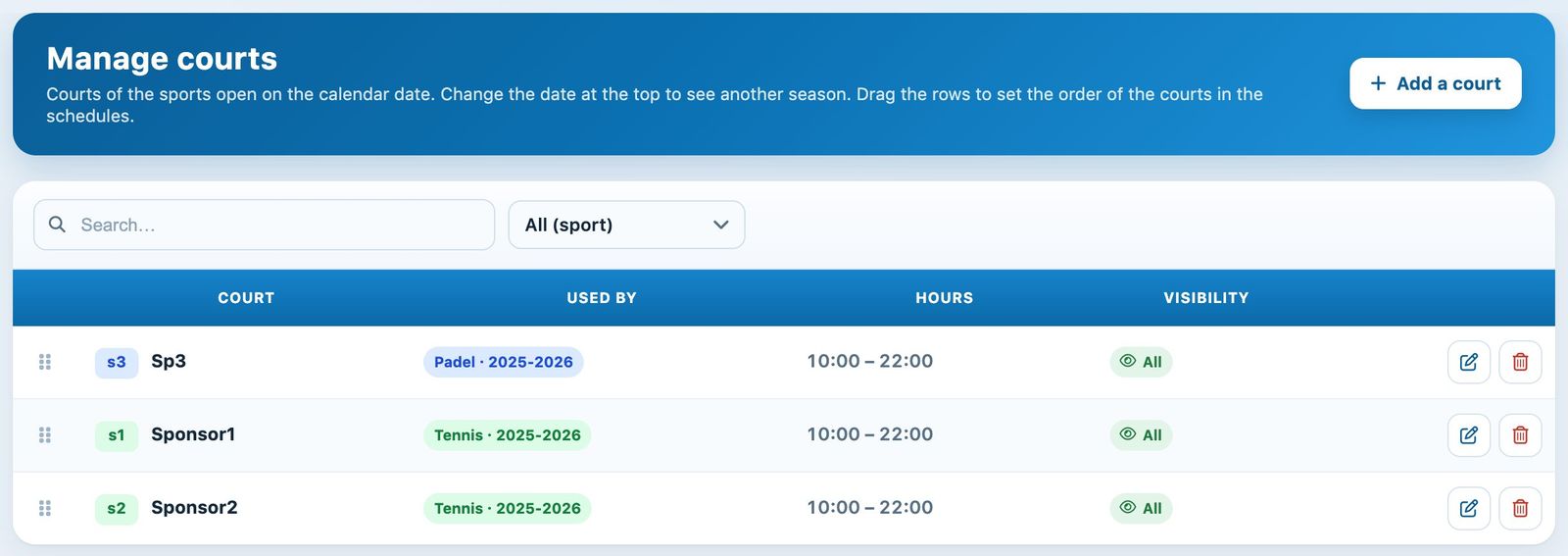
The list of courts, with search and the sport filter
Use the Search… field or the All (sport) list to find a court. The handle on the left of each row lets you drag the court to change its display order in the schedules.
Fill in the court details
Click + Add a court, at the top right. The form opens in a side panel.
- Sport: the sport-season the court belongs to. This choice only appears if several sports are open on the selected date.
- Name: the full name of the court, for example "Court 3" or "Centre Court" (20 characters maximum).
- Abbreviation: 3 characters maximum, shown at the top of the schedule column (for example "C3").
- Image: an optional photo of the court (PNG, JPG or GIF).
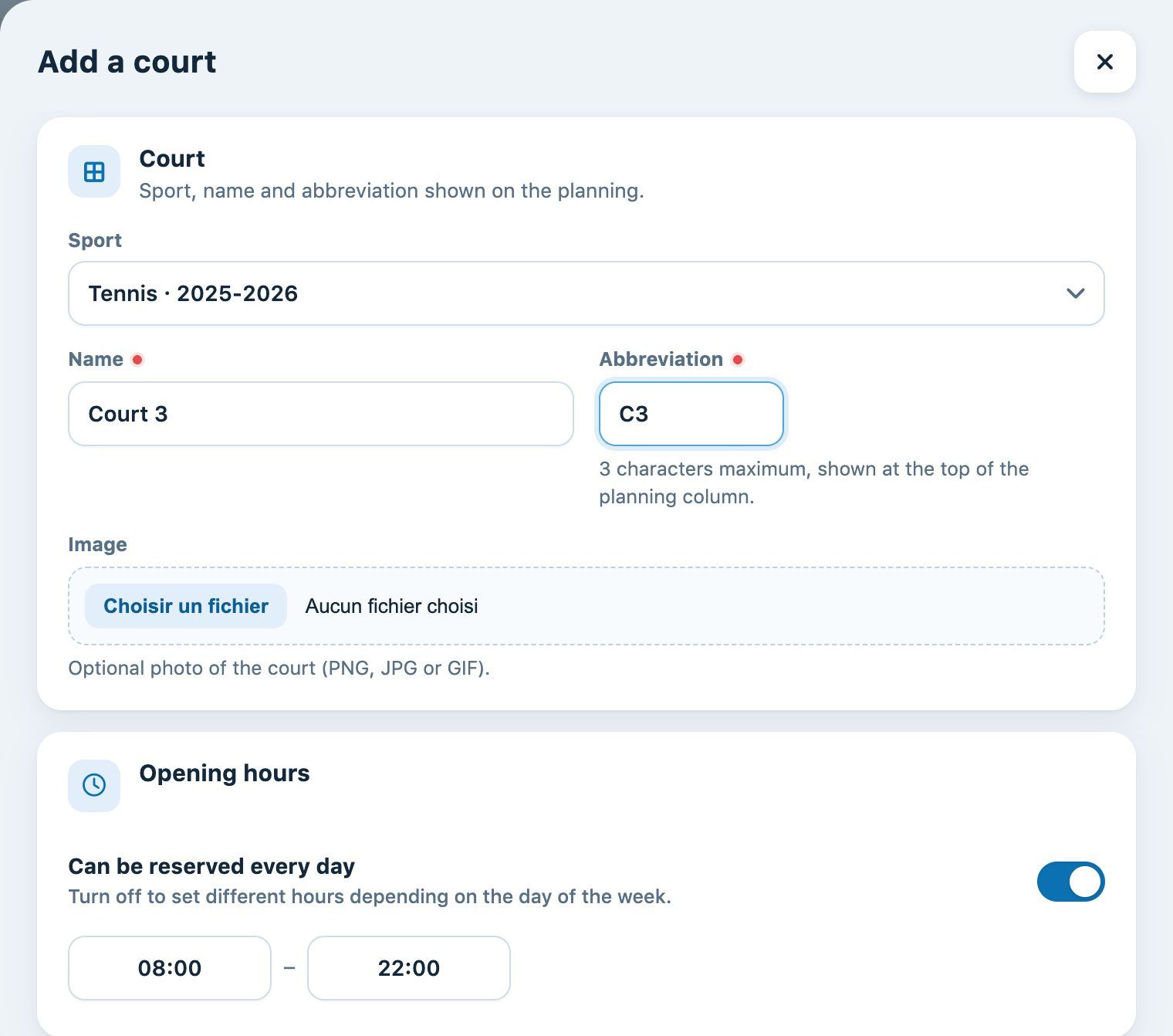
The "Add a court" panel: sport, name, abbreviation and opening hours
Set the opening hours
If the court has the same opening hours every day, leave Can be reserved every day switched on and enter the Opening time and the Closing time.
If the opening hours vary from day to day, switch this off: enter a time range and tick the days concerned, then click Add different times to add another range (for example 08:00 – 22:00 on weekdays and 09:00 – 20:00 at weekends).
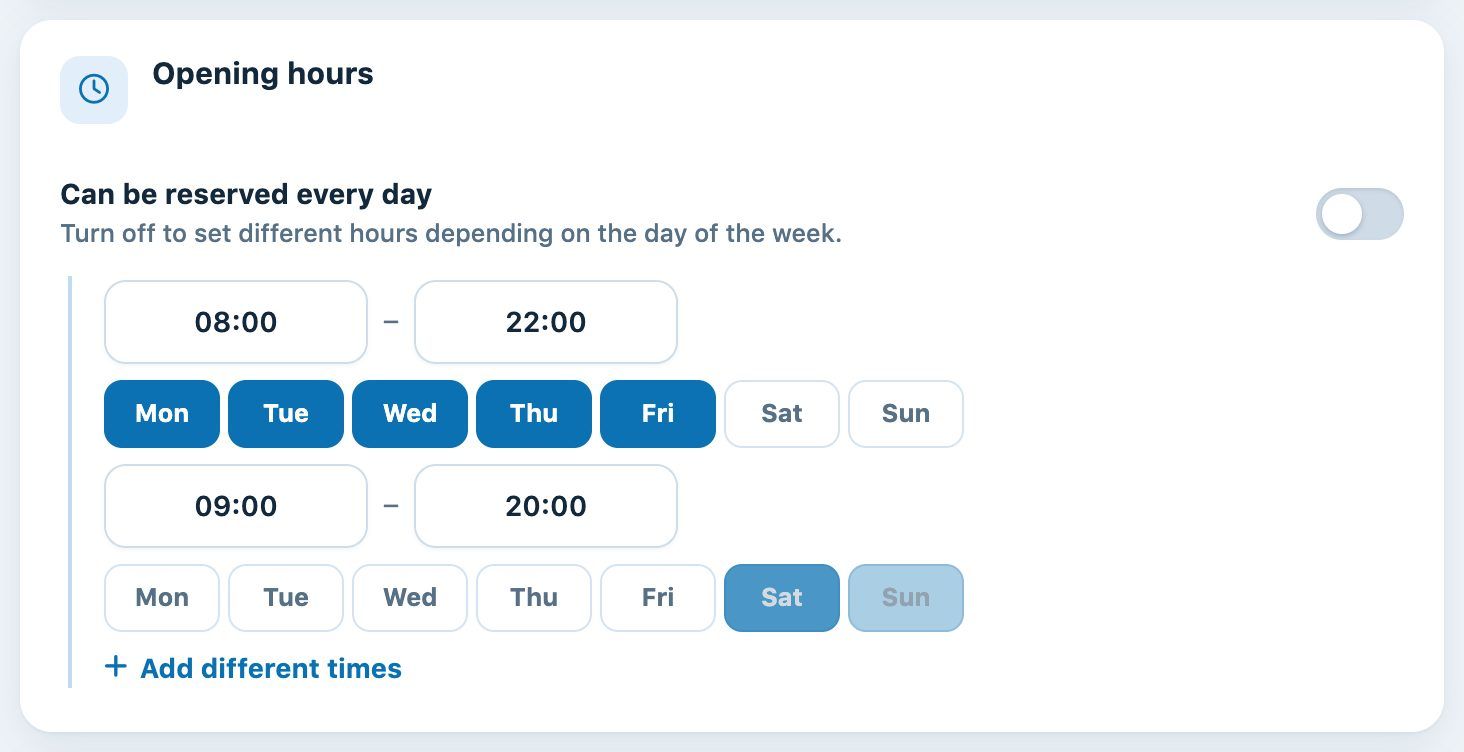
Different opening hours on weekdays and at weekends
The court's opening hours and the length of booking periods are two separate settings: the length of a period is set in the sport linked to the season. See the article Manage booking periods.
Set visibility and groups
The Visibility section combines two conditions. The court only appears to players if both are met:
- Visible on : Players' website and app and/or Club kiosk (club house).
- Visible to : Logged-in players and/or Visitors not logged in.
If no choice is ticked on one of the two lines, a warning tells you that the court will appear to nobody. Visibility has no effect on the admin schedule: you always see all courts there.
- Only from a terminal: the court can only be booked from the club's terminal. On the players' website and app, its slots remain visible but cannot be booked. Exception: members whose subscription type has the option Does not count in the reservation quotas turned on can book it from anywhere.
- Use flowing hours: forces bookings to follow existing ones so no slots are lost. This option is only offered for sports booked in periods of 30 minutes or less.
In Court groups, choose the court's group or groups (they are used for rates, restrictions and colours). If the sport has only one group, the court is automatically assigned to it. The Create a court group link opens the groups page in a new tab, without losing the form you are filling in.
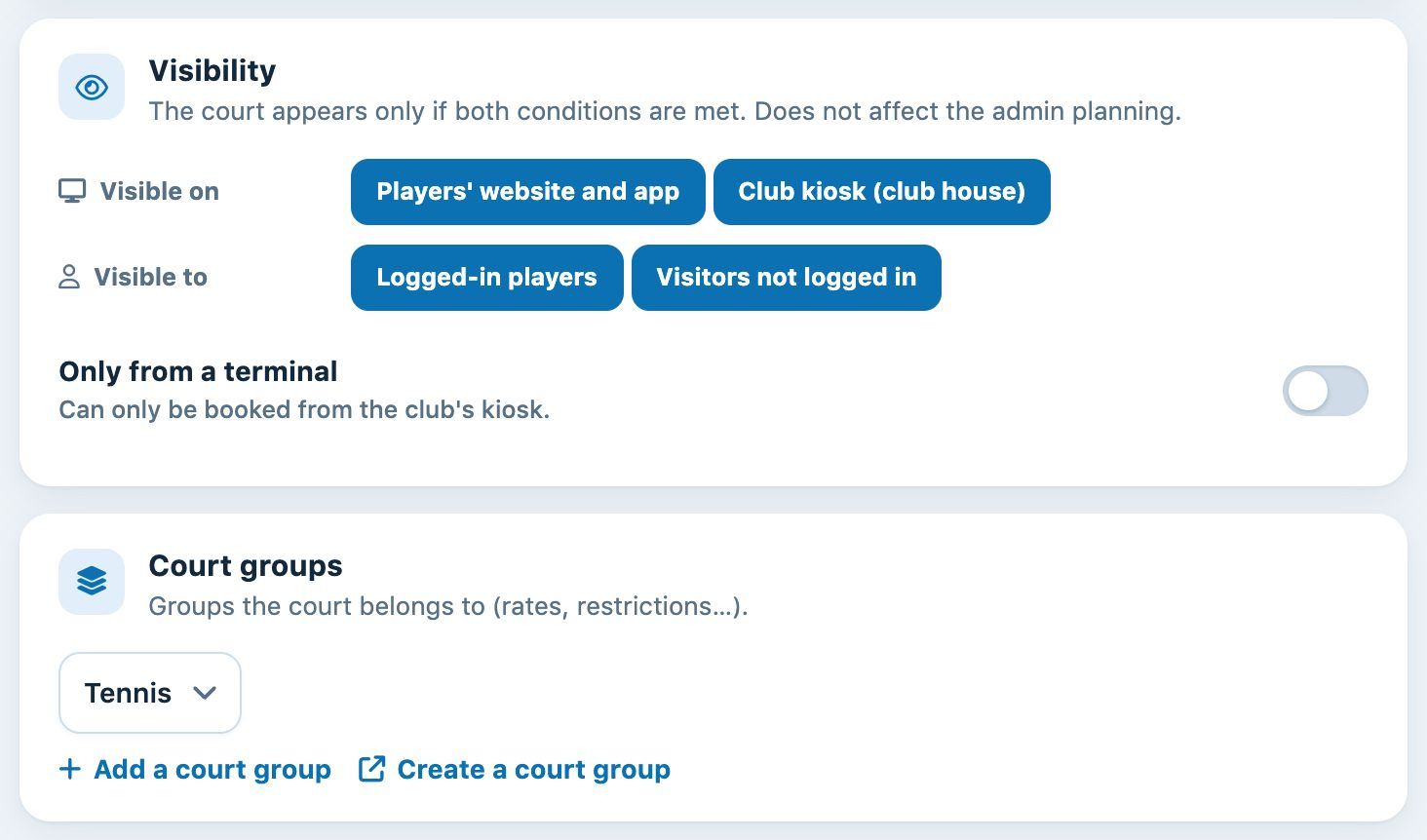
Visibility, kiosk and court groups
Booking start times and the link with other courts (hybrid court) are set once the court has been created, in its edit panel: see the article List, edit, or delete a court.
Save
Click Add a court at the bottom of the panel. The message "Your court has been added" appears and the list reloads with the new court.
Tip: to edit or remove a court later, see the article List, edit, or delete a court.
Plugin.ch Tutorial — Manage courts