


Manage lessons
Create, edit, and delete a lesson
The full life cycle of a lesson or camp
A lesson brings together everything about a tennis school or a camp: target audience, dates, registration conditions, prices and the questions asked at registration. Pupils then register for the lesson and are divided into groups.
1The list of lessons
In the side menu, open Lessons, then Manage lessons. The list shows the lessons of the sports open on the date selected at the top of the screen, with their sport, registration period, dates and status.
- Search…: filters the list by name;
- All (sport): limits the list to one sport-season when the club has several;
- Active, Ended, All: these filters narrow the list according to the lesson dates;
- on the right of each line: copy, edit or delete the lesson.
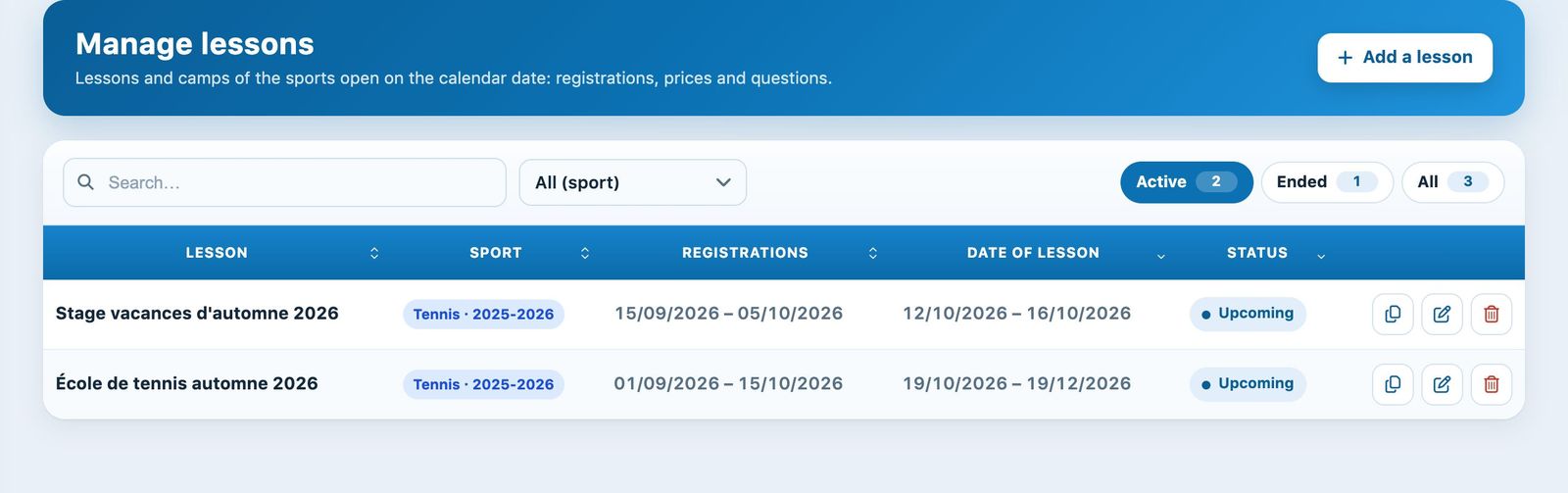
The list of lessons with the filters and the actions of each line.
A lesson does not appear? Change the date at the top of the screen: only the sport-seasons open on that date are shown.
2Create a lesson
Click Add a lesson at the top right. The form opens in a side panel. If the club has several open sport-seasons, first choose the Sport.
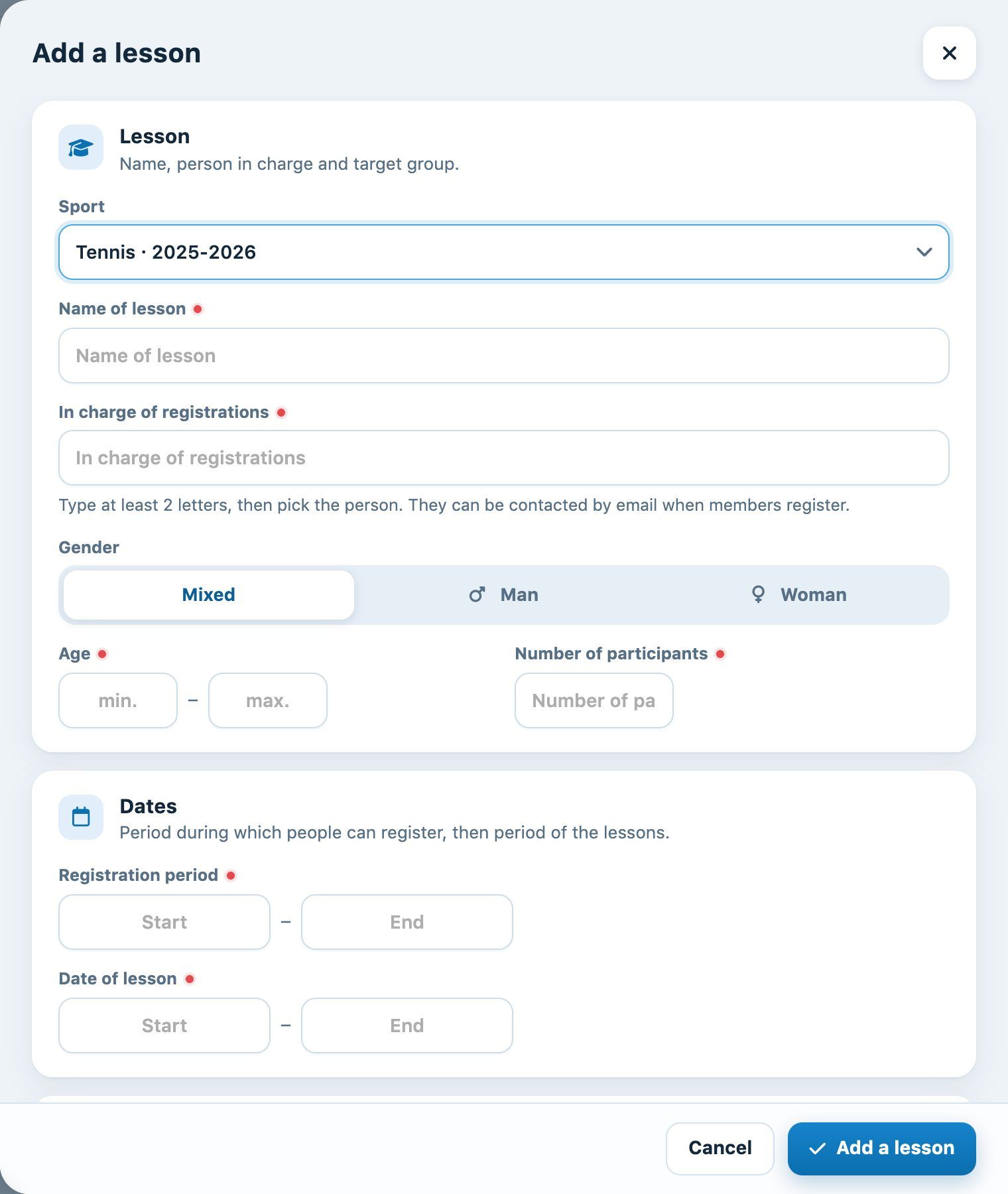
The "Add a lesson" panel.
Lesson section
- Name of lesson: a meaningful name, for example "Tennis school autumn 2026";
- In charge of registrations: type at least 2 letters then choose the person; they can be contacted by e-mail when people register;
- Gender (Mixed, Male, Female), Age minimum and maximum, Number of participants maximum.
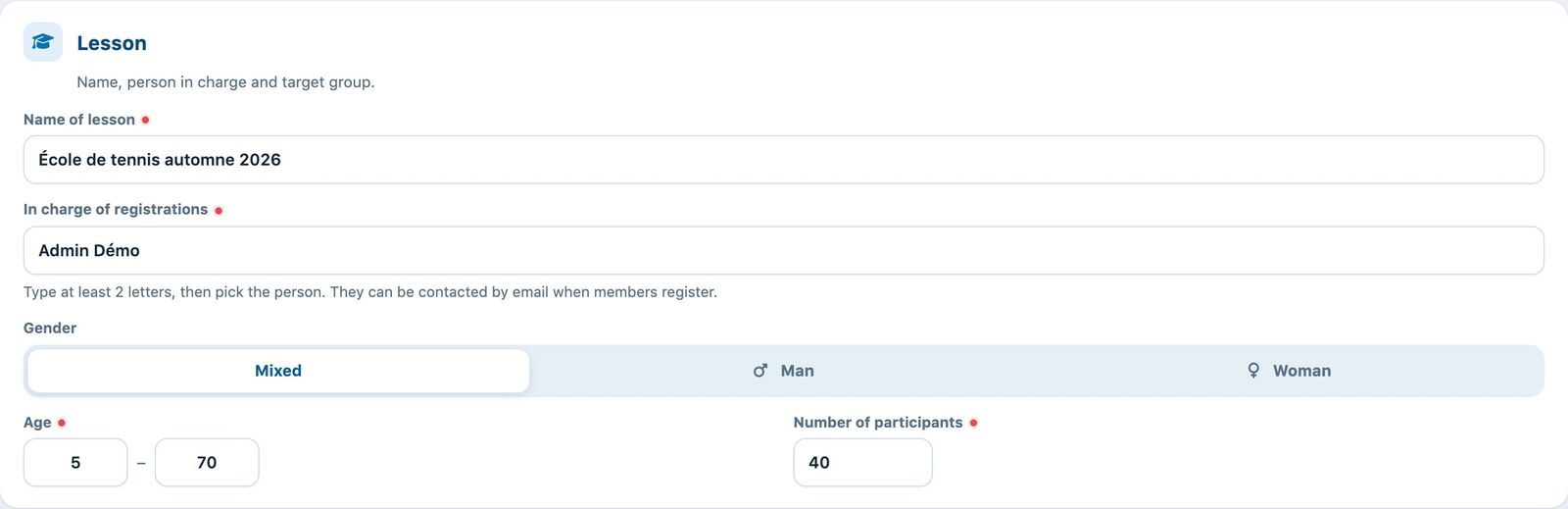
Lesson section: name, person in charge and target audience.
Dates section
Registration period: when members can register online. Date of lesson: the first and the last lesson; these dates are used to create the group bookings.

Dates section.
Registration section
- Open to all: No restricts the lesson to members with a subscription;
- Link groups to reservations: Yes so that the group lessons occupy the courts on the booking chart (needed for attendance and the Youth and Sport exports);
- Allow waiting list: beyond the number of registrations, people are put on the waiting list;
- Sign up directly in a group: Yes, the person chooses their group themselves (handy for a camp); No, they tick their preferred time slots among those you offer in the Preference ;
- Additional information: text shown on the registration page; General terms and conditions (URL): link that the person must accept.
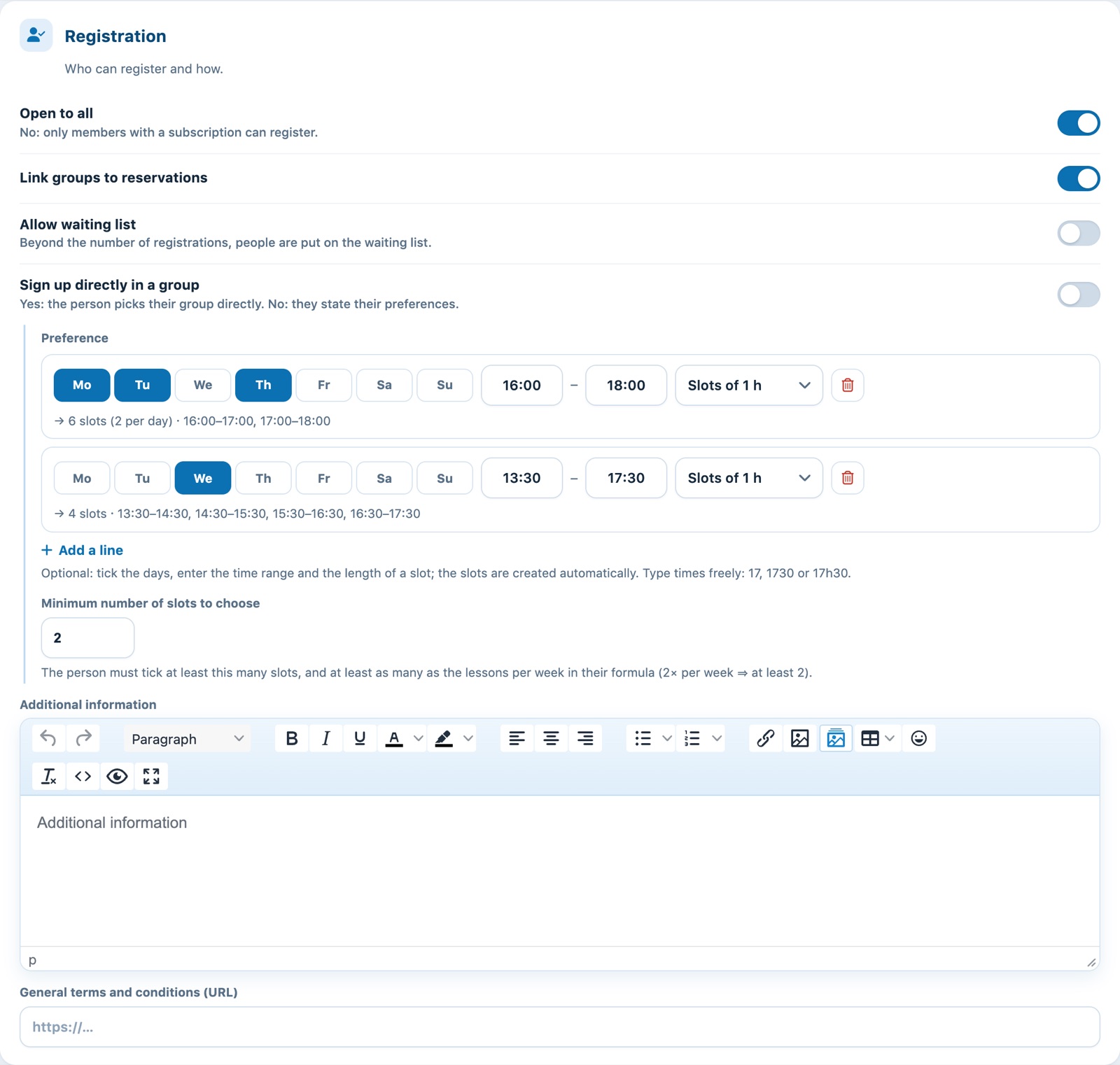
Registration section: Yes/No switches and preferred time slots.
Time slots are entered in a few lines: one line = the ticked days, a time range and a slot length (for example Mon, Tue, Thu from 16:00 to 18:00 in Slots of 1 h). The Minimum number of slots to choose field sets how many time slots the person must tick. Everything is explained in Offer preferred time slots.
Prices and payment section
- Type of price : For each session (price per lesson, cancelled lessons are not invoiced), For the season (flat rate) or By presence (invoiced according to the attendance recorded);
- Type of payment : Invoice, Credit card (online payment required) or Both (the person's choice); with online payment, choose the Invoice group where payments are to be recorded.
Each price is a card. At the top of the card, a summary updates as you type, for example "2× per week · 780.00 · Junior". A card contains:
- Item: the billing item; its label and default price are copied. If the item's label contains "1x", "2x"…, the number of lessons per week is filled in automatically;
- Label: the text shown at registration and on the invoice;
- Lessons per week: 1 for a lesson once a week, 2 for twice a week;
- Pupils per group: leave 0, unless the price depends on the group size (2, 3, 4 pupils…);
- Price and the switch Active ;
- Subscription: the memberships concerned (several are possible if they have the same price). If left empty, the price applies to Non-member (no membership fee).
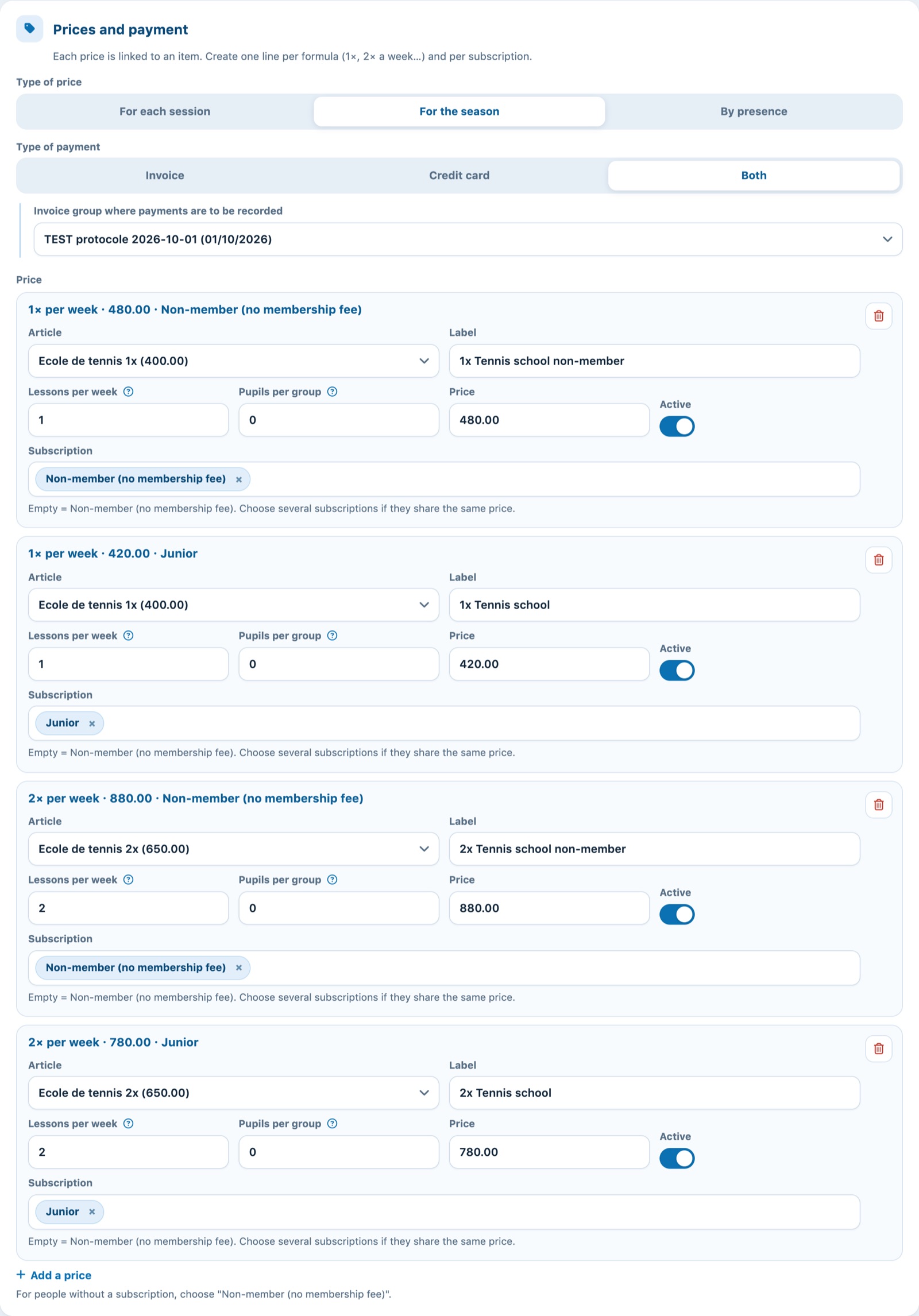
Prices and payment section: one card per price, with its summary at the top.
The button Add a price adds a card. A switched-off card (Active set to No) is greyed out and marked Inactive: the price is no longer offered, but existing registrations keep it. An incomplete card (without item, label, lessons or price) is not saved.
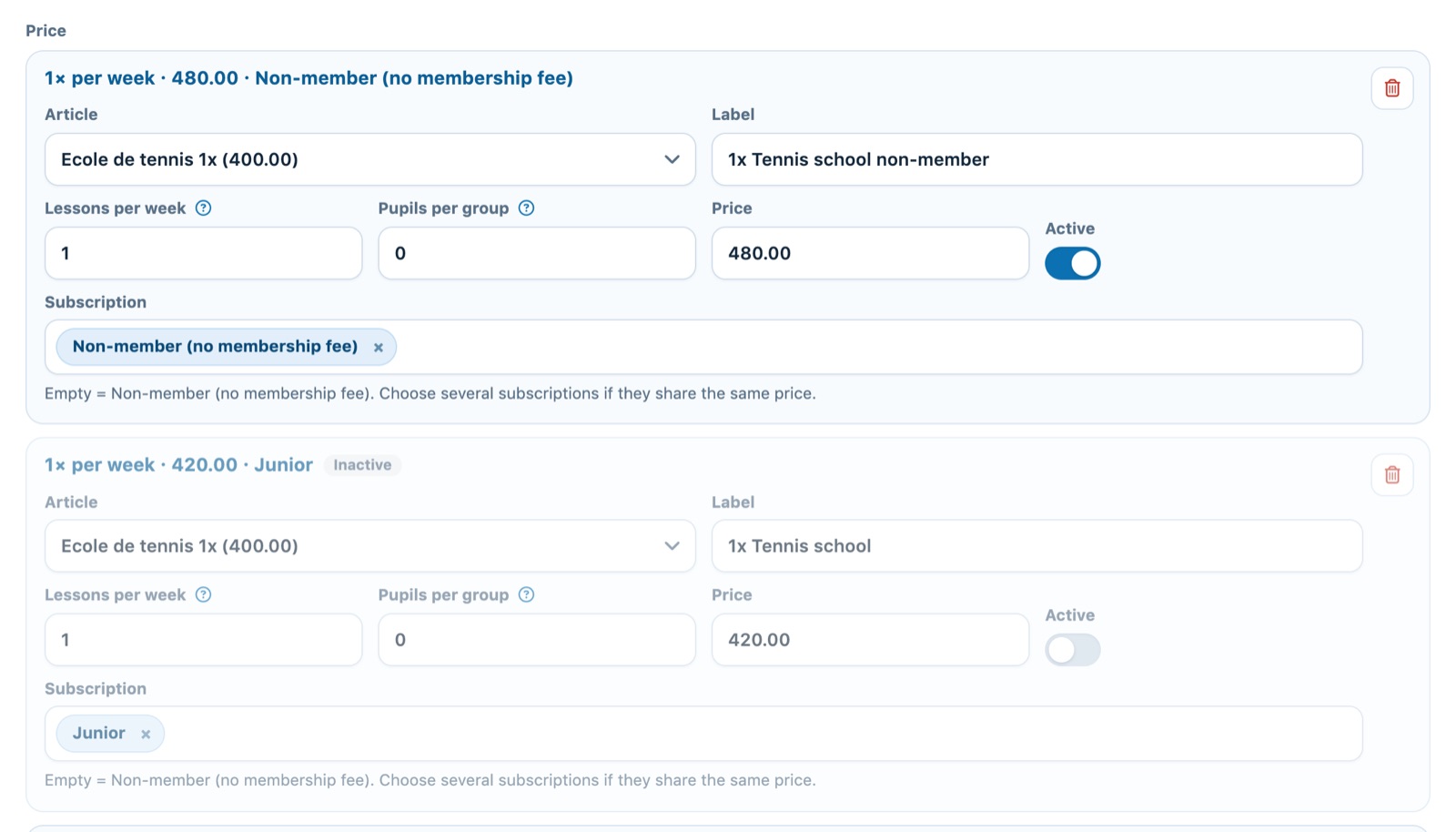
Two price cards: the second one is inactive and greyed out.
Example: four cards for a tennis school: 1× and 2× per week for the Junior membership, and the same for Non-member (no membership fee). The person only sees the prices that match their membership. The same item can be used for several prices.
Family discount, e-mail and questions sections
The Family discount section lists the "lesson" family discounts of the sport-season: tick those that apply to this lesson (link Manage family discounts to create them). If the automatic lesson confirmation e-mail is enabled, the Email confirmation for course registration section lets you adapt its text for this lesson.

Family discount section.
Camp or course without discount: when the course is created, the "all courses" discounts are already ticked and a warning says so. For a camp that does not qualify for the family discount, untick them before saving.
Finally, the Customised question section adds questions to the registration form: Free text field, Single choice, Multiple choice (answers separated by commas), Date, Phone, Number or Long text. A question whose name contains "AVS" requires the format 756.xxxx.xxxx.xx, useful for Youth and Sport.
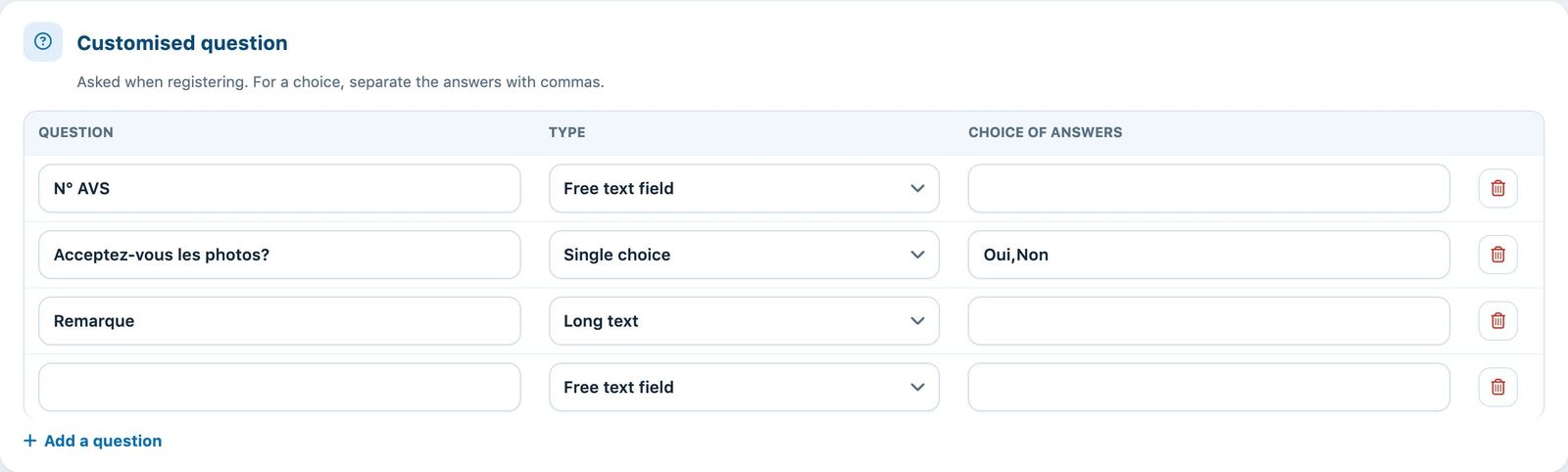
Customised question section.
Click Add a lesson at the bottom of the panel to save.
3Edit a lesson
Click the pencil icon of the line (or Modify lesson in Manage registrations). The Modify lesson panel has the same sections. Change the fields then click Save.
When the lesson is opened, the saved preferred time slots are grouped into lines (days, time range, length): you get the compact entry back, even for a lesson created before this layout. To stop offering a price without deleting it, set its Active switch to No. The bin icon on a card removes this price from the lesson.
Changing the dates of a lesson already confirmed does not move the groups' existing bookings: add or delete lessons from the group's panel (see Manage lesson groups).
4Copy a lesson
The copy icon opens the Copy lesson panel: new name, destination sport-season (Copy in), new dates and choice of what is copied (registrations, groups, people in groups). See the article Copy a lesson for the next season.
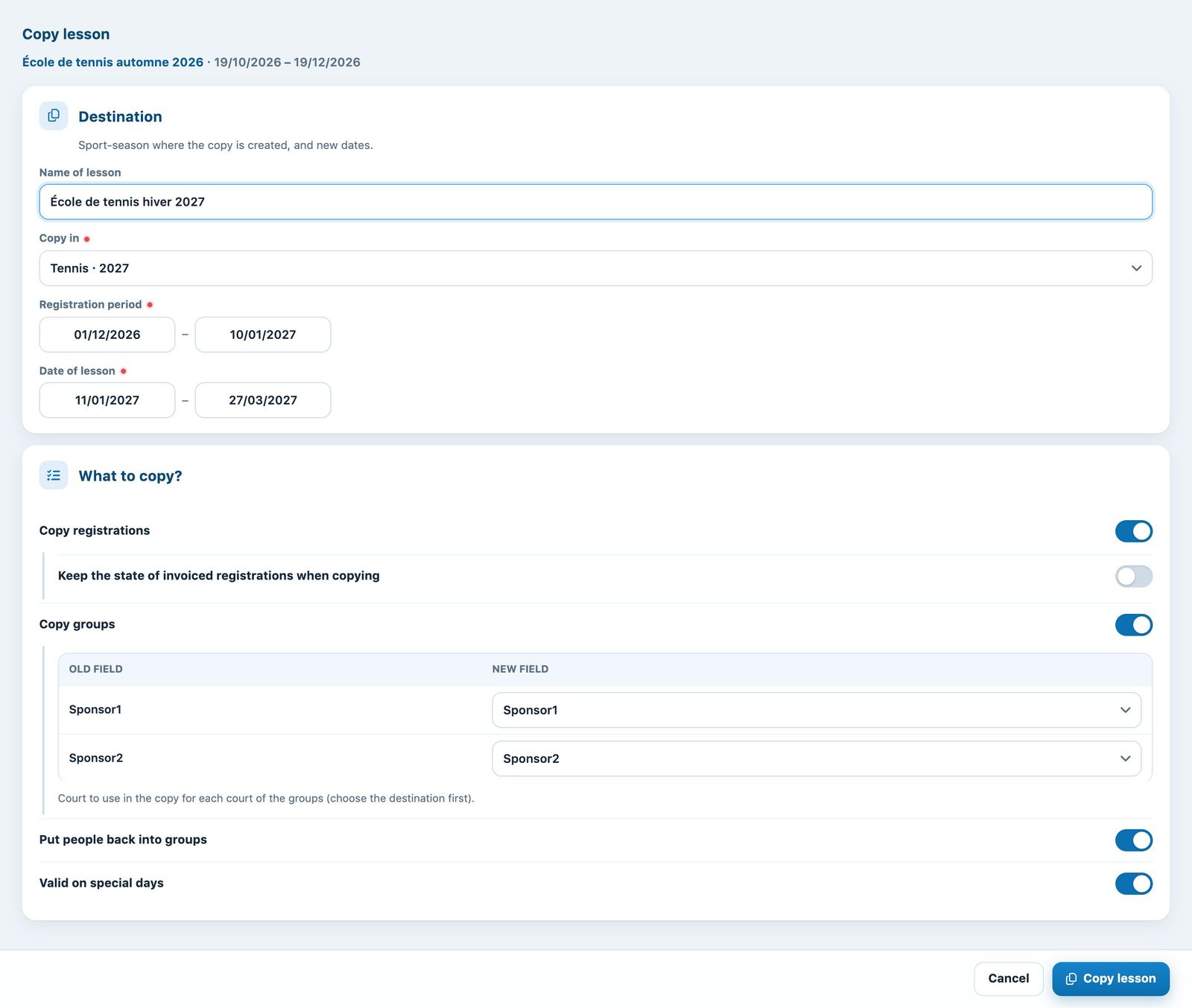
The "Copy lesson" panel.
5Delete a lesson
Click the bin icon of the line, then confirm with OK.
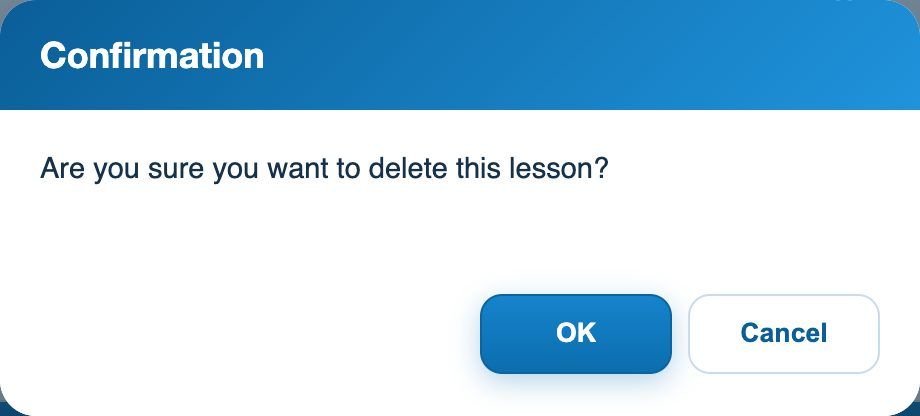
The deletion confirmation.
Deletion is permanent: the lesson, its prices, registrations and groups disappear. A finished lesson does not need to be deleted: it automatically moves to the filter Ended.
Plugin.ch tutorial — Manage lessons