


Tennis school tutorial
Creating and configuring a lesson
Create and set up a tennis school lesson or a camp
This tutorial creates an autumn camp for juniors step by step: general settings, dates, registration, prices, payment and a question for Youth and Sport. The same approach applies to a tennis school over a whole season.
1Open lesson management
In the side menu, open Lessons, then Manage lessons. Check the date at the top of the screen: it must be within the lesson's season. Then click Add a lesson.
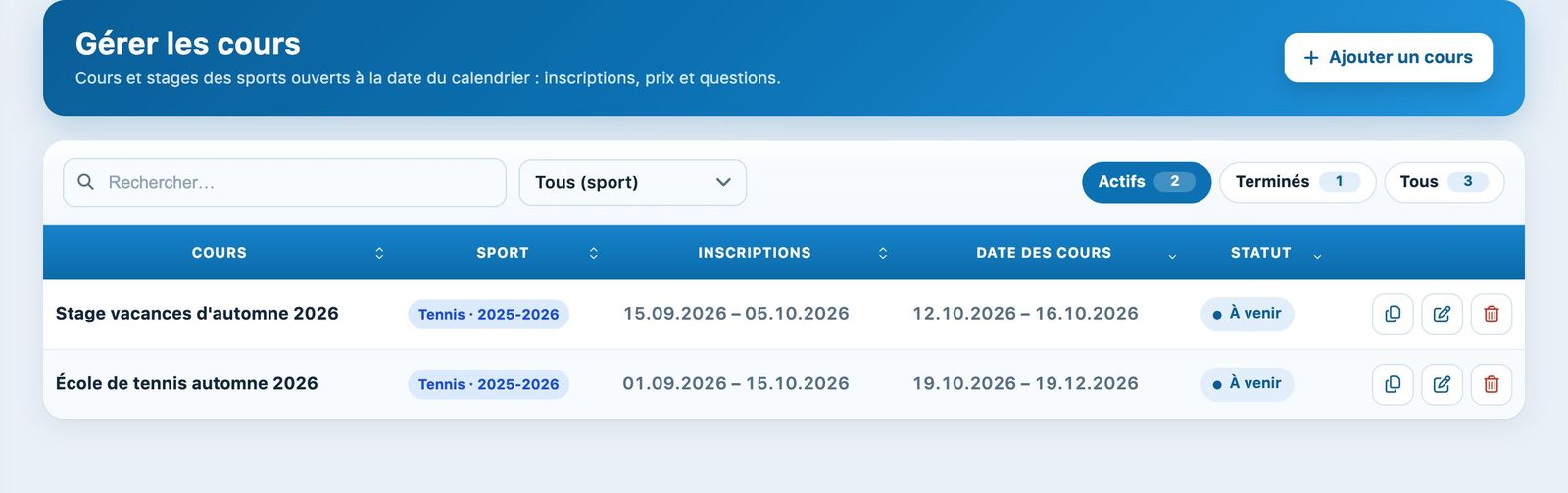
The Manage lessons page and the Add a lesson button.
You can group the whole tennis school (kids, juniors, competition…) into a single lesson with several prices, or create one lesson per type. A holiday camp is usually a separate lesson.
2Name, person in charge and audience
In the section Lessons, choose the Sport if the club has several, then enter:
- Name of lesson: for example "Autumn holiday camp 2026";
- In charge of registrations: type 2 letters of the name then choose the person;
- Gender: Mixed; Age: 6 to 16 years; Number of participants: 24 at most.
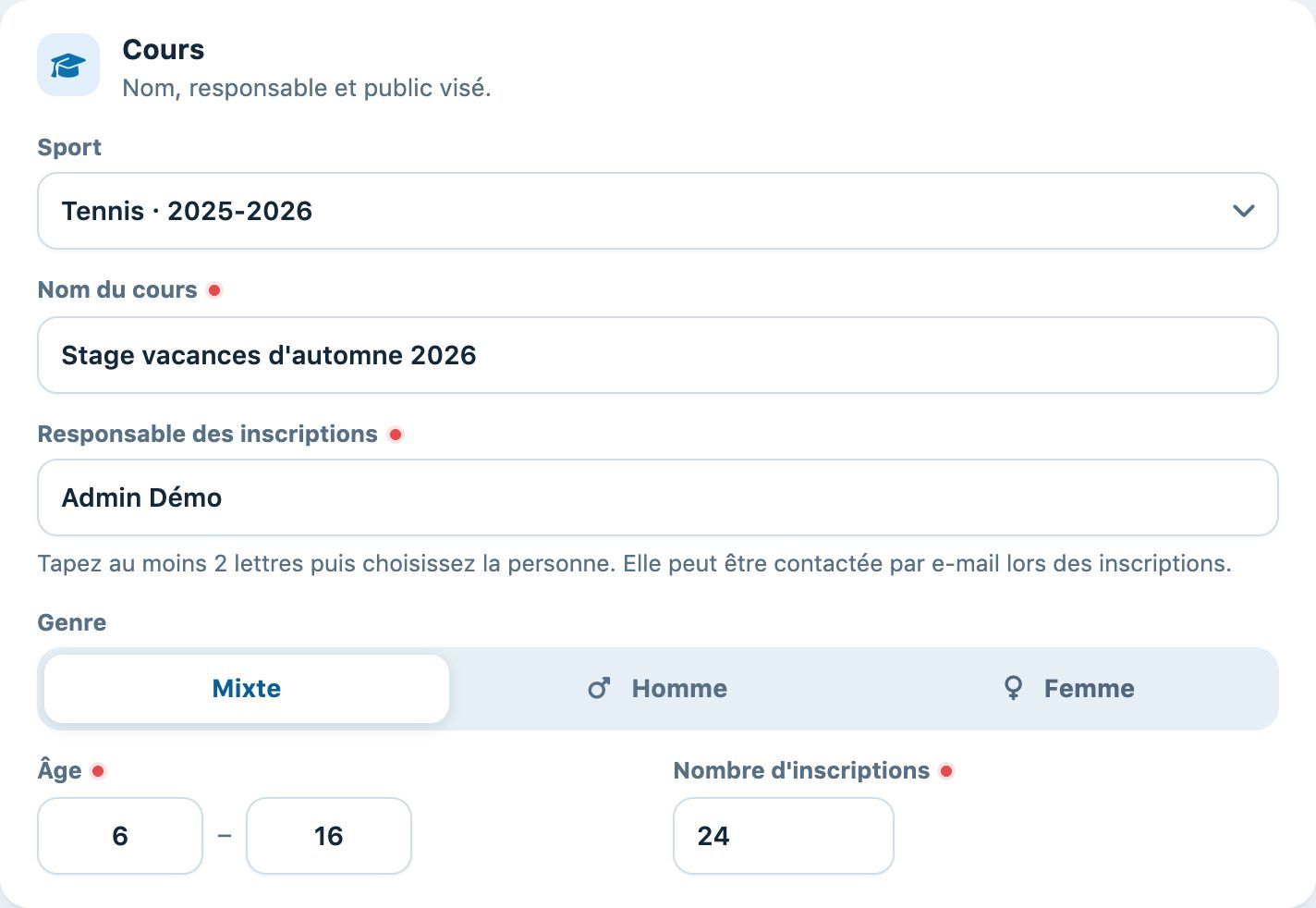
Lesson section of the panel.
3The dates
Fill in the Dates :
- Registration period: here from 15 September to 5 October, the period during which the online form is open;
- Date of lesson: here from 12 to 16 October, the dates used to create the group bookings.
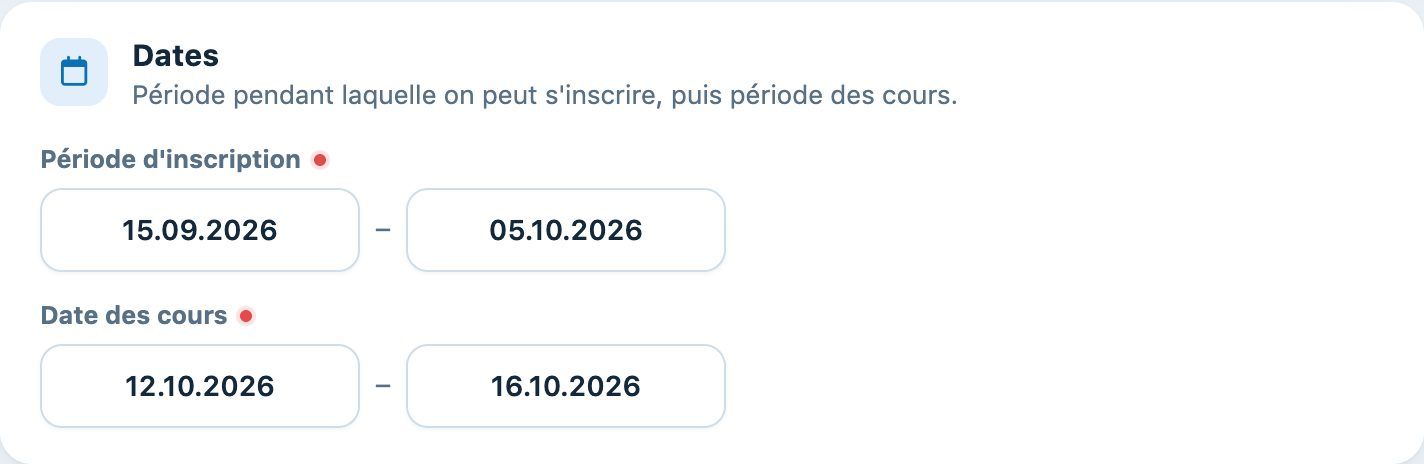
Dates section.
4Who can register and how
- Open to all on Yes: non-members can also register; on No, only members with a subscription;
- Link groups to reservations on Yes: the lessons occupy the courts and attendance can be recorded (essential for Youth and Sport);
- Sign up directly in a group: Yes for a camp where everyone chooses their group; No for a tennis school: in the Preference section, offer time slots (for example Mon, Tue, Thu from 16:00 to 18:00 in Slots of 1 h) from which the registrants tick their preferences, and set the Minimum number of slots to choose (see Offer preferred time slots) ;
- Additional information: text shown to people registering; General terms and conditions (URL): link to your rules.
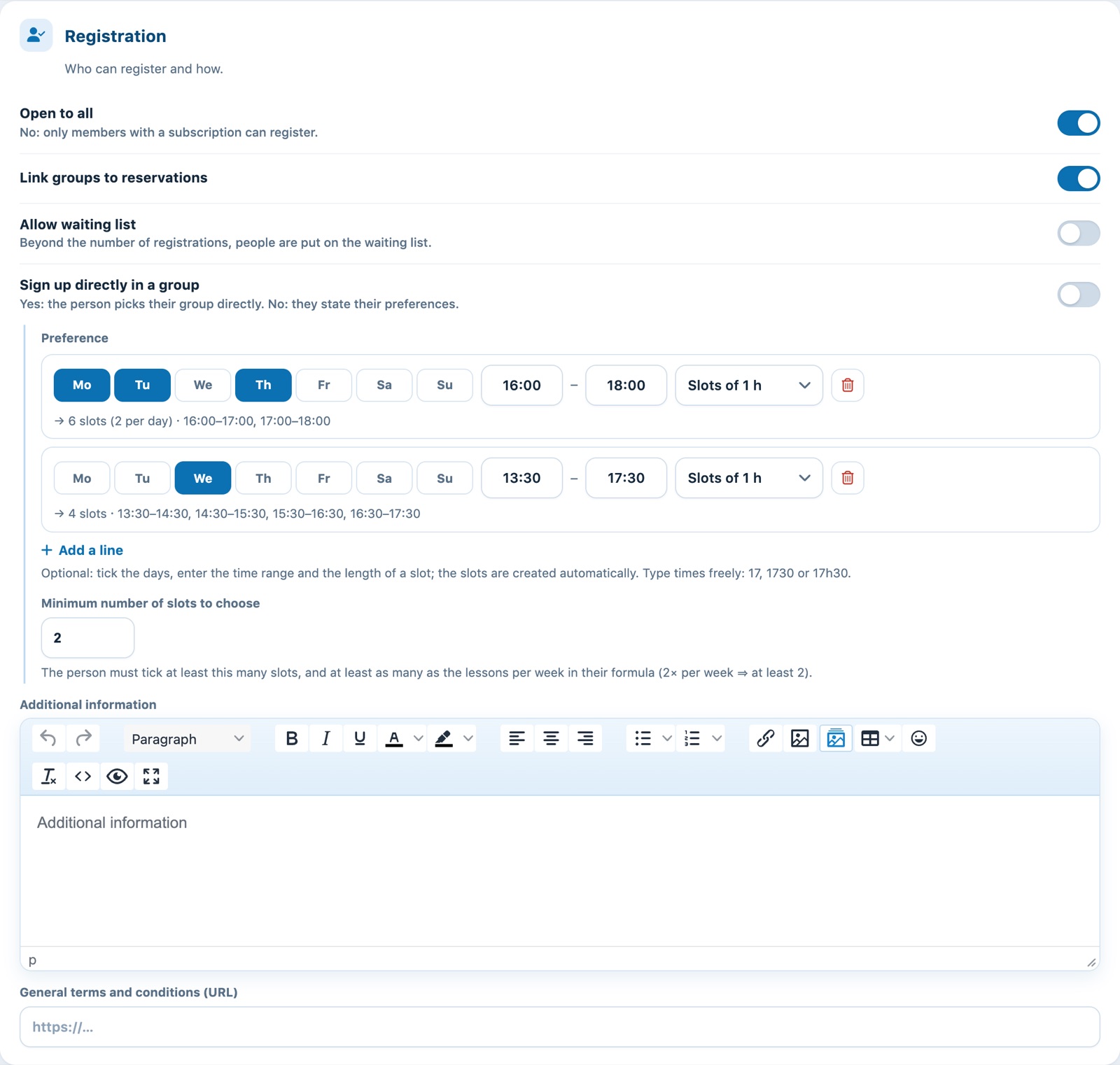
Registration section.
5Prices and payment
Choose the Type of price :
- For the season: a fixed amount for the whole lesson (e.g. CHF 400);
- For each session: a price per lesson, cancelled lessons are not invoiced;
- By presence: invoicing at the end of the lesson according to the attendance recorded.
Then the Type of payment : Invoice, Credit card or Both. With online payment, choose the Invoice group where payments are to be recorded.
Add one card per rate with Add a price : Item, Label, Lessons per week, Pupils per group (0), Price and Subscription concerned. For a tennis school, for example, create four cards: 1x and 2x per week for the Junior membership (420 and 780 CHF) and for Non-member (no membership fee) (480 and 880 CHF). The summary at the top of each card ("2× per week · 780.00 · Junior") lets you check everything at a glance.
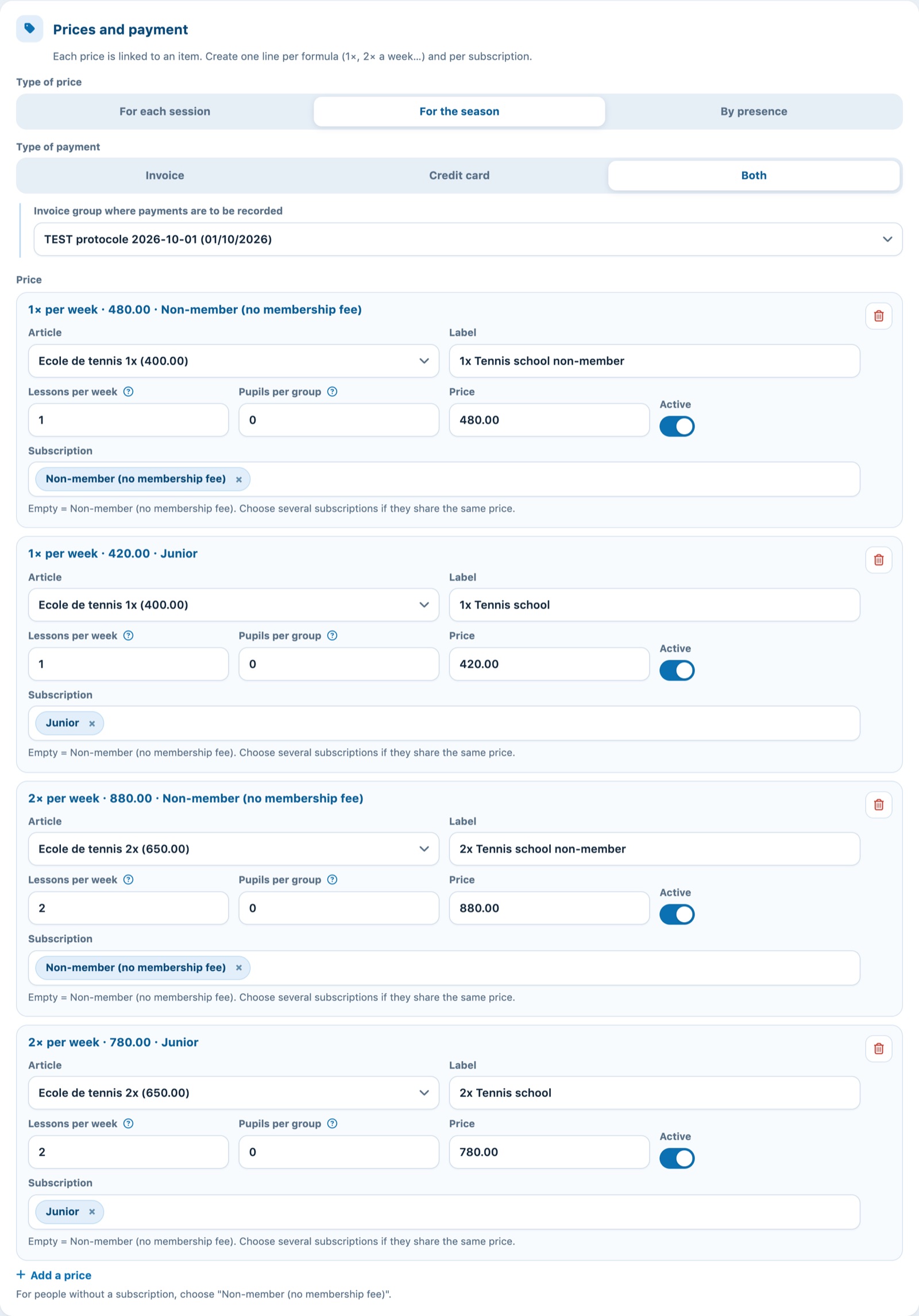
Four price cards: 1× and 2× per week, Junior and non-members.
The same item can be used for all rates: only the description and the price change. See Creating lesson items.
6Questions for Youth and Sport
In Customised question, add a question "N° AVS" of type Free text field: the number will be requested in the format 756.xxxx.xxxx.xx and used in the Youth and Sport exports. Add other questions if needed, for example the level as Single choice with the answers "Beginner,Intermediate,Advanced".
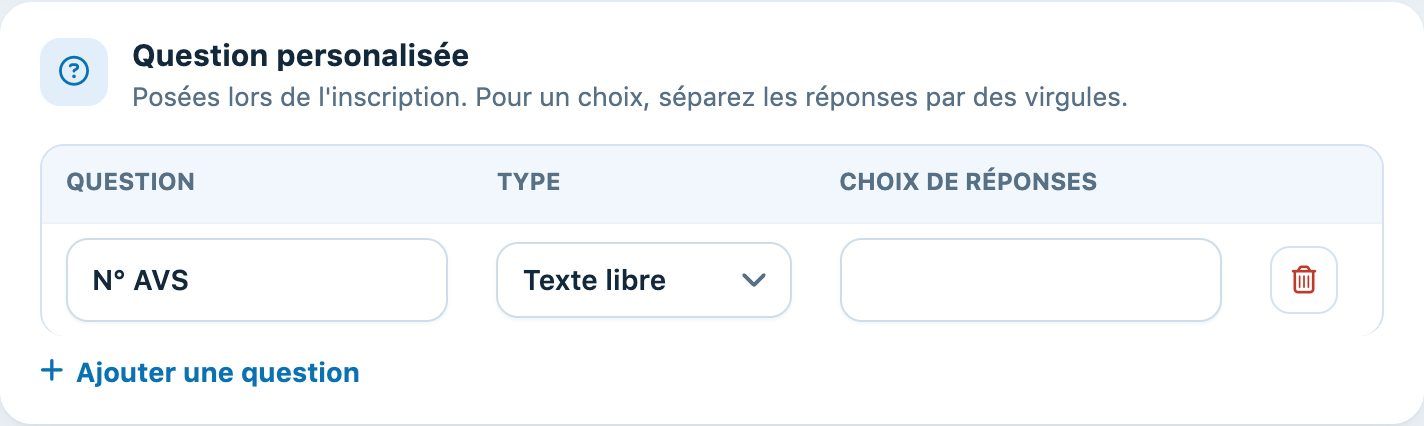
Customised question section.
Click Add a lesson at the bottom of the panel. The lesson appears in the list and the online registration form opens on the first day of registration.
Plugin.ch tutorial — Tennis school tutorial