


Manage reservations
Create a promo code and use it
A promo code is a credit in francs that the club provides as a code: a gift voucher for one person, or a promotion shared by several players. The customer enters the code when paying for a booking and the amount is deducted from what they owe.
Before you start: the "Manage promotional codes" page only appears in the menu if the Account number for promotional codes is filled in under Parameters → Manage invoicing, and if Use the cash breakdown sheet and Advanced price management are turned on in Parameters → Manage parameters.
1. Create the code
In the left-hand menu, open Reservations → Manage promotional codes, and click + Create the code at the top of the page. The side panel opens:
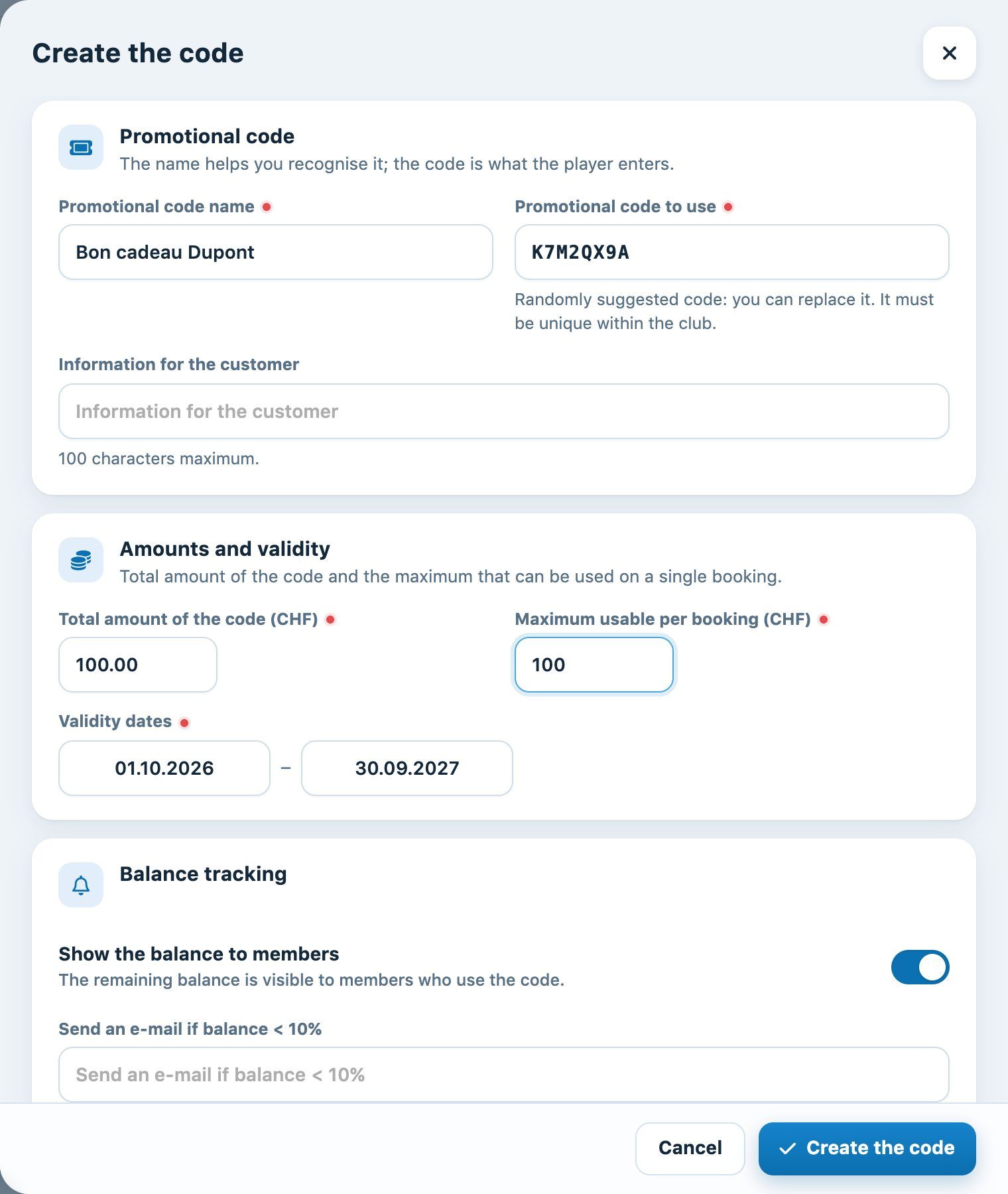
| Field | What it is for |
|---|---|
| Promotional code name | An internal name to find the code in the list (e.g. “Dupont gift voucher”, “October padel promo”). The customer sees it next to the discount. |
| Promotional code to use | The code the customer will type. Plugin suggests a random one; you can replace it with a more meaningful code (e.g. PADEL10). It must be unique within the club. |
| Information for the customer | Optional: a short text (100 characters maximum) attached to the code, for example the terms of the offer. |
| Total amount of the code (CHF) | The code's total credit in CHF, across all uses. Each use lowers this balance; at zero, the code is used up. |
| Maximum usable per booking (CHF) | The maximum discount granted on a single booking. |
| Validity dates | The period (from … to …) during which the code is accepted. Outside it, the code is rejected. |
| Show the balance to members | If the switch is on, the customer sees what is left on the code when applying it. |
| Envoi e-mail si solde < 10% (send e-mail if balance < 10%) | Optional: an e-mail address (the club's, for example) that is notified when the code is almost used up. |
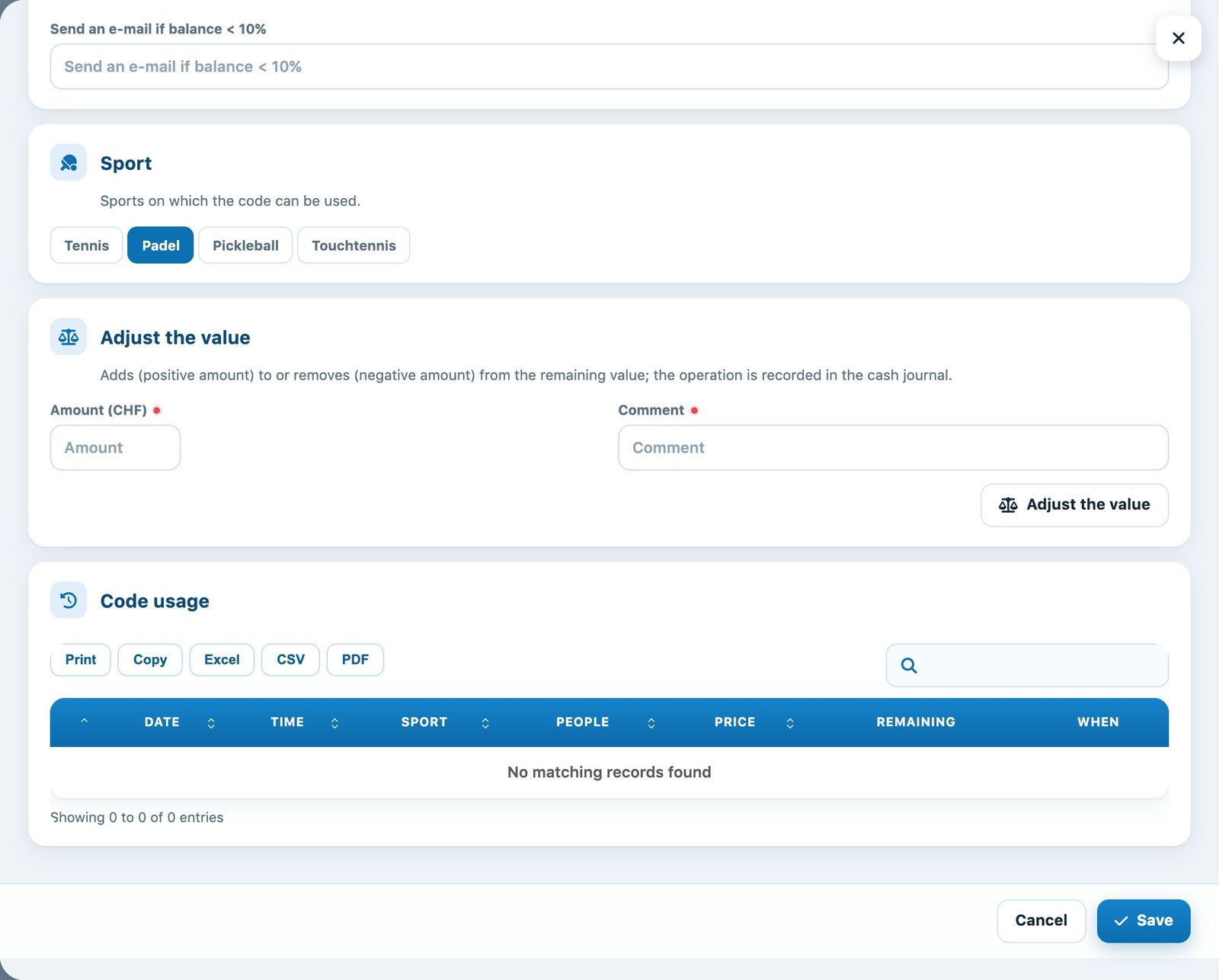
| Sport | The sports on which the code can be used: click a sport to add or remove it. |
Click Create the code: the code appears in the list, with its total amount, the remaining amount (Restant) amount, its validity and its status (In progress, Upcoming…). The Active, Ended and All chips filter the list.

The pencil opens the code to edit it. At the bottom of the panel, Adjust the value adds to (positive amount) or removes from (negative amount) the remaining value, with a comment; the operation is recorded in the cash journal. The Code usage part lists the bookings that used it. The bin deletes the code.
2. Two setup examples
- A 100 CHF gift voucher for one person: total amount 100, maximum per booking 100. The recipient can use it in one go or over several bookings until it is used up.
- A “10 CHF off” promotion for 30 bookings: total amount 300, maximum per booking 10. The first 30 bookings that use the code get a 10 CHF discount.
3. Give the code to the customer
Nothing needs to be sent from Plugin: just give the code to the customer (text message, e-mail, WhatsApp, poster, printed gift card…).
⚠️ The code is not tied to a person: anyone who knows the code can use it, until the total amount is used up. For a personal gift voucher, choose a code that is hard to guess (the random one suggested by Plugin works very well).
4. Use the code when booking
The customer books as usual in the new interface. When the booking has a price, the Payment section appears in the booking panel:
- in the list of payment methods, choose Discount code ;
- type the code in the field that appears (e.g. PADEL10);
- click the button +.
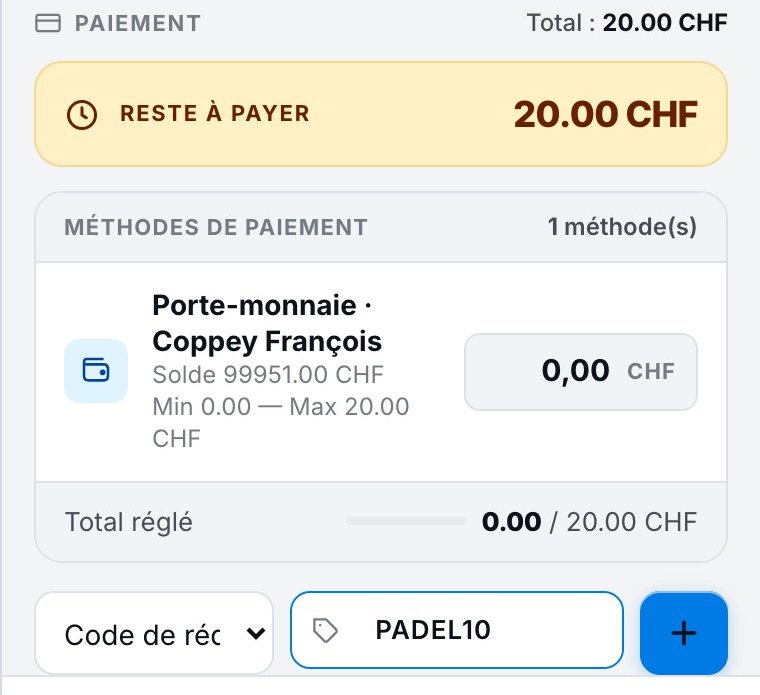
The code is added to the payment methods with its name and, if the option is ticked, the code's remaining balance. The “Remaining to pay” amount goes down accordingly.
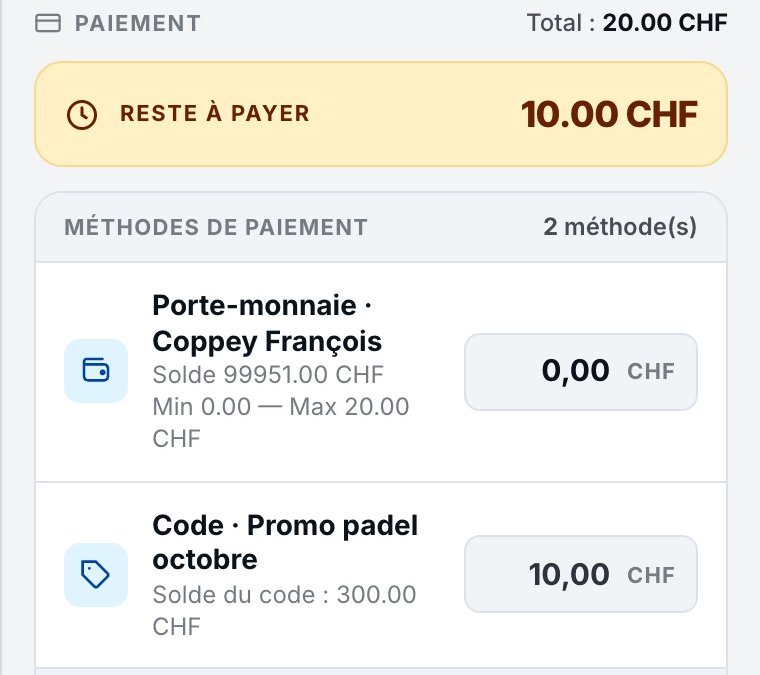
If an amount is still due, the customer pays it with another payment method (wallet, online payment…), then confirms the booking. The code's balance is only debited on confirmation.
5. Why is a code rejected?
- the code was mistyped or does not exist in this club;
- today's date is outside the validity period;
- the booking's sport is not ticked in the code;
- the code's balance is used up (remaining amount at 0).
The “Discount code” payment method does not appear at all? Check the settings listed at the start of this article.
6. Apply a code from the administration
When you create or edit a booking in the schedule, the Payment part contains a Promotional code field: type the code and click the ✓ button. The booking must not be paid yet.
Plugin.ch Tutorial — Manage bookings