


Payments and wallet
How do I download my certificates?
Membership certificate, annual summary and payment certificate as PDF
Your employer, health insurance, J+S or the tax office ask you for proof of payment or membership? You can download it yourself as a PDF, at any time, without asking the club.
Three documents are available:
| Document | What it certifies |
|---|---|
| Membership certificate | That you are a member of the club, with your subscriptions for the current season (and the payment date of the membership fee when it has been paid). |
| Annual payment summary | All invoices settled during a calendar year (from 1 January to 31 December), with the total. Handy for your tax return. |
| Payment certificate | Full payment of a specific invoice (for example a tennis school or a camp), with the invoice lines and the payments received. |
Each document carries a verification code and a QR code: the person who receives it can check in a few seconds that it is authentic.
Certificates are available in the new Plugin.ch interface. If you still use the old version, see the article How do I try the new interface (and go back to the old one)?.
Open the My certificates page
Click your name at the bottom of the left menu, then Certificates. On a phone, tap My profile in the bottom bar, then Certificates in the tabs at the top of the page.
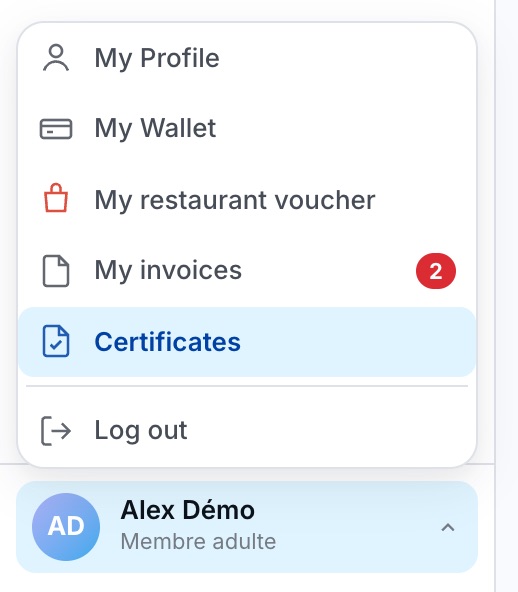
The Certificates entry in your account menu
The My certificates page groups the three documents.
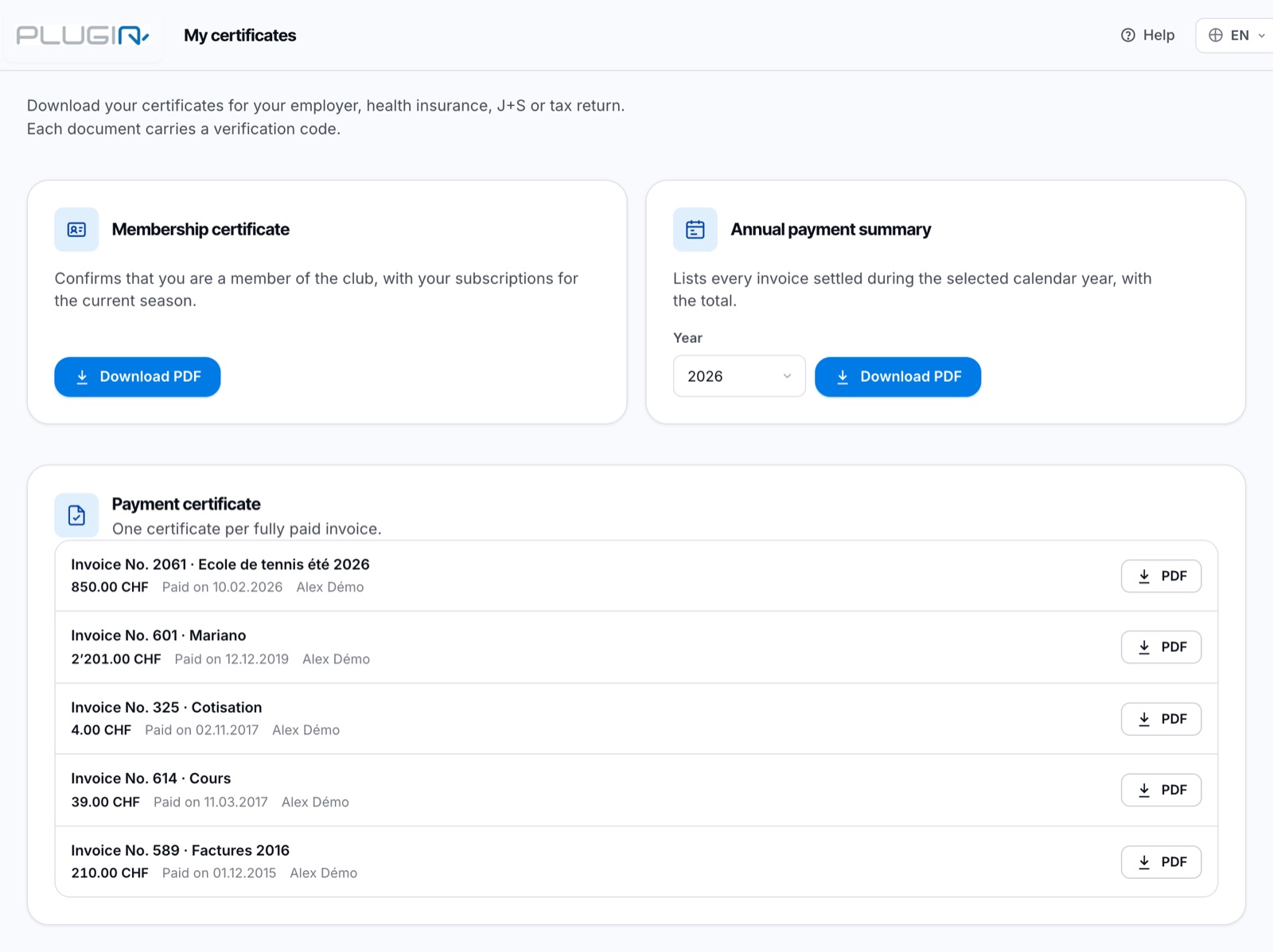
The My certificates page
Download a document
Membership certificate
In the Membership certificate card, click Download PDF. If the button is replaced by the message “You are not registered as a member of this club.”, the club has not (or no longer) registered you as a member: contact the club.
Annual payment summary
In the Annual payment summary card, choose the year in the Year list, then click Download PDF. An invoice counts in the year in which it was fully settled, not the year in which it was issued. The summary also includes invoices addressed to members of your family. If no invoice was settled that year, the document says so.
Payment certificate
The Payment certificate card lists all your fully paid invoices, from the most recent to the oldest. Click the PDF button of the invoice you need.
The PDF is produced in the language you use on the site. To get a certificate in another language, change the language (see How do I change the site language?), then download it again.
From the My invoices page
In My account → My invoices, each fully paid invoice shows a medal icon next to the download button: it directly downloads its Payment certificate (PDF). The All my certificates button, at the bottom of the list, opens the My certificates page.
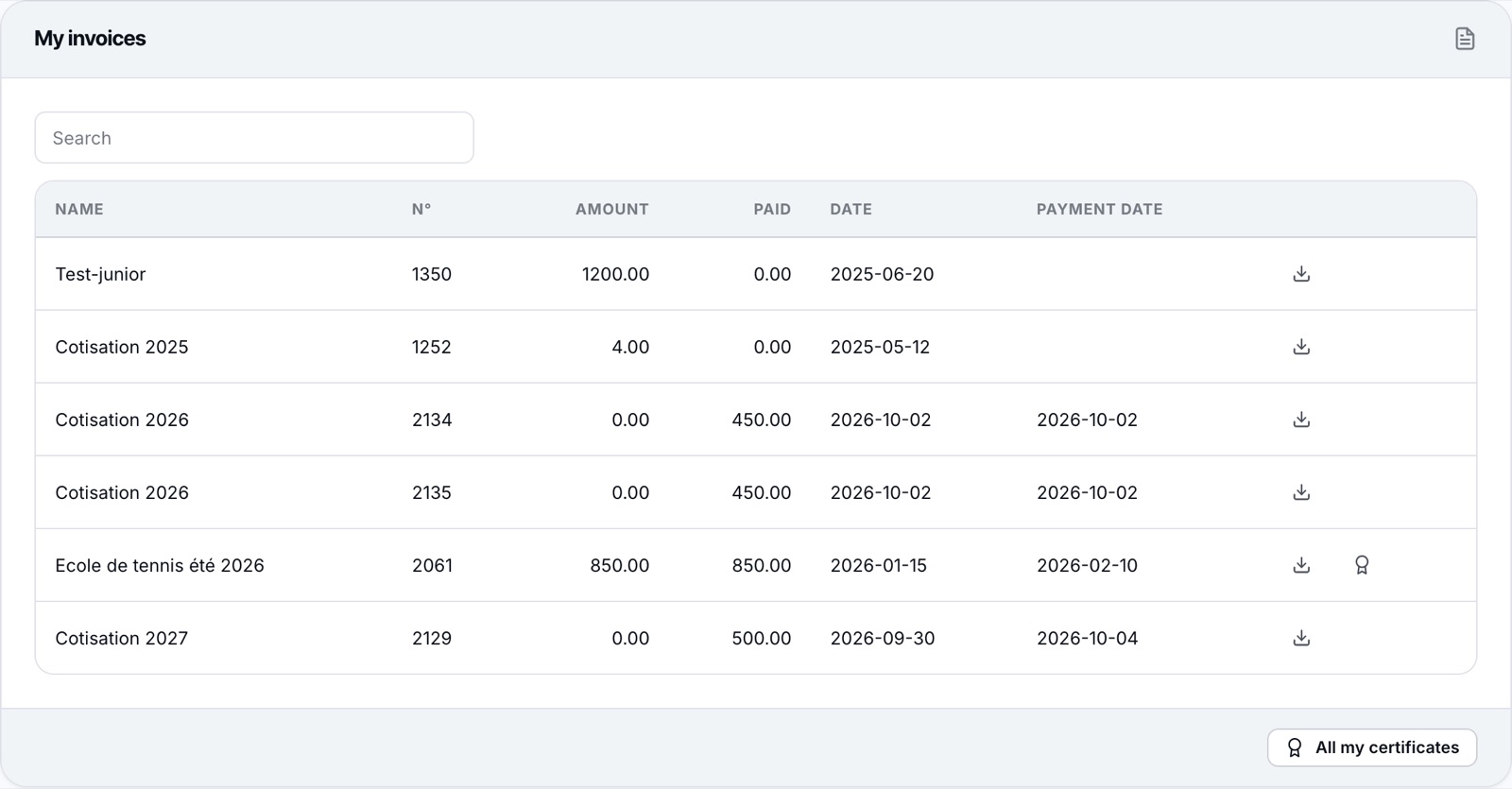
The medal icon on a paid invoice and the All my certificates button
The My invoices page only shows invoices from the last three years. For an older invoice, use the My certificates page, which lists all your paid invoices.
What the PDF contains
At the top: the club’s logo and address, the place and date, then your name and address. In the middle: the title and the content of the document (invoice, subscriptions or list of the year’s invoices). At the bottom: the QR code, the Verification code (12 characters, for example ABCD-EFGH-JKMN) and the statement “Electronically issued document, valid without signature.”.
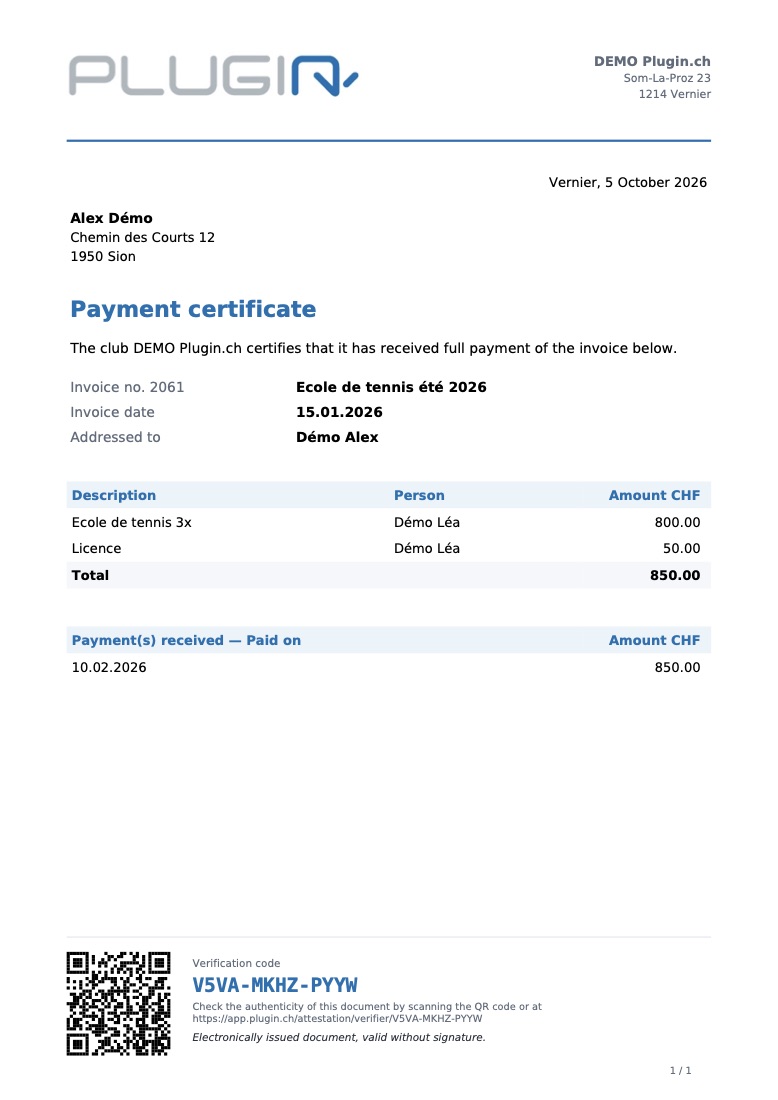
A payment certificate (fictitious example)
Why does an invoice not appear?
A payment certificate is only offered for an invoice that is:
- fully paid: as long as a balance remains due, no certificate is possible (“This invoice is not fully paid: no payment certificate can be issued.”);
- not cancelled: an invoice cancelled by the club does not entitle you to a certificate;
- for more than 0: an invoice of 0 needs no certificate;
- from the club you are logged in to: invoices from another club are found in that club. If you are a member of several clubs, switch club, then open the page again.
You have just paid online and the invoice is not in the list yet? Wait until the payment has been recorded, then reload the page. For a bank transfer, allow for the processing time of the bank and the club.
How the recipient checks the certificate
The person who receives your certificate (employer, health insurance…) does not need an account:
- they scan the QR code with their phone;
- or they open the Certificate verification page at the address printed below the code, enter the Verification code and click Verify.
Entry is tolerant: upper or lower case, with or without hyphens or spaces. The letters O, I and L are read as 0, 1 and 1.
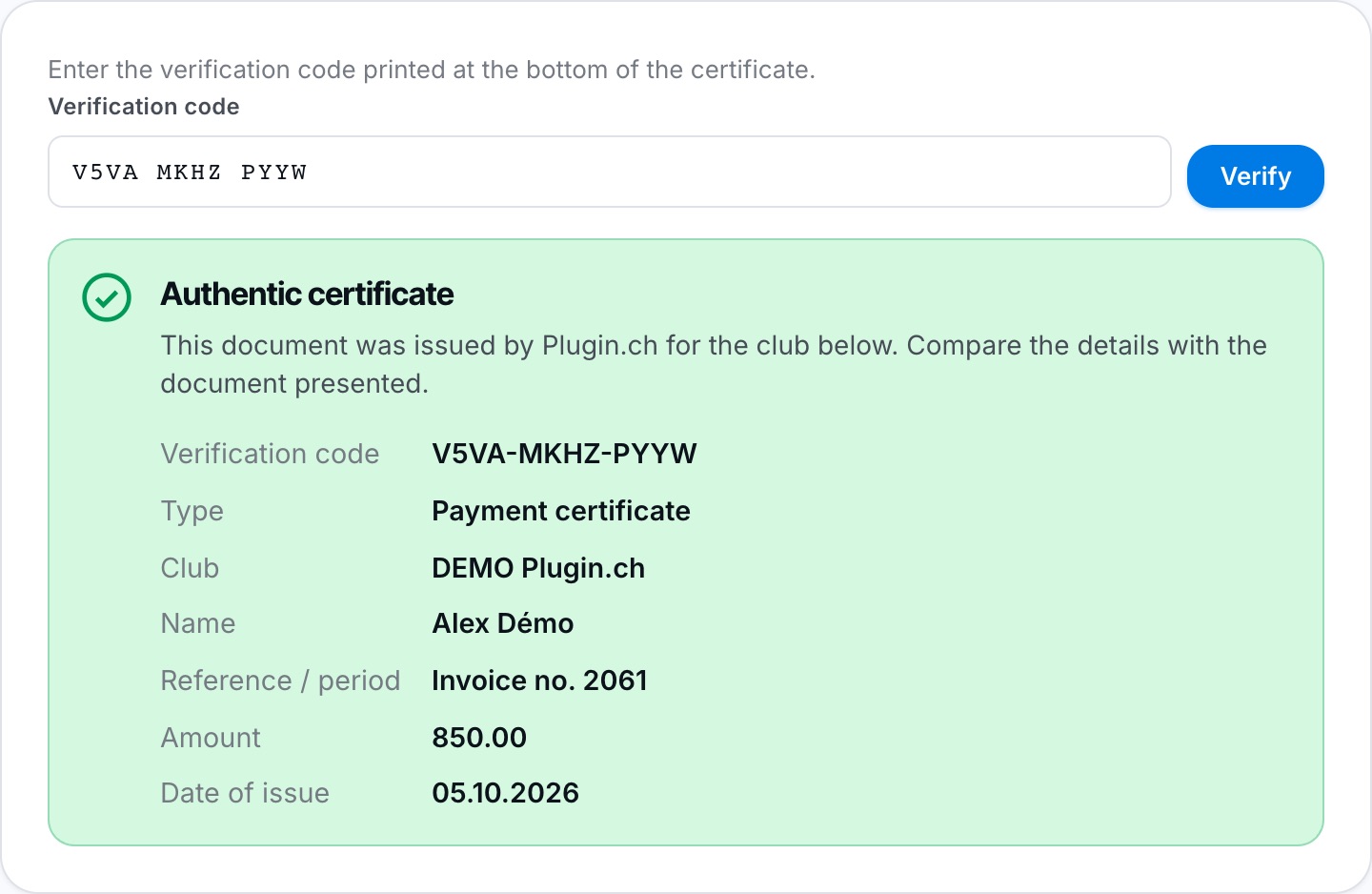
Result of checking an authentic certificate
If the code is recognised, the page shows Authentic certificate with the type, club, name, reference (invoice number or period), amount and date of issue: simply compare them with the document received. Otherwise it shows Certificate not recognised (code entered incorrectly or document altered).
If you download the same certificate several times on the same day, you get the same code. Downloaded on another day, it carries a new code and a new date of issue; the old codes remain valid.
Plugin.ch Tutorial — Payments and wallet