


My profile
How do I change my profile photo and information?
Photo, contact details, preferences and the Save button
All your personal information is managed from the My profile page. It is organised in four tabs:
| Tab | Content |
|---|---|
| Profile | Your identity, contact details, username and password, e-mail and notification preferences, memberships. |
| Family | The people linked to your account (see How do I book for a family member?). |
| Merge accounts | Combine two Plugin accounts from different clubs (see I have several accounts: how do I merge them into a single login?). |
| My data | Download your data, leave the club or delete your account (see My data: download, leave the club, delete my account). |
Open your profile
Click your name at the bottom of the left menu, then My profile. On a phone, tap My profile in the bottom bar.
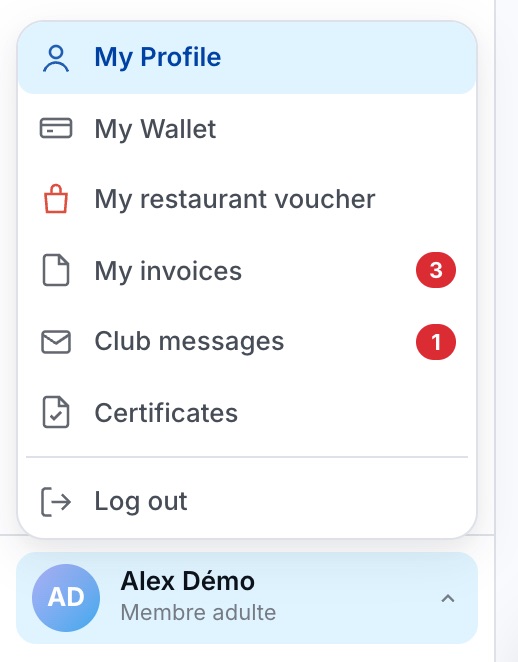
Your account menu opens when you click your name.

At the top of the page: your name, club, memberships and the four tabs.
Change your photo
Click the photo (or the camera icon) at the top of the page, or use, in the Identity card, the Choose Photo (file) or Take a photo (camera) button. Crop the image, then click Use this photo.
The photo is only kept after you click Save. The photo area only appears if your club uses profile photos.
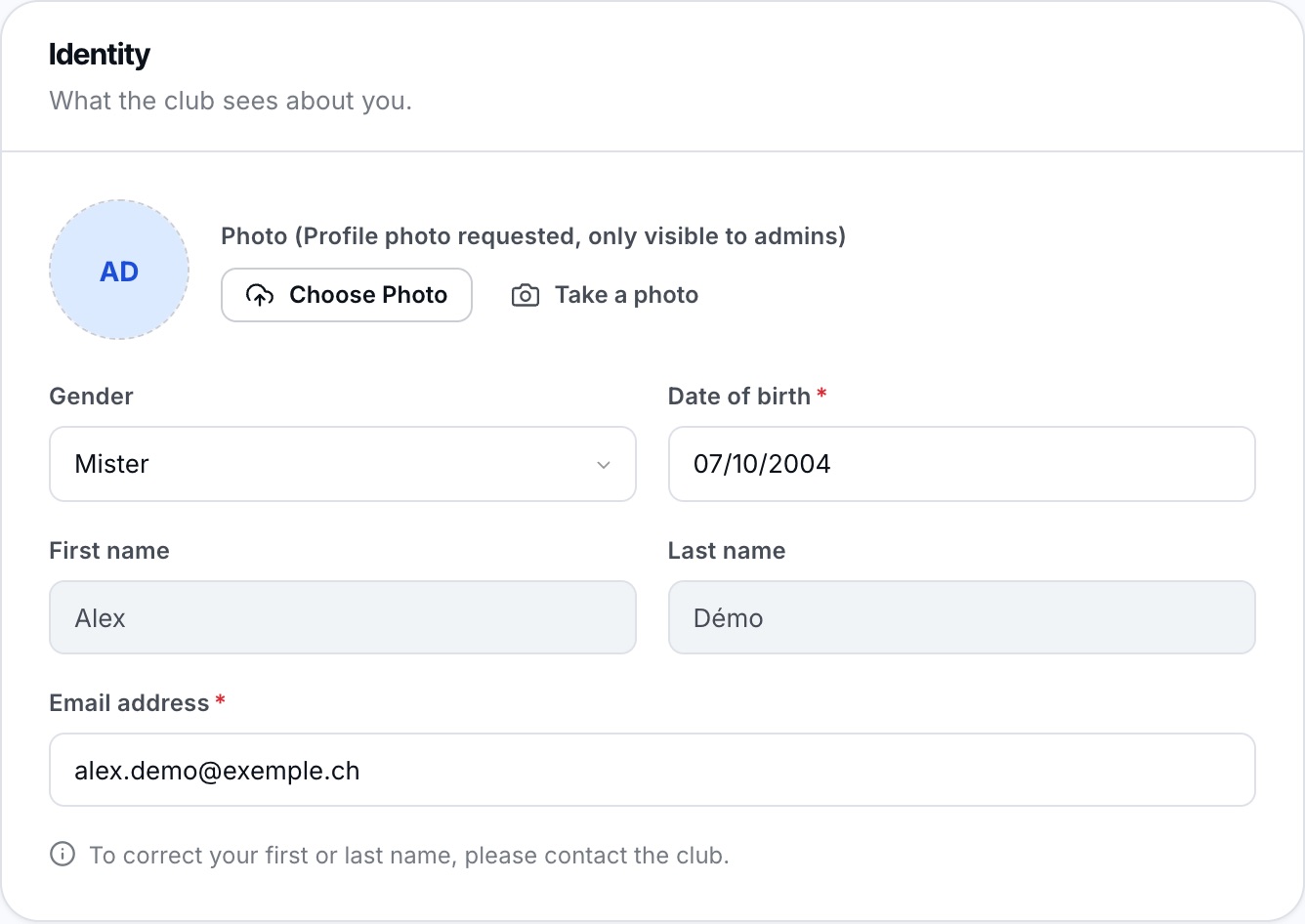
The Identity card: photo, gender, date of birth, name and e-mail address.
Your first and last name cannot be changed: to correct them, contact the club.
Update your contact details
In the Contact details card, first choose the Country: the addresses offered depend on this choice. Then type your address in Address 1 and pick it in the list offered: the postcode and town fill in by themselves.
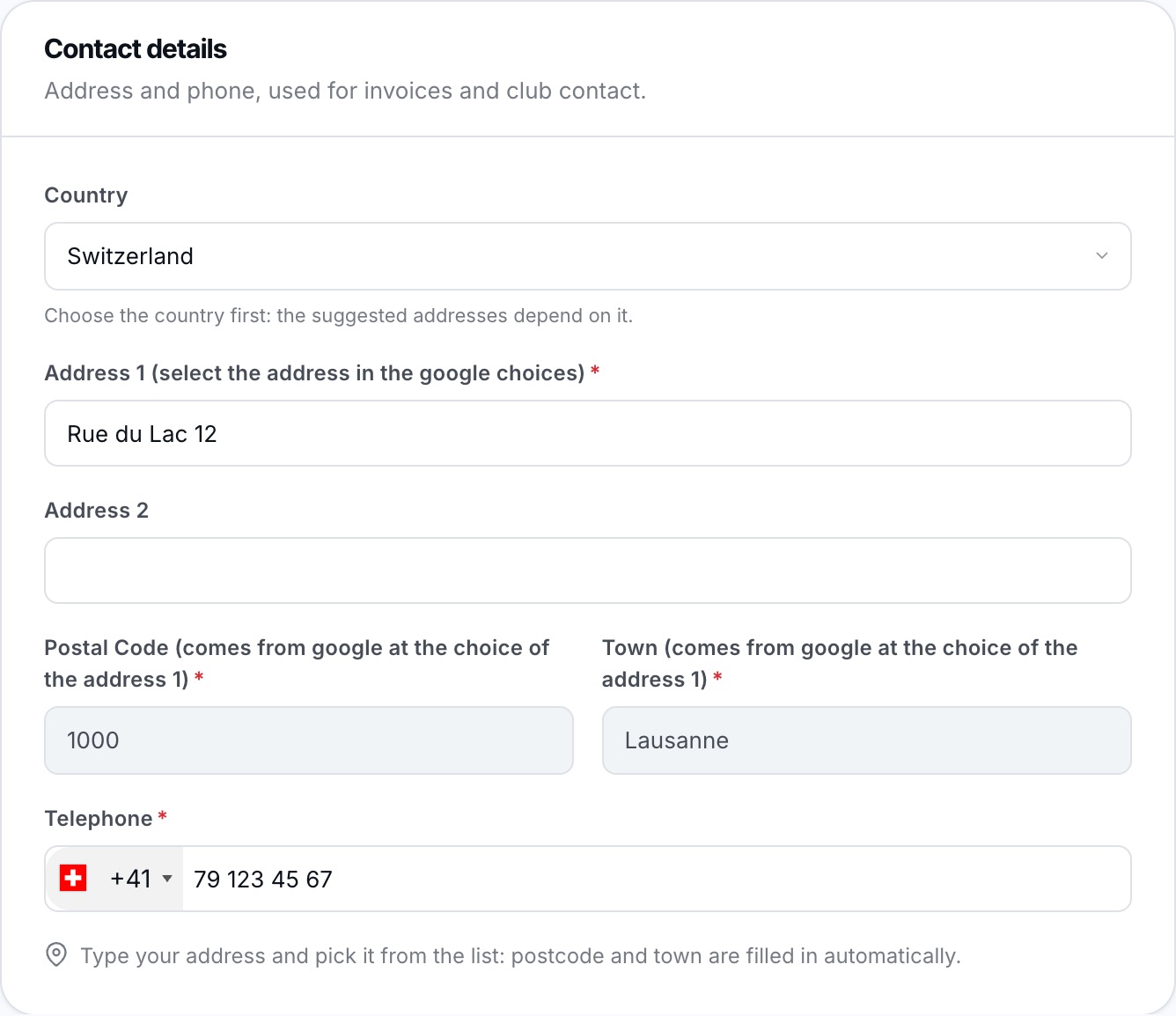
The address is suggested automatically as you type.
Further down, the page also contains:
- Sign-in: your username and password (see How can I change my password?) ;
- Information requested by the club: your club's own fields, for example your padel level;
- Communications: the language of e-mails and the e-mails you want to receive;
- Phone notifications: what the app may send you (see How do I choose the notifications I receive on my phone?) ;
- Membership: your membership for each current sport and season.
If you do not yet have a membership for a season, you can sometimes choose it here: only if your club accepts online registrations, and only among the memberships the club offers for registration. Otherwise, the message “To take out a membership, please contact the club.” is shown.
Save
As soon as you change a field, the bar at the bottom of the page shows “Unsaved changes”. Click Save to apply your changes.

The save bar stays visible at the bottom of the screen.
The preferences in the Phone notifications card are saved immediately, without using this button.
Your e-mail address is used to recover your password and to receive club messages: keep it up to date.
Plugin.ch Tutorial — My profile