


Rental of items
Complete management of equipment rental
Manage your lockers, changing rooms and keys rented by the year and invoice them in a few clicks
The page Rental of items manages the objects the club rents out by the year: lockers, cupboards, changing rooms, keys… Each set of objects forms a numbered list; you assign each number to a member, then send the rentals for invoicing. Each tenant then receives a “list + No.” line in their items to invoice, included in their next invoice.
Create the billing item
The rental is invoiced at the price of an item. If you have not done so yet, create it in the left side menu: Parameters → Manage invoicing → Add an item. For example “Locker rental”, with a junior price and an adult price if needed. See Create an item.
Create a list of objects
In the left side menu, open Invoices then Rental of items, and click Create list. In the panel:
- Name of list: for example “Ladies' changing room lockers”. This name is also the label printed on the invoice.
- Item invoiced: the item and price invoiced to each tenant.
- Number range: for example 1 to 40 for lockers numbered 1 to 40.
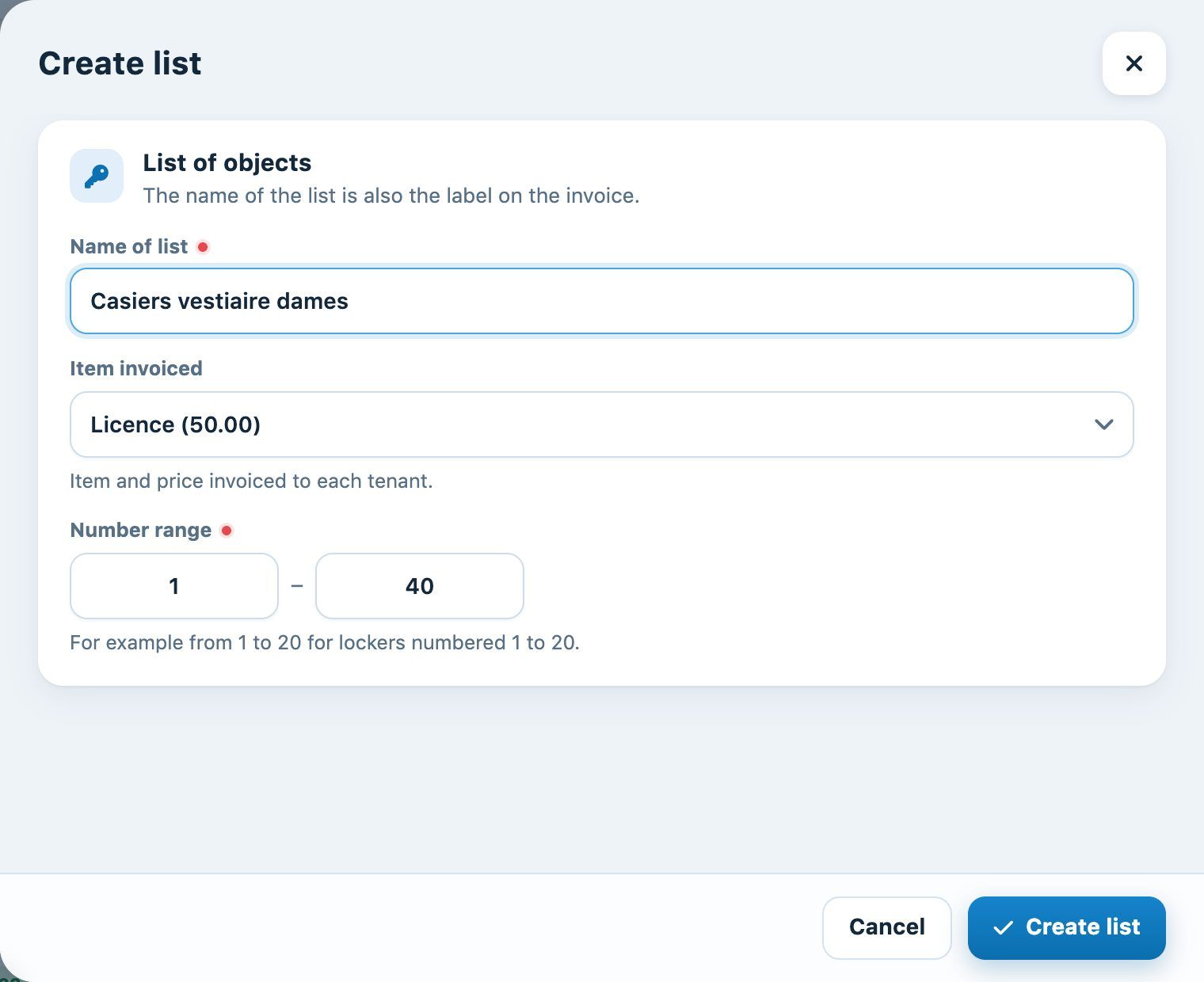
The “Create the list” panel
Click Create list. If you have several lists (ladies' lockers, men's lockers, keys…), chips at the top of the page let you switch from one to another.
Assign the objects to members
Each line corresponds to a number. In the column Person, type the first letters of the member's name and choose them from the list: the object is assigned to them immediately. The column Status shows the status of each object:
- Free: no tenant.
- To invoice: a tenant is assigned, the rental has not been invoiced yet.
- Invoiced on …: the rental was sent for invoicing on that date.
- To renew: the end date is approaching (less than 3 months); the rental can be invoiced again.
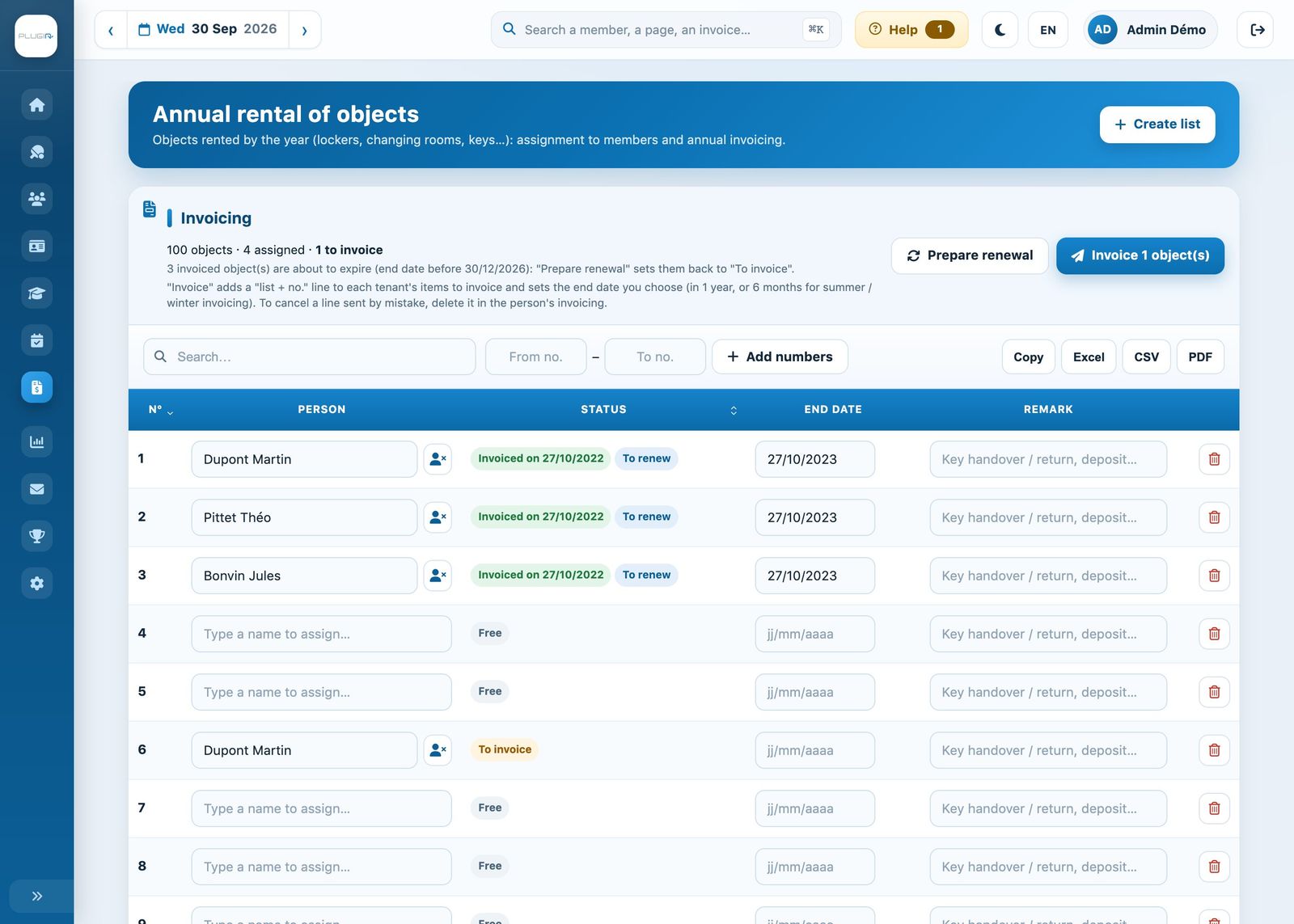
The list of lockers with the billing banner and the status of each object
The button with the cross, next to the name, removes the person: the object becomes free again. A message lets you undo for a few seconds. The column End date shows until when the rental is paid; you can correct it directly. The column Remark is used to note the handing over or return of keys, a deposit… It is saved as soon as you leave the field and stays attached to the object, even if the tenant changes.
Do not confuse the two buttons: the cross next to the name frees the object, whereas the red bin at the end of the line permanently deletes that number from the list (after confirmation).
Add numbers
To extend the list or recreate a number deleted by mistake, enter the numbers in the fields From no. – To no. of the bar above the table (for example 41 and 45, or 4 and 4 for a single number), then click Add numbers.
Invoice the rentals
The banner Billing summarises the list: number of objects, objects assigned and objects to invoice. Click Invoice … object(s). The confirmation window asks for the date Paid until (new end date), suggested one year later. For invoicing twice a year (summer / winter), choose the date of the next invoicing, for example in 6 months.
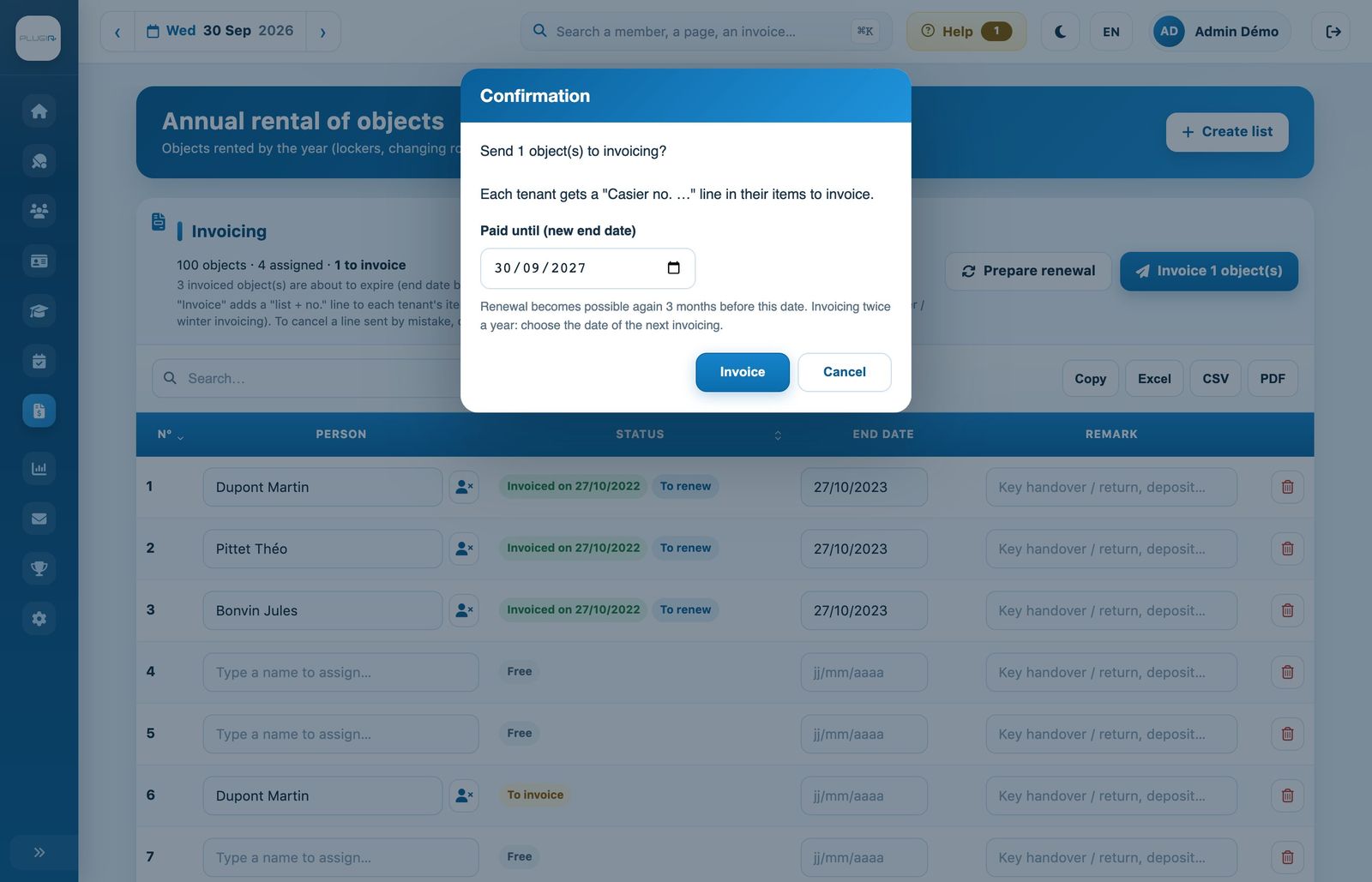
Invoicing confirmation with the new end date
Click Invoice. Each tenant receives a “list + No.” line in their items to invoice, visible in Invoices → Link an item. It will be included in their next invoice: when the season's invoices are created, or when refreshing an invoice group that adds the items.
Tip: invoice the rentals before creating the season's membership fee invoices. That way, the rental appears on the same invoice as the membership fee. To cancel a line sent by mistake, delete it in Link an item as long as it has not been invoiced.
Invoice again the following year
Three months before the end date, invoiced objects switch to the status To renew and the banner shows how many are expiring. Click Prepare renewal: these objects go back to To invoice. Nothing is deleted; invoices already sent remain valid. Check the tenants (remove those who return their key), then click again on Invoice … object(s).
Export the list
The buttons Copy, Excel, CSV and PDF export the displayed list, for example to post it in the changing room or archive it at the end of the season. The search field filters the list by name or number.
Only a few objects to manage? You can also simply link a “Locker rental” item to the members concerned in Invoices → Link an item. The object number will then not appear on the invoice, unless you add it to the name.
Plugin.ch Tutorial — Equipment rental