


Roles and access: create and edit a role
Limit each staff member to the administration tabs they need
What is a role?
A role groups administration tabs (Bookings, Members, Invoices…). A person with this role only sees these tabs. For example, a Front desk role can open bookings, members and invoices, without the club settings.
Creating roles and assigning them is done on a single page: Roles and access.
Open the “Roles and access” page
In the Members menu, open the Roles and access page. Each role of the club is shown in a card: its allowed tabs, then the people who have it.
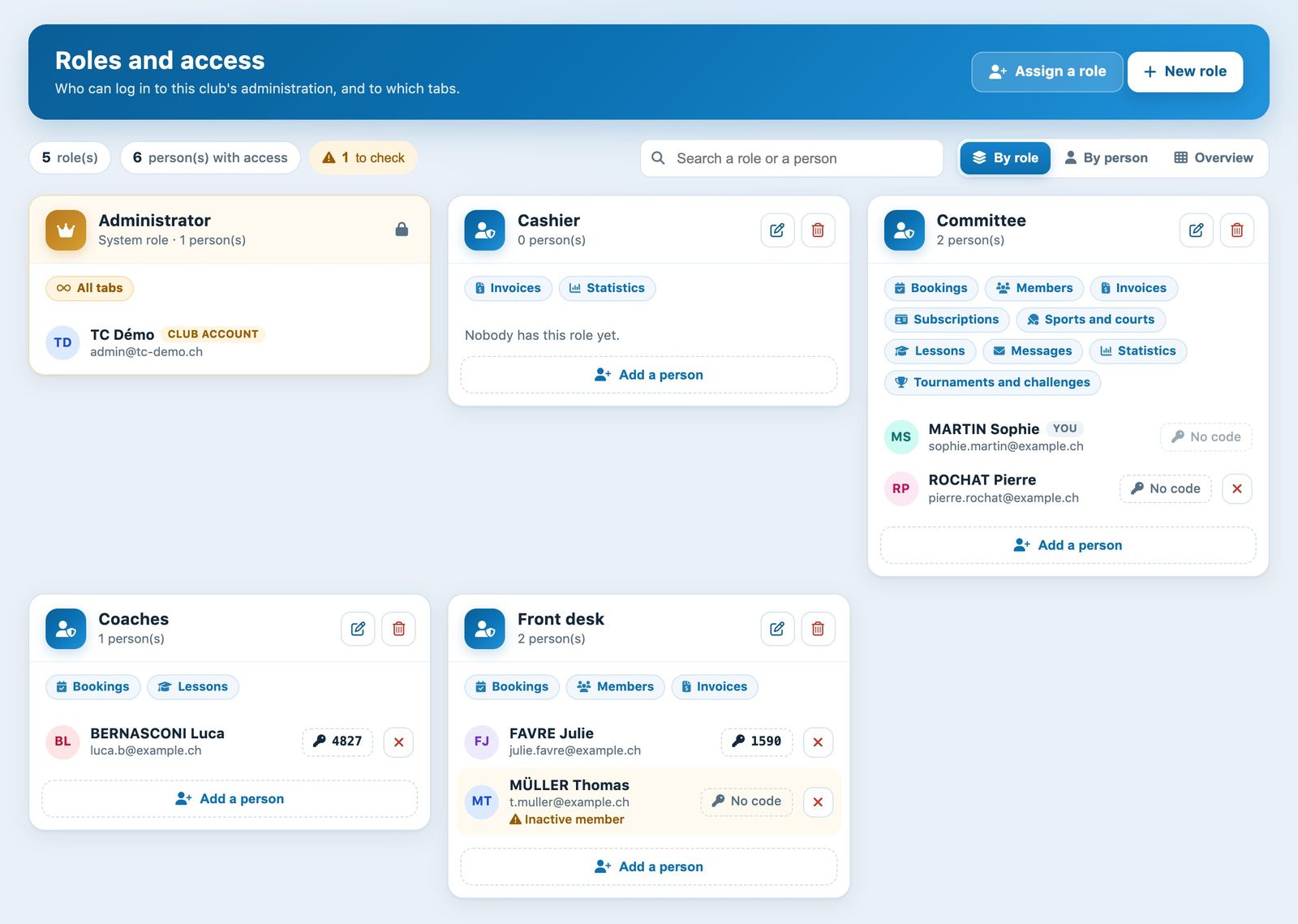
The Administrator (crown) card is the club's main account: it has full rights and is not edited here.
Create a role
Click New role. In the panel that opens, give the role a name, then tick the allowed tabs (the All and None links tick or untick everything at once). Confirm with Create role.
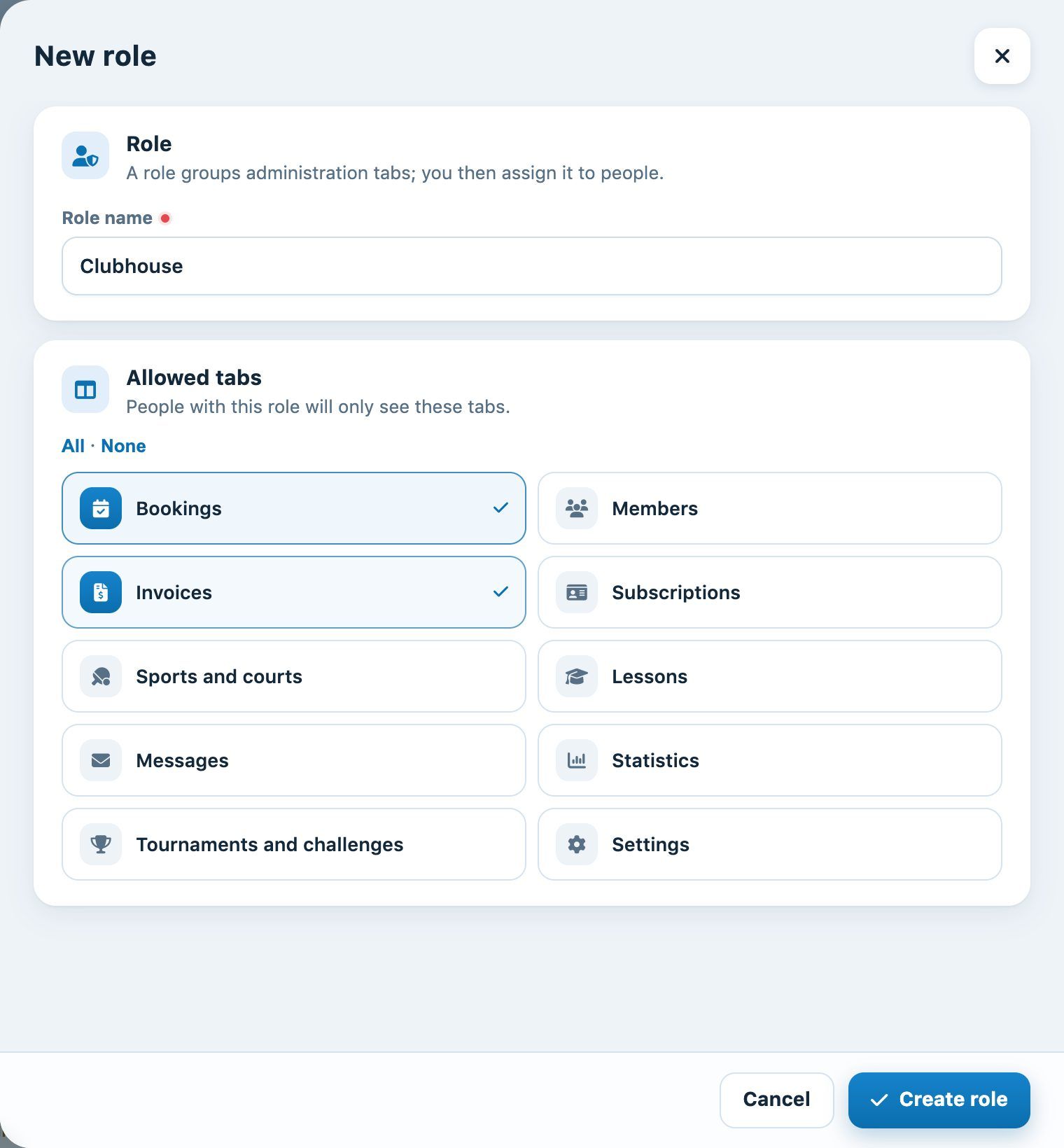
You can only grant the tabs you have yourself: the others are greyed out.
Edit or delete a role
On the role's card, the pencil icon opens the same panel to rename it or change its tabs; the trash icon deletes it, after confirmation. Deleting a role also removes the access of everyone who had it.
You cannot delete a role you have yourself: ask another administrator.
Adjust rights at a glance
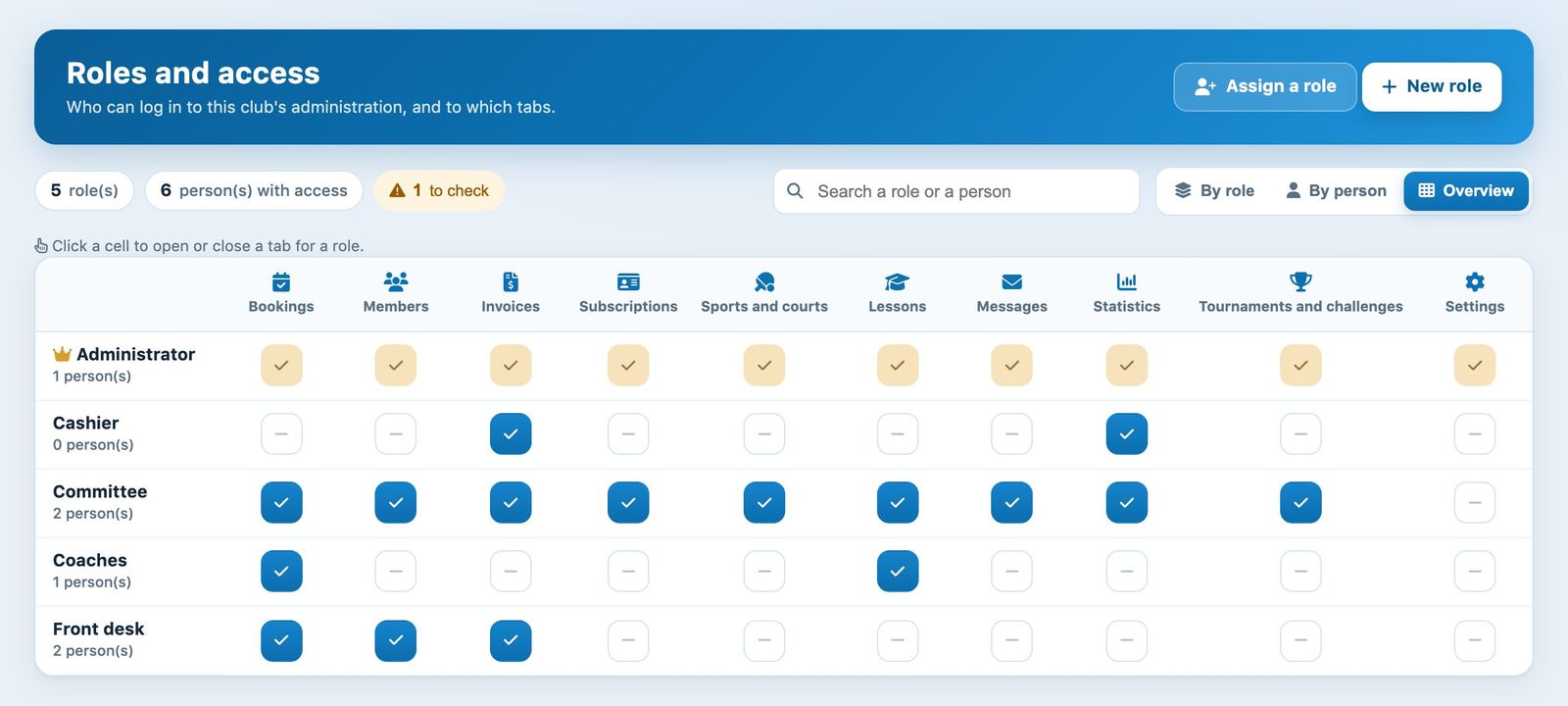
The Overview tab shows all roles against all tabs. Click a cell to open or close a tab for a role: it is saved immediately.
💡 Tip: create roles by task rather than by person (Committee, Cashier, Coaches…). To give access, you then just assign the role; see the article “Assign and remove a role”.
Plugin.ch • Help Center • Video tutorial