


Manage invoices
Send invoices by email
Send invoices and reminders by e-mail and check that they have been read
Sending by e-mail concerns invoices whose type is “e-mail”: this is the case for members who chose to receive their invoices by e-mail in their profile. Each e-mail contains the invoice as a PDF with the QR-bill.
Check the sending settings
E-mails are sent from the sending server configured in Parameters → Manage e-mail. The subject and text of invoice and reminder e-mails are prepared in Parameters → Manage invoicing. The reply address is the one of the invoice group (Reply email address).
Send a whole group
In Invoices → Manage invoices, choose the group, then open the menu Send :
- Send unsent invoices by e-mail: sends all e-mail invoices that have not yet been sent. This is the usual choice after creating the invoices.
- Send unpaid invoices by e-mail: sends all e-mail invoices that are still open again.
- Send unsent reminders by e-mail and Send unpaid reminders by e-mail: the same choices for reminders.
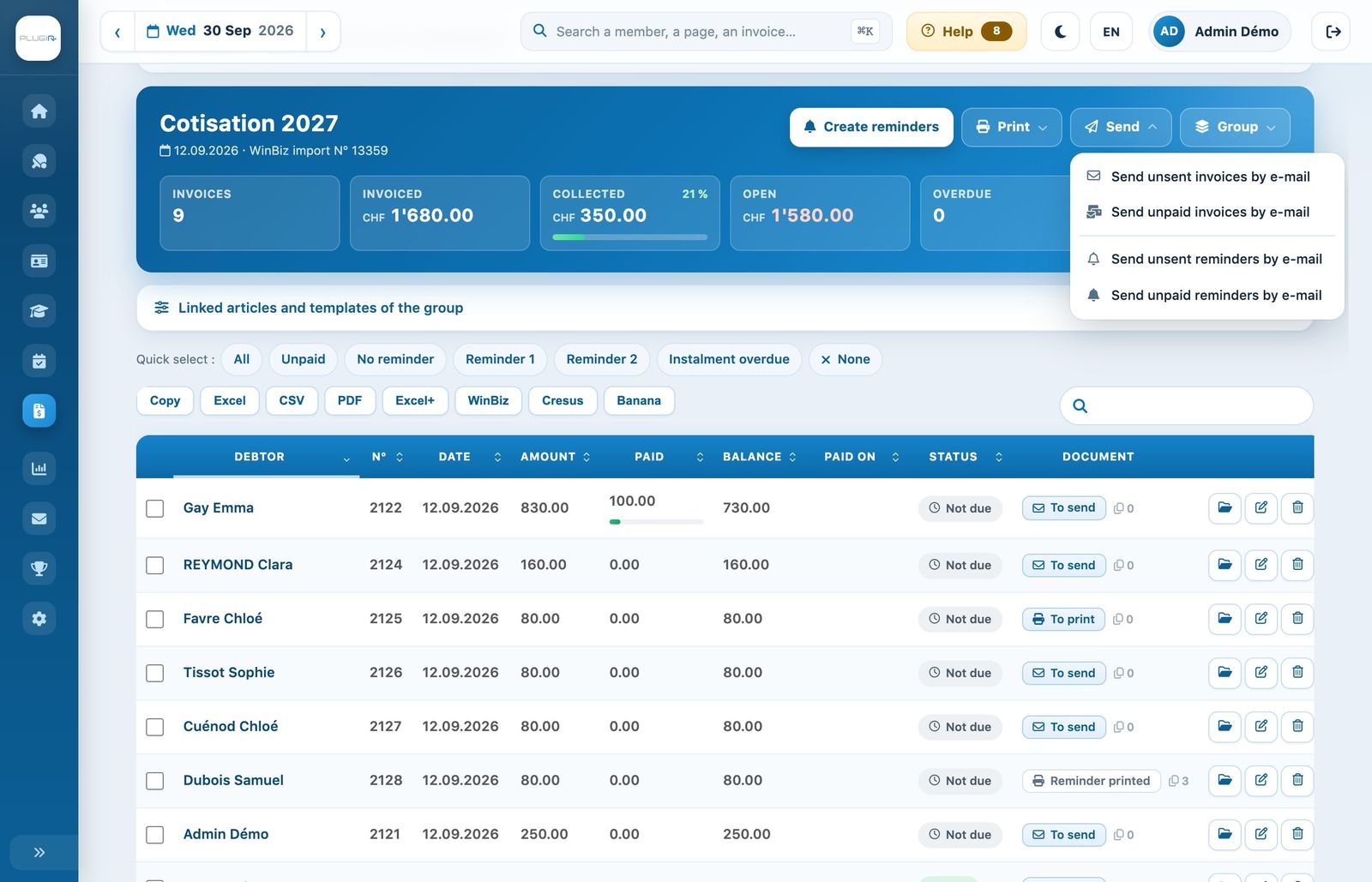
The “Send” menu of an invoice group
Confirm the sending. Sending a large group can take one to two minutes; the page then reloads. If sending fails, a message lists the addresses in error.
Send a single invoice
In the column Document, click the badge To send (or Sent to send the invoice again), then confirm. You can also tick several invoices and click Send by e-mail in the selection bar. In Open invoices & reminders, the menu ⋯ of a line offers Send by e-mail.
Check sending and reading
After sending, the badge shows Sent. It shows Read as soon as the recipient has opened the e-mail. Hover over the badge to see the date of the last sending and the date it was read. The invoice file (folder button at the end of the line) traces the whole timeline: invoice issued, sent, opened by the recipient, reminders, payments.
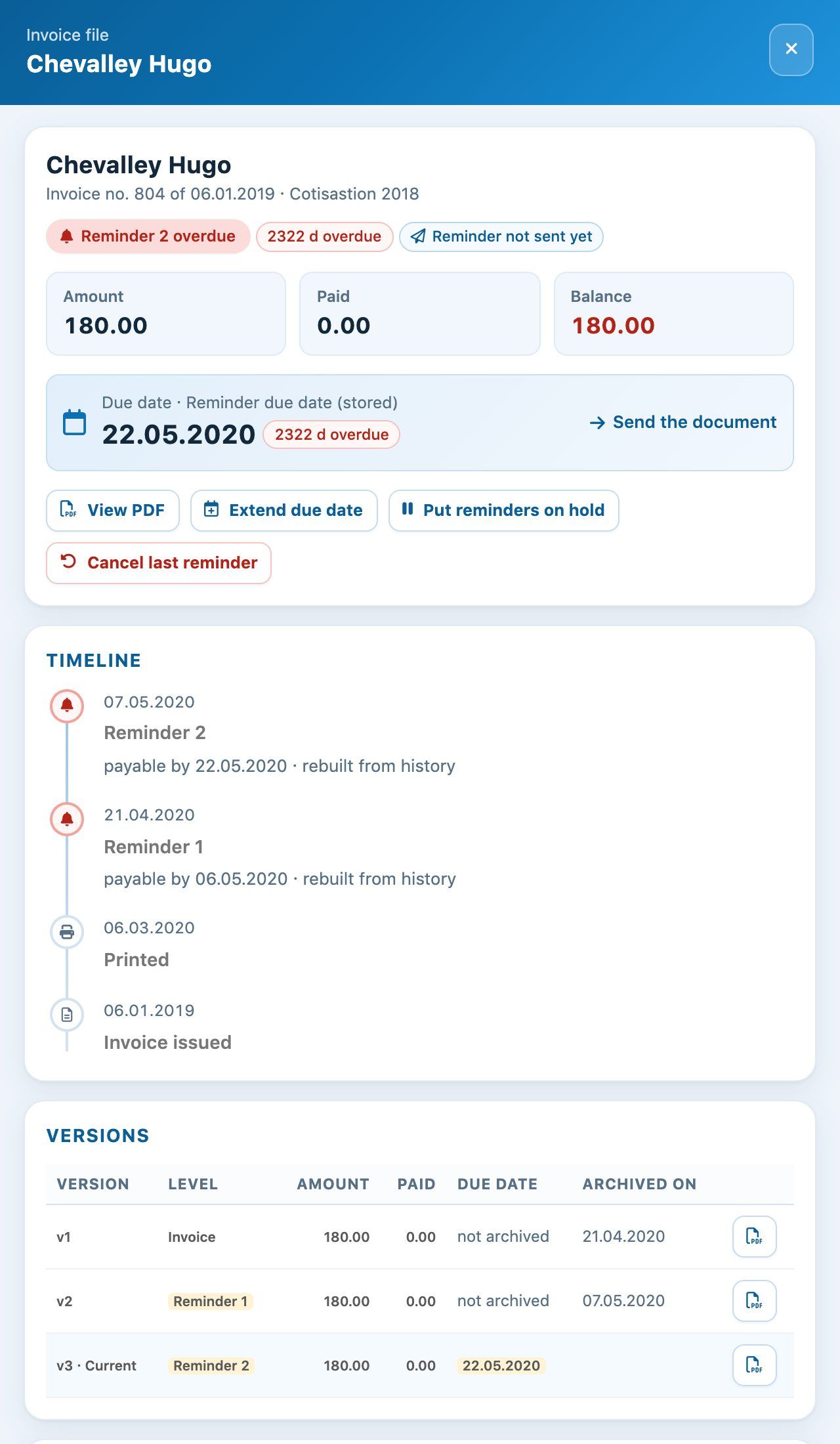
The timeline of an invoice in its file
A member did not receive their invoice?
- Check their e-mail address in their record: a typo is the most frequent cause.
- If needed, correct the address directly on the invoice (pencil, section Sending and reminders), save with Modify invoice, then send it again with the badge Document.
- Ask them to check their junk mail (spam) folder.
- If no e-mail is sent, check the settings in Parameters → Manage e-mail (server, port, username and password) or contact Plugin.ch support.
Copy of the invoice in the member area: in addition to the PDF attached to the e-mail, members find their invoices on the My invoices page of their area. For security reasons, the copy only opens when they are logged in, and its link is only valid for 10 minutes. If a member forwards you an expired invoice link, they see the message "Lien expiré ou invalide": they just need to open the invoice again from My invoices. There is nothing for you to set up.
Good practice: first send an invoice to yourself to check the subject and text, then start sending the group. For reminders, see Manage payment reminders.
Plugin.ch Tutorial — Manage invoices