


Manage sponsors
Add a new sponsor
Record a sponsorship contract, its price and the logo shown on the booking site
Opening the sponsors page
In the left-hand menu, open Members › Manage sponsors. The list shows each contract: logo, sponsor, label on the invoice, price, contract, start, end and invoicing date (Invoiced on).

The list of sponsors and the invoicing buttons
The sponsor is a person in your records (the company or its representative): create them first as a member if they don't exist yet, for example with the "Virtual" gender.
Filling in the panel
Click Add sponsor. In the panel:
- Sponsor and invoicing: in Sponsor name, type a few letters and choose the person invoiced; choose the Name of invoiced item (the accounting item used on the invoice), then the Item name on invoice and the Price per year.
- Contract: dates for Start and End and, if needed, the signed contract (.pdf, .doc, .docx). Without dates, the contract runs from 1 January to 2090.
- Display: the logo (.png, .jpeg, .jpg), the Web site of the sponsor and the switch Is visible on the booking site. A logo is needed for the sponsor to appear.
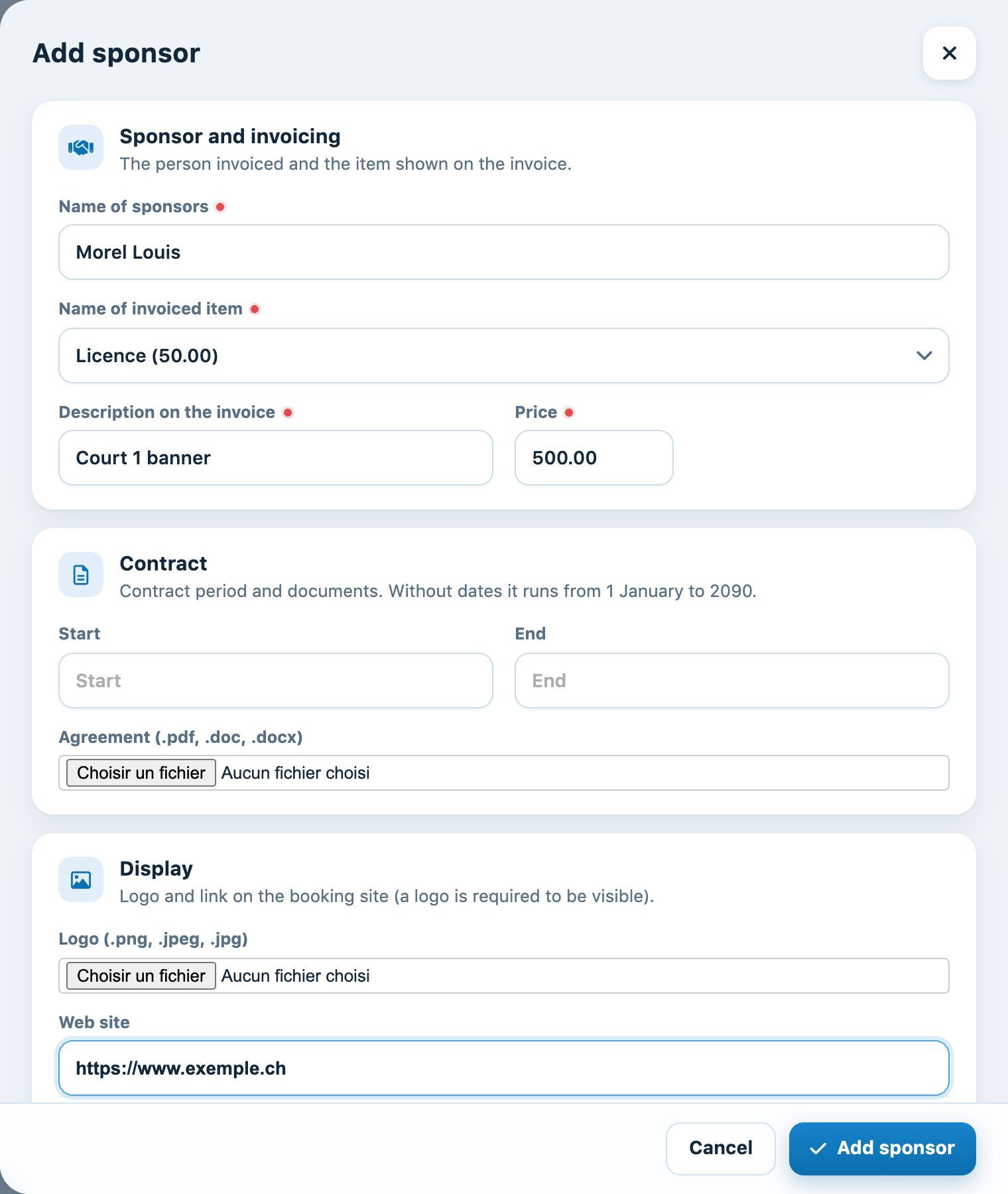
The Add the sponsor panel
Click Add sponsor at the bottom of the panel: the contract appears in the list.
Editing or deleting a sponsor
The pencil at the end of the row opens the same form to change the price, dates, logo or contract; choosing a new file replaces the old one. The bin deletes the sponsor, after confirmation.
💡 Tip
Create in Parameters › Manage invoicing an item dedicated to sponsorship: your sponsorship income will then be booked separately. Annual invoicing is described in the article Invoice sponsors.
Plugin.ch tutorial — Managing sponsors